
STONVUE S11-INC003
STONVUE 6MP Dual Lens Wireless Outdoor Security Camera S11-INC003 User Manual
Model: S11-INC003
1. Introduction
This manual provides detailed instructions for the installation, operation, and maintenance of your STONVUE 6MP Dual Lens Wireless Outdoor Security Camera (Model S11-INC003). This camera is designed to provide comprehensive outdoor surveillance with its unique dual-lens system, offering both a wide panoramic view and a pan-tilt-zoom (PTZ) tracking lens. Key features include 6MP high-definition video, multiple night vision modes, AI human detection with auto-tracking, two-way audio communication, and IP66 weather resistance for reliable outdoor performance.
2. Safety Information
- Ensure the camera is installed in a stable location to prevent falling.
- Use only the provided power adapter to avoid damage or fire.
- Do not expose the camera to extreme temperatures outside its operating range.
- Keep the camera away from strong magnetic fields.
- Do not attempt to disassemble or repair the camera yourself. Contact customer support for assistance.
- Ensure all cables are properly secured and protected from environmental damage.
3. What's in the Box
Verify that all components are present before proceeding with installation:
- STONVUE 6MP Dual Lens Wireless Outdoor Security Camera (S11-INC003)
- Camera Bracket
- Power Adapter
- Mounting Screws and Wall Plugs
- User Manual (this document)

Image: Included components of the STONVUE S11-INC003 camera package. This image displays the camera unit, mounting bracket, power adapter, a bag of screws, and the user manual, illustrating everything a user should find in the box.
4. Product Overview
Familiarize yourself with the camera's components:

Image: The STONVUE S11-INC003 camera, showing its dual lenses, LED lights, and antennas. A smartphone screen next to it displays the live view from the camera, demonstrating its remote monitoring capability.
- Upper Lens (Bullet Camera): Fixed wide-angle lens for panoramic view.
- Lower Lens (Dome Camera): PTZ (Pan/Tilt/Zoom) lens for detailed tracking, offering 355° pan and 90° tilt.
- Infrared LEDs: For black and white night vision.
- White Light LEDs: For full-color night vision and dual-light warning.
- Microphone: For audio input in two-way communication.
- Speaker: For audio output in two-way communication.
- Antennas: For stable 2.4GHz Wi-Fi connectivity.
- MicroSD Card Slot: Supports up to 128GB for local storage.
- Power Port: For connecting the power adapter.
- Reset Button: To restore factory settings.
5. Setup and Installation
5.1 App Download and Account Registration
- Download the "INSEECam" app from your smartphone's app store (iOS App Store or Google Play Store).
- Open the app and follow the on-screen instructions to register a new account.
5.2 MicroSD Card Installation (Optional)
For local video storage, install a MicroSD card (up to 128GB, not included).
- Locate the MicroSD card slot on the camera (typically under a protective cover).
- Gently insert the MicroSD card into the slot until it clicks into place. Ensure the card is oriented correctly.
- Close the protective cover securely to maintain IP66 weather resistance.

Image: A detailed view of the STONVUE S11-INC003 camera's side, highlighting the MicroSD card slot. A 128GB MicroSD card is shown being inserted, indicating the camera's local storage capability.
5.3 Mounting the Camera
The camera is designed for wall mounting. Choose a location that provides the desired viewing angle and is within range of your 2.4GHz Wi-Fi network and a power outlet.
- Mark the drilling points on the wall using the camera bracket as a template.
- Drill holes and insert the wall plugs (if necessary for your wall type).
- Secure the camera bracket to the wall using the provided screws.
- Attach the camera to the bracket, ensuring it is firmly in place.

Image: The STONVUE S11-INC003 camera securely mounted on an exterior wall of a house, demonstrating a typical installation scenario. The camera's dual lenses are visible, along with its two antennas.
5.4 Power Connection
Connect the power adapter to the camera's power port and then plug it into a suitable outdoor power outlet. Ensure the connection is secure and protected from moisture.
5.5 Camera Connection to Network
The camera supports two connection methods: Wi-Fi and network cable.

Image: An illustration depicting the two ways to connect the STONVUE S11-INC003 camera to a network: wirelessly via Wi-Fi and directly via an Ethernet network cable, offering flexibility in installation.
5.5.1 Wi-Fi Connection
- Power on the camera. It will enter pairing mode (indicated by a flashing light or voice prompt).
- Open the INSEECam app, tap "Add Device" or the "+" icon.
- Select your camera model or "Wireless Camera" option.
- Follow the app's instructions to connect to your 2.4GHz Wi-Fi network. You may need to scan a QR code displayed on your phone with the camera.
- Once connected, the camera will confirm with a voice prompt or solid indicator light.
5.5.2 Network Cable Connection (Optional)
- Connect an Ethernet cable from your router to the camera's Ethernet port.
- Power on the camera.
- Open the INSEECam app, tap "Add Device" or the "+" icon.
- Select the "Wired Camera" or "Network Cable Connection" option and follow the app's instructions to add the device.
6. Operating the Camera
6.1 Live View and Playback
- Open the INSEECam app and select your camera from the device list.
- The live view will display both the panoramic (upper) and PTZ (lower) camera feeds. You can switch between views or display them simultaneously.
- To access recorded footage, tap the "Playback" option and select the desired date and time.
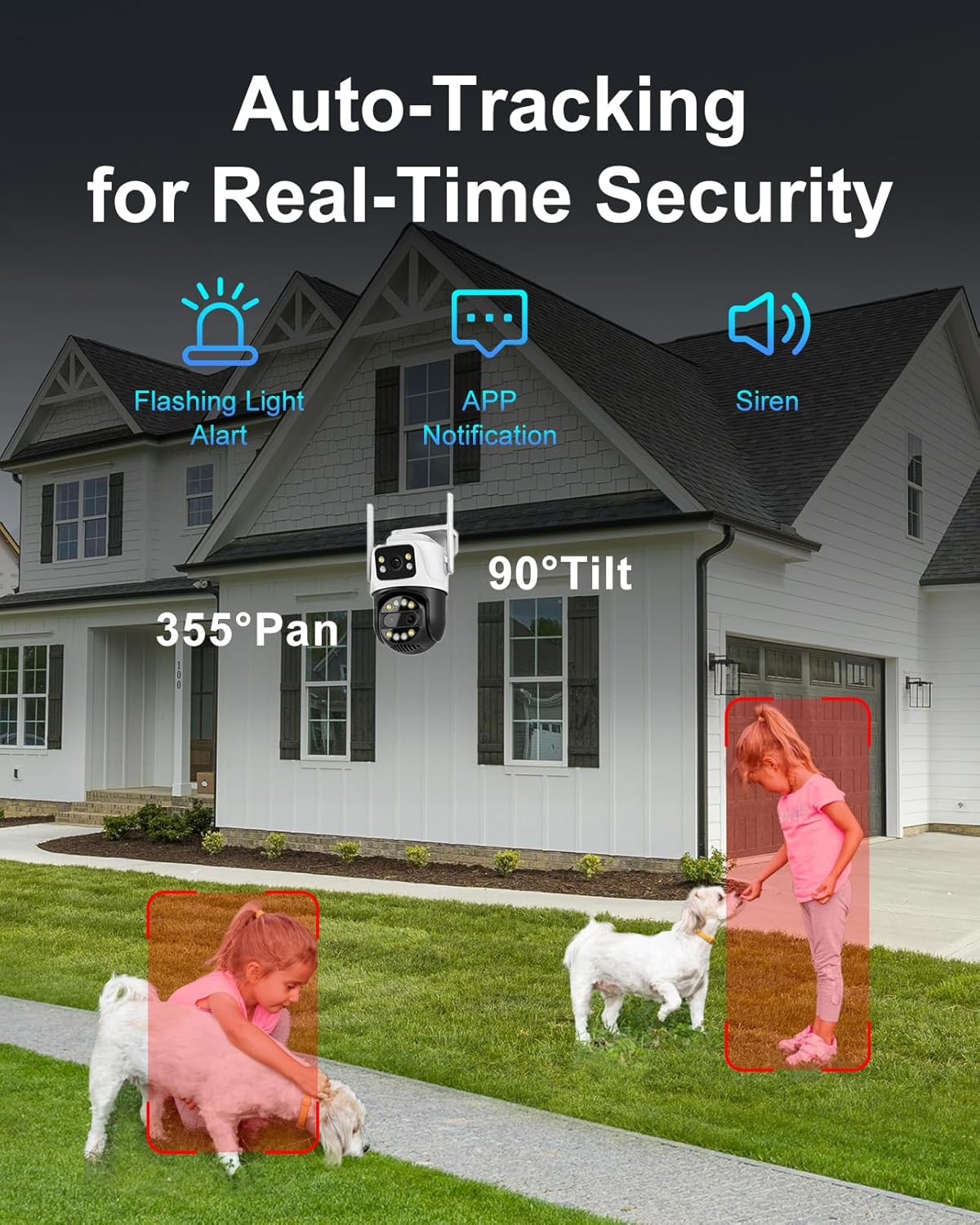
Image: A smartphone displaying the INSEECam app interface, showing simultaneous live feeds from both the bullet and dome lenses of the STONVUE S11-INC003 camera. Controls for pan and tilt are visible, illustrating the dual-lens functionality.
6.2 Pan and Tilt Control
From the live view screen in the app, use the on-screen joystick or swipe gestures to control the 355° pan and 90° tilt of the lower PTZ lens.
6.3 Night Vision Modes
The camera offers three night vision modes, configurable in the app settings:
- Infrared Mode: Provides clear black and white video in low light conditions using IR LEDs.
- Full-Color Mode: Activates white light LEDs to provide color video at night.
- Dual-Light Warning Mode: Combines infrared for general surveillance and activates white lights upon motion detection for a warning and color recording.
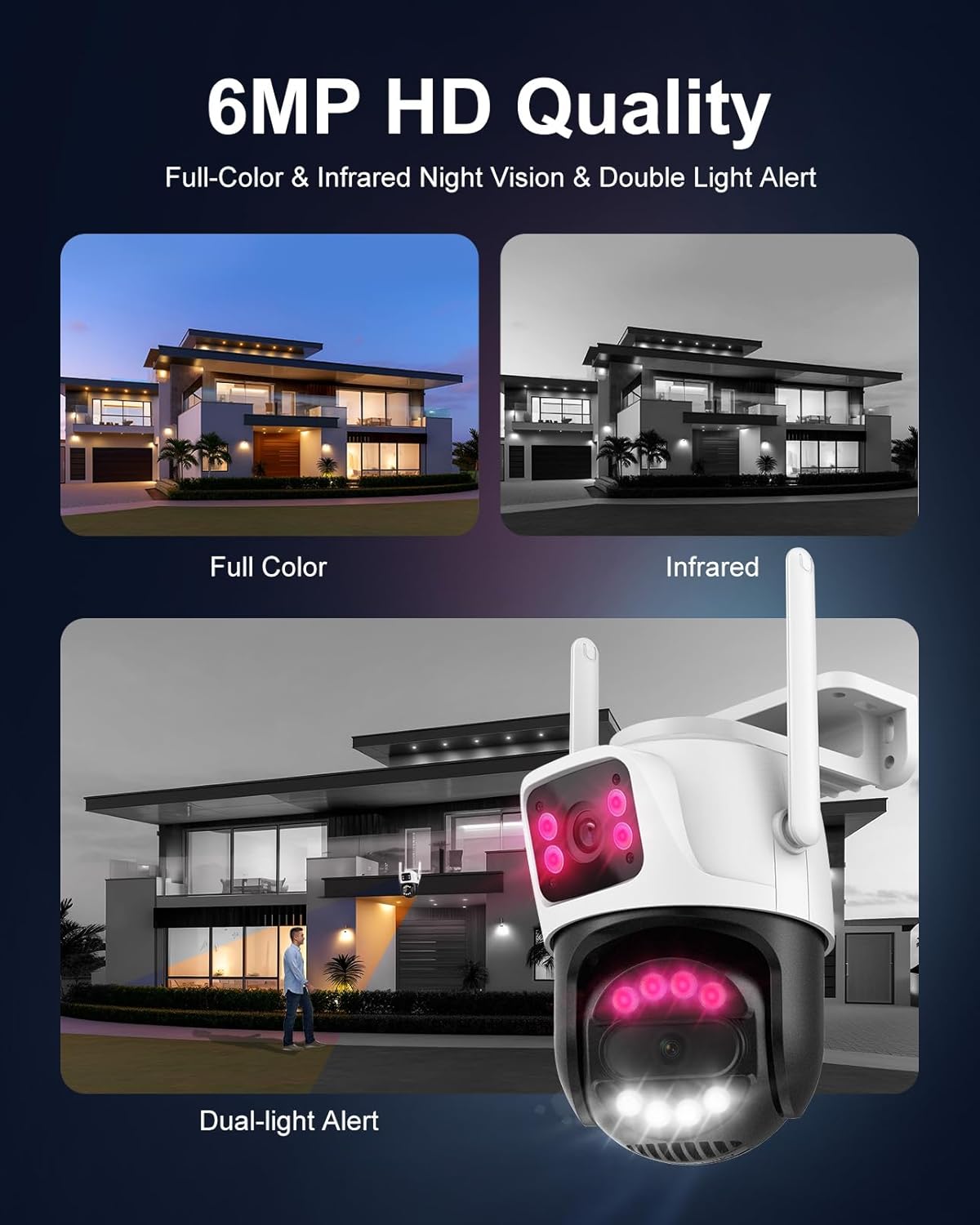
Image: A visual comparison of the three night vision modes available on the STONVUE S11-INC003 camera: Full Color, Infrared, and Dual-light Alert. Each mode is depicted with an example scene, demonstrating their respective visual outputs.
6.4 AI Human Detection & Auto-Tracking
Enable AI human detection in the app settings to receive instant alerts when human motion is detected. The auto-tracking feature will automatically follow detected movement with the PTZ lens, ensuring continuous coverage.

Image: The STONVUE S11-INC003 camera actively tracking a person in a yard, with red boxes indicating detected human figures. Icons for flashing light alert, app notification, and siren illustrate the camera's response capabilities.
6.5 Two-Way Audio
Use the two-way audio feature to communicate with individuals near the camera. Tap the microphone icon in the app to speak, and listen through the camera's speaker.

Image: A scenario demonstrating the two-way audio feature of the STONVUE S11-INC003 camera. A person indoors is speaking into their phone, communicating with a delivery driver at their doorstep, whose image is captured by the camera.
6.6 Customizing Monitoring Zones and Family Sharing
- In the app settings, you can define specific monitoring zones to focus on critical areas and reduce false alerts.
- The app also allows for family sharing, enabling multiple users to access the camera's live feed and recordings.
7. Maintenance
- Cleaning: Periodically clean the camera lenses with a soft, dry cloth to ensure clear image quality. Do not use harsh chemicals.
- Firmware Updates: Check the INSEECam app regularly for firmware updates. Keeping your camera's firmware updated ensures optimal performance and security.
- Storage Management: If using a MicroSD card, regularly review and manage stored footage. The camera typically overwrites the oldest footage when the card is full.
- Power Cable Inspection: Periodically inspect the power cable for any signs of wear or damage, especially in outdoor environments.
8. Troubleshooting
| Problem | Possible Cause | Solution |
|---|---|---|
| Camera fails to connect to Wi-Fi. | Incorrect Wi-Fi password, camera too far from router, 5GHz Wi-Fi network selected. |
|
| No image or black screen in live view. | Camera is offline, power issue, network problem. |
|
| MicroSD card not recognized or recording. | Card improperly inserted, card corrupted, unsupported card size. |
|
| Motion detection is too sensitive or misses events. | Sensitivity settings, monitoring zones not optimized. |
|
| PTZ lens jams or does not move smoothly. | Obstruction, internal issue. |
|
9. Specifications
| Feature | Detail |
|---|---|
| Model Name | S11-INC003 |
| Indoor/Outdoor Usage | Outdoor |
| Video Capture Resolution | 6MP (2592 Effective Video Resolution) |
| Connectivity Technology | Wireless (Wi-Fi) |
| Wi-Fi Frequency | 2.4GHz only |
| Pan/Tilt Range | 355° Pan, 90° Tilt |
| Night Vision Modes | Color, Infrared, Smart Night Vision (Dual-Light) |
| Night Vision Range | Up to 66 Feet |
| Human Detection | AI Human Detection with Auto Tracking |
| Audio | Two-Way Audio (Built-in Microphone and Speaker) |
| Storage | MicroSD Card (up to 128GB), Cloud Storage (subscription may be required) |
| Weather Resistance | IP66 Waterproof |
| Power Source | Corded Electric (12 Volts, 24 Watts) |
| Material | Acrylonitrile Butadiene Styrene (ABS) |
| Dimensions (L x W x H) | 3.06 x 3.15 x 2.34 inches |
| Item Weight | 1.21 pounds |
| Frame Rate | 20 frames per second |
| Video Encoding | H.265AI |
| Control Method | App (INSEECam) |
10. Warranty and Support
For warranty information, please refer to the warranty card included with your product or visit the official STONVUE website. If you encounter any issues or have questions not covered in this manual, please contact STONVUE customer support through the INSEECam app or the contact information provided on the STONVUE website.
You can also visit the STONVUE Store on Amazon for additional product information and support resources.
Ask a question about this manual
Ask about setup, troubleshooting, compatibility, parts, safety, or missing instructions. Manuals+ will review the question and use this page’s manual context to help answer it.