
Dual Electronics XRM69BT
Dual XRM69BT Single DIN Car Stereo Radio Instruction Manual
Model: XRM69BT
Introduction
This manual provides detailed instructions for the installation, operation, and maintenance of your Dual XRM69BT Single DIN Car Stereo Radio. Please read this manual thoroughly before using the product to ensure proper functionality and safety. The XRM69BT features a 7-character LCD display, Bluetooth for hands-free calling and music streaming, AM/FM radio, USB playback and charging, and voice assistant integration.
What's in the Box
Upon opening the package, verify that all the following items are included:
- Car Stereo Unit
- Power Harness
- Radio Removal Keys (2)

Image: Included accessories, showing the radio removal keys and the power harness.
Key Features
- 7-Character High Resolution LCD: Provides clear display of information.
- Siri / Google Voice Assist Button: Activate your smartphone's voice assistant for commands.
- Built-in Bluetooth: Enables hands-free calling and wireless music streaming.
- Music Streaming Options: MP3/WMA player, AM/FM tuner with 30 presets (18 FM/12 AM), and a USB port for playback and device charging.
- Customizable Audio Settings: 2-band tone control (bass/treble) and 4 preset EQ curves (Pop, Jazz, Rock, Flat).
- Slim Depth Chassis: Designed for easier installation in various vehicle dashboards.

Image: Front view of the XRM69BT unit highlighting its 200 Watts output, 7-character LCD, USB input, and charging capability.
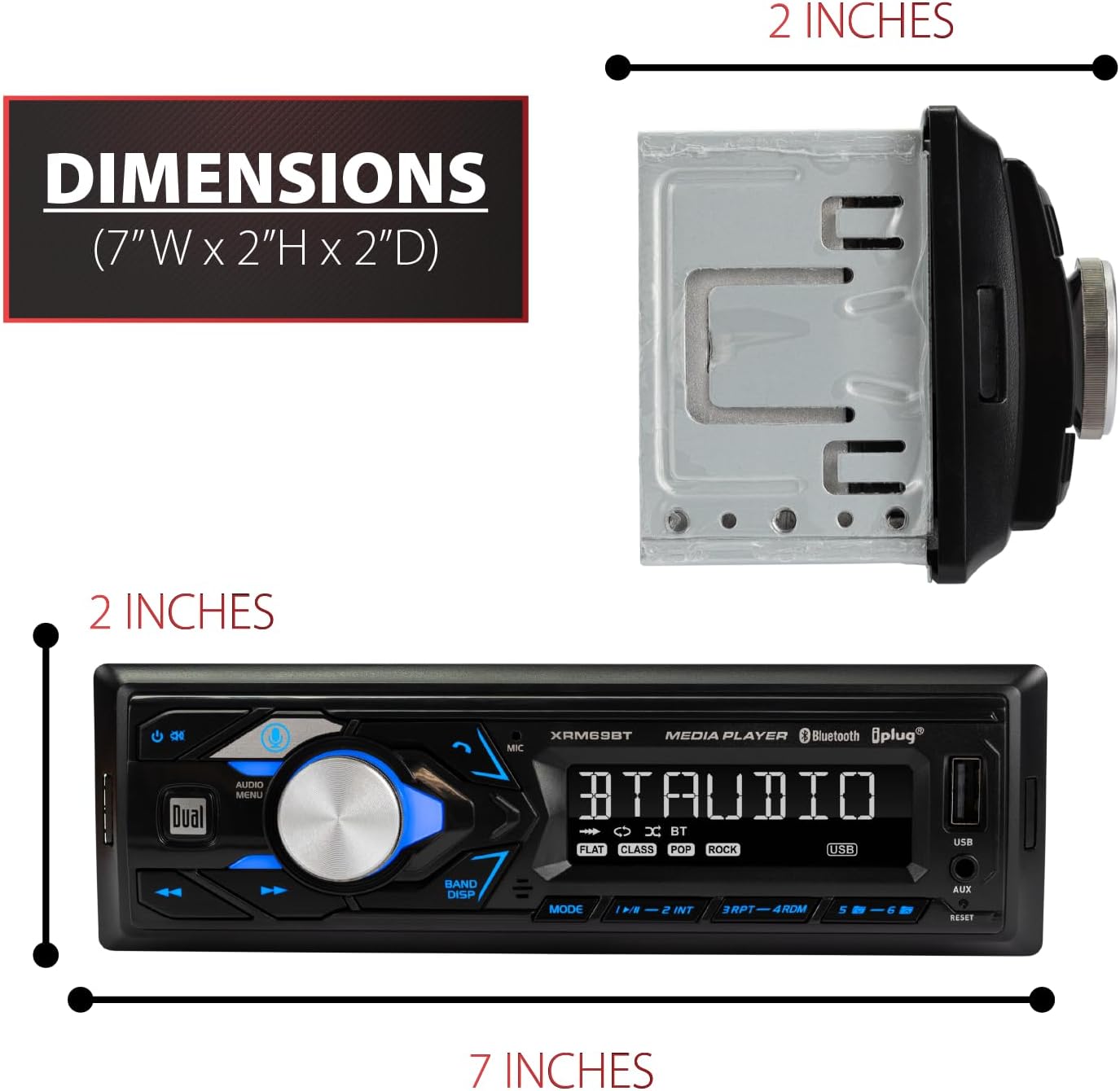
Image: Diagram showing the compact dimensions of the XRM69BT car stereo.
Setup and Installation
Proper installation is crucial for optimal performance. If you are unsure about any steps, consult a professional car audio installer.
Wiring Connections
Before making any connections, disconnect the vehicle's negative battery terminal to prevent electrical shorts. Refer to your vehicle's wiring diagram for specific wire colors and functions.
- Power Harness: Connect the included power harness to the corresponding wires in your vehicle's wiring harness. Ensure correct connections for constant power (yellow), accessory power (red), and ground (black).
- Speaker Wires: Connect the speaker wires from the power harness to your vehicle's speakers. Pay attention to positive and negative terminals for each speaker.
- AM/FM Antenna: Connect your vehicle's AM/FM antenna to the designated input on the rear of the stereo.
- RCA Preamp Outputs: If using external amplifiers, connect RCA cables from the stereo's RCA preamp outputs to your amplifier's inputs.

Image: Rear panel of the XRM69BT unit, indicating connection points for the AM/FM antenna, power harness, and RCA preamp outputs.
Mounting the Unit
Once wiring is complete, slide the stereo into the mounting sleeve until it locks into place. Use the provided removal keys to extract the unit if needed.
Operating Instructions
Power On/Off
Press the Power/Mode button (usually the large knob) to turn the unit on. Press and hold to turn it off.
Bluetooth Operation
The XRM69BT features built-in Bluetooth for wireless audio streaming and hands-free calling.
- Pairing: Ensure Bluetooth is enabled on your smartphone. Select "XRM69BT" from the list of available devices. A confirmation tone will sound upon successful pairing.
- Music Streaming: Once paired, audio from your smartphone will stream wirelessly to the stereo. Use the stereo controls or your phone to manage playback.
- Hands-Free Calling: When a call comes in, the stereo will display the caller ID. Press the Call button to answer or hold to reject.

Image: Demonstrates Bluetooth connectivity for audio streaming and hands-free calling with a smartphone.
USB Playback and Charging
Insert a USB drive containing MP3 or WMA audio files into the front USB port. The unit will automatically switch to USB mode and begin playback. The USB port also provides 1A charging for compatible devices.
AM/FM Radio
Press the Mode button to select AM or FM radio. Use the Tune buttons to manually tune or press and hold for automatic seek. Save your favorite stations using the preset buttons.
Voice Assistant Activation
Press the dedicated Push to Talk button on the front panel to activate your smartphone's voice assistant (Siri or Google Assistant). This allows for voice commands for navigation, music, and more.
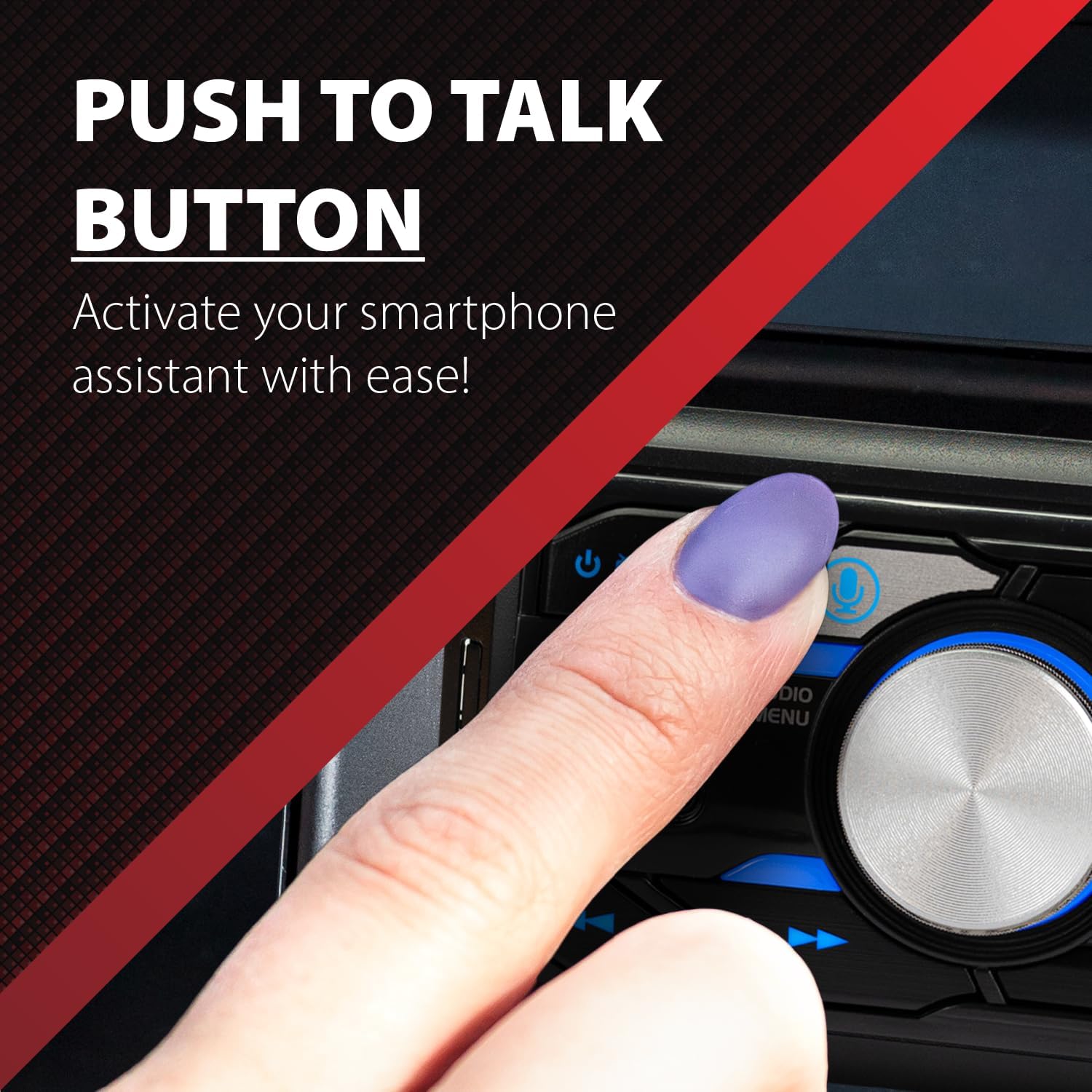
Image: Close-up of the stereo's front panel, showing the Push to Talk button for voice assistant activation.
Audio Settings
Access the audio menu to adjust settings such as bass, treble, balance, and fader. Select from four preset EQ curves: Pop, Jazz, Rock, and Flat to optimize your listening experience.
iPlug Smart Remote App
Control your XRM69BT directly from your smartphone using the Dual iPlug Smart Remote App. The app allows you to manage radio, USB, Bluetooth, and AUX functions.
Video: Demonstrates the features and operation of the Dual XRM69BT Single DIN Digital Media Receiver with Bluetooth, including slim depth chassis, voice activation, USB input, 7-character LCD, EQ presets, AUX input, and iPlug Smart Remote App.
Maintenance
- Cleaning: Use a soft, dry cloth to clean the unit's display and buttons. Avoid abrasive cleaners or solvents.
- Temperature: Do not expose the unit to extreme temperatures or direct sunlight for extended periods.
- Connections: Periodically check all wiring connections to ensure they are secure.
Troubleshooting
| Problem | Possible Cause | Solution |
|---|---|---|
| No Power | Blown fuse; incorrect wiring; vehicle battery issue. | Check vehicle fuses and the stereo's fuse. Verify power harness connections. Check vehicle battery. |
| No Sound | Volume too low; mute activated; incorrect speaker wiring; amplifier issue (if applicable). | Increase volume. Deactivate mute. Check speaker connections. Verify external amplifier is powered on. |
| Bluetooth Not Connecting | Bluetooth not enabled on phone/stereo; device not in pairing mode; interference. | Ensure Bluetooth is active on both devices. Put stereo in pairing mode. Move closer to the stereo. Delete previous pairings and re-pair. |
| USB Playback Error | Unsupported file format; corrupted USB drive; loose connection. | Ensure files are MP3/WMA. Try a different USB drive. Check USB connection. |
Specifications
| Feature | Detail |
|---|---|
| Brand | Dual Electronics |
| Model Number | XRM69BT |
| Connectivity Technology | Bluetooth, USB |
| Controller Type | Google Assistant, Siri, App, Push Button, Touch, Voice |
| Special Features | Built-In Bluetooth, Equalizer, Hands-Free Calling, Music Streaming, Voice Control |
| Compatible Devices | Smartphone |
| Connector Type | USB Type A |
| Audio Output Mode | Stereo |
| Output Power | 200 Watts (Peak) |
| Wattage | 50 watts (RMS per channel, typically 4 channels) |
| Number of Channels | 2 (RCA Preamp) |
| Audio Format Support | MP3 Audio, WMA |
| GTIN / UPC | 827204122266 |
Warranty and Support
Warranty Information
The Dual XRM69BT comes with a 1-year standard warranty. Register your product on Dualav.com to extend your warranty to 2 years.

Image: Information regarding the 2-year warranty and local design/support for Dual products.
Customer Support
For technical assistance, troubleshooting, or warranty claims, please visit the official Dual Electronics website or contact their customer support directly. Refer to the product packaging or official website for the most current contact information.
Related documentsXRM69BT


Ask a question about this manual
Ask about setup, troubleshooting, compatibility, parts, safety, or missing instructions. Manuals+ will review the question and use this page’s manual context to help answer it.