
1. Introduction
This manual provides detailed instructions for the XBG B15pro Wireless Bluetooth Mouse. This device offers versatile connectivity options, an ergonomic design, and an intuitive LED display for enhanced user experience.
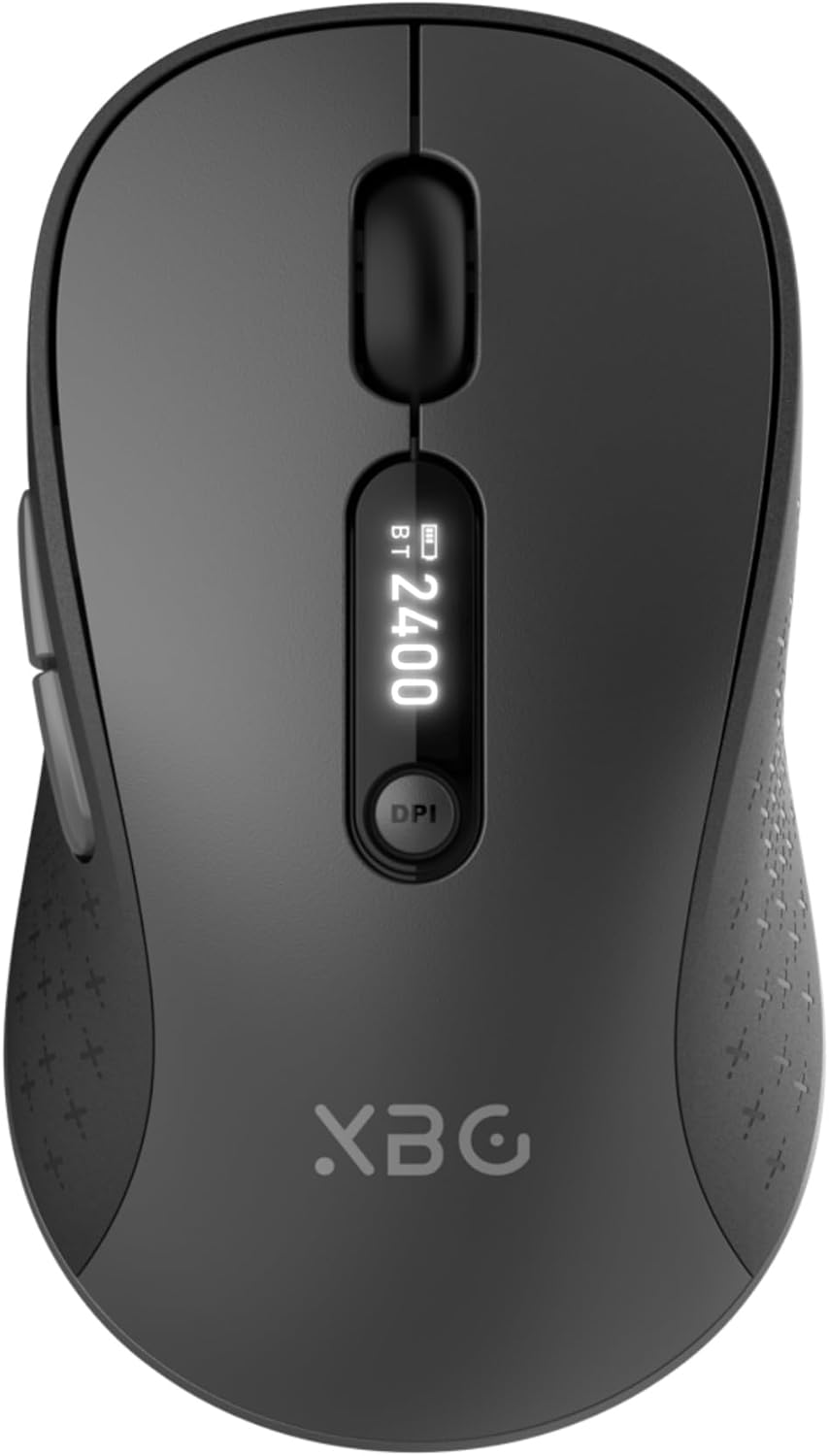
Image 1.1: The XBG B15pro Wireless Bluetooth Mouse, showcasing its sleek design and LED display.
Package Contents:
- 1 x XBG B15pro Wireless Bluetooth Mouse
- 1 x USB Charging Cable (Type-C)
- 1 x USB Receiver (2.4G)
- 1 x User Manual
2. Product Features
- Tri-Mode Connectivity: Supports Bluetooth 5.0, Bluetooth 4.0, and 2.4GHz wireless connections, allowing seamless switching between up to three devices.
- LED Screen Display: Provides real-time information on battery percentage, DPI level, and current connection mode.
- Adjustable DPI: Five adjustable DPI levels (800/1000/1200/1600/2400) for precise cursor control.
- Rechargeable Battery: Built-in 500 mAh lithium polymer battery, rechargeable via Type-C port.
- Silent Click Buttons: Main left and right buttons feature silent click technology, reducing noise in quiet environments.
- Ergonomic Design: Contoured shape with a thumb rest and arched palm support for comfortable use during extended periods.
- Multi-Surface Compatibility: Operates effectively on various surfaces including resin, wood, fabric, paper, and metal.

Image 2.1: The XBG B15pro mouse designed for multi-device use, highlighting its wireless capabilities.

Image 2.2: The ergonomic contour of the XBG B15pro mouse, designed for comfortable hand fit.
3. Setup
3.1 Charging the Mouse
Before first use, or when the battery indicator on the LED screen shows low power, charge the mouse using the provided Type-C USB cable. Connect the cable to the mouse's Type-C port and a USB power source (e.g., computer USB port, USB wall adapter).

Image 3.1: The XBG B15pro mouse connected for charging via its Type-C port.
3.2 Connecting the Mouse
The XBG B15pro mouse supports three connection modes: 2.4GHz wireless (via USB receiver) and two Bluetooth channels (BT1, BT2). The mode switch is located on the bottom of the mouse.

Image 3.2: The underside of the XBG B15pro mouse, showing the ON/OFF switch, mode switch button, and USB receiver storage.
2.4GHz Wireless Connection:
- Locate the USB receiver stored in the bottom compartment of the mouse.
- Plug the USB receiver into an available USB port on your computer.
- Turn on the mouse using the ON/OFF switch on the bottom.
- Press the Mode Switch button on the bottom until the LED indicator shows a Red Light, indicating 2.4G mode. The mouse should connect automatically.
Bluetooth Connection (BT1 / BT2):
- Turn on the mouse using the ON/OFF switch on the bottom.
- Press the Mode Switch button on the bottom to select either BT1 (Blue Light) or BT2 (Green Light).
- Press and hold the Mode Switch button for 3-5 seconds until the corresponding Bluetooth indicator light (blue or green) starts flashing rapidly. This indicates pairing mode.
- On your device (laptop, tablet, PC), go to Bluetooth settings and search for new devices.
- Select "XBG B15pro" from the list of available devices to pair.
- Once paired, the indicator light will stop flashing and remain solid.

Image 3.3: Illustration of the XBG B15pro mouse connecting to multiple devices via 2.4G and Bluetooth modes.
4. Operating Instructions
4.1 LED Screen Display
The integrated LED screen provides essential information at a glance:
- Battery Percentage: Shows the current battery level.
- DPI Level: Displays the active DPI setting (800/1000/1200/1600/2400).
- Connection Mode: Indicates the active connection (2.4G, BT1, or BT2).
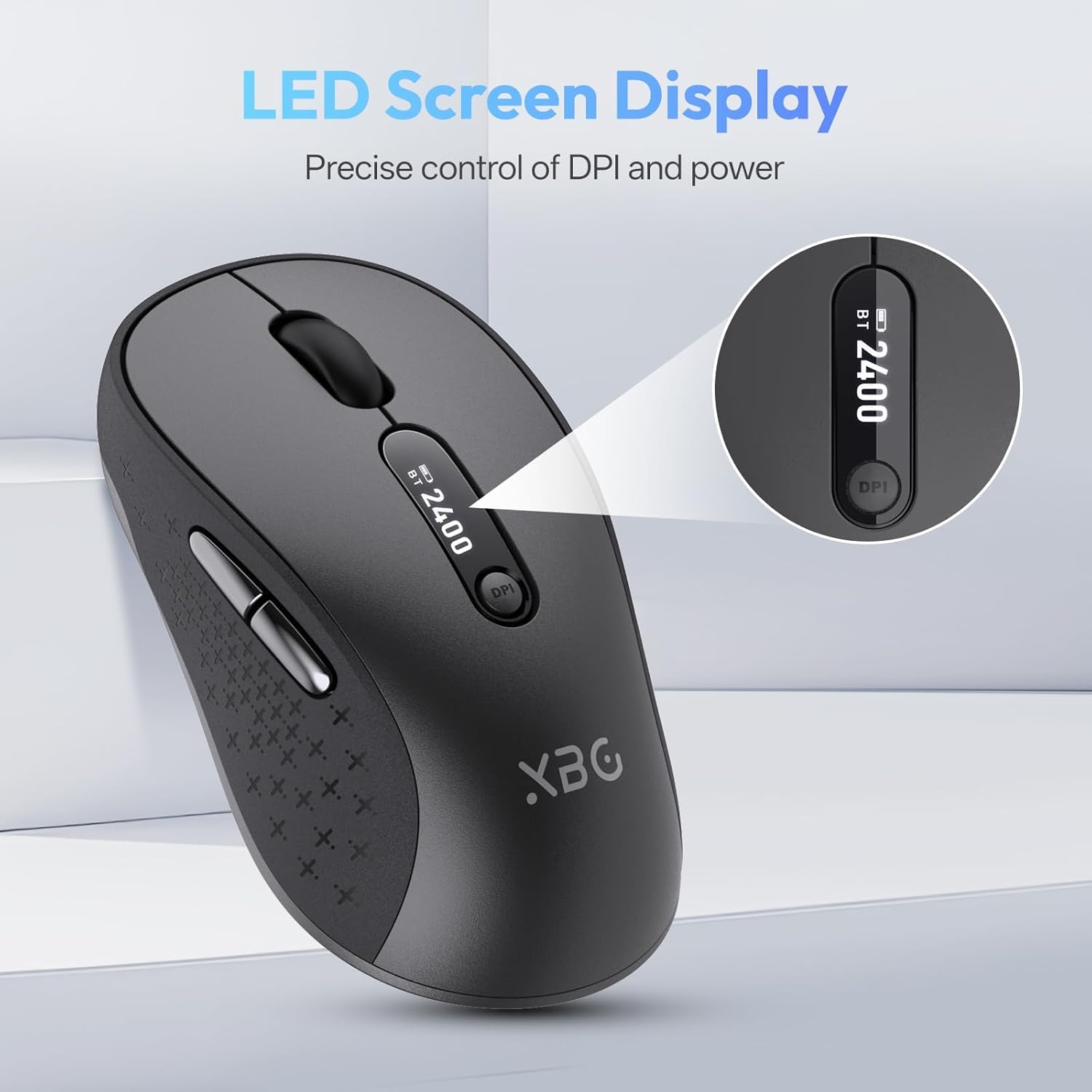
Image 4.1: A detailed view of the mouse's LED screen, showing battery, DPI, and connection status.
4.2 DPI Adjustment
Press the DPI button located below the scroll wheel to cycle through the five available DPI settings (800, 1000, 1200, 1600, 2400). The current DPI level will be displayed on the LED screen.
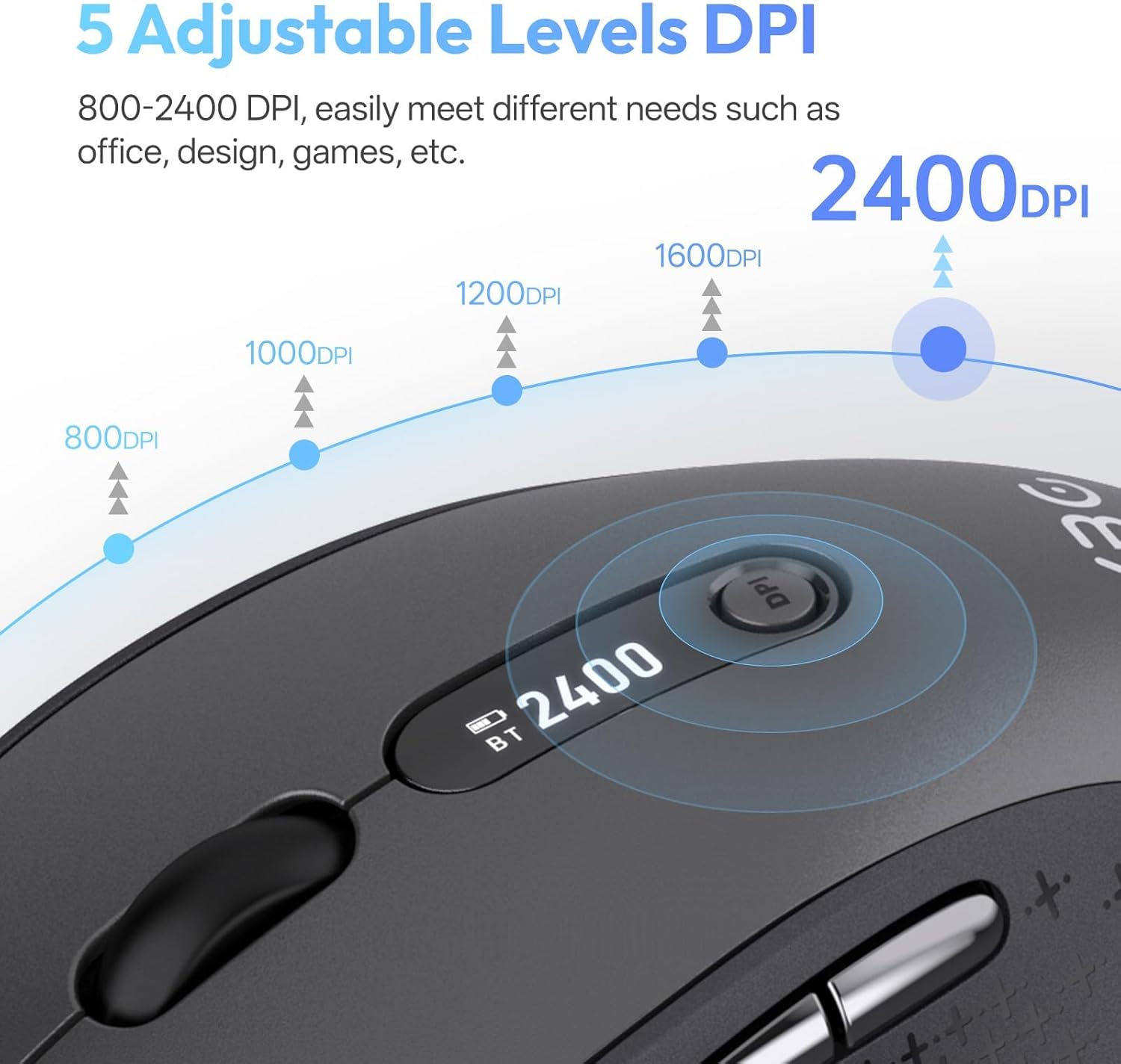
Image 4.2: Visual representation of the five adjustable DPI levels and how to change them.
4.3 Silent Click Functionality
The main left and right click buttons are designed for silent operation, providing a tactile click feel without audible noise. This feature is ideal for environments requiring minimal disturbance.

Image 4.3: A user operating the XBG B15pro mouse, illustrating its silent click feature in a quiet setting.
4.4 Automatic Sleep Mode
To conserve battery, the mouse will automatically enter sleep mode after 5 minutes of inactivity. To wake the mouse, simply move it or click any button.
5. Maintenance
5.1 Battery Care
- Charge the mouse fully before first use.
- Avoid completely draining the battery frequently to prolong its lifespan.
- Use the provided Type-C cable for charging.
- When not in use for extended periods, turn off the mouse using the ON/OFF switch on the bottom to prevent battery discharge.

Image 5.1: The XBG B15pro mouse being charged, illustrating its fast charging capability and long-lasting battery.
5.2 Cleaning
Wipe the mouse with a soft, damp cloth. Avoid using harsh chemicals or abrasive materials that could damage the surface.
6. Troubleshooting
- Mouse not responding:
- Ensure the mouse is turned ON.
- Check the battery level on the LED screen and charge if necessary.
- Verify the correct connection mode (2.4G, BT1, BT2) is selected and properly paired.
- For 2.4G mode, ensure the USB receiver is securely plugged into the computer.
- For Bluetooth mode, ensure Bluetooth is enabled on your device and re-pair if connection is lost.
- Cursor movement is erratic or slow:
- Adjust the DPI setting using the DPI button.
- Ensure the mouse is used on a clean, suitable surface.
- Mouse disconnects frequently:
- Ensure the mouse is within the effective range of your device (typically 10 meters for Bluetooth/2.4G).
- Minimize interference from other wireless devices.
- Check battery level.
- Mouse does not automatically enter sleep mode:
- While the mouse has an automatic sleep feature, it is recommended to manually turn off the mouse via the ON/OFF switch when not in use for extended periods to ensure maximum battery conservation.
7. Specifications
| Feature | Specification |
|---|---|
| Model Number | B15 pro |
| Connectivity Technology | Bluetooth 5.0/4.0, 2.4GHz Wireless |
| Movement Detection | Optical |
| DPI Levels | 800, 1000, 1200, 1600, 2400 |
| Battery Type | 1 Lithium Polymer (500 mAh, included) |
| Charging Port | Type-C |
| Product Dimensions | 4.55 x 2.83 x 0.04 inches (11.56 x 7.19 x 0.1 cm) |
| Item Weight | 2.65 ounces (75 grams) |
| Special Features | Ergonomic Design, Portable, Silent Click, LED Screen Display |

Image 7.1: A guide for recommended mouse size based on palm length and width.
8. Warranty and Support
XBG offers a satisfaction guarantee for the B15pro Wireless Bluetooth Mouse.
- 30-Day Return Policy: If you are not satisfied with the product, you may return it within 30 days of purchase.
- 1-Year Replacement Warranty: The product is covered by a 1-year replacement warranty for manufacturing defects.
For further assistance or support, please refer to the contact information provided with your purchase or visit the official XBG website.


