
1. Introduction
The HansPilot NCP0039 CarBitLink Adapter is designed to convert your car's existing wired CarBitLink, Easy Connect, or Phonelink system into a wireless CarPlay or Android Auto experience. This device allows for seamless integration of your smartphone's features onto your car's infotainment display without the need for a physical cable connection after initial setup.

Image 1.1: The HansPilot NCP0039 CarBitLink Adapter and its functionality displayed on a car's infotainment screen.
2. Safety Information
Caution:
This product uses wireless technology and contains a battery. To avoid potential interference with other devices, keep a safe distance from medical devices and follow battery handling and disposal guidelines. Do not expose the product to extreme temperatures or humidity.
3. Product Overview
The NCP0039 adapter offers enhanced performance and convenience for in-car smartphone integration. Key features include:
- High Performance: Equipped with 8GB ROM for improved speed and stability.
- Fast Connection: Achieves a connection in approximately 3 seconds.
- Dual Wi-Fi Support: Supports 2.4G and 5G Wi-Fi for faster data transmission and reduced network congestion.
- OTA Updates: Allows for over-the-air software updates to optimize functions, fix faults, and enhance user experience.

Image 3.1: Visual representation of the NCP0039's key advantages, including hardware specifications and connectivity features.
4. Compatibility
This adapter is compatible with various car brands that feature Carbitlink, PhoneLink, or Easy Connection applications on their original infotainment screens. It supports a wide range of Chinese car brands.
4.1 Supported Car Brands
The HansPilot CarBitLink Box is designed to work with cars from brands such as Jetour, Baic, Changan Auto, Bestune, Geely, Livian, Soueast, Maxus, Hongqi, Forthing, DFM, JAC Motors, Kaiyi, GAC Motor, Chery, and Saipa, provided they have the Carbitlink, PhoneLink, or Easy Connection app installed.

Image 4.1: A visual guide to car brands compatible with the HansPilot CarBitLink Box.
4.2 Version Requirements
To ensure compatibility, verify the version of your car's Carbitlink, Easy Connection, or Phonelink application. Follow these steps to check your version:
- Press the Carbitlink, Easy Connection, or Phonelink icon on your car's screen.
- Press the setting button on the top corner.
- Press 'About' to enter the version menu.
- The version displayed (e.g., TW12 (2412), 6.9-9cXXX) indicates your car brand. A version of 6.9 or higher is generally compatible.
Note: Versions 5.2, DX8S, X90, X70 are generally compatible. Versions above 6.0 are compatible with brands like HongQi and Geely. Version 5.1 is typically not compatible (e.g., with CS35, GX3).

Image 4.2: Instructions for checking your car's Carbitlink version and a guide to version compatibility.
5. Setup Instructions
Follow these steps to connect your HansPilot NCP0039 adapter and enable wireless CarPlay or Android Auto:
- Plug the Adapter: Insert the NCP0039 adapter into your car's USB data port. Ensure it is a data USB port, not a charging-only USB port.
- Access Carbitlink: On your car's monitor, press the Carbitlink, Easy Connect, or SmartLink application icon.
- Pair with Phone: On your iPhone or Android phone, enable Bluetooth and search for the device named "Carplay&Auto_XXXX". Select it to pair.
- Connect Car Bluetooth: To enable audio output through your car's speakers, connect your iPhone or Android phone to your car's Bluetooth system.
- Enjoy: Once connected, CarPlay or Android Auto will launch wirelessly on your car's screen.

Image 5.1: Detailed steps for connecting the HansPilot NCP0039 adapter.
6. Operating Instructions
Once the adapter is successfully set up, your car's display will show the CarPlay or Android Auto interface. You can now access your phone's compatible applications directly from your car's screen.
- Navigation: Use apps like Google Maps, Waze, or other navigation services.
- Music & Media: Stream music from Spotify, Apple Music, or other media players.
- Communication: Make calls, send messages, and use voice assistants.
- Voice Control: Utilize Siri or Google Assistant for hands-free operation.
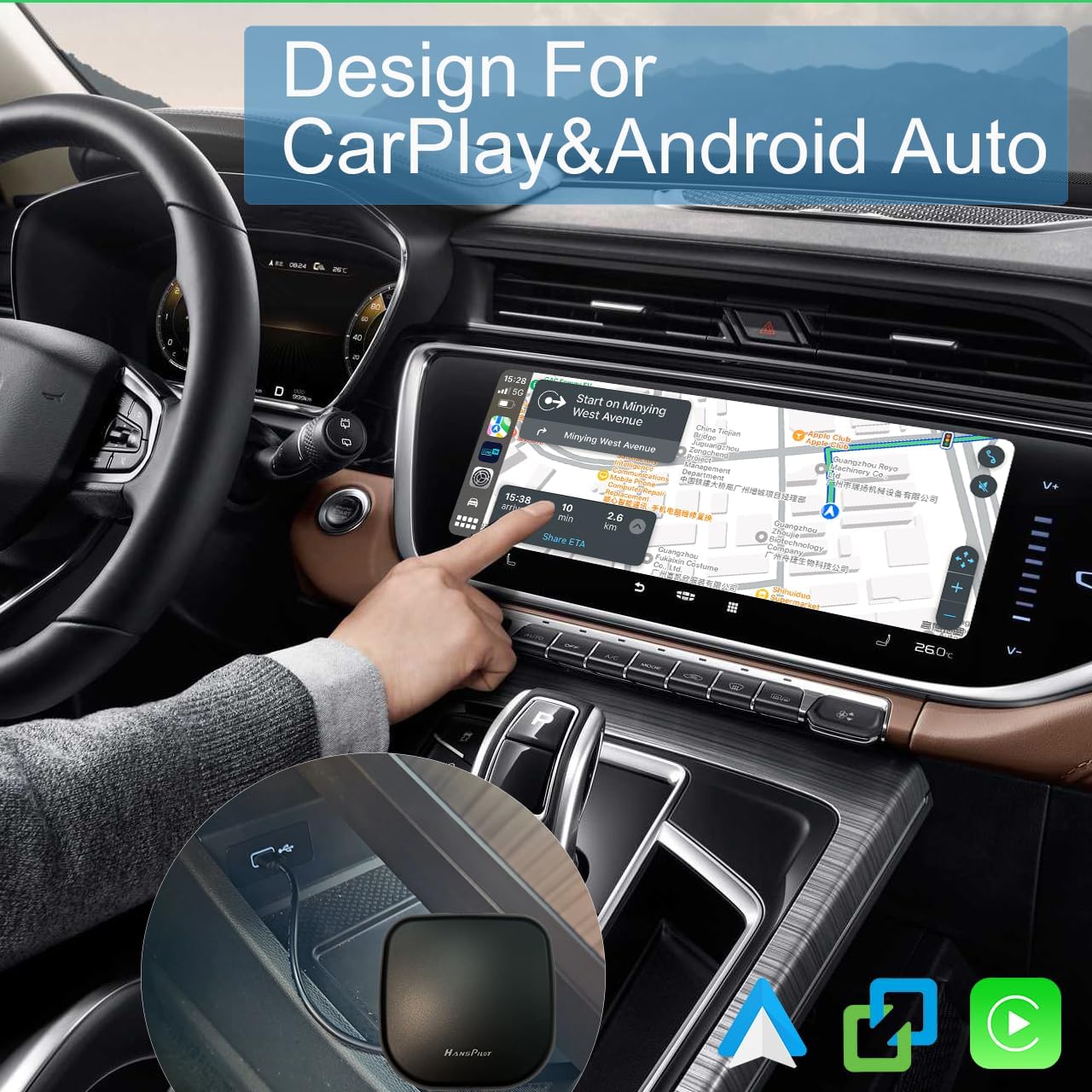
Image 6.1: The adapter installed in a car, demonstrating the CarPlay interface on the vehicle's display.

Image 6.2: An example of the CarPlay interface in use, displaying navigation and media controls.
7. Troubleshooting
If you encounter issues with your HansPilot NCP0039 adapter, consider the following:
- No Automatic Connection: If the device does not connect automatically, try restarting your car's infotainment system or re-pairing the device via Bluetooth. Some users have reported that updating the device firmware resolved this issue.
- No Sound: Ensure your phone is connected to your car's Bluetooth for audio output. The adapter handles the display, while car Bluetooth handles audio.
- Device Not Recognized: Verify that the adapter is plugged into a USB data port, not just a charging port. Check your car's Carbitlink/Easy Connect application version for compatibility (refer to Section 4.2).
- Slow Connection/Performance: Ensure the adapter has the latest firmware via OTA updates (refer to Section 3).
- Intermittent Disconnections: Check for potential wireless interference. Ensure your phone's operating system and the adapter's firmware are up to date.
8. Specifications
| Feature | Specification |
|---|---|
| Model | NCP0039 |
| Brand | HansPilot |
| Connectivity Technology | Bluetooth, USB, Wireless |
| Special Features | Android Auto, Easy Connect, Phonelink, Smartlink, Wireless Carplay |
| Power Source | USB Powered |
| Material | Plastic |
| Item Weight | 5 ounces |
| Package Dimensions | 6.93 x 5.2 x 1.34 inches |
9. Maintenance
To ensure the longevity and optimal performance of your HansPilot NCP0039 adapter:
- Keep the device clean and free from dust. Use a soft, dry cloth for cleaning.
- Avoid exposing the adapter to extreme temperatures, direct sunlight, or high humidity.
- Do not attempt to disassemble or repair the device yourself. This may void the warranty and cause damage.
- Ensure the USB port in your car is clean and free of debris before inserting the adapter.
10. Warranty and Support
For warranty information and technical support, please refer to the documentation provided with your purchase or contact HansPilot customer service directly. Keep your proof of purchase for warranty claims.