
XMCOSY+ XMSCH-22
XMCOSY+ Smart Outdoor String Lights User Manual (Model XMSCH-22)
Detailed instructions for setup, operation, maintenance, and troubleshooting.
1. Introduction
Thank you for choosing the XMCOSY+ Smart Outdoor String Lights. This manual provides essential information for the safe and efficient use of your new string lights. Please read it thoroughly before installation and operation, and retain it for future reference.

Image: XMCOSY+ Smart Outdoor String Lights displaying various colors, with a hand holding a smartphone showing the app control interface.
2. Package Contents
Verify that all items listed below are included in your package:
- 1 x 72.5Ft String Lights with 22 Bulbs
- 1 x Smart Controller/Adapter
- 2 x Spare LED Cobs
- 24 x Ties
- 11 x Hooks
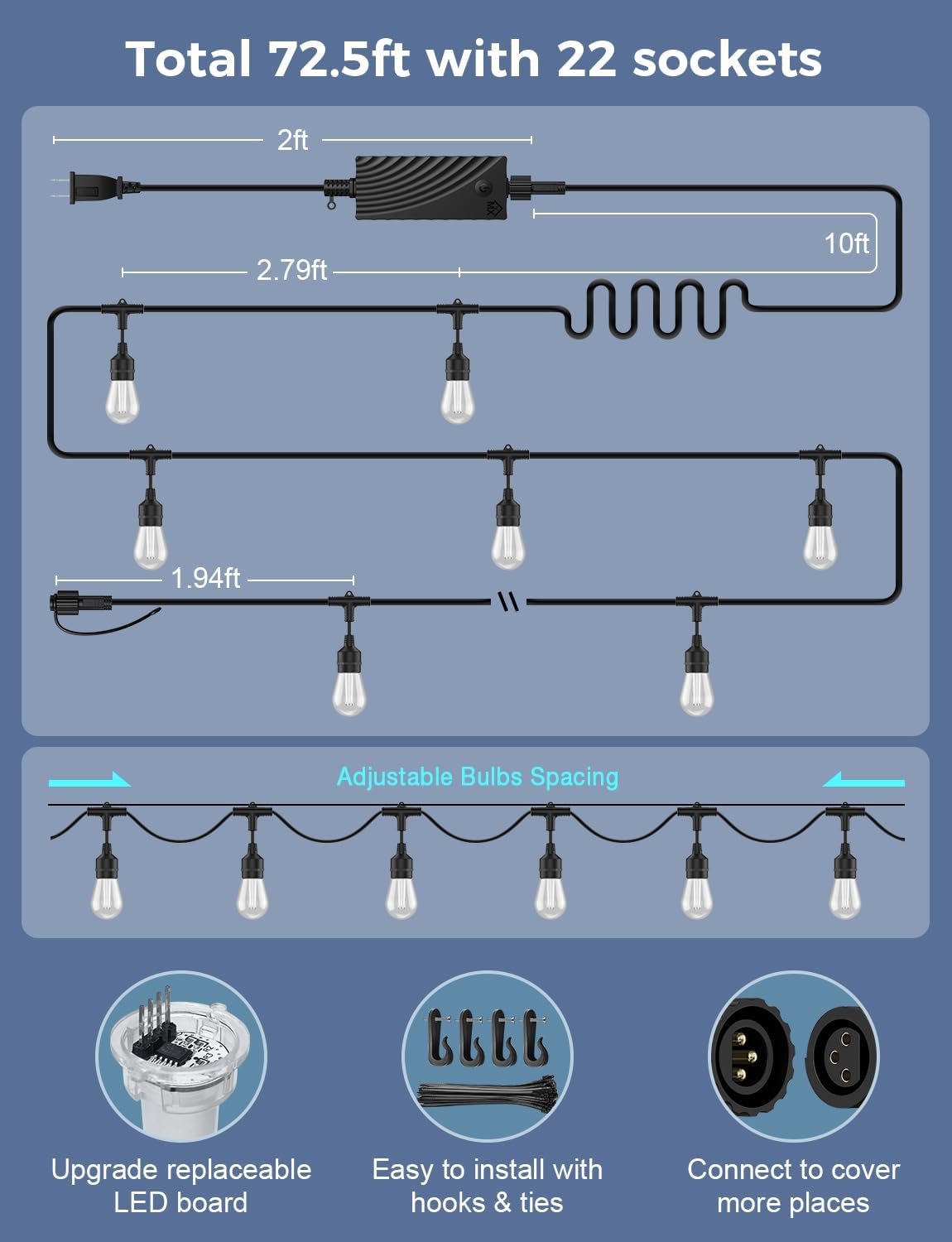
Image: Diagram showing the string light length, controller, power cord, and included accessories like spare bulbs, ties, and hooks, along with details on replaceable LED boards and connectivity.
3. Safety Information
- Ensure the power supply voltage matches the product's requirements (110-240V AC).
- Do not connect the string lights to a power source while still in the packaging.
- Always unplug the lights before installation, maintenance, or when replacing bulbs.
- Do not immerse the adapter or controller in water. The lights are IP65 waterproof, but proper installation is crucial.
- Keep away from heat sources and open flames.
- Do not attempt to repair or modify the product. Contact customer support for assistance.
- Note: RGBW and RGBCWic versions cannot be used in series.
4. Setup and Installation
- Plan Placement: Determine the desired path for your string lights. The total length is 72.5 feet with 22 sockets. Consider the 10-foot lead wire from the controller to the first bulb and the 2-foot power cord.
- Mounting: Use the provided hooks or ties to secure the string lights. Ensure the bulbs hang freely and are not subjected to excessive tension.
- Connect Power: Plug the smart controller/adapter into a standard outdoor power outlet. Ensure the outlet is protected from direct water exposure.
- Power On: Once connected, the lights will power on.
- App Download: Download the "XMcosy+" app from your smartphone's app store (iOS or Android).
- Pairing:
- Open the XMcosy+ app and create an account or log in.
- Follow the in-app instructions to add a new device.
- Ensure your phone is connected to a 2.4GHz Wi-Fi network for initial pairing. (5GHz Wi-Fi is not supported for direct pairing, but Bluetooth or cellular can be used).
- The app will guide you through connecting the lights to your Wi-Fi network.

Image: A smartphone screen displaying the XMcosy+ app interface for controlling the string lights, showing options for DIY customization, RGBCWIC technology, music mode, and convenient timer settings.
5. Operating Instructions
5.1 App Control (XMcosy+ App)
The XMcosy+ app provides comprehensive control over your string lights:
- Color Changing: Select from millions of RGBCWIC color options for individual bulbs or the entire string.
- White Tones: Adjust white light from 2700K (warm glow) to 6500K (cool light).
- Dimmable Brightness: Set brightness from 1% to 100% for static lighting.
- Dynamic Scenes: Choose from 49 preset dynamic scenes or create customized lighting effects.
- Music Sync Mode: Synchronize light patterns with music for an immersive atmosphere.
- Scheduling & Timers: Set automated on/off schedules and timers.
- Group Control: Manage multiple sets of XMCOSY+ lights as a single unit.
- Device Sharing: Share control of your lights with family or friends through the app.

Image: An outdoor patio scene illuminated by XMCOSY+ string lights displaying a variety of vibrant colors, with a smartphone showing the app's color selection interface.
5.2 Voice Control (Alexa & Google Home)
Integrate your XMCOSY+ Smart Outdoor String Lights with Amazon Alexa or Google Home for convenient voice control:
- Link Account: In the Alexa or Google Home app, enable the "XMcosy+" skill/service and link your XMcosy+ account.
- Discover Devices: Allow the voice assistant to discover your new string lights.
- Voice Commands: Use commands such as:
- "Alexa, turn on the patio lights."
- "Hey Google, set the string lights to blue."
- "Alexa, dim the outdoor lights to 50%."

Image: A woman relaxing by a window, using an Amazon Echo device to control the XMCOSY+ string lights outside with voice commands.
6. Maintenance
- Cleaning: Disconnect power before cleaning. Wipe bulbs and cables with a soft, damp cloth. Do not use harsh chemicals or abrasive cleaners.
- Bulb Replacement: The LED cobs are replaceable. If a bulb fails, unplug the string lights, carefully unscrew the old bulb, and screw in a new spare LED cob.
- Storage: If storing the lights for an extended period, clean them thoroughly, coil them neatly to prevent tangling, and store in a cool, dry place away from direct sunlight.
- Weather Resistance: The lights are IP65 waterproof and shatterproof, designed to withstand outdoor conditions from -4°F to 104°F. However, extreme weather conditions may still require temporary removal or additional protection.

Image: A series of images showing the XMCOSY+ string lights in various weather conditions (snow, rain) and highlighting their IP65 waterproof rating, 30000H lifespan, and temperature resistance.
7. Troubleshooting
| Problem | Possible Cause | Solution |
|---|---|---|
| Lights do not turn on. | No power, loose connection, faulty bulb. |
|
| Cannot connect to Wi-Fi. | Incorrect Wi-Fi band, weak signal, incorrect password. |
|
| Lights flicker or behave erratically. | Unstable power, loose connection, software glitch. |
|
| Voice control not working. | Account not linked, device not discovered, incorrect commands. |
|
8. Specifications
| Feature | Detail |
|---|---|
| Model Number | XMSCH-22 |
| Brand | XMCOSY+ |
| Length | 72.5 Feet |
| Number of Bulbs | 22 |
| Bulb Type | LED (RGBCWIC) |
| Bulb Shape Size | S14 |
| Bulb Base | E26 |
| Wattage | 36 Watts (Total) |
| Voltage | 24 Volts (DC) |
| Power Source | Corded Electric (110-240V AC Input) |
| Light Color | Multicolor (RGBCWIC) |
| Color Temperature | 2700K - 6500K (White) |
| White Brightness | 40 Lumens per bulb |
| Control Methods | XMcosy+ App, Amazon Alexa, Google Home |
| Connectivity | 2.4GHz Wi-Fi, Bluetooth |
| Water Resistance | IP65 Waterproof |
| Durability | Shatterproof bulbs, Weather-resistant (-4°F to 104°F) |
| Lifespan | 30,000 hours |
| Connectable Length | Up to 196 feet (65 bulbs) with one adapter |
9. Warranty and Support
XMCOSY+ products are designed for quality and reliability. For warranty information, technical support, or any questions regarding your product, please refer to the official XMCOSY+ website or contact their customer service directly. Keep your purchase receipt as proof of purchase for warranty claims.
Online Support: Visit the XMCOSY+ Store on Amazon for product information and support resources.
Ask a question about this manual
Ask about setup, troubleshooting, compatibility, parts, safety, or missing instructions. Manuals+ will review the question and use this page’s manual context to help answer it.