
1. Introduction
This manual provides detailed instructions for the installation, operation, and maintenance of your Generic A8025-20RB-3BN-F1 Cooler Master 8025 Chassis Cooling Fan. This fan is designed to provide efficient cooling for computer chassis, ensuring optimal performance and longevity of internal components. Please read this manual thoroughly before installation and use to ensure proper function and safety.
2. Safety Instructions
- Always disconnect power from the computer before installing or servicing the fan.
- Handle the fan by its frame; avoid touching the fan blades directly to prevent damage or injury.
- Ensure proper grounding to prevent electrical hazards.
- Keep the fan away from water and excessive moisture.
- Do not attempt to modify the fan or its components. Unauthorized modifications can void the warranty and pose safety risks.
- Keep packaging materials away from children.
3. Package Contents
Please check the package contents upon opening. If any items are missing or damaged, contact customer support.
- 1 x Generic A8025-20RB-3BN-F1 Cooler Master 8025 Chassis Cooling Fan
- 4 x Mounting Screws
4. Setup and Installation
Follow these steps to properly install your chassis cooling fan:
- Prepare your computer: Power off your computer and disconnect it from the power outlet. Open the computer case to access the internal components.
- Identify mounting location: Locate an available 80mm fan mounting position within your computer chassis. Ensure the fan's airflow direction is appropriate for your cooling needs (typically intake or exhaust).
- Mount the fan: Position the fan in the desired mounting location. Use the provided mounting screws to secure the fan to the chassis. Do not overtighten the screws.
- Connect the power cable: Connect the fan's 3-pin power connector to an available 3-pin fan header on your motherboard or a compatible fan controller. Ensure the connector is oriented correctly.
- Verify connections: Double-check all connections to ensure they are secure.
- Close the computer case: Once installation is complete, close the computer case and reconnect the power.
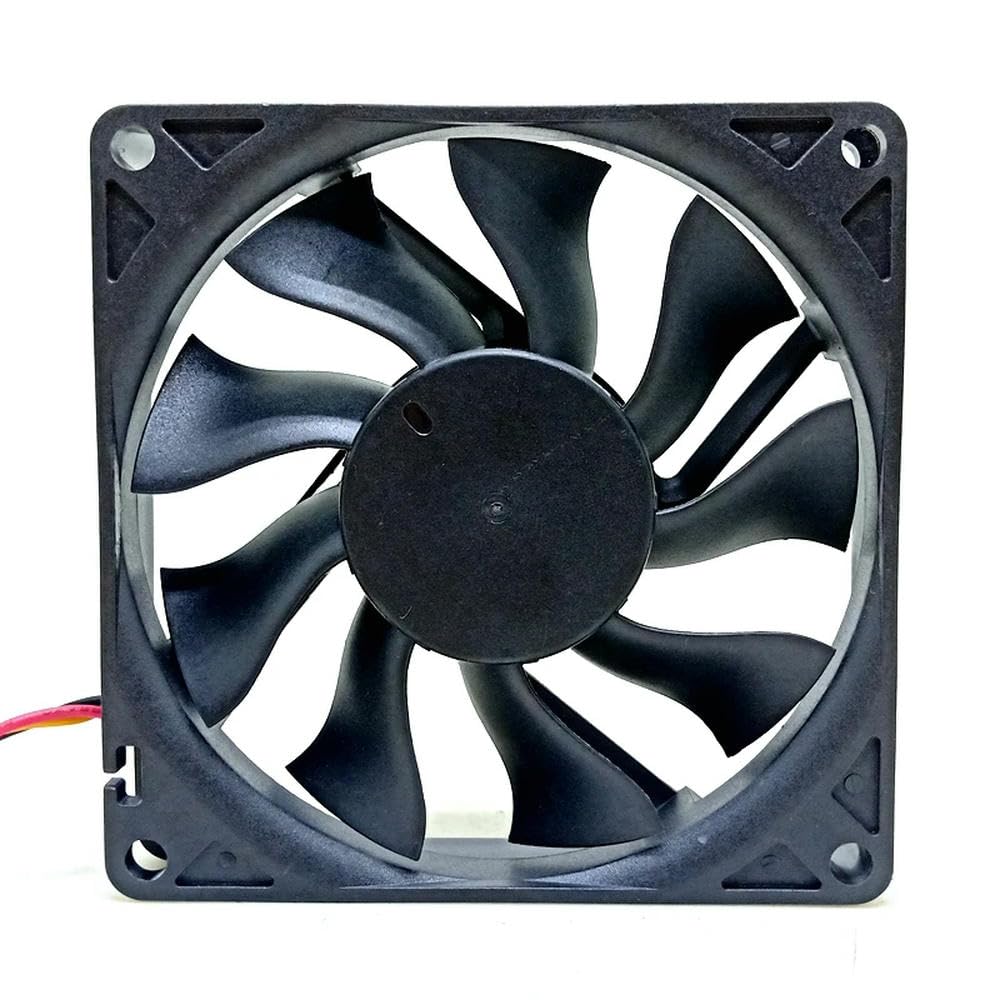
Figure 1: Generic A8025-20RB-3BN-F1 Cooler Master 8025 Chassis Cooling Fan. This image shows the fan from a front-facing angle, highlighting its black frame and blades, and the 3-pin power connector.
5. Operating Instructions
Once installed, the fan will begin operating automatically when the computer is powered on. The fan speed is typically controlled by the motherboard's BIOS/UEFI settings or dedicated fan control software, depending on the fan header type and motherboard capabilities.
- Power On: Turn on your computer. The fan should start spinning, providing airflow.
- Speed Control (if applicable): For 3-pin fans, speed control is often achieved through voltage regulation. Consult your motherboard manual for instructions on adjusting fan speeds in the BIOS/UEFI settings.
- Monitoring: Use system monitoring software to check the fan's RPM and ensure it is functioning correctly and contributing to optimal system temperatures.
6. Maintenance
Regular maintenance helps ensure the longevity and efficiency of your cooling fan.
- Cleaning: Periodically (every 3-6 months, or more frequently in dusty environments) power off your computer and disconnect it from the power source. Use compressed air to gently blow dust off the fan blades and frame. Hold the fan blades to prevent them from spinning rapidly during cleaning, which can damage the bearings.
- Inspection: Check for any signs of wear, such as loose wires, damaged blades, or unusual noises during operation.
- Avoid Lubrication: The fan bearings are factory-sealed and do not require lubrication. Attempting to lubricate them may cause damage.
7. Troubleshooting
| Problem | Possible Cause | Solution |
|---|---|---|
| Fan does not spin |
|
|
| Fan makes unusual noise |
|
|
| Poor cooling performance |
|
|
8. Specifications
| Feature | Detail |
|---|---|
| Model | A8025-20RB-3BN-F1 |
| Type | Chassis Cooling Fan |
| Size | 80mm |
| Voltage | 12V |
| Current | 0.18A |
| Connector | 3-pin |
| Manufacturer | Generic |
| ASIN | B0DPFN9C5J |
| Item Model Number | 6224672134144 |
9. Warranty Information
This product is covered by a standard manufacturer's warranty against defects in materials and workmanship. The specific terms and duration of the warranty may vary. Please retain your proof of purchase for warranty claims. For detailed warranty information, please refer to the seller's policy or contact customer support.
10. Customer Support
If you encounter any issues or have questions regarding your Generic A8025-20RB-3BN-F1 Cooler Master 8025 Chassis Cooling Fan that are not addressed in this manual, please contact the seller or manufacturer's customer support for assistance. Please have your product model number (A8025-20RB-3BN-F1) and proof of purchase ready when contacting support.
For general inquiries, you may visit the Amazon Customer Service page.