
Introduction
This manual provides detailed instructions for the setup, operation, and maintenance of your PHOVOLT WLAN Thermometer Hygrometer Sensor (Model TH13Y). This device allows for remote monitoring of temperature and humidity levels in your home, greenhouse, or other indoor environments via a dedicated mobile application. Please read this manual thoroughly before using the product to ensure proper function and longevity.
Product Overview
The PHOVOLT WLAN Thermometer Hygrometer Sensor is a wireless smart device designed for accurate environmental monitoring. Key features include:
- Wireless Connectivity: Connects to a 2.4GHz WiFi network for remote access (5GHz WiFi is not supported).
- Remote Monitoring: View real-time temperature and humidity data from anywhere via the mobile app.
- App Notifications: Receive alerts for predefined temperature or humidity thresholds.
- Data History: Access historical temperature and humidity charts within the app.
- Unit Switching: Easily switch between Celsius (°C) and Fahrenheit (°F) readings.
- Smart Home Integration: Compatible with Amazon Alexa and Google Home for voice control and automation.
- Compact Design: Small and lightweight, suitable for various indoor spaces.
- Versatile Installation: Can be placed on a surface, hung with a lanyard, or mounted on a wall.

Image: The compact size of the sensor, shown with its dimensions and a size comparison to an egg.
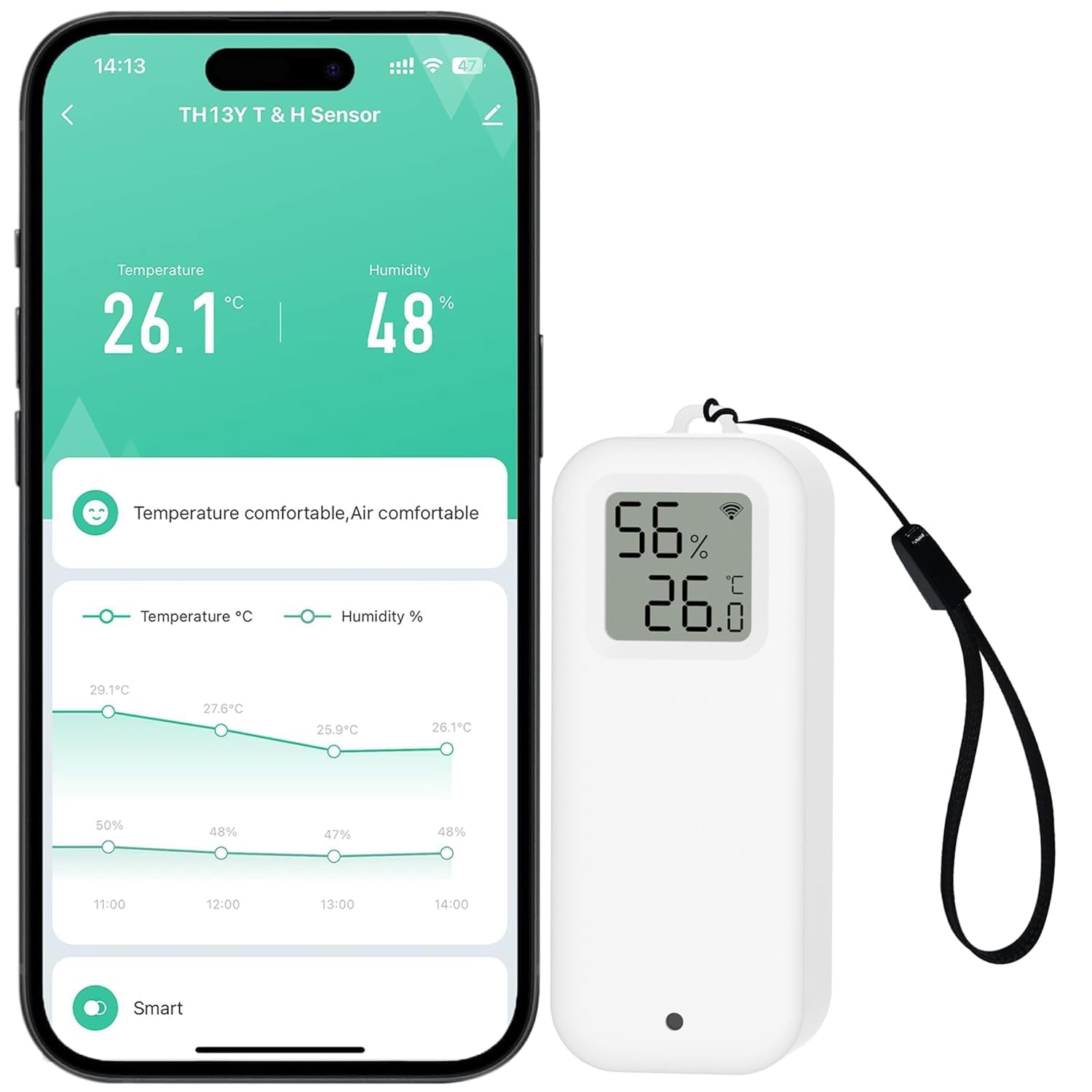
Image: The PHOVOLT WLAN Thermometer Hygrometer Sensor, displaying temperature and humidity on its digital screen.
Package Contents
Please check the package for the following items:
- PHOVOLT WLAN Thermometer Hygrometer Sensor (Model TH13Y)
- 2 x AAA Batteries (pre-installed or included separately)
- Lanyard
- Double-sided adhesive tape
- 3M magnetic strip
- User Manual (this document)
Setup
1. Battery Installation
- Locate the battery compartment on the back of the device.
- Gently open the battery cover. If pre-installed, remove the insulating pull tab. If not, insert the two AAA batteries, ensuring correct polarity (+/-).
- Close the battery cover securely. The device display should power on.
2. App Download and Account Creation
- Download the "Smart Life" or "Tuya Smart" app from your smartphone's app store (iOS App Store or Google Play Store).
- Register for a new account or log in if you already have one.
3. Device Pairing (WiFi Connection)
Ensure your smartphone is connected to a 2.4GHz WiFi network. The sensor does not support 5GHz WiFi.
- Open the Smart Life/Tuya Smart app.
- Tap the "+" icon in the top right corner to add a device.
- Select "Sensors" or "Temperature & Humidity Sensor" from the device list.
- On the sensor, locate the small sync button (often inside the battery compartment or a small pinhole). Press and hold this button for 5-7 seconds until the WiFi icon on the sensor's display starts blinking rapidly.
- Follow the on-screen instructions in the app to connect the sensor to your 2.4GHz WiFi network. You will need to enter your WiFi password.
- Once connected, the WiFi icon on the sensor's display will stop blinking and remain solid. The app will confirm successful pairing.
4. Installation Options
The PHOVOLT sensor offers multiple installation methods to suit your needs:
- Tabletop Placement: Simply place the device on any flat surface.
- Wall Mounting: Use the included double-sided adhesive tape to stick the sensor to a clean, dry wall.
- Hanging: Attach the lanyard to the device and hang it from a hook. The 3M magnetic strip can be used to attach it to metallic surfaces.

Image: Various installation options for the sensor, including hanging, wall-mounting, and tabletop placement.

Image: Overview of the sensor's features, including low-power consumption, T&H calibration, T&H alarm, and temperature unit switch.
Operating Instructions
1. Reading the Display
The sensor's digital display shows current humidity (top, as a percentage) and temperature (bottom, in °C or °F). It also indicates WiFi connection status and battery level.
2. Switching Temperature Units (°F/°C)
The temperature unit can typically be switched within the Smart Life/Tuya Smart app settings for the device. Look for an option to toggle between Celsius and Fahrenheit.
3. Using the Mobile App
- Real-time Data: View current temperature and humidity.
- History: Access graphs showing historical data over time.
- Alerts: Set custom high/low temperature and humidity thresholds to receive push notifications on your phone.
- Device Sharing: Share access to the sensor's data with family members through the app.
4. Voice Control (Alexa/Google Home)
Once integrated with Amazon Alexa or Google Home (see Smart Home Integration section), you can use voice commands to inquire about the current temperature and humidity. For example:
- "Alexa, what's the temperature in the living room?"
- "Hey Google, what's the humidity in the greenhouse?"

Image: The sensor supports voice commands via Amazon Alexa and Google Home smart speakers.
Smart Home Integration
The PHOVOLT sensor can be integrated with other smart devices through the Smart Life/Tuya Smart app to create automated scenarios. This can enhance comfort and energy efficiency.
- Automatic Climate Control: For example, set a rule for your smart air conditioner to turn on automatically if the room temperature exceeds 35°C.
- Humidity Management: Configure a smart humidifier to activate when humidity drops below 20% RH.
Refer to the Smart Life/Tuya Smart app's automation or scene creation section for detailed instructions on setting up these integrations.
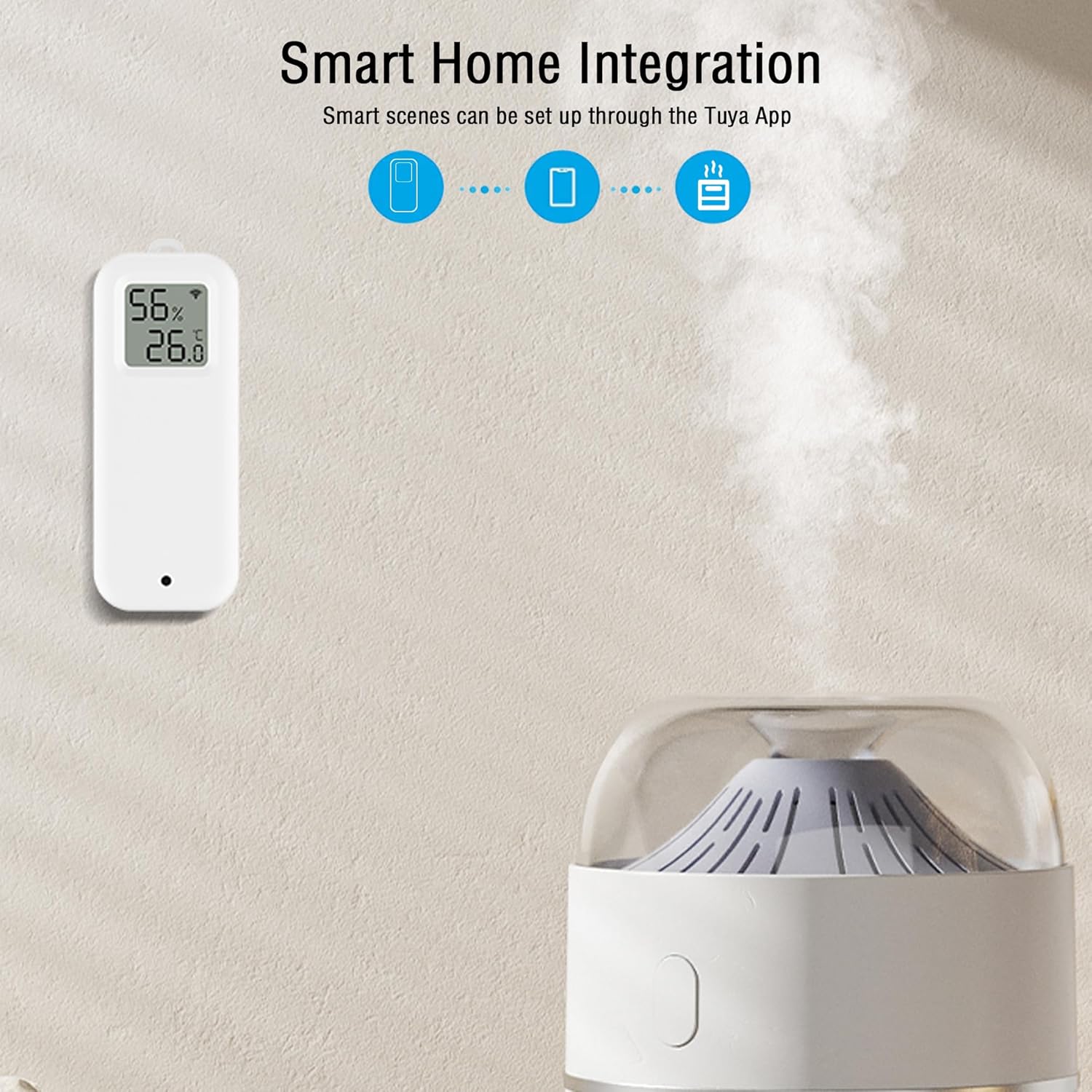
Image: The sensor integrates with smart home devices, allowing for automated control of appliances like humidifiers based on environmental conditions.
Maintenance
1. Battery Replacement
When the battery indicator on the display or in the app shows low power, replace the two AAA batteries. Use high-quality alkaline batteries for optimal performance and longer life. Cold environments can significantly reduce battery life.
2. Cleaning
Wipe the device with a soft, dry cloth. Do not use liquid cleaners or immerse the device in water.
3. Environmental Considerations
This device is designed for indoor use only. Avoid exposing it to direct sunlight, extreme temperatures, high humidity, or corrosive environments.
Troubleshooting
| Problem | Possible Cause | Solution |
|---|---|---|
| Device does not power on. | Batteries are dead or incorrectly installed. | Ensure batteries are inserted with correct polarity. Replace with new AAA batteries. |
| Cannot connect to WiFi. | Incorrect WiFi band (5GHz), wrong password, or device too far from router. | Ensure your router is broadcasting a 2.4GHz WiFi signal and your phone is connected to it during setup. Verify WiFi password. Move the sensor closer to the router. Reset the sensor and try pairing again. |
| App shows "offline" or no data. | WiFi connection lost, low battery, or app issue. | Check the sensor's display for the WiFi icon. If blinking, re-pair the device. Check battery level. Ensure your phone has internet access. Restart the app. |
| Inaccurate readings. | Sensor placed in an unsuitable location (e.g., near heat source, direct sunlight, vent). | Relocate the sensor to a central area away from direct environmental influences. Allow time for readings to stabilize after relocation. |
| Concerns about subscription fees. | Misunderstanding of app features. | The core monitoring features, including real-time data, history, and basic app notifications, are free. Any optional premium features or advanced alert services would be clearly indicated within the app as a separate subscription. |
Specifications
- Model: TH13Y
- Brand: PHOVOLT
- Connectivity: Wi-Fi (2.4GHz only)
- Power Source: Battery Powered
- Battery Type: 2 x AAA batteries (included)
- Temperature Range: 0°C to 50°C (32°F to 122°F)
- Temperature Accuracy: ±1°C
- Humidity Accuracy: ±5% RH
- Indoor/Outdoor Usage: Indoor
- Special Features: Low Battery Indicator, Digital Display
- Smart Home Compatibility: Amazon Alexa, Google Home
- Certifications: CE, FCC

Image: The sensor's accuracy specifications for both temperature and humidity measurements.
Warranty and Support
PHOVOLT offers a warranty for this product and friendly customer service. For warranty claims, technical support, or any inquiries, please refer to the contact information provided with your purchase or visit the official PHOVOLT website. Please retain your proof of purchase for warranty purposes.