
1. Introduction
The PHOVOLT TH11 WiFi Hygrometer Thermometer Sensor is designed to monitor temperature and humidity levels in various indoor environments. This device connects to your 2.4 GHz WiFi network, allowing for remote monitoring and alerts via a compatible mobile application. It integrates with smart home ecosystems such as Tuya and Amazon Alexa, providing convenient access to environmental data.

Image 1.1: The PHOVOLT TH11 sensor alongside its mobile application interface, displaying real-time temperature and humidity readings.
2. Product Features
- Wireless Connectivity: Connects to 2.4 GHz WiFi (5 GHz networks are not supported).
- Remote Monitoring: Access real-time temperature and humidity data via the Smart Life app.
- Alerts and Notifications: Receive app alerts for out-of-range temperature/humidity and low battery.
- Data History: View historical data and charts within the application.
- Smart Home Integration: Compatible with Amazon Alexa and Google Home for voice control (Alexa displays humidity only).
- Data Export: Export historical data in CSV format via email.
- Compact Design: Small form factor for versatile placement.
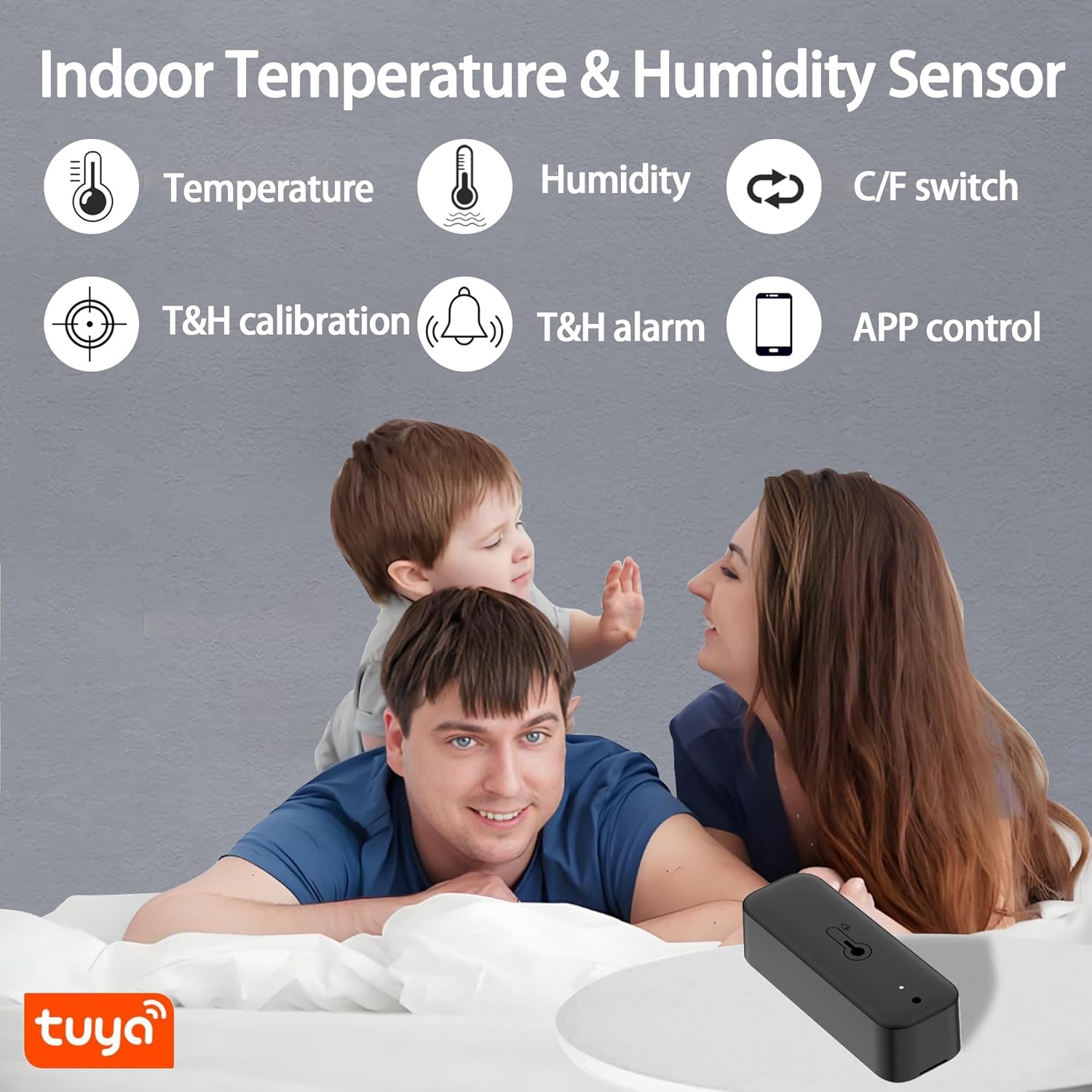
Image 2.1: Overview of the PHOVOLT TH11 sensor's key features, including temperature and humidity monitoring, unit switching, calibration, alarms, and app control.
3. Setup Guide
3.1. Package Contents
- PHOVOLT TH11 WiFi Hygrometer Thermometer Sensor
- 2 x AAA Batteries (pre-installed)
- Lanyard Loop
- Adhesive Sticker

Image 3.1: The front of the PHOVOLT TH11 product packaging, indicating the device's primary functions.

Image 3.2: The back of the PHOVOLT TH11 product packaging, displaying QR codes for app download and regulatory details.
3.2. Battery Installation
- Locate the battery compartment on the back of the sensor.
- Remove the battery cover.
- If batteries are pre-installed, remove the insulating pull tab.
- Ensure the 2 AAA batteries are inserted with correct polarity (+/-).
- Replace the battery cover.
3.3. App Download and Account Creation
- Download the Smart Life app from your mobile device's app store or scan the QR code on the product packaging. You can also visit smartapp.tuya.com/smartlife or smart.tuya.com/download.
- Register for a new account or log in if you already have one.
3.4. Device Pairing
- Ensure your mobile device is connected to a 2.4 GHz WiFi network. The sensor does not support 5 GHz WiFi.
- Open the Smart Life app.
- Tap the "+" icon in the top right corner to add a device.
- Select "Sensor" or search for "Temperature and Humidity Sensor".
- Follow the on-screen instructions to put the sensor into pairing mode (usually involves pressing and holding a button on the device until an indicator light flashes).
- Confirm the indicator light is flashing and proceed in the app.
- Enter your 2.4 GHz WiFi network password when prompted.
- Wait for the device to connect. Once connected, you can rename the sensor for easy identification.
3.5. Placement and Installation
The compact design of the TH11 allows for flexible placement.
- Tabletop: Place the sensor on any flat surface.
- Hanging: Use the included lanyard loop to hang the sensor.
- Wall-mounted: Utilize the adhesive sticker or screws (not included) to fix it to a wall or other surface.

Image 3.3: The compact dimensions of the PHOVOLT TH11 sensor, measuring approximately 2.79 inches in length and 0.98 inches in width.

Image 3.4: Examples of suitable environments for the PHOVOLT TH11 sensor, such as baby rooms, bedrooms, hatcheries, and laboratories.
4. Operating Instructions
4.1. Monitoring Data
Once paired, open the Smart Life app to view real-time temperature and humidity readings from your TH11 sensor. The app displays current conditions, historical data, and trends.

Image 4.1: The PHOVOLT TH11 sensor actively monitoring environmental conditions in a living room, with data accessible through the mobile application.
4.2. Temperature Unit Conversion
Within the Smart Life app settings for the TH11 sensor, you can switch between Celsius (°C) and Fahrenheit (°F) display units.
4.3. Setting Alerts and Notifications
Configure custom temperature and humidity ranges in the Smart Life app. If readings fall outside these preset ranges, you will receive instant notifications on your mobile device. The app also provides alerts for low battery status.

Image 4.2: The Smart Life app interface demonstrating the smart alarm feature, including graphical representations of humidity and temperature trends, and options for setting notification thresholds.
4.4. Data Export
The Smart Life app allows you to download historical temperature and humidity data. This data can be exported in CSV file format via email for further analysis.
4.5. Smart Home Integration
The TH11 sensor can be linked with Amazon Alexa and Google Home. You can use voice commands to inquire about the current humidity level. Note: Alexa currently only displays humidity readings, not temperature.
5. Maintenance
5.1. Battery Replacement
When the app indicates a low battery, replace the 2 AAA batteries. Ensure correct polarity during installation.
5.2. Cleaning
Wipe the sensor with a soft, dry cloth. Avoid using liquid cleaners or abrasive materials, as these can damage the device.
5.3. Calibration
The instruction manual mentions a calibration procedure for temperature and humidity. Refer to the specific instructions within the Smart Life app settings for calibration options if you suspect inaccurate readings.
6. Troubleshooting
- Device not connecting to WiFi:
- Ensure your router is broadcasting a 2.4 GHz WiFi signal. The sensor does not support 5 GHz networks.
- Verify that your WiFi password is entered correctly in the app.
- Move the sensor closer to your WiFi router during the pairing process.
- Reset the sensor (refer to app instructions for specific reset procedure) and attempt pairing again.
- Inaccurate readings:
- Ensure the sensor is placed in an area free from direct sunlight, drafts, or heat sources that could affect readings.
- Use the calibration feature in the Smart Life app to adjust readings if necessary.
- Compare readings with another reliable thermometer/hygrometer.
- No app notifications:
- Check your phone's notification settings to ensure the Smart Life app has permission to send alerts.
- Verify that alert thresholds are correctly set within the Smart Life app for temperature and humidity.
- Ensure the sensor has sufficient battery power.
- Alexa/Google Home not responding:
- Ensure the Smart Life skill/service is enabled and linked correctly in your Alexa or Google Home app.
- Use the exact device name you assigned in the Smart Life app when giving voice commands.
7. Specifications
| Parameter | Value |
|---|---|
| Model Number | TH11 |
| Brand | PHOVOLT |
| Connectivity | 2.4 GHz WiFi (IEEE 802.11 b/g/n) |
| Temperature Range | -20°C to 60°C (-4°F to 140°F) |
| Temperature Accuracy | ±1°C |
| Humidity Range | 0% to 100% RH |
| Humidity Accuracy | ±5% RH |
| Power Source | 2 x AAA Batteries (included) |
| Dimensions | 3.07 x 1.57 x 0.94 inches (approx. 78 x 40 x 24 mm) |
| Weight | 1.76 ounces (approx. 50 g) |
| Mounting Type | Tabletop, Hanging, Wall-mounted |

Image 7.1: Detailed specifications for the PHOVOLT TH11 sensor, including temperature and humidity ranges and accuracy.
8. Support Information
For technical assistance or inquiries, please contact the manufacturer:
- Manufacturer: Wayfutrue
- Support Email: wanshinshida@163.com