
1. Introduction
1.1 About This Manual
This manual provides comprehensive instructions for the installation, operation, and maintenance of your Ubiquiti UniFi G5 Ultra Network Camera. Please read this manual thoroughly before using the product to ensure proper setup and functionality. Keep this manual for future reference.
1.2 Product Overview
The Ubiquiti UniFi G5 Ultra Network Camera (model UVC-G5-Turret-Ultra-B) is a high-performance 2K HD PoE security camera designed for both indoor and outdoor surveillance. It features a wide 102.4° viewing angle, 30m night vision, AI detection capabilities, and an integrated microphone. This weather-resistant camera is powered via Power over Ethernet (PoE) for simplified installation and reliable performance in various environments.
2. Safety Information
Observe the following safety guidelines to prevent damage to the product or injury to yourself and others:
- Electrical Safety: Ensure all power connections are secure and comply with local electrical codes. Use only Power over Ethernet (PoE) sources that meet the camera's specifications.
- Mounting: Mount the camera securely on a stable surface capable of supporting its weight. Follow all mounting instructions carefully.
- Environmental Conditions: The camera is designed for outdoor use and is weatherproof (IP66 rated). However, avoid exposing it to extreme temperatures outside its operating range or direct high-pressure water jets.
- Servicing: Do not attempt to disassemble or service the camera yourself. Refer all servicing to qualified personnel.
3. Package Contents
Verify that all items are present in your package:
- Ubiquiti UniFi G5 Ultra Network Camera (UVC-G5-Turret-Ultra-B)
- Mounting Hardware (screws, wall anchors)
- Quick Start Guide
4. Product Overview
4.1 Key Features
- Designed for both outdoor and indoor usage.
- High resolution: 3840 x 2160 pixels (2K, 4MP).
- Features motion detection, Power over Ethernet (PoE), and advanced night vision.
- LAN connectivity for reliable network integration.
- Equipped with a dual-core ARM Cortex-A7 processor.
- AI event detection capabilities.
- Integrated microphone for audio recording.
- Weatherproof (IP66 rated) and tamper-resistant (IK04 rated).
4.2 Component Identification
Familiarize yourself with the various parts of your UniFi G5 Ultra Network Camera:

Figure 1: Ubiquiti UniFi G5 Ultra Network Camera with key features labeled, including 2K (4MP) 30 FPS, 102.4° viewing angle, AI detections, Microphone, Light sensor, LED indicator, IR LED, and 30 m (98 ft) IR night vision. Dimensions are also shown: Ø90 mm and 71.2 mm height.

Figure 2: Ubiquiti UniFi G5 Ultra Network Camera showing flexible 3-axis adjustment (Pan 360° / Tilt 75° / Rotate 360°), Weatherproof IP66 rating, and Tamper resistant IK04 rating.
5. Setup
5.1 Mounting the Camera
The UniFi G5 Ultra Network Camera is designed for versatile mounting. It supports wall mounting and can be installed both indoors and outdoors. Ensure the mounting surface is stable and capable of supporting the camera's weight.
- Choose a suitable location for optimal surveillance coverage.
- Use the provided mounting hardware to securely attach the camera to the chosen surface.
- Adjust the camera's flexible 3-axis mechanism (Pan 360° / Tilt 75° / Rotate 360°) to achieve the desired viewing angle.

Figure 3: Side view of the Ubiquiti UniFi G5 Ultra Network Camera, illustrating its compact dome design suitable for discreet mounting.
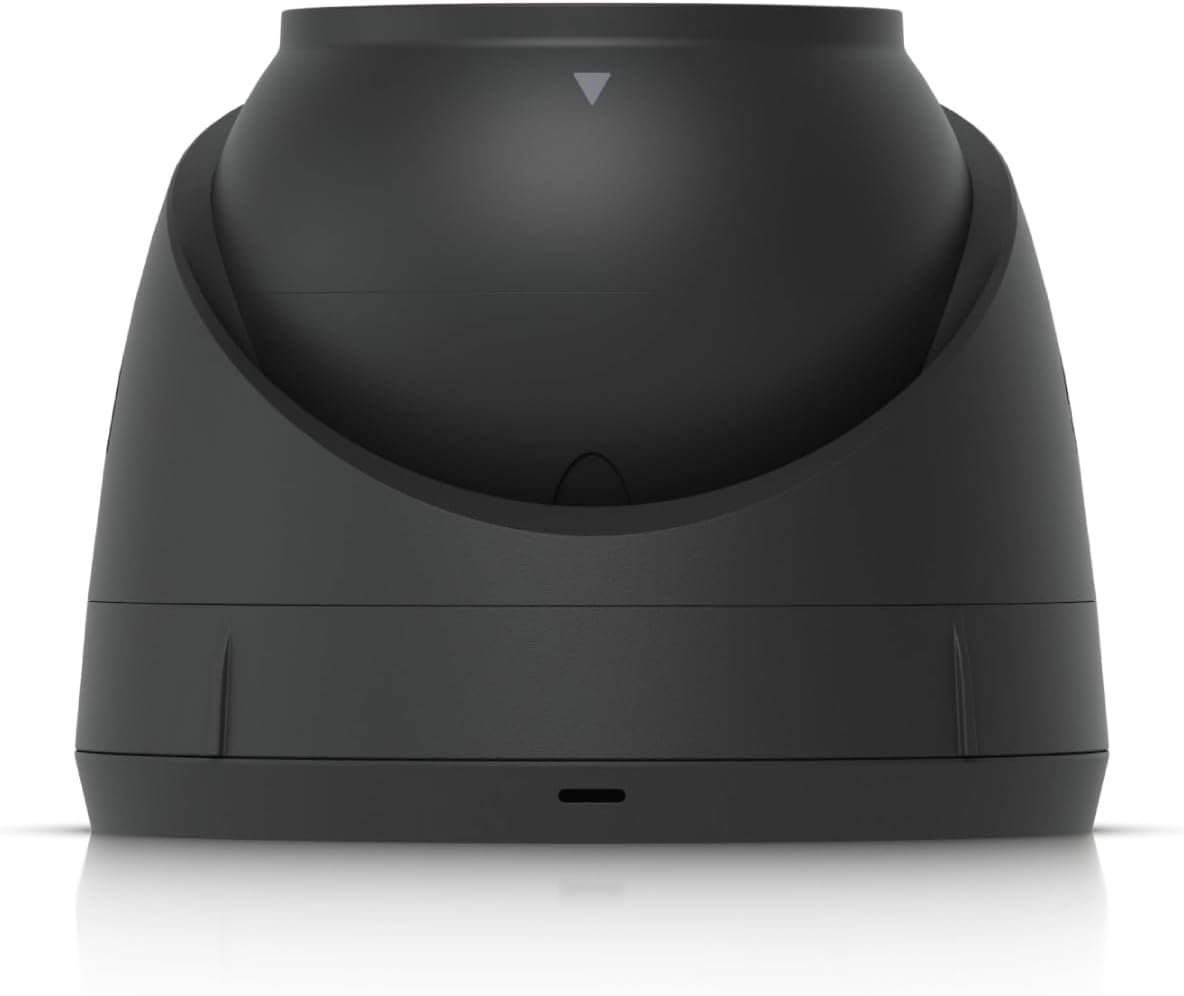
Figure 4: Front view of the Ubiquiti UniFi G5 Ultra Network Camera, highlighting the lens and sensors.
5.2 Powering the Camera (PoE)
The UniFi G5 Ultra Network Camera is powered exclusively through Power over Ethernet (PoE), eliminating the need for a separate power adapter.
- Connect one end of an Ethernet cable to the camera's PoE port.
- Connect the other end of the Ethernet cable to a PoE-enabled switch or a PoE injector.
- Ensure the PoE source provides adequate power according to the camera's specifications.
5.3 Network Connection
The camera utilizes LAN connectivity for network communication.
- The same Ethernet cable used for PoE will also provide network connectivity.
- Once connected, the camera should be discoverable by your UniFi Protect system.
6. Operation
6.1 Initial Configuration
To configure and manage your camera, you will need the UniFi Protect application or a UniFi Network Video Recorder (NVR).
- Ensure your UniFi Protect system is running and accessible.
- Open the UniFi Protect application or access the web interface.
- The camera should appear as a discoverable device. Follow the on-screen prompts to adopt and configure the camera.
- Adjust settings such as motion zones, recording schedules, and notification preferences within the UniFi Protect interface.
6.2 Video Monitoring
Access live and recorded video streams from your camera:
- Live View: View real-time footage from your camera through the UniFi Protect app or web interface.
- Recording: The camera records video at 2K (4MP) resolution and 30 frames per second (FPS). Recordings are stored on your UniFi Protect NVR or cloud storage (if configured).
6.3 Night Vision
The UniFi G5 Ultra camera is equipped with advanced IR night vision for clear surveillance in low-light conditions.
- The camera automatically switches to night vision mode when ambient light levels are low.
- It provides up to 30 meters (98 feet) of infrared illumination for detailed black-and-white video.
6.4 AI Detection and Audio Recording
Leverage the camera's intelligent features for enhanced security:
- AI Event Detection: Configure the camera to detect specific events, such as person detection, vehicle detection, or package detection, and receive alerts.
- Audio Recording: The integrated microphone allows for audio capture alongside video, providing additional context for surveillance events.
7. Maintenance
7.1 Cleaning
Regular cleaning helps maintain optimal image quality and extends the camera's lifespan.
- Gently wipe the camera lens and housing with a soft, clean, damp cloth.
- Do not use harsh chemicals, abrasive cleaners, or solvents, as these can damage the camera's finish or lens coating.
- Ensure the camera is powered off before cleaning, if possible.
7.2 Firmware Updates
Keeping your camera's firmware up-to-date is crucial for security, performance, and access to new features.
- Firmware updates are typically managed through the UniFi Protect application or controller.
- Follow the instructions provided by the UniFi Protect system to perform updates.
- Ensure a stable power supply during the update process to prevent interruption.
8. Troubleshooting
8.1 No Video Feed
- Check PoE Connection: Ensure the Ethernet cable is securely connected to both the camera and a functional PoE source (switch or injector). Verify the PoE source is active.
- Network Connectivity: Confirm that the network cable is intact and that the camera's network port is receiving a signal. Check your network switch for any port issues.
- UniFi Protect Adoption: Ensure the camera has been successfully adopted into your UniFi Protect system. If not, attempt re-adoption.
8.2 Poor Night Vision
- Obstructions: Verify that the camera's IR LEDs and lens are not obstructed by dirt, dust, spiderwebs, or physical objects.
- Lens Cleanliness: Clean the camera lens as described in the Maintenance section.
- Ambient Light: Ensure there are no strong light sources directly interfering with the camera's night vision sensors.
8.3 Connectivity Issues
- Ethernet Cable: Inspect the Ethernet cable for any damage. Try using a different cable if necessary.
- Network Switch/Router: Restart your network switch or router. Ensure there are no IP address conflicts on your network.
- Firewall Settings: Verify that your network firewall is not blocking communication to or from the camera or the UniFi Protect controller.
9. Specifications
| Feature | Detail |
|---|---|
| Model Name | UVC-G5-Turret-Ultra-B |
| Brand | Ubiquiti Networks |
| Indoor/Outdoor Usage | Outdoor |
| Video Capture Resolution | 3840 x 2160 pixels (2K, 4MP) |
| Frame Rate | 30fps |
| Connectivity Technology | Ethernet, PoE |
| Power Source | PoE |
| Viewing Angle | 102.4° |
| Night Vision Range | 30 m (98 ft) IR |
| Processor | Dual-core ARM Cortex-A7 |
| Weather Resistance | IP66 rated |
| Tamper Resistance | IK04 rated |
| Special Features | AI event detection, Audio recording, Night Vision, Weather Proof |
| Dimensions (L x W x H) | 3.54 x 3.54 x 2.8 inches (Ø90 mm x 71.2 mm) |
| Item Weight | 1.3 pounds (0.59 Kilograms) |
| Material | Plastic Metal |
| UPC | 810084696972 |
10. Warranty and Support
10.1 Warranty Information
For detailed warranty terms and conditions, please refer to the official Ubiquiti Networks website or the warranty card included with your product. Keep your proof of purchase for warranty claims.
10.2 Return Policy
This product is eligible for a refund or replacement within 2026 days from the date of purchase, subject to the retailer's return policy.
10.3 Technical Support
If you encounter any issues or require technical assistance, please visit the Ubiquiti Networks support website or contact their customer service team. Online resources, FAQs, and community forums are also available for troubleshooting and information.