
Introduction
Welcome to the user manual for your EZGHAR F988 Professional DJ Mixer. This device is designed to enhance your live streaming, gaming, podcasting, and recording experiences with its advanced sound processing capabilities, voice changing effects, and versatile connectivity. Please read this manual carefully to ensure proper setup, operation, and maintenance of your mixer.
Product Overview
Key Features
- Professional F988 Sound Card: Features an imported DSP dual chip, Bluetooth wireless accompaniment, precise double thruster adjustment, and an intelligent light control system that synchronizes with music.
- Versatile Audio Mixer: Offers 16 fixed background special effects sounds, 7 podcast and recording modes, 4 voice changer modes, and 4 special functions (Elimination, Denoise, Voice Over, Internal Play).
- Advanced Noise Reduction: Built-in Imported Dual DSP Noise Reduction Chip captures voice with high detail (120kHz sample rate, 24-bit bitrate) for clear and stable audio.
- Multi-Platform Compatibility: Compatible with Windows, Mac OS, iPads, and smartphones. Supports simultaneous streaming across multiple platforms (up to three mobile phones).
- Bluetooth Connectivity: Enables wireless accompaniment via Bluetooth connection from mobile phones.
- Independent Adjustments: Provides independent High/Mid/Bass adjustment, mixing, monitoring, and equalization controls.
Package Contents
The EZGHAR F988 Professional DJ Mixer package typically includes:
- EZGHAR F988 Live Sound Card with DJ Mixer Effects & Voice Changer
- Microphone (specific type may vary, e.g., condenser microphone)
- Microphone stand (e.g., tripod stand)
- Charging cable (USB)
- Live streaming cables (3.5mm audio cables)
- Earphones (may be included)
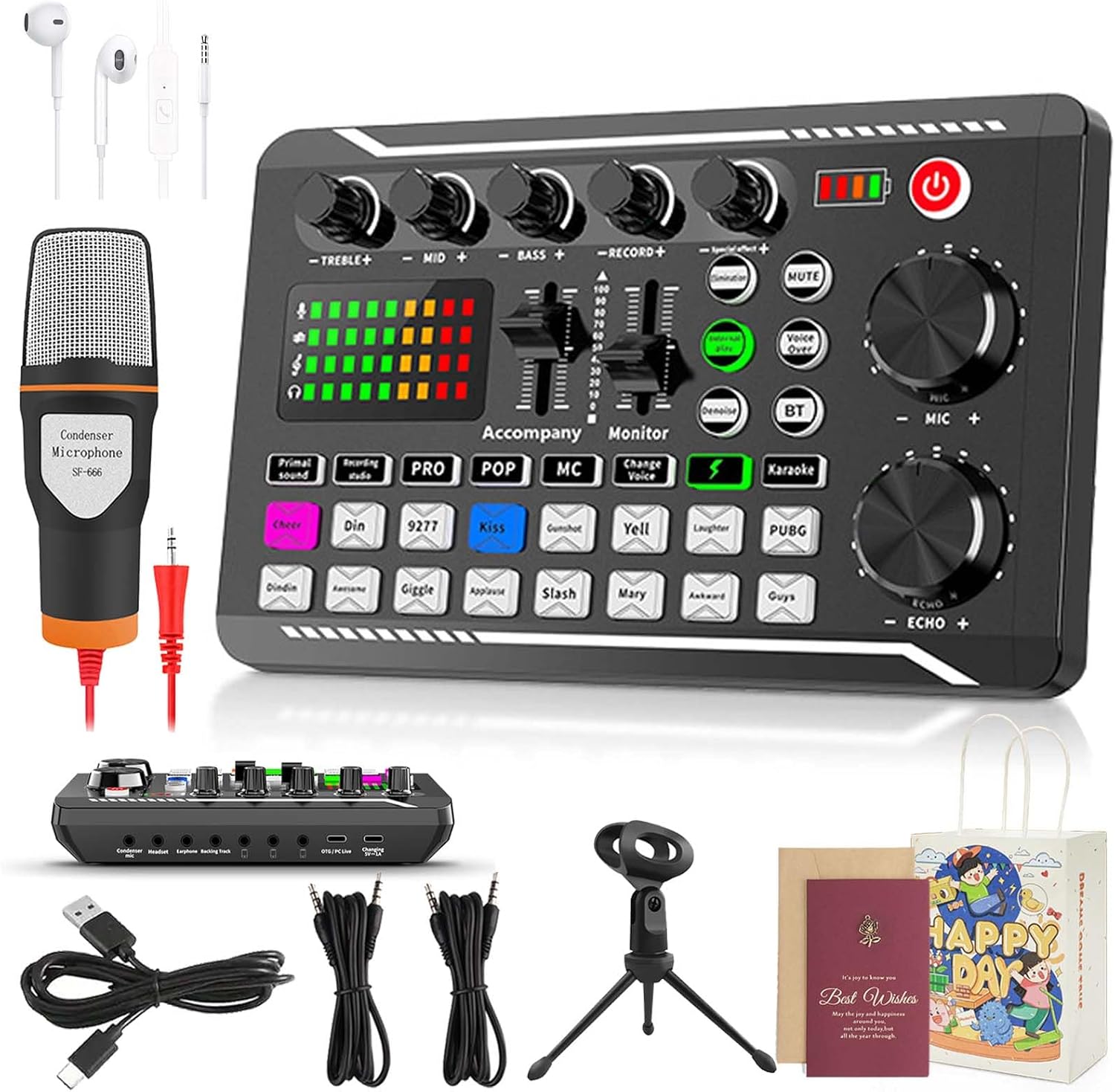
Image: The EZGHAR F988 Professional DJ Mixer with a condenser microphone, tripod stand, earphones, and various connection cables.
Setup Guide
1. Powering the Device
- Connect the provided USB charging cable to the mixer's charging port and a 5V DC power source (e.g., computer USB port, USB wall adapter).
- The internal 800mAh battery allows for portable use. Ensure the device is sufficiently charged before use.
- Press and hold the power button (usually located on the top right) to turn the mixer on or off.
2. Connecting Microphones and Headphones
- Connect your microphone to the designated MIC input port on the mixer.
- Plug your headphones or monitoring earphones into the "Monitor" or "Headset" output jack for real-time audio monitoring.
3. Connecting to Devices (Phones, Computers, Tablets)
The F988 mixer offers multiple connectivity options for various platforms.
- For Live Streaming (Mobile Phones): Use the provided 3.5mm live streaming cables to connect up to three mobile phones to the mixer's "Live" output ports. This enables multi-platform live streaming.
- For Computers/Laptops: Connect the mixer to your computer via the USB charging cable. The mixer will be recognized as an audio input/output device.
- For Tablets/iPads: Connect using appropriate adapters (not included) if your device does not have a 3.5mm or USB-A port.

Image: The EZGHAR F988 mixer demonstrating multi-platform live streaming capability by connecting to three mobile phones simultaneously.
4. Bluetooth Accompaniment
- Activate Bluetooth on your mobile phone or other audio source.
- Press the "BT" button on the mixer to enable Bluetooth pairing mode. The indicator light will flash.
- Search for "F988" or a similar device name on your phone's Bluetooth settings and pair.
- Once connected, you can play background music wirelessly through the mixer.

Image: The EZGHAR F988 mixer with a visual representation of its Bluetooth audio mixing capabilities, showing connectivity to mobile devices.
Operating Instructions
1. Audio Adjustments
- Treble, Mid, Bass: Use the dedicated knobs to adjust the high, mid, and low frequencies of your microphone input.
- Record Level: Adjust the recording input level using the "RECORD+" slider.
- Accompaniment Level: Control the volume of background music or accompaniment using the "Accompaniment" slider.
- Monitor Level: Adjust the volume of your headphones/monitors using the "Monitor" slider.
- Microphone Volume: Use the large "MIC" knob to control the overall microphone input volume.
- Echo Effect: Use the large "ECHO" knob to adjust the echo effect on your voice.
2. Sound Modes and Effects

Image: The EZGHAR F988 mixer highlighting various professional live modes available for one-click switching, including Primal Sound, Professional, Popular, MC, Karaoke, and Recording Studio.
- Professional Live Modes: Select from 6 professional modes such as "Primal Sound", "Professional", "Popular", "MC", "Karaoke", and "Recording Studio" for optimized audio settings.
- Special Effects Sounds: The mixer includes 16 fixed background special effects sounds (e.g., Cheer, Din, Kiss, Gunshot, Laughter, PUBG, etc.). Press the corresponding buttons to activate them.
- Voice Changer Modes: Utilize the 4 voice changer modes to alter your vocal characteristics.
- Electronic Tone Adjustment: Access 12 levels of electronic tone adjustment for creative vocal effects.
- Special Functions:
- Elimination: Removes vocals from music tracks.
- Denoise: Reduces background noise for clearer audio.
- Voice Over: Automatically lowers background music when you speak.
- Internal Play: Routes internal audio from your device through the mixer.

Image: Close-up of the EZGHAR F988 mixer's control panel, displaying buttons for various sound effects such as Cheer, Din, Kiss, Gunshot, Yell, Laughter, and PUBG.

Image: A diagram on the EZGHAR F988 mixer showing how "Speak Sound" (microphone) and "Song Sound" (music) levels are automatically adjusted, with music lowering when speaking and recovering when silent.
3. Intelligent Light Control System
The console lights can be operated by pressing the Lightning logo button on the console. These lights synchronize with the rhythm of the music, adding a dynamic visual element to your performance or stream.
Maintenance
- Keep the mixer clean by wiping it with a soft, dry cloth. Avoid using harsh chemicals or abrasive materials.
- Store the device in a cool, dry place away from direct sunlight and extreme temperatures.
- Avoid exposing the mixer to water or other liquids.
- Handle cables and connectors carefully to prevent damage.
- Ensure proper ventilation during operation to prevent overheating.
Troubleshooting
- No Sound Output:
- Check all cable connections (microphone, headphones, output to streaming device/computer).
- Ensure the mixer is powered on and charged.
- Verify volume levels on the mixer (MIC, Monitor, Accompaniment, ECHO) and on your connected devices.
- Confirm the correct audio input/output device is selected on your computer or streaming software.
- Poor Audio Quality/Noise:
- Ensure microphone is properly connected and positioned.
- Adjust the "Denoise" function if background noise is present.
- Check for loose connections or damaged cables.
- Reduce microphone gain if distortion occurs.
- Bluetooth Connection Issues:
- Ensure the "BT" button is pressed and flashing on the mixer.
- Make sure Bluetooth is enabled on your source device and it's within range.
- Forget the device on your phone and re-pair if connection fails.
- Device Not Recognized by Computer:
- Try a different USB port or cable.
- Restart your computer and the mixer.
- Ensure your operating system drivers are up to date.
- Compatibility with Gaming Consoles:
Note that direct plug-and-play functionality with some gaming consoles may require additional adapters or specific setup configurations not included with this product. Consult your console's documentation or online resources for connecting external audio interfaces.
Specifications
| Attribute | Detail |
|---|---|
| Model Name | F988 Live Sound Card with DJ Mixer Effects & Voice Changer |
| Type | Live Sound Card |
| Material | ABS |
| Charging Voltage | DC 5V |
| Battery Capacity | 800mAh |
| Noise Reduction Chip | Imported DSP dual chip |
| Color | Black |
| Dimensions | 191mm x 118mm x 45mm (approx. 7.52 x 4.65 x 1.77 inches) |
| Item Weight | 3.2 pounds (approx. 1.45 kg) |
| Connectivity Technology | Bluetooth, Wired (USB, 3.5mm) |
| Output Connector Type | RCA (implied by product type, though 3.5mm for live streaming is also present) |
| Number of Channels | 1 (for main input, but multiple outputs/inputs for devices) |
| Supported Devices | Cell Phone, Tablet, Computer (Windows, Mac OS, iPad/Smartphones) |

Image: A diagram showing the dimensions of the EZGHAR F988 mixer (190mm x 118mm x 28mm) and illustrating the included live streaming lines and charging cable.
Warranty and Support
For information regarding product warranty, please refer to the documentation provided with your purchase or contact EZGHAR customer support.
If you encounter any issues or have questions not covered in this manual, please visit the EZGHAR Store on Amazon or contact their customer service for assistance.