
1. Introduction
The Waveshare E-Paper Spectra 6 (E6) is a 13.3-inch full-color e-paper display featuring 1600x1200 pixels and SPI communication. It utilizes E Ink Spectra 6 (E6) technology for high contrast and color saturation. Designed with a standard HAT+ driver, it offers enhanced interoperability with various microcontrollers like Raspberry Pi, ESP32, and STM32. This display requires power only for refreshing, maintaining the last displayed content even when powered off, and operates without a backlight.
2. Package Contents
Verify that all items listed below are included in your package:
- 13.3inch e-Paper HAT+ (E) Display x1
- MX1.25 10PIN Cable x1
- Screws Pack x1

Figure 2.1: Included components in the package.
3. Features
- Adopts E Ink Spectra 6 (E6) technology, offering high contrast and high color saturation.
- No backlight required; the display retains content indefinitely even when power is removed.
- Ultra-low power consumption, with power only needed during display refresh cycles.
- Includes an e-Paper Driver HAT with a standard Raspberry Pi 40-pin GPIO header, supporting Raspberry Pi series boards.
- Integrated voltage translator for compatibility with 3.3V/5V microcontrollers.
- SPI interface for seamless integration with Raspberry Pi, ESP32, STM32, and similar platforms.
- Complies with the Raspberry Pi HAT+ standard for improved interoperability and ease of development.
- Online development resources and documentation (e-Paper driver circuit diagrams, example code for Raspberry Pi/ESP32/STM32) are available.
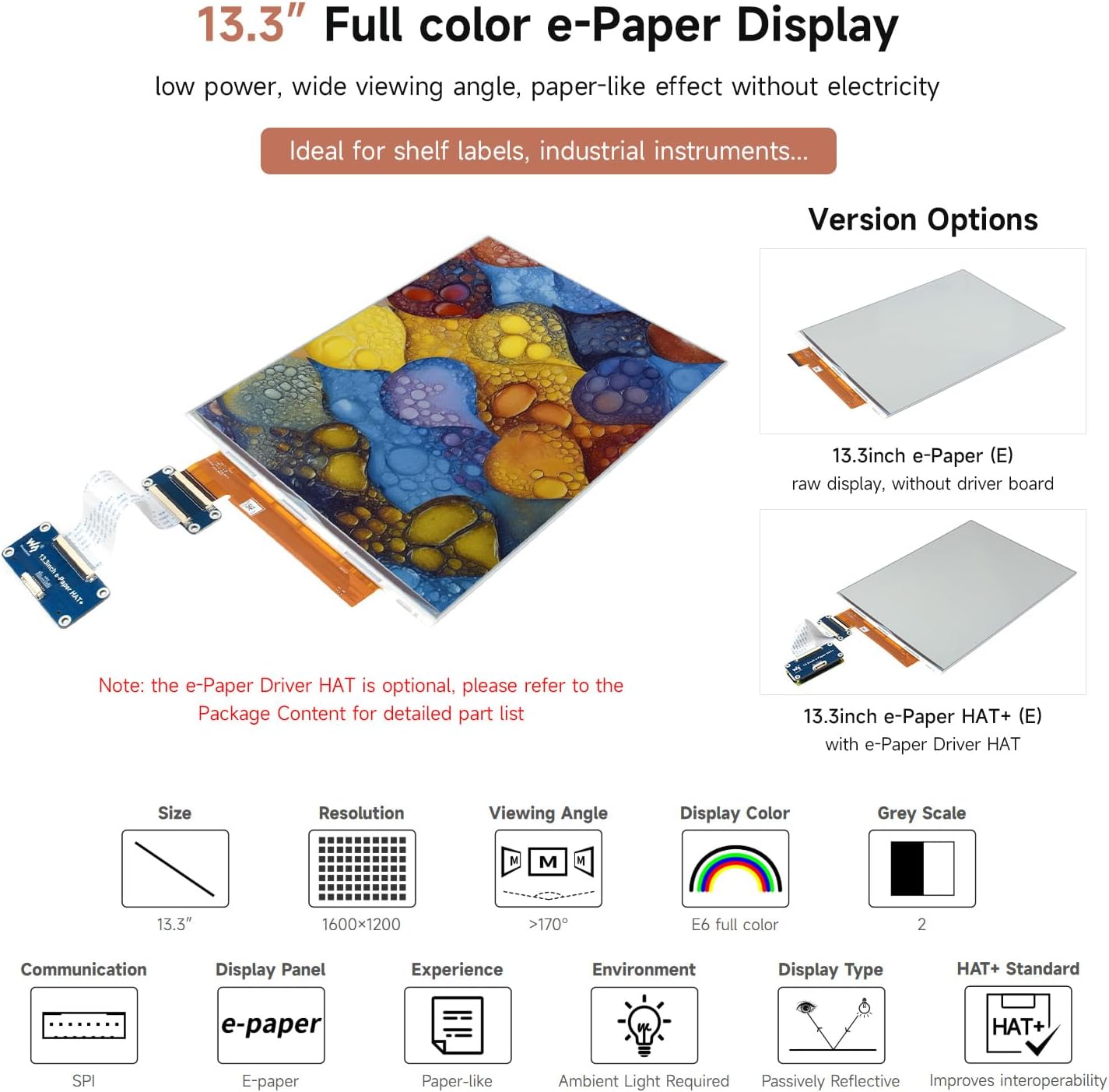
Figure 3.1: Overview of display features and version options.

Figure 3.2: E Ink Spectra 6 technology explanation.

Figure 3.3: Advantages of E-Ink and application examples.
4. Specifications
| Parameter | Value |
|---|---|
| Operating Voltage | Raw display: 3.3V; With Driver HAT: 3.3V/5V |
| Interface | 3-wire SPI, 4-wire SPI |
| Outline Dimensions (Raw display) | 284.70 × 208.80 × 0.85mm |
| Outline Dimensions (e-Paper Driver HAT) | 65.00 × 30.50mm |
| Display Size | 270.40 × 202.80mm |
| Dot Pitch | 0.169 × 0.169mm |
| Resolution | 1600 × 1200 pixels |
| Display Color | E6 full color (E Ink Spectra 6) |
| Grey Scale | 2 |
| Full Refresh Time | 19s |
| Total Refresh Power | <0.5W |
| Standby Current (Raw Display) | <0.01uA (almost none) |
| Viewing Angle | >170° |
| Compatible Devices | Raspberry Pi series boards, ESP32, STM32 |
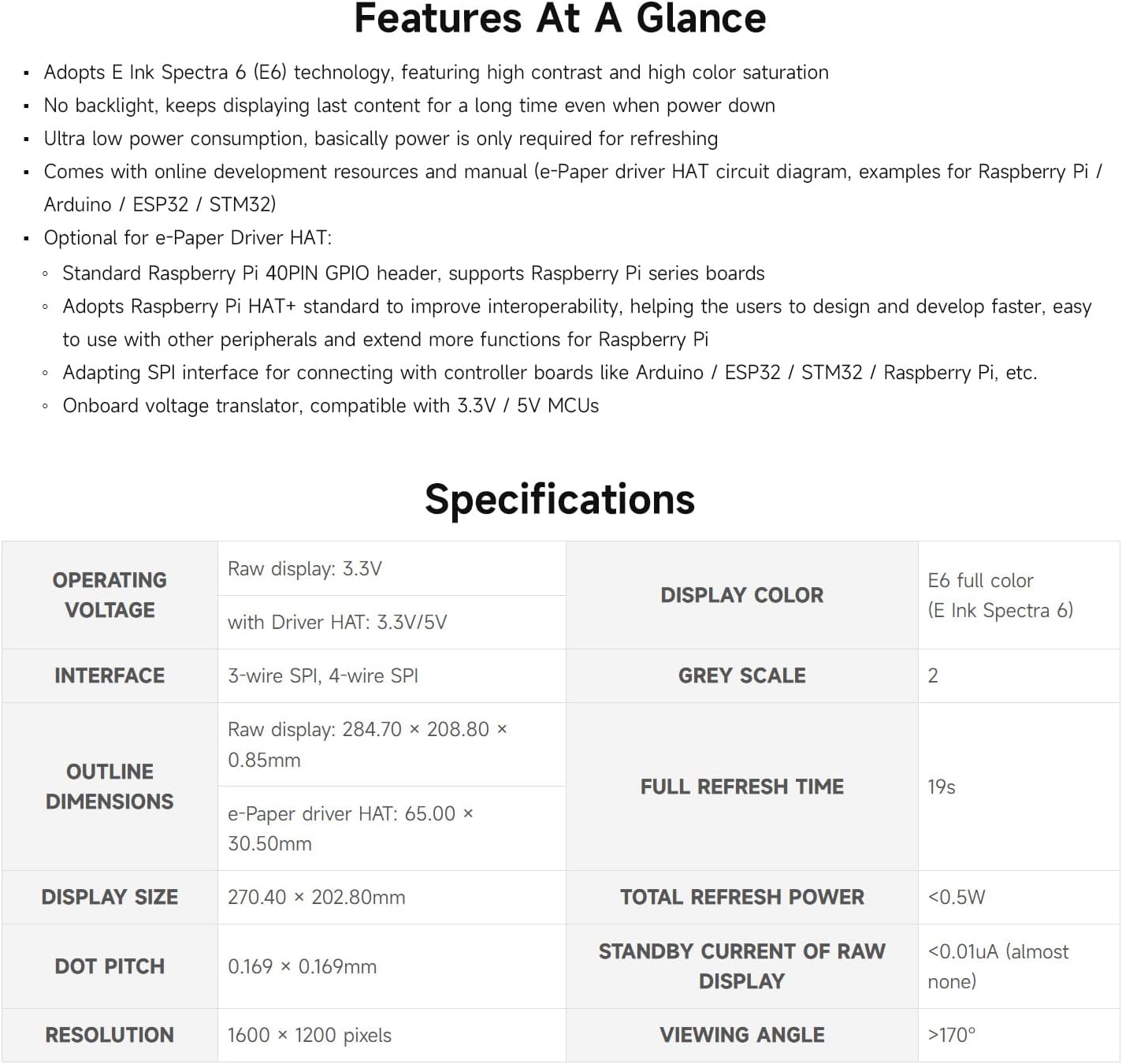
Figure 4.1: Detailed technical specifications.

Figure 4.2: Onboard SPI control interface and outline dimensions.
5. Setup
- Hardware Connection:
- Carefully connect the 13.3-inch e-Paper display to the e-Paper Driver HAT using the provided MX1.25 10PIN cable. Ensure correct orientation and secure connection.
- Mount the e-Paper Driver HAT onto your Raspberry Pi board, aligning the 40-pin GPIO header. Use the provided screws for a stable connection if necessary.
- For other microcontrollers like ESP32 or STM32, connect the e-Paper Driver HAT via the SPI interface, ensuring proper voltage (3.3V or 5V) and pin assignments (VCC, GND, DIN, SCLK, CS_M, CS_S, DC, RST, BUSY, PWR). Refer to the pinout diagram in Figure 4.2.
- Power Supply:
- Ensure your Raspberry Pi or microcontroller is powered by a stable power supply appropriate for the board. The e-Paper display draws minimal power, primarily during refresh cycles.
- Software Configuration:
- Access the Waveshare online development resources for specific driver installation and example code for your chosen platform (Raspberry Pi, ESP32, STM32).
- Follow the provided instructions to install the necessary libraries and configure the SPI communication.
- Test the display with the provided example code to ensure proper functionality.

Figure 5.1: Example of e-Paper HAT+ connected to a Raspberry Pi.
6. Operating Instructions
- Displaying Content:
- Use the provided software libraries and example code to prepare the image or text data you wish to display.
- Send the prepared data to the e-Paper display via the SPI interface. The display will then refresh to show the new content.
- Refresh Cycle:
- The full refresh time for the Spectra 6 display is approximately 19 seconds. During this time, the screen may flash or show intermediate patterns as the e-ink particles rearrange.
- Once refreshed, the image will remain static on the screen without consuming power until the next refresh command is issued.
- Color Management:
- The Spectra 6 technology supports six primary colors (red, green, blue, yellow, black, and white). Experiment with color palettes and dithering techniques to achieve desired visual effects.

Figure 6.1: Raspberry Pi HAT+ standard and color technology.
7. Maintenance
- Cleaning: Use a soft, dry, lint-free cloth to gently wipe the display surface. Avoid using liquid cleaners or abrasive materials, which can damage the screen.
- Handling: Handle the e-paper display with care. Avoid bending, dropping, or applying excessive pressure to the screen, as it is a delicate component.
- Storage: Store the display in a cool, dry environment, away from direct sunlight and extreme temperatures.
- Environmental Conditions: The display is designed for operation within a temperature range of 0-50°C. Avoid exposing it to conditions outside this range.
8. Troubleshooting
- Display not refreshing or showing no image:
- Ensure all cable connections between the e-Paper display, Driver HAT, and microcontroller are secure and correctly oriented. Verify that the power supply to your microcontroller is stable. Check your software code for any errors in SPI communication or image data transmission.
- Colors appear dull or incorrect:
- E-paper displays are reflective and perform best in well-lit environments. Ensure adequate ambient light. Review your image processing and color palette settings in the software. Some users have found success experimenting with 'false color palettes' to achieve more vibrant results.
- Software support issues:
- Refer to the official Waveshare Wiki and GitHub repositories for the latest drivers and examples. Ensure you are using the correct driver for the 13.3inch e-Paper HAT+ (E) model. Community forums and online resources can also provide valuable insights for specific microcontroller integrations.
- Slow refresh rate:
- The 19-second full refresh time is inherent to the E Ink Spectra 6 technology. This is normal behavior for full-color e-paper displays and is not an indication of a fault.
9. Warranty and Support
This product is subject to a 30-day return policy for refund or replacement, as per standard terms.
For technical assistance, online development resources, including e-Paper driver circuit diagrams and example code for Raspberry Pi, ESP32, and STM32, are available on the Waveshare official website and documentation platforms. These resources are designed to aid users in development and troubleshooting.
For further support, please visit the official Waveshare website or contact their customer service.


