
1. Introduction
This manual provides comprehensive instructions for the installation, operation, and maintenance of the DS-K1T342DWX Value Series MinMoe Facial Recognition Terminal. This device utilizes advanced deep learning algorithms to ensure high-speed and accurate facial recognition. It supports multiple authentication methods, including face and card recognition, making it suitable for various access control and time attendance applications in diverse environments such as offices, financial institutions, and other secure areas.
2. Safety Information
Please read these safety instructions carefully before operating the device to prevent injury to yourself or others and to avoid damage to the device. Keep this manual for future reference.
- Ensure the device is installed by qualified personnel in accordance with all local electrical codes and regulations.
- Use only the power adapter specified for this device. Incorrect voltage may cause damage or fire.
- Do not expose the device to water, moisture, or extreme temperatures.
- Avoid placing the device in direct sunlight or near heat sources.
- Do not attempt to disassemble or repair the device yourself. Refer all servicing to qualified service personnel.
- Clean the screen and lens with a soft, dry cloth. Avoid using abrasive cleaners or solvents.
3. Package Contents
Verify that all items are present and in good condition upon unpacking. If any items are missing or damaged, contact your supplier immediately.
- DS-K1T342DWX Facial Recognition Terminal with LCD Touch Screen
- Mounting accessories (screws, wall plugs)
- Power Adapter (specific to region)
- Quick Start Guide
4. Product Overview
The DS-K1T342DWX terminal features a compact design with a high-resolution display and advanced recognition capabilities.
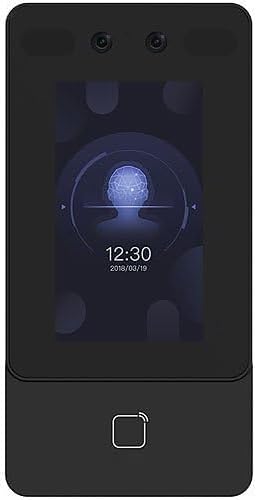
Figure 4.1: Front view of the DS-K1T342DWX terminal, showing the LCD touch screen, 2MP wide-angle lens, and fingerprint sensor area.

Figure 4.2: Angled view of the DS-K1T342DWX terminal, highlighting its slim profile and side ports.
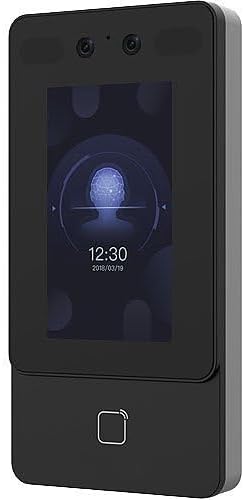
Figure 4.3: Alternative front view of the DS-K1T342DWX terminal, providing a clear look at the display interface.
Key Components:
- 4.3" LCD Touch Screen: For user interaction, displaying recognition status, time, and configuration menus.
- 2-Megapixel Wide-Angle Lens: Captures facial images for recognition.
- Built-in Card Reading Module: Supports various card types for authentication.
- Microphone and Speaker: For two-way audio communication.
- Connectivity Ports: For power, network (TCP/IP, Wi-Fi), and external device connections.
5. Setup and Installation
Proper installation is crucial for optimal performance and security. It is recommended that installation be performed by a professional.
5.1 Mounting the Device
- Choose a suitable mounting location, typically at eye level for facial recognition, ensuring the face recognition distance of 0.3 m to 1.5 m is achievable.
- Use the provided mounting template (if applicable) to mark drilling points on the wall.
- Drill holes and insert wall plugs.
- Secure the mounting bracket (if separate) to the wall using screws.
- Attach the terminal to the mounting bracket or directly to the wall, ensuring it is firmly secured.
5.2 Wiring and Connectivity
- Power Connection: Connect the power adapter to the device and a suitable power outlet.
- Network Connection:
- Wired (TCP/IP): Connect an Ethernet cable from the device's LAN port to your network switch or router.
- Wireless (Wi-Fi): Configure Wi-Fi settings via the device's touch screen or web client after initial power-up.
- External Devices: Connect any required external devices such as door locks, exit buttons, or alarm systems according to the wiring diagram in the detailed installation guide (not provided in this summary).
6. Operating Instructions
This section outlines the basic operation of the facial recognition terminal.
6.1 User Enrollment
Before users can be authenticated, their facial data and/or card information must be enrolled into the system. The device has a capacity for up to 1500 faces and 3000 cards.
- Access the device's menu (requires administrator credentials).
- Navigate to "User Management" or "Enrollment".
- Select "Add User" and input required user details.
- For facial enrollment, instruct the user to stand within the recognition distance (0.3 m to 1.5 m) and face the camera. The device will capture the facial image.
- For card enrollment, present the card to the built-in card reader.
- Save the user's information.
6.2 Authentication Methods
- Facial Recognition:
Stand directly in front of the terminal within the specified recognition distance. The device will automatically detect and recognize your face. Recognition duration is less than 0.2 seconds per user, with an accuracy rate of 99% or higher. The device also supports mask recognition for enhanced security.
- Card Authentication:
Present your registered card to the card reading area on the terminal. The device will verify the card and grant access if authorized.
- Combined Authentication:
The terminal can be configured to require both facial recognition and card authentication for increased security.
6.3 Two-Way Audio
The device supports two-way audio functionality, allowing communication with client software, indoor stations, and main stations. This feature enhances communication capabilities for access control scenarios.
7. Configuration
The terminal's settings and advanced features can be configured via a web client or compatible software.
- Web Client: Access the device's IP address through a web browser to manage users, configure network settings, set up access rules, and view logs.
- Protocol Compatibility: The device is compatible with ISAPI and ISUP 5.0 protocols, allowing integration with various security and management platforms.
8. Maintenance
Regular maintenance ensures the longevity and optimal performance of your facial recognition terminal.
- Cleaning: Gently wipe the LCD touch screen and camera lens with a soft, lint-free cloth. Do not use liquid cleaners or aerosols directly on the device.
- Software Updates: Periodically check for firmware updates from the manufacturer to ensure the device has the latest features and security enhancements.
- Data Backup: Regularly back up user data and configuration settings to prevent data loss.
9. Troubleshooting
This section addresses common issues you might encounter. For more complex problems, contact technical support.
| Problem | Possible Cause | Solution |
|---|---|---|
| Device does not power on. | No power supply or faulty adapter. | Check power connection and adapter. Ensure the outlet is functional. |
| Facial recognition fails or is slow. | Incorrect distance, poor lighting, or un-enrolled user. | Ensure user is within 0.3m-1.5m. Improve lighting. Verify user is enrolled. Clean camera lens. |
| Card authentication not working. | Card not enrolled or incorrect card type. | Ensure card is enrolled and compatible with the built-in reader. |
| Cannot connect to network. | Incorrect network settings or cable issue. | Verify Ethernet cable connection or Wi-Fi settings. Check IP address configuration. |
10. Specifications
Technical specifications for the DS-K1T342DWX Facial Recognition Terminal.
- Model: DS-K1T342DWX
- Display: 4.3" LCD Touch Screen
- Camera: 2-Megapixel Wide-Angle Lens
- Face Capacity: Up to 1500 faces
- Card Capacity: Up to 3000 cards
- Face Recognition Distance: 0.3 m to 1.5 m
- Face Recognition Accuracy: 99% or higher
- Face Recognition Speed: Less than 0.2 seconds per user
- Authentication Modes: Face, Card, Face + Card
- Special Features: Mask recognition, Two-way audio
- Connectivity: TCP/IP, Wi-Fi
- Protocols: ISAPI, ISUP 5.0
- Configuration: Web client
- Color: Black
- Manufacturer: Hikvision (as per product specifications)
11. Warranty and Support
For warranty information and technical support, please refer to the documentation provided with your purchase or contact your vendor. For purchases made through Amazon, you may contact the seller, NATO Security, for assistance with product-related inquiries and support.
For general inquiries or to find more resources, you can visit the manufacturer's official website (Hikvision).


