
Introduction
This manual provides detailed instructions for the setup, operation, and maintenance of your IMPECCA 10.1” Wi-Fi Digital Picture Frame. Please read this manual thoroughly before using the device to ensure proper functionality and to maximize your user experience. Keep this manual for future reference.
Package Contents
Verify that all items listed below are included in your package:
- 10.1” Smart Digital Photo Frame
- Dual Voltage ETL Certified AC Power Adapter (100-240V)
- Versatile Mounting Stand (supports desktop and wall installation)
- User Manual
Product Overview
Familiarize yourself with the components and ports of your digital picture frame.

Image: Front view of the IMPECCA 10.1” Wi-Fi Digital Picture Frame, showcasing its display and the Frameo app on a smartphone.

Image: Side view of the digital picture frame, indicating the various connectivity ports and buttons.
- DC Power Port: Connect the included AC power adapter here.
- Micro-SD Slot: Insert a Micro-SD/SDHC card (up to 128GB) for expanded storage.
- microUSB 2.0 Port: For connecting to a computer or other devices (USB OTG compatible).
- Reset Button: Use a thin object to press for system reset.
- On/Off Button: Press and hold to power the frame on or off.
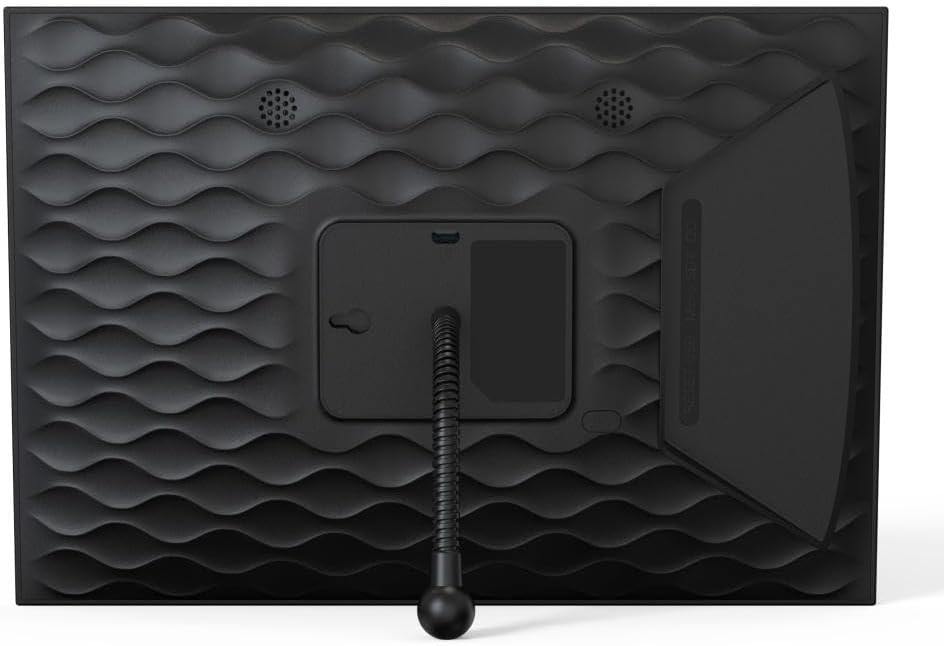
Image: Rear view of the digital picture frame, showing the stand and speaker placement.
Setup
- Power On: Connect the AC power adapter to the DC Power Port on the frame and plug it into a wall outlet. The frame will automatically power on.
- Initial Configuration: Follow the on-screen prompts to select your language, time zone, and connect to a Wi-Fi network. You will need your Wi-Fi network name (SSID) and password.
- Frameo App Installation: Download the 'Frameo' app from the Google Play Store (for Android) or the Apple App Store (for iOS) on your smartphone or tablet.
- Pairing with Frameo App: Once the frame is connected to Wi-Fi, it will display a unique Frame ID. Open the Frameo app on your device, create an account, and enter the Frame ID to pair your smartphone with the digital picture frame. This allows you to send photos and videos to the frame.
Operating Instructions
Sending Photos and Videos
The primary method for sharing content with your frame is through the Frameo app.
- Open the Frameo app on your paired smartphone.
- Select the photos or short video clips you wish to send.
- Choose your digital picture frame as the recipient. You can also add captions, messages, and emoji reactions.
- The content will be wirelessly transmitted to your frame and appear shortly.

Image: Illustrates sharing photos from a smartphone via the Frameo app to the digital picture frame.

Image: Close-up of the Frameo app interface on a smartphone, emphasizing its sharing capabilities.
Photo and Video Management
The frame offers various options for managing your displayed content:
- Slideshow: Photos and videos will automatically cycle through in a continuous slideshow.
- Preview: Tap the screen to view a preview of all stored media.
- Hide/Display Images: You can select specific images to hide or display from the slideshow.
- Custom Photo Playing Order: Arrange your photos in a preferred sequence.
- Zoom and Rotate: Use touch gestures on the screen to zoom into photos or manually rotate them.
Settings and Features
Access the frame's settings menu by swiping down from the top of the screen or tapping the gear icon.
- Adjustable Brightness: Modify the screen brightness to suit your environment.
- Slideshow Speed Control: Set the duration each photo is displayed during a slideshow.
- Auto-Rotation: The frame automatically adjusts its display orientation (portrait or landscape) based on how it is positioned.
- Weather Forecast and Clock: Display current weather information and time on the screen.

Image: The digital picture frame displaying a photo along with additional information like time, weather, and user reactions.

Image: Highlights key features of the frame including HD resolution, captioning, storage, multi-user connectivity, and touch screen.

Image: Demonstrates the frame's versatility with auto-rotation and options for desktop or wall mounting.
Maintenance
- Cleaning the Screen: Use a soft, lint-free cloth to gently wipe the screen. For stubborn smudges, slightly dampen the cloth with water or a screen-cleaning solution. Avoid harsh chemicals.
- Cleaning the Frame: Wipe the frame's exterior with a dry, soft cloth.
- Software Updates: The frame may periodically receive software updates. Ensure your frame is connected to Wi-Fi to receive these updates, which improve performance and add new features. Follow on-screen prompts for installation.
Troubleshooting
- Frame not powering on: Ensure the power adapter is securely connected to both the frame and a working power outlet.
- Cannot connect to Wi-Fi: Verify your Wi-Fi password is correct. Ensure the frame is within range of your Wi-Fi router. Try restarting your router and the frame.
- Photos not appearing: Check if your smartphone is successfully paired with the frame via the Frameo app. Ensure photos were sent correctly from the app. Verify the frame has sufficient storage space.
- Screen is unresponsive: Try restarting the frame by holding the On/Off button. If the issue persists, use a thin object to press the Reset Button.
- Images are blurry or distorted: Ensure the image resolution is appropriate for the frame's display (1280x800 HD).
Specifications
| Feature | Specification |
|---|---|
| Screen Size | 10.1 Inches |
| Resolution | 1280x800 HD IPS |
| Internal Storage | 32GB (up to 50,000 photos via Frameo App) |
| RAM | 1GB |
| Connectivity | Wi-Fi 802.11b/g/n, USB OTG, Micro-SD/SDHC (up to 128GB) |
| Compatible Devices | Smartphone (Android & iOS via Frameo App) |
| Supported Photo Formats | JPG, JPEG, BMP, PNG |
| Supported Video Formats | MP4 |
| Product Dimensions | 7.2 x 10.36 x 0.99 inches |
| Item Weight | 1.99 pounds |
Warranty and Support
Your IMPECCA 10.1” Wi-Fi Digital Picture Frame is covered by a manufacturer's warranty. For specific warranty details, please refer to the documentation included with your product or visit the official Impecca website. For technical support, troubleshooting assistance, or service inquiries, please contact Impecca customer support through their official channels.

