
1. Introduction
1.1 Product Overview
This manual provides instructions for the dreeong 5-in-1 FTDI USB Programming Cable, designed for programming various Motorola radio models including the GR400, GR500, GR1225, MCX600, and MCX760. This cable facilitates communication between your computer and the radio, enabling configuration, firmware updates, and parameter adjustments using compatible programming software.
1.2 Package Contents
- 1 x dreeong 5-in-1 FTDI USB Programming Cable
2. Setup
2.1 Driver Installation
Before connecting the programming cable to your computer, it is essential to install the correct FTDI drivers. These drivers enable your operating system to recognize and communicate with the cable. Drivers can typically be downloaded from the official FTDI website or provided on a CD with the cable (if applicable). Follow the on-screen instructions for installation.
- Download the appropriate FTDI VCP (Virtual COM Port) drivers for your operating system from the FTDI website.
- Run the driver installer and follow the prompts.
- Restart your computer if prompted.
2.2 Connecting the Cable
Once drivers are installed, connect the cable as follows:
- Connect the USB-A end of the programming cable to an available USB port on your computer.
- Identify the correct connector on the 5-in-1 cable that matches your specific Motorola radio model (GR400, GR500, GR1225, MCX600, or MCX760).
- Carefully connect the appropriate radio connector to the programming port on your Motorola radio. Ensure a secure connection.
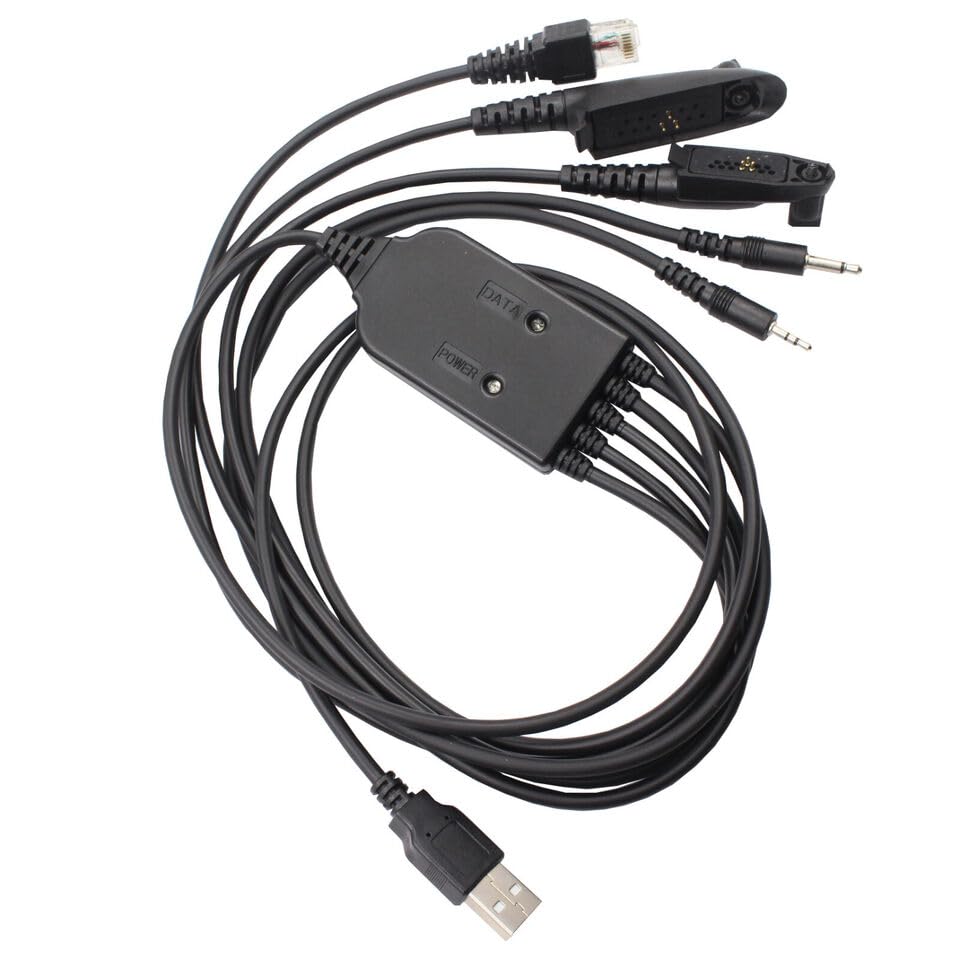
Figure 1: Overview of the dreeong 5-in-1 FTDI USB Programming Cable, showing the USB-A connector, the central data/power unit, and the five distinct radio connectors.
3. Operating
3.1 Software Configuration
To program your radio, you will need compatible Motorola radio programming software (e.g., CPS - Customer Programming Software) for your specific radio model. This software is typically provided by Motorola or authorized dealers. Ensure the software is installed and configured correctly on your computer.
- Launch your Motorola radio programming software.
- Navigate to the software's communication settings or port selection menu.
- Select the COM port assigned to the FTDI USB Programming Cable. You can identify this port in your computer's Device Manager under "Ports (COM & LPT)".
- Ensure the baud rate and other communication parameters in the software match the requirements of your radio and the programming cable.
3.2 Programming Process
The general steps for programming your radio are as follows:
- Power On Radio: Ensure your Motorola radio is powered on and has sufficient battery charge or is connected to an external power source.
- Read Radio Data: In the programming software, select the option to "Read" or "Get" data from the radio. This will download the current configuration from your radio to the software.
- Modify Settings: Make the necessary changes to frequencies, channels, features, or other parameters within the programming software.
- Write Radio Data: After making modifications, select the option to "Write" or "Program" data to the radio. Confirm any prompts.
- Verify: Once programming is complete, disconnect the cable and test the radio's functionality.
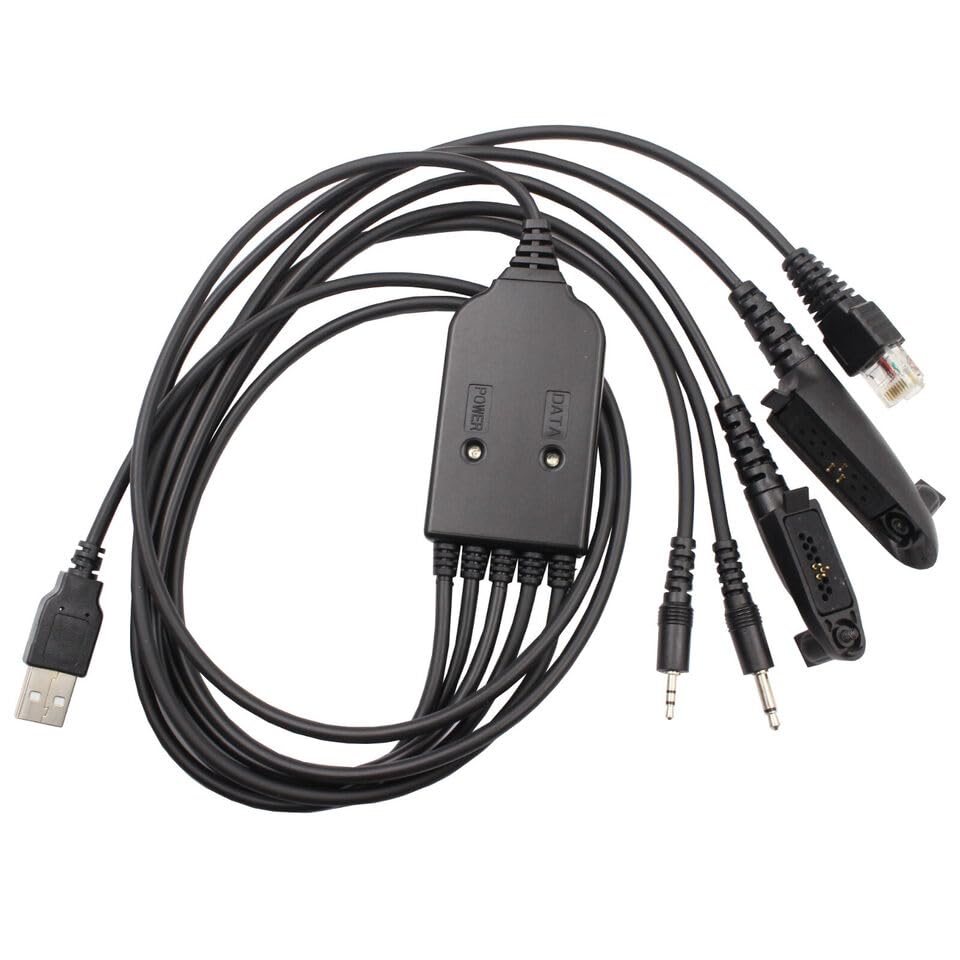
Figure 2: A closer view of the central data/power unit and the various radio connectors, highlighting the distinct shapes for different Motorola models.
4. Maintenance
4.1 Care and Storage
- Handle with Care: Avoid bending or twisting the cable excessively, especially near the connectors, to prevent internal wire damage.
- Keep Clean: Use a soft, dry cloth to gently wipe the cable and connectors. Avoid using harsh chemicals or abrasive materials.
- Store Properly: When not in use, coil the cable loosely and store it in a cool, dry place away from direct sunlight and extreme temperatures. Protect the connectors from dust and physical impact.
- Avoid Moisture: Do not expose the cable to water or high humidity, as this can damage the internal electronics.
5. Troubleshooting
5.1 Common Issues and Solutions
| Issue | Possible Solution |
|---|---|
| Cable not recognized by computer. |
|
| Programming software cannot detect the radio. |
|
| Communication errors during programming. |
|
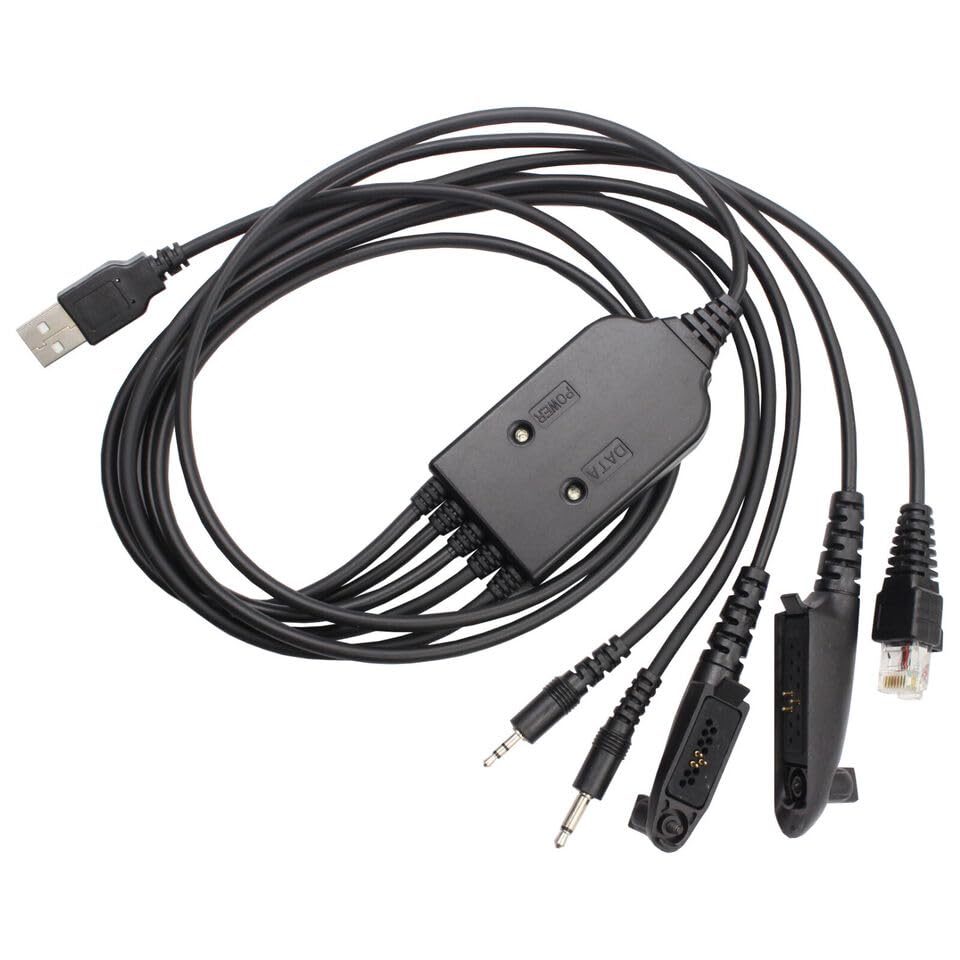
Figure 3: An angled perspective of the dreeong 5-in-1 FTDI USB Programming Cable, illustrating the cable's overall design and the different connector types.
6. Specifications
| Brand | dreeong |
| Model | 5-in-1 FTDI USB Programming Cable |
| Compatible Radios | Motorola GR400, GR500, GR1225, MCX600, MCX760 |
| Interface | USB-A to Multi-Pin Radio Connectors |
| Chipset | FTDI (ensures broad compatibility) |
| UPC | 606052694220 |
| ASIN | B0DPB14BST |
7. Warranty and Technical Support
For warranty information or technical assistance, please contact the manufacturer, dreeong, through their official support channels. Details regarding specific warranty periods and support procedures can typically be found on the product packaging or the manufacturer's website.