
Introduction
This manual provides instructions for the proper installation, operation, and maintenance of your dreeong programming cable. Please read this manual thoroughly before use to ensure correct functionality and to prevent damage to the cable or your radio equipment.
Product Overview
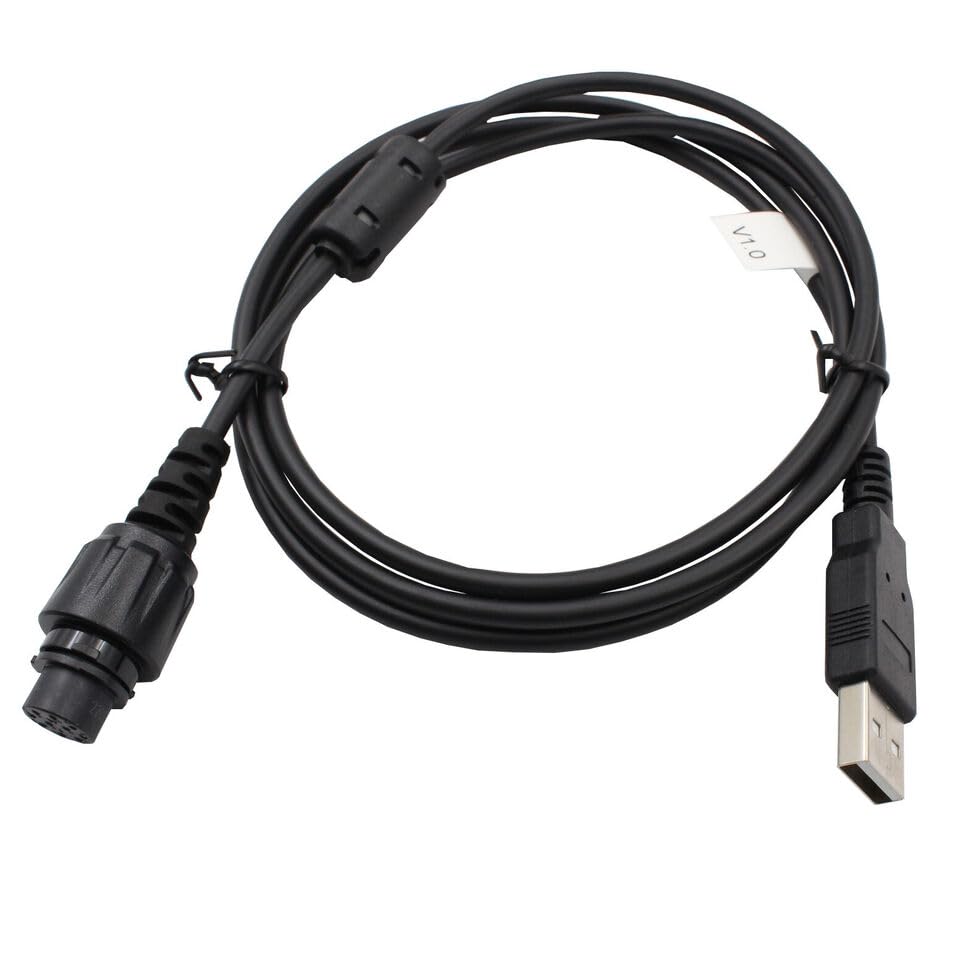
The dreeong programming cable facilitates communication between a computer and compatible Hytera mobile radios for programming and configuration purposes. It features a standard USB connector for the computer and a multi-pin connector designed to interface with the radio's programming port.

Compatibility
This programming cable is designed for use with the following Hytera mobile radio models:
- Hytera MD655
- Hytera MD652
- Hytera MD658
- Hytera MD780
Setup
- Driver Installation: Before connecting the cable, ensure that the necessary USB drivers for the programming cable are installed on your computer. These drivers are typically provided by the radio manufacturer or the cable vendor. Refer to your radio's software documentation for driver download and installation instructions.
- Software Installation: Install the appropriate Hytera programming software (CPS - Customer Programming Software) for your radio model on your computer.
- Connect to Radio: With the radio powered off, connect the multi-pin connector of the programming cable to the designated programming port on your Hytera mobile radio. Ensure a secure connection.
- Connect to Computer: Insert the USB connector of the programming cable into an available USB port on your computer.
- Power On Radio: Power on your Hytera mobile radio.
- Launch Software: Launch the Hytera programming software on your computer. The software should detect the connected radio via the programming cable.
Operation
Once the cable is connected and recognized by the programming software, you can proceed with radio configuration. The specific steps for reading, writing, and modifying radio settings are dependent on the Hytera programming software (CPS) being used. Refer to the Hytera CPS user manual for detailed operational instructions.
- Reading Radio Data: Use the "Read" function within the CPS to retrieve the current configuration from your radio.
- Modifying Settings: Make desired changes to channels, frequencies, features, and other parameters within the CPS interface.
- Writing Radio Data: Use the "Write" function within the CPS to upload the modified configuration back to your radio. Ensure the radio remains powered on and connected during this process.
- Disconnecting: After programming is complete, safely close the programming software, power off the radio, and then disconnect the cable from both the radio and the computer.
Maintenance
The programming cable requires minimal maintenance. Keep the connectors clean and free from dust or debris. Store the cable in a dry, cool place, away from direct sunlight and extreme temperatures. Avoid bending or kinking the cable excessively to prevent internal wire damage.
Troubleshooting
- Cable Not Recognized by Computer:
- Ensure USB drivers are correctly installed. Try a different USB port on your computer. Restart your computer. Check device manager for any driver errors.
- Programming Software Cannot Detect Radio:
- Verify the cable is securely connected to both the radio and the computer. Ensure the radio is powered on. Confirm that the correct programming software version for your radio model is installed. Check the communication port settings within the programming software (e.g., COM port selection).
- Error During Read/Write Operation:
- Do not disconnect the cable or power off the radio during programming. Ensure the radio's battery is sufficiently charged. Close any other applications that might interfere with the USB port. Consult the Hytera CPS error messages for specific guidance.
Specifications
| Feature | Detail |
|---|---|
| Product Type | Programming Cable |
| Brand | dreeong |
| Compatibility | Hytera MD655, MD652, MD658, MD780 Mobile Radios |
| Connector 1 | USB Type-A |
| Connector 2 | Multi-pin Radio Connector |
| Manufacturer | dreeong |
| UPC | 606052741276 |
Warranty and Support
Information regarding warranty coverage and technical support for this dreeong programming cable is not provided in this manual. Please refer to the product packaging or contact the retailer or manufacturer directly for details on warranty terms and support options.