
1. Introduction
This manual provides instructions for the proper use and installation of the dreeong USB Program Cable, designed specifically for Icom Mobile Radios. This cable facilitates communication between your computer and compatible Icom radio models, enabling programming and configuration.
Compatible Icom Mobile Radio Models:
- IC-FR3000
- IC-FR3100
- IC-FR4000
- IC-FR4100
2. Package Contents
Verify that all items are present in your package:
- 1 x dreeong USB Program Cable
- 1 x Driver/Software CD (may vary by package)
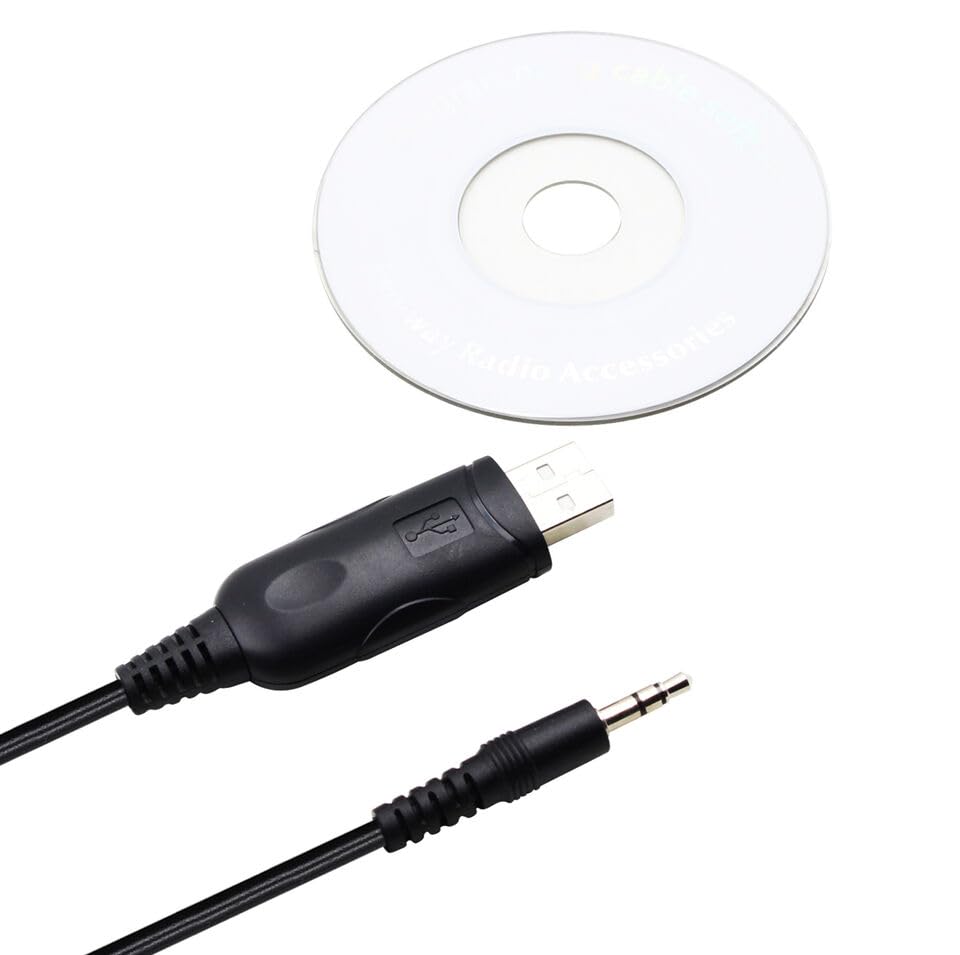
Image 1: The USB program cable connected to a small CD, likely containing drivers or software. The cable features a USB-A connector on one end and a multi-pin connector on the other, typical for radio programming.
3. Setup and Driver Installation
Before connecting the cable to your radio, it is crucial to install the necessary drivers on your computer. Failure to do so may result in the cable not being recognized or functioning incorrectly.
- Insert Driver CD: Insert the provided driver/software CD into your computer's CD-ROM drive. If your computer does not have a CD-ROM drive, you may need to download the drivers from the manufacturer's website (refer to the product packaging or seller for specific download links).
- Run Setup: Navigate to the CD's contents and locate the driver setup executable (e.g., "setup.exe" or "driver_installer.msi"). Double-click to run the installer.
- Follow On-Screen Prompts: Follow the instructions provided by the driver installation wizard. This typically involves accepting license agreements and selecting an installation directory.
- Connect Cable: Once the drivers are successfully installed, connect the USB-A end of the program cable to an available USB port on your computer.
- Connect to Radio: Connect the multi-pin connector end of the program cable to the designated programming port on your Icom Mobile Radio. Ensure the radio is powered off before connecting the cable.
- Verify Installation: Open your computer's Device Manager (Windows) or System Information (macOS) to confirm that the USB program cable is recognized and installed correctly, usually appearing under "Ports (COM & LPT)" or "USB Serial Bus controllers."
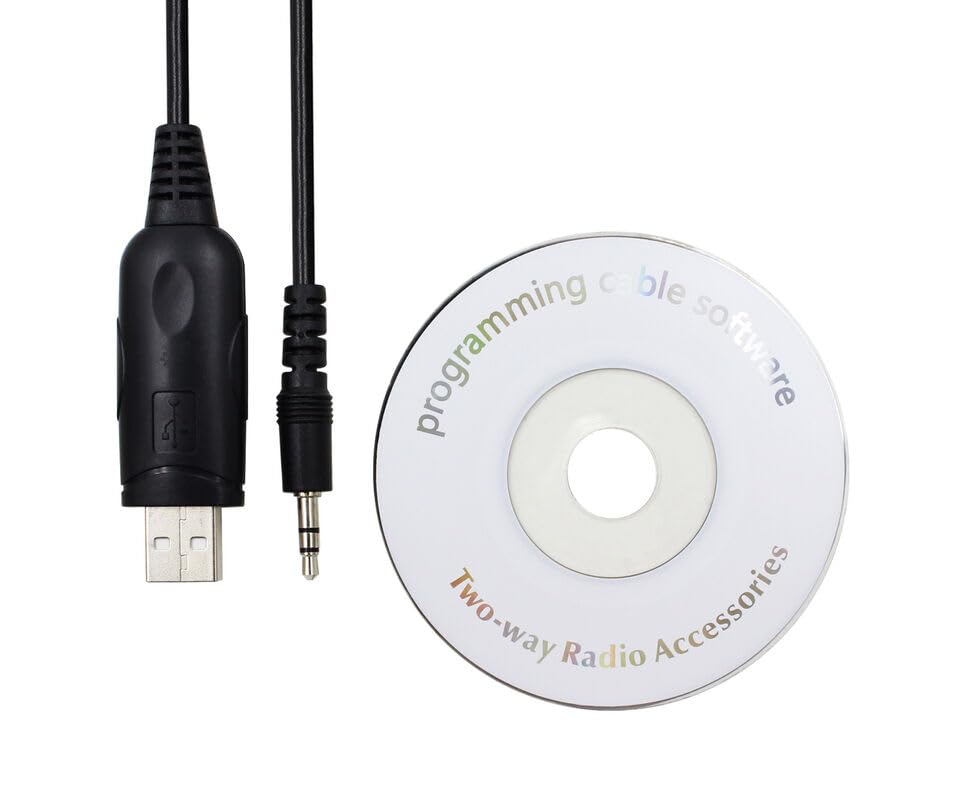
Image 2: A close-up view of the USB program cable and the accompanying software CD. The cable's USB connector and the radio-specific connector are clearly visible, along with the "programming cable software" label on the CD.
4. Operating Instructions
After successful driver installation and cable connection, you can proceed with programming your Icom radio using the appropriate programming software (not included with this cable unless specified by the seller).
- Launch Programming Software: Open the Icom radio programming software on your computer.
- Select COM Port: Within the software settings, select the correct COM port assigned to the USB program cable. This can be identified in your computer's Device Manager.
- Read Radio Data: Power on your Icom radio. Use the software's "Read from Radio" or "Download" function to retrieve the current configuration from your radio. This is recommended before making any changes.
- Modify Settings: Make the desired changes to the radio's settings, frequencies, or channels within the programming software.
- Write to Radio: Once modifications are complete, use the software's "Write to Radio" or "Upload" function to transfer the new configuration to your radio. Ensure the radio remains powered on and connected during this process.
- Disconnect Cable: After the programming process is complete and confirmed by the software, power off your radio and then safely disconnect the USB program cable.
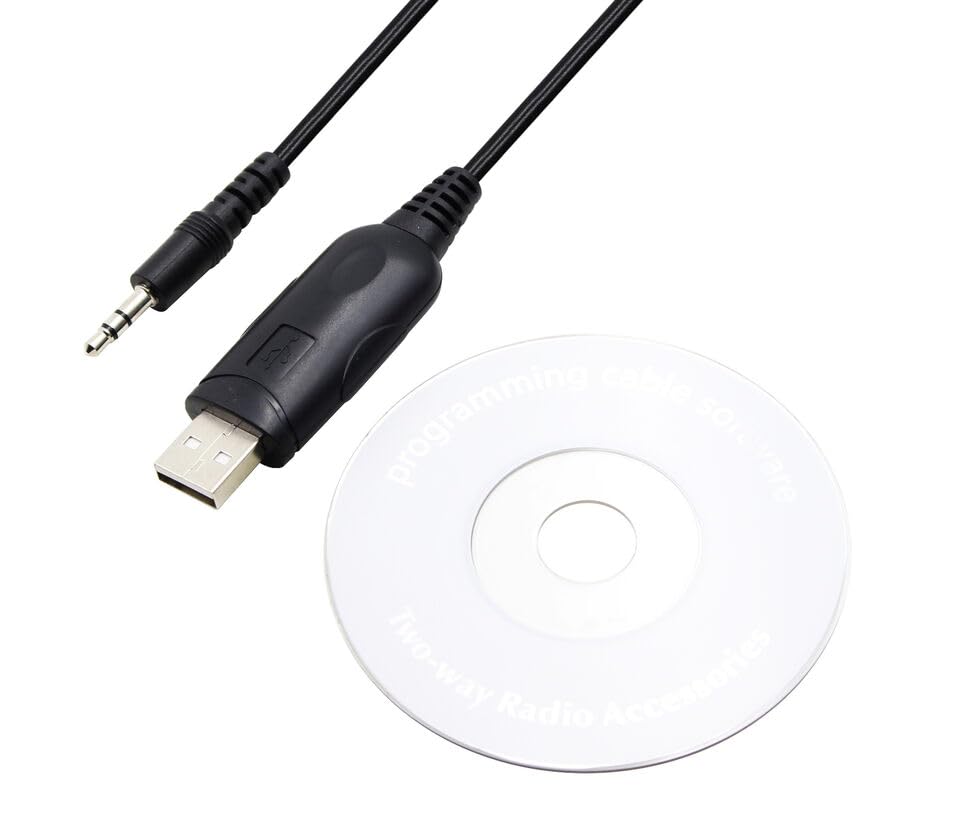
Image 3: A top-down perspective of the USB program cable and the driver CD. This view highlights the cable's flexibility and the distinct shapes of its connectors, emphasizing its purpose for radio programming.
5. Maintenance
The USB program cable requires minimal maintenance to ensure its longevity and reliable performance.
- Storage: Store the cable in a cool, dry place away from direct sunlight and extreme temperatures.
- Cleaning: If necessary, gently wipe the cable and connectors with a soft, dry cloth. Do not use liquid cleaners or abrasive materials.
- Handling: Avoid bending the cable sharply or pulling on the cable itself when disconnecting. Always grasp the connector ends.
- Connector Protection: Keep the connectors free from dust and debris.
6. Troubleshooting
| Problem | Possible Cause | Solution |
|---|---|---|
| Cable not recognized by computer. | Drivers not installed or installed incorrectly. | Reinstall drivers from the provided CD or manufacturer's website. Check Device Manager for errors. |
| Programming software cannot detect radio. | Incorrect COM port selected in software; Radio not powered on; Cable not fully connected. | Verify COM port in Device Manager and software. Ensure radio is powered on and cable is securely connected to both computer and radio. |
| Error during read/write operation. | Radio communication error; Software incompatibility. | Ensure radio is in programming mode (if applicable). Try a different USB port. Verify software version compatibility with your radio model. |
7. Specifications
- Product Type: USB Program Cable
- Compatibility: Icom Mobile Radios (IC-FR3000, IC-FR3100, IC-FR4000, IC-FR4100)
- Connectors: USB-A to Multi-pin Radio Connector
- Manufacturer: dreeong
- UPC: 606052746561
- ASIN: B0DP9YZW3P
8. Warranty Information
This dreeong USB Program Cable typically comes with a standard manufacturer's warranty covering defects in materials and workmanship. The specific duration and terms of the warranty may vary. Please refer to the product packaging or contact the seller/manufacturer for detailed warranty information and claim procedures.
9. Support
For technical assistance, driver updates, or troubleshooting beyond the scope of this manual, please contact the seller or manufacturer directly. Keep your purchase receipt and product details (ASIN, UPC) readily available when seeking support.
Seller: DREEONG STORE