
SHENGJINSH A3 L805 DTG
SHENGJINSH A3 L805 DTG & DTF Printer User Manual
Model: A3 L805 DTG | Brand: SHENGJINSH
Introduction
This manual provides comprehensive instructions for the setup, operation, and maintenance of your SHENGJINSH A3 L805 DTG & DTF Printer. This versatile machine is designed for both Direct-to-Garment (DTG) printing on cotton fabrics and Direct-to-Film (DTF) transfers for a wider range of materials, including T-shirts, hoodies, pants, hats, and canvas bags.
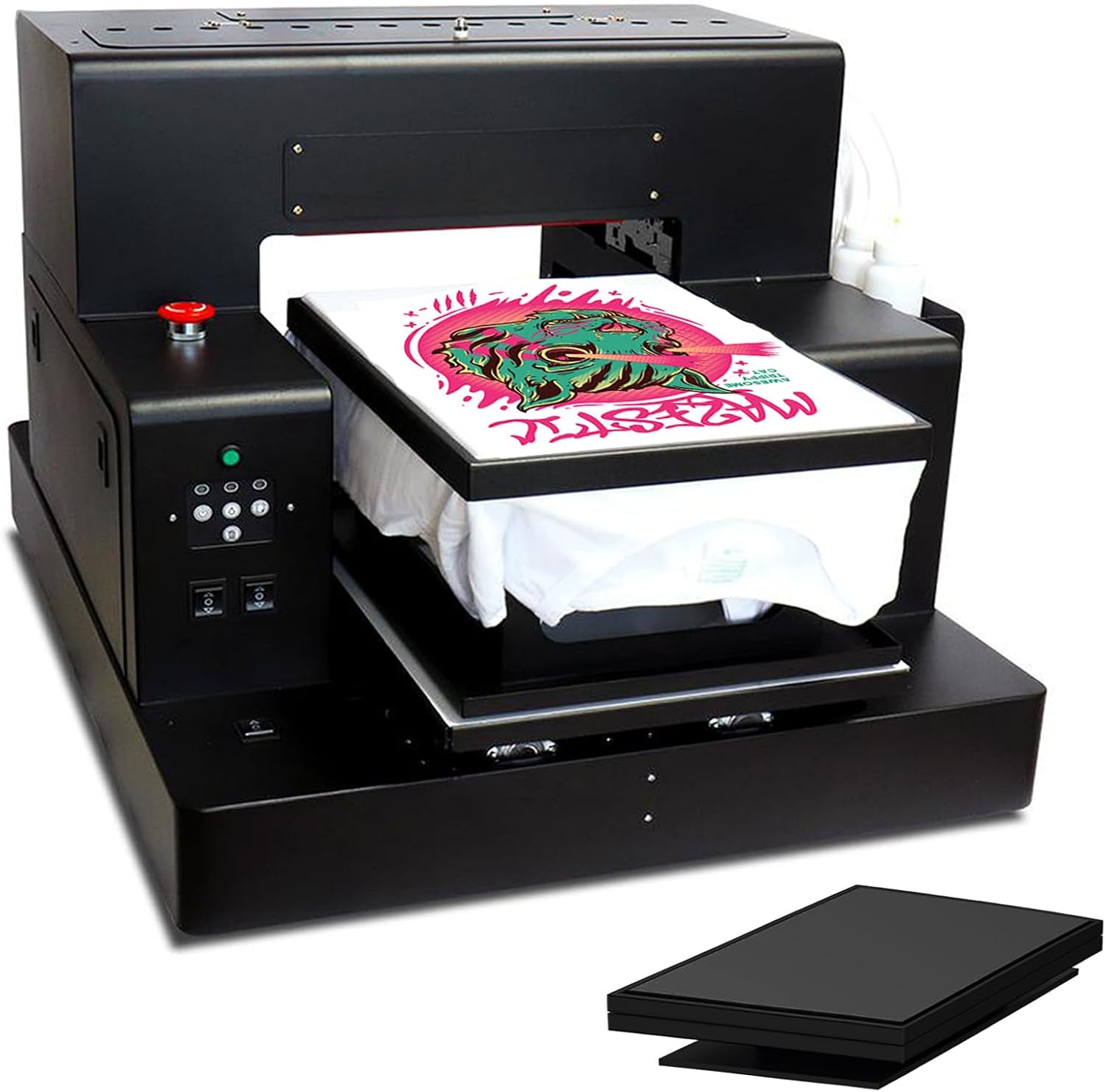
Figure 1: SHENGJINSH A3 L805 DTG & DTF Printer Overview.
Product Features
- DTG Printing Capability: Directly prints detailed, colorful images onto white cotton garments, offering durable prints that resist fading and cracking.
- DTF Printing Capability: Supports printing patterns on DTF film or hot foil stamping paper for transfer to various materials via heat pressing.
- High Precision L1805 Printhead: Features a 6-color (CMYK LC LM or CMYK+2W) printhead with 1440x1440dpi resolution for vibrant colors and crisp details.
- White Ink Circulation System: Prevents white ink sedimentation and nozzle clogging, ensuring consistent performance.
- Infrared Automatic Height Adjustment: Automatically adjusts printhead height for optimal printing.
- Self-Cleaning Printhead Mechanism: Minimizes manual maintenance.
- Vacuum Suction Platform: Secures transfer films and printing materials in place for precise printing.

Figure 2: Multifunctional DTG/DTF Printer capabilities.
Setup Guide
1. Unboxing and Component Check
Carefully remove all components from the packaging. Verify that all items listed below are present:
- 1x A3 DTG Printer
- 1x Clothing Holder
- 6x Ink Bottles (empty, for user-supplied ink)
- 1x Software (USB drive)
- 1x USB Manual (on USB drive)
- 1x Ink Syringe
- 2x Ink Sack
- 1x White Ink Stir
- 1x Power Cable
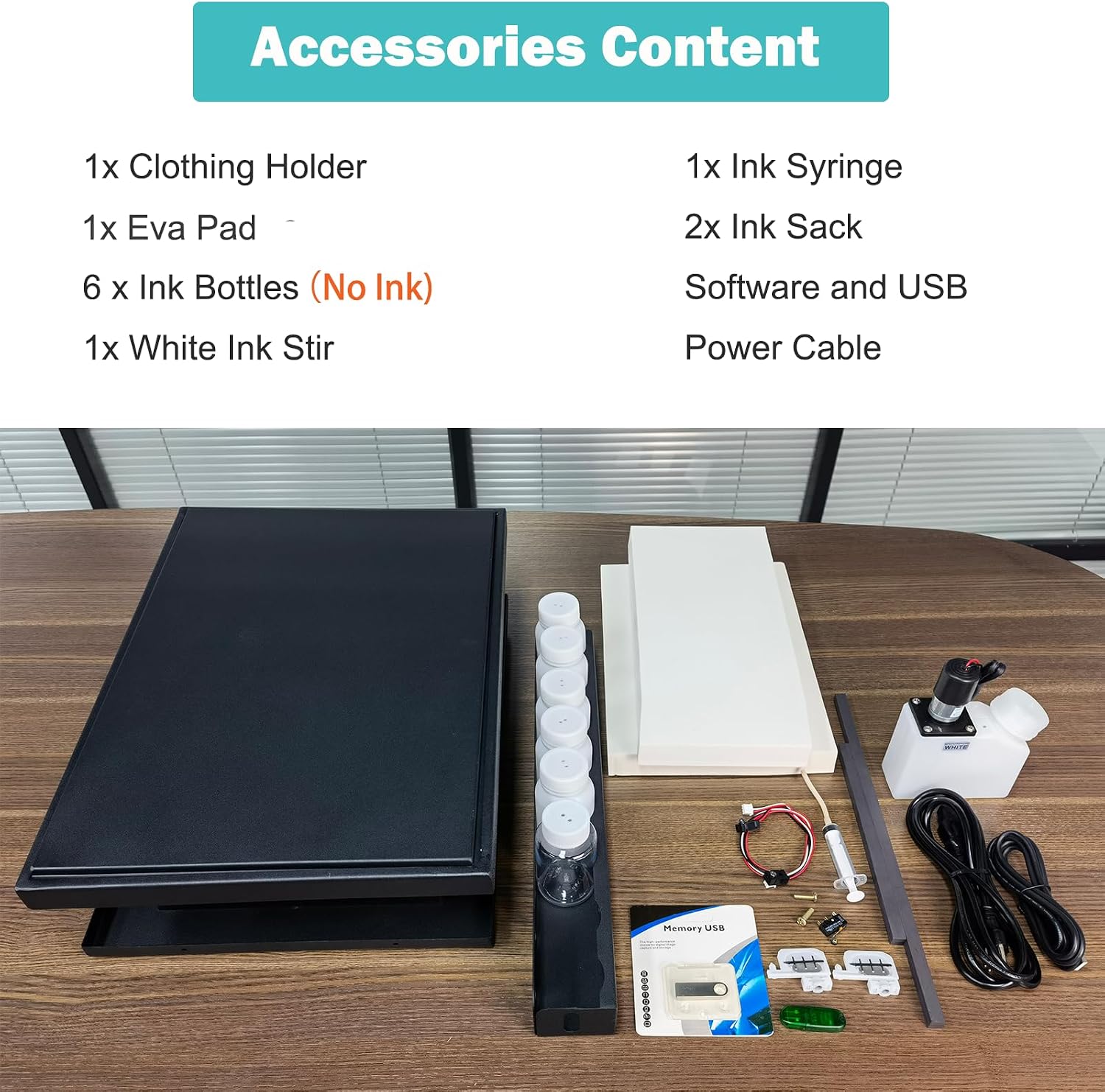
Figure 3: Accessories Content included with the printer.
2. Initial Connections
Connect the power cable to the printer and a suitable power outlet. Connect the printer to your computer using the provided USB cable.
3. Software Installation
Insert the provided USB drive into your computer. Locate and run the installer for the printer software. Follow the on-screen prompts to complete the installation.
Important Note: This printer is compatible with Windows 7-11 operating systems. It is not compatible with macOS systems. Ensure your system meets the requirements before installation.
4. Ink Loading
The printer requires DuPont P5000 full set of inks (not included). Carefully fill the ink tanks with the appropriate colors (Cyan, Magenta, Yellow, Black, Light Cyan, Light Magenta) and white ink. Refer to the USB Manual for detailed instructions on ink loading and initial priming.

Figure 4: Ink tank setup.
Operating Instructions
1. Printer Controls Overview

Figure 5: Product Details and Control Panel.
- Emergency Stop Switch: Red button for immediate printer shutdown in emergencies.
- Multifunctional Button: Used for various operations as indicated by the software.
- Ink Button: Initiates ink-related functions, such as priming or cleaning.
- Delete Button: Used to clear print jobs or settings.
- In and Out / Stop Button: Controls the movement of the printing platen.
- Paper Button: Manages paper/material feeding.
- Automatic Stop: Sensor-based stop function.
2. DTG Printing Process
For DTG printing, prepare your white cotton garment by placing it flat on the clothing holder/platen. Ensure it is smooth and free of wrinkles. Use the software to send your design to the printer. The printer will directly apply the ink to the fabric.

Figure 6: DTG Printing in progress.
3. DTF Printing Process
DTF printing involves several steps to transfer designs onto various materials. You will need additional equipment and materials for this process:
- DTF film
- DTF powder
- DTF ink
- Heat press machine
- DTF Oven (or equivalent drying method)
- Windows system computer
- Recommended: DuPont color ink pretreatment solution
- Print on PET film: Use the printer to print your design onto the DTF PET film.
- Dusting powder: Immediately after printing, apply DTF powder evenly over the wet ink on the film.
- Bake dry: Cure the powder and ink on the film using a DTF oven or heat press (without pressure) until dry.
- Press onto garment (First Press): Place the film with the design onto your T-shirt, hoodie, or other material. Press at 170°C for 20 seconds using a heat press.
- Tear off PET film after cooling: Allow the film to cool completely before carefully peeling it off.
- Press again (Second Press): For best results and durability, press the design again at 170°C for 20 seconds.

Figure 7: DTF Printing Process Steps.

Figure 8: Examples of print applications and effects.
Maintenance
Regular maintenance ensures the longevity and optimal performance of your printer.
1. White Ink Circulation System
The integrated white ink circulation system is designed to prevent ink sedimentation. Ensure this system is always active when the printer is on to avoid clogs. If the printer is idle for extended periods, perform a manual circulation or cleaning cycle as per the software instructions.

Figure 9: Automatic & High Performance Features.
2. Printhead Cleaning
The printer features a self-cleaning printhead mechanism. Periodically run the printhead cleaning utility from the printer software to maintain print quality and prevent nozzle clogs. If print quality degrades, perform a deeper cleaning cycle.
3. General Cleaning
Keep the printer's exterior and platen clean from ink residue and dust using a soft, damp cloth. Avoid using harsh chemicals that could damage the printer's surfaces.
Troubleshooting
This section addresses common issues you might encounter with your printer.
1. Software Issues
If you experience software crashes or unexpected behavior, ensure you are using the official software provided with the printer. It is recommended to install the software on a clean Windows system (Windows 7-11). If issues persist, consult the USB Manual for advanced troubleshooting or contact customer support.
2. Print Quality Issues
- Streaks or Missing Lines: Perform a printhead cleaning cycle. Check ink levels and refill if necessary.
- Faded Colors: Ensure correct ink types are used (DuPont P5000 recommended). Verify print settings in the software.
- Ink Bleeding/Smudging: Ensure the material is properly pretreated (for DTG) or cured (for DTF). Check printhead height adjustment.
3. Printer Not Responding
- Check power connection and ensure the printer is turned on.
- Verify USB cable connection to both printer and computer.
- Restart both the printer and the computer.
- Ensure printer drivers are correctly installed and updated.
Specifications
| Feature | Detail |
|---|---|
| Brand | SHENGJINSH |
| Model Name | A3 L805 DTG |
| Printing Technology | DTG/DTF |
| Printer Output | Color |
| Maximum Color Print Resolution | 1440x1440 dpi |
| Maximum Black and White Print Resolution | 1440*1440dpi |
| Ink Color | Cyan, Magenta, Yellow, Black, Light Cyan, Light Magenta |
| Printer Ink Type | Pigment-based |
| Maximum Media Size | A3 |
| Print Media | Fabric |
| Connectivity Technology | USB |
| Compatible System | Windows 7-11 |
| Product Dimensions | 30 x 24.8 x 20 inches |
| Warranty Type | limited warranty |
Warranty and Support
Warranty Information
This SHENGJINSH A3 L805 DTG & DTF Printer comes with a limited warranty. Please refer to the warranty card included in your package or the USB Manual for specific terms and conditions regarding coverage and duration.
Customer Support
For technical assistance, troubleshooting, or warranty claims, please contact SHENGJINSH customer support. Contact information can typically be found on the manufacturer's website or in the documentation provided with your product.
Related Documents - A3 L805 DTG
 |
COLORPRO 13 Inch DTF Printer User Manual - Installation, Maintenance, and Warranty Comprehensive user manual for the COLORPRO 13 Inch DTF Printer, detailing installation steps, essential maintenance schedules, operational tips, and warranty policy. |
 |
Procolored P13 DTF Printer User Manual A comprehensive user manual for the Procolored P13 DTF Printer, detailing installation, setup, operation, maintenance, and warranty information. Includes step-by-step guides for unboxing, driver installation, RIP software setup, printing, and troubleshooting. |
 |
Procolored DTF L1800 User Manual: Setup, Operation, and Maintenance Guide A comprehensive guide for the Procolored DTF L1800 printer, covering assembly, driver and RIP software installation, printing procedures, powdering and curing, heat pressing, daily operation, maintenance schedules, troubleshooting tips, and warranty information. Essential for users of Procolored DTF printing solutions. |
 |
Procolored Mini UV DTF Printer User Manual Comprehensive user manual for the Procolored Mini UV DTF printer, detailing assembly, film loading, printer control, ink loading, RIP software setup, daily operation, maintenance, warranty, and return policies. |
 |
Procolored K8 DTF Printer: User Manual, Setup, and Maintenance Guide Comprehensive user manual for the Procolored K8 DTF printer. Covers setup, software installation, ink loading, printing, maintenance, troubleshooting tips, and warranty information. |
 |
Procolored K13 Lite DTF Printer User Manual - Setup, Operation, and Maintenance Guide Comprehensive user manual for the Procolored K13 Lite DTF Printer, covering unboxing, setup, driver installation, software usage, printing, maintenance, troubleshooting, and warranty information. Includes detailed instructions and operational guidance. |
Ask a question about this manual
Ask about setup, troubleshooting, compatibility, parts, safety, or missing instructions. Manuals+ will review the question and use this page’s manual context to help answer it.