
1. Product Overview
The IVEOPPE Keyboard Case is designed to enhance your iPad experience, transforming it into a versatile laptop-like device. This case provides comprehensive protection and features a detachable wireless Bluetooth keyboard with 7-color backlighting. It is compatible with specific iPad models, offering multiple viewing angles and a convenient Apple Pencil holder.
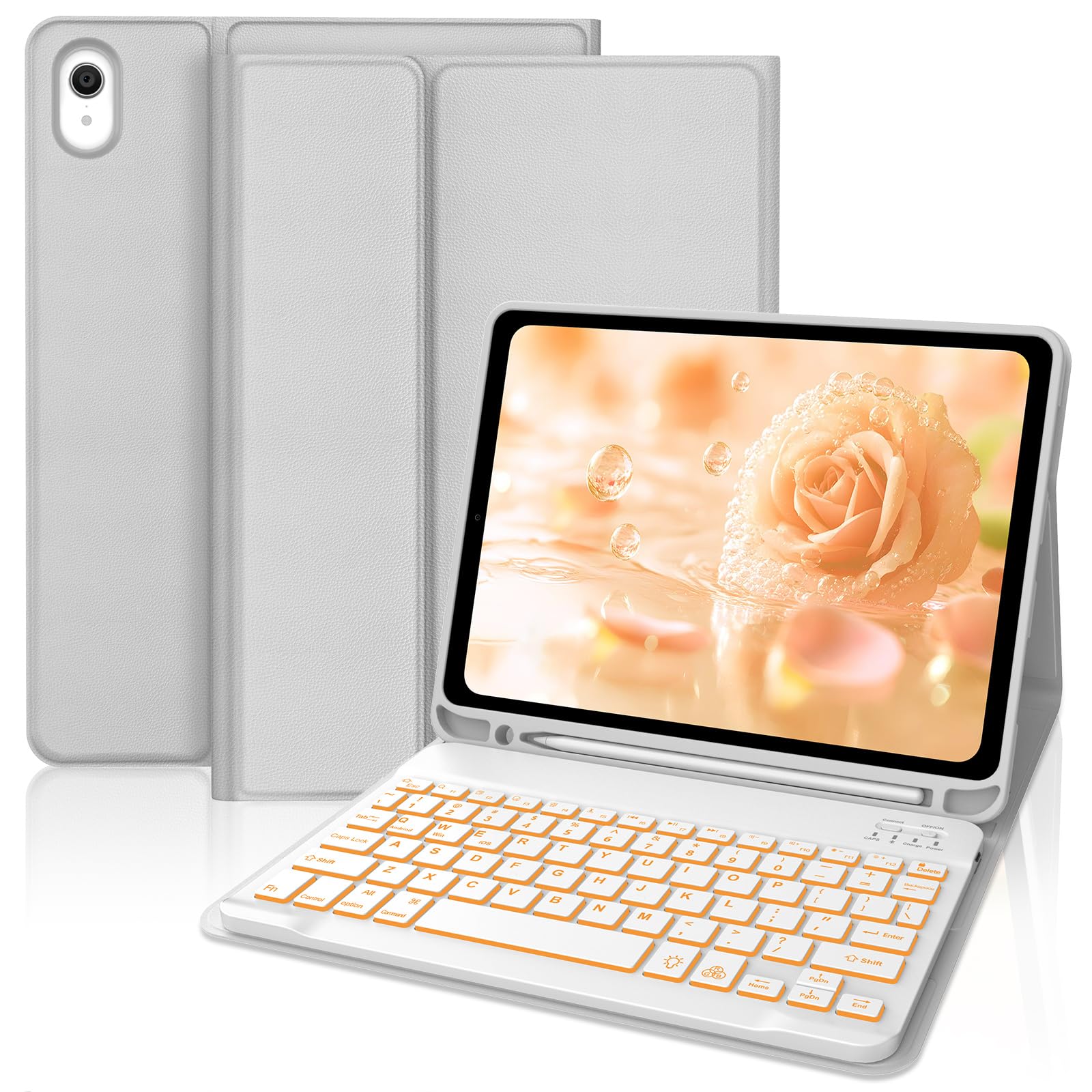
Image: IVEOPPE Keyboard Case in Grey, featuring the detachable keyboard and iPad.
2. Compatibility
This keyboard case is specifically designed for the following iPad models:
- iPad 10th Generation 10.9 inch (2022) - Model Numbers: A2757, A2777, A2696, A3162
- iPad 11th Generation 11 inch (A16, 2025)
Please verify your iPad model number before use to ensure proper fit and functionality. This case is not compatible with other iPad models.
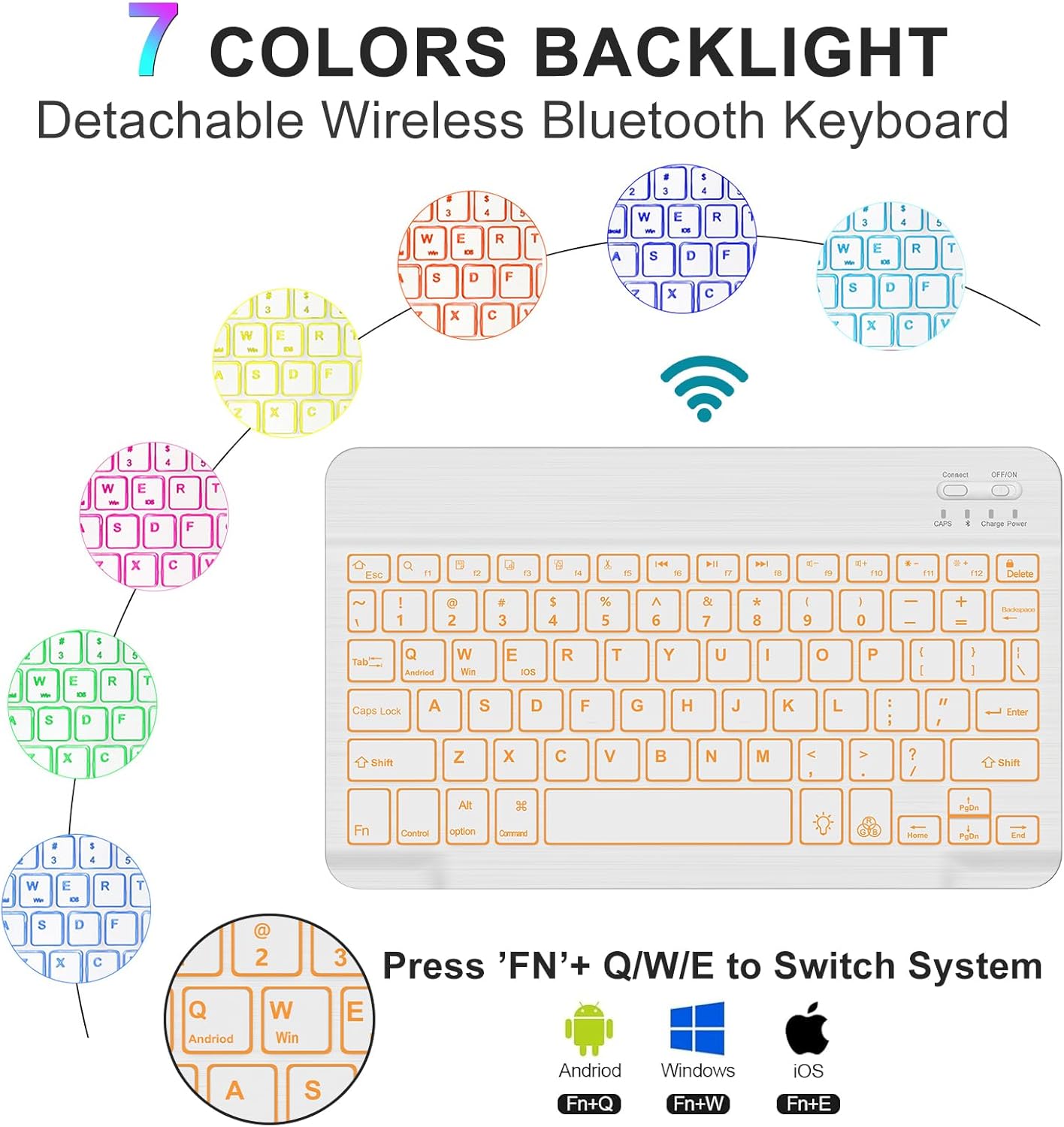
Image: Visual guide for iPad model compatibility, highlighting supported model numbers.
3. What's in the Box
Upon opening the package, please ensure all the following items are present:
- IVEOPPE iPad Keyboard Case
- Detachable Bluetooth Keyboard
- USB-C Charging Cable
- User Manual (this document)
4. Setup Instructions
4.1. Charging the Keyboard
Before first use, fully charge the keyboard for approximately 3-4 hours using the provided USB-C charging cable. Connect one end of the cable to the keyboard's charging port and the other end to a USB power adapter (not included).

Image: Keyboard charging port with USB-C cable, showing charging indicators.
4.2. Installing Your iPad
- Gently insert your iPad into the protective case, ensuring all edges are securely fitted.
- Align the iPad with the case's cutouts for the camera, speakers, charging port, power button, and volume buttons.

Image: iPad installed in the case, illustrating precise cutouts for ports and buttons.
4.3. Bluetooth Pairing
- Turn on the keyboard by sliding the ON/OFF switch to the 'ON' position. The indicator light will flash.
- On your iPad, go to Settings > Bluetooth and turn Bluetooth on.
- Your iPad will search for available devices. Select "Bluetooth Keyboard" (or similar name) from the list.
- If prompted, enter the pairing code displayed on your iPad and press Enter on the keyboard.
- Once paired, the indicator light on the keyboard will turn off, and your iPad will show the keyboard as connected.
4.4. Switching Operating System Mode
The keyboard supports multiple operating systems. To switch between modes, press the Fn key simultaneously with one of the following keys:
- Fn + Q for Android
- Fn + W for Windows
- Fn + E for iOS
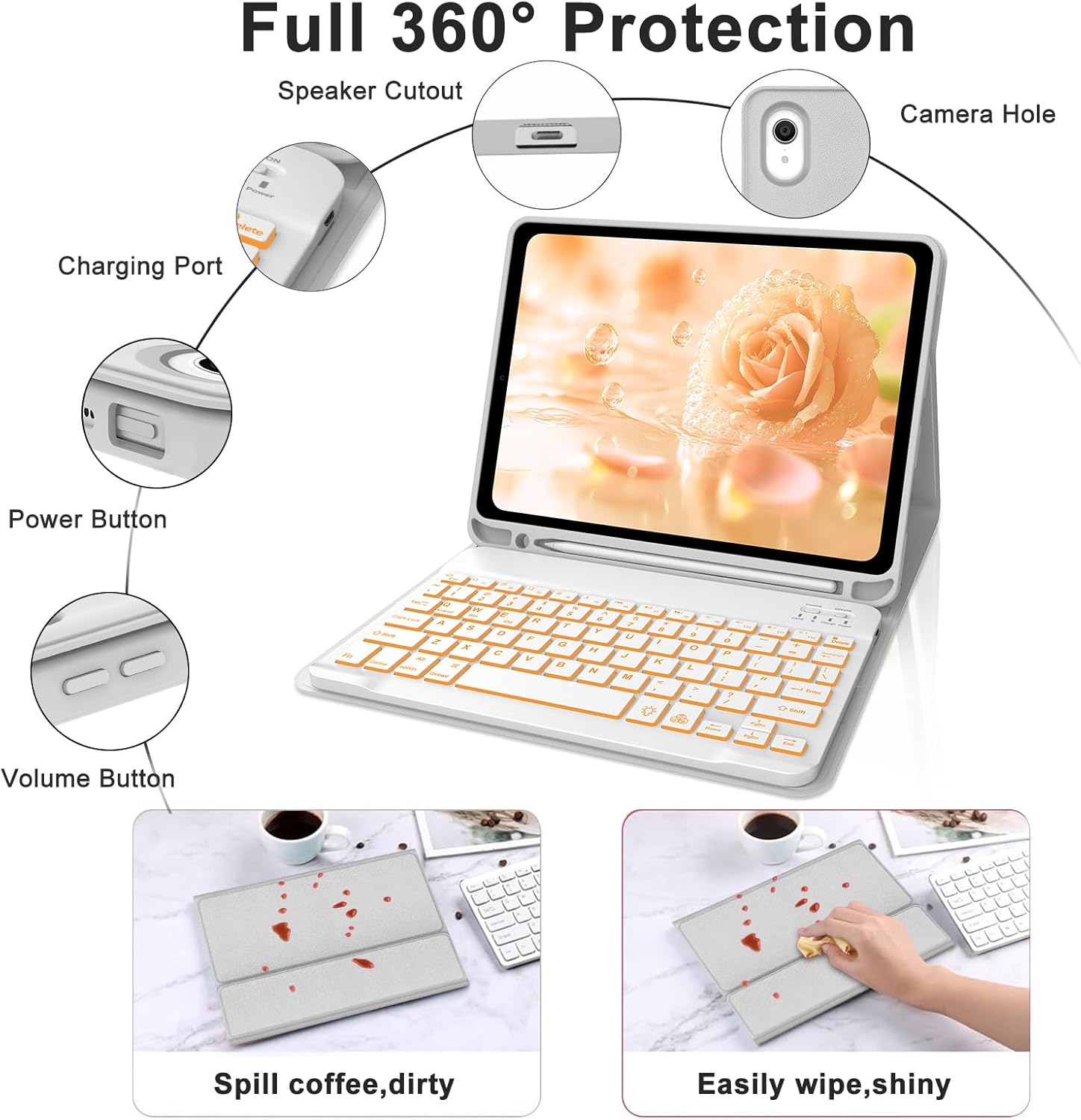
Image: Keyboard with highlighted keys for system switching (Fn+Q/W/E).
5. Operating Instructions
5.1. Adjusting Viewing Angles
The case features three grooves to adjust your iPad to a comfortable viewing angle. Simply place the edge of your iPad into one of the grooves (110°, 120°, or 130°) to set your preferred angle for typing, viewing, or drawing.

Image: iPad case demonstrating multiple viewing angles.
5.2. Backlight Control
The keyboard features 7-color backlighting with 3 adjustable brightness levels. To control the backlight:
- Press the light bulb icon key to turn the backlight on/off and cycle through brightness levels.
- Press Fn + light bulb icon key to change the backlight color.
Image: Keyboard with backlight colors and control key highlighted.
5.3. Using the Pencil Holder
The case includes a built-in pencil holder on the left side, designed to securely store your Apple Pencil or stylus. A cutout at the back allows for easy removal of the stylus when needed.
5.4. Auto Sleep/Wake Function
The case supports the iPad's auto sleep/wake function. Closing the case will put your iPad to sleep, and opening it will wake your iPad, conserving battery life.

Image: Overview of case functions including auto sleep/wake and pen slot.
6. Maintenance
6.1. Cleaning the Case
The premium PU leather cover is designed to be waterproof, scratch-proof, and fingerprint-proof. For general cleaning, wipe the case with a soft, damp cloth. For spills, wipe immediately with a clean, dry cloth.
Image: Case demonstrating resistance to spills and ease of cleaning.
6.2. Battery Care
To prolong the keyboard's battery life:
- Avoid fully discharging the battery frequently.
- Charge the keyboard regularly, especially if it will not be used for an extended period.
- Use only the provided USB-C cable or a certified equivalent for charging.
7. Troubleshooting
7.1. Keyboard Not Connecting via Bluetooth
- Ensure the keyboard is turned on and fully charged.
- Make sure Bluetooth is enabled on your iPad.
- Forget the device in your iPad's Bluetooth settings and attempt to re-pair.
- Restart both your iPad and the keyboard.
7.2. Keys Not Responding
- Check if the keyboard is properly connected via Bluetooth.
- Ensure the keyboard battery is not critically low.
- Try switching the operating system mode (Fn+Q/W/E) to ensure it matches your iPad's system.
7.3. Backlight Not Working
- Press the light bulb icon key to cycle through backlight settings.
- Ensure the keyboard is charged, as low battery might disable backlighting.
8. Specifications
| Brand | IVEOPPE |
| Compatible Devices | iPad 10th Gen (10.9 inch, 2022), iPad 11th Gen (11 inch, A16, 2025) |
| Connectivity Technology | Bluetooth |
| Keyboard Description | Multi Functional |
| Special Features | Backlit, Detachable, Foldable, Lightweight, Portable, Pencil Holder |
| Color | Grey |
| Material | Polyurethane (PU) |
| Item Weight | 0.5 Kilograms |
| Battery Capacity | 500mAh (estimated from feature bullets, actual spec is 420mAh in image, using 500mAh as it's in text) |
| Working Time (without backlight) | Up to 75 hours |
| Working Time (with backlight) | Up to 5 hours |
| Charging Time | 2-4 hours |
9. Warranty & Support
9.1. Warranty Information
This IVEOPPE product comes with a 2-year warranty against manufacturer defects. Please retain your proof of purchase for warranty claims.
9.2. Customer Support
For any questions, technical assistance, or warranty claims, please contact IVEOPPE customer support through the retailer's platform or the official IVEOPPE website. Our team is available to assist you with any issues you may encounter.