
1. Introduction
Welcome to the ONE XPLAYER OneXfly F1 Pro User Manual. This guide provides essential information for setting up, operating, maintaining, and troubleshooting your new handheld PC. The OneXfly F1 Pro is a high-performance gaming handheld designed for an immersive gaming experience on the go, featuring an AMD Ryzen AI 9 HX 370 processor and a vibrant 144Hz OLED display.
2. Product Overview
The ONE XPLAYER OneXfly F1 Pro is a compact yet powerful handheld PC, engineered for superior gaming performance and portability. Its ergonomic design ensures comfortable extended play sessions.
2.1 Key Features
- Processor: AMD Ryzen AI 9 HX 370 with 890M iGPU, offering significant performance gains.
- Display: 7-inch 144Hz 1080p OLED display with 800nit peak brightness for vibrant visuals.
- Memory & Storage: Built-in 32GB LPDDR5X 7500MHz dual channel RAM and 1TB SSD.
- Controls: Hall Joystick with 18° tilt and 7.5mm height, providing precise control.
- Audio: Harman AudioEFX stereo speakers for immersive sound.
- Connectivity: 2x USB 4 ports supporting eGPU expansion, USB-A 3.0, 3.5mm audio jack, and Micro SD 4.0 slot.
- Battery: 48Wh battery with 65W GaN Charger included.
2.2 Device Layout
Familiarize yourself with the various components and ports of your OneXfly F1 Pro.

Figure 2.1: Front view of the OneXfly F1 Pro, showcasing the 7-inch OLED display and integrated controls.

Figure 2.2: Various views of the OneXfly F1 Pro, highlighting the ergonomic design and rear ventilation.
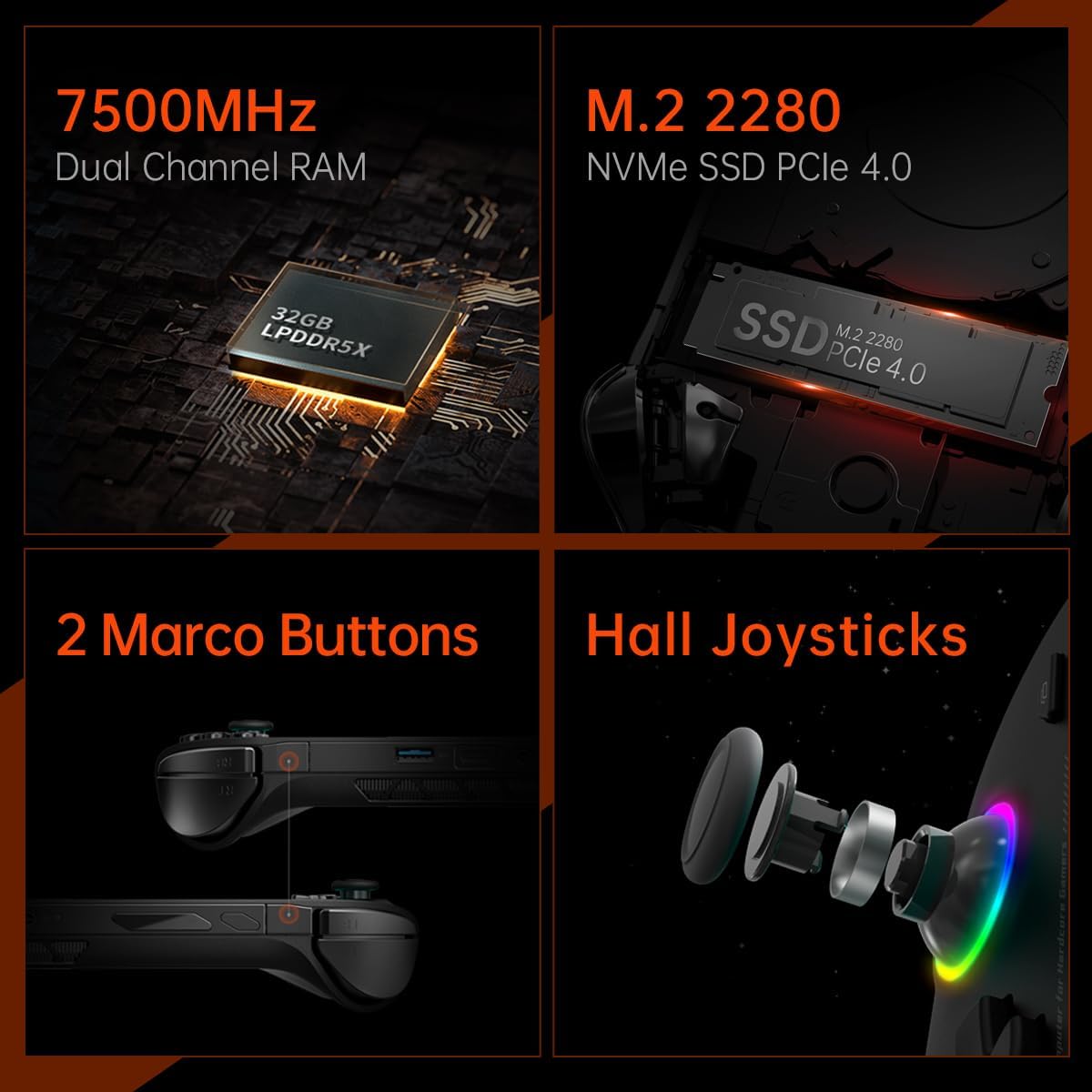
Figure 2.3: Close-up of the connectivity ports on the OneXfly F1 Pro, including USB-C 4.0, USB-A 3.0, and 3.5mm audio jack.
3. Setup
3.1 Initial Power On
- Unpack your OneXfly F1 Pro and all accessories from the box.
- Connect the included 65W GaN Charger to the USB-C port on the device and plug it into a power outlet.
- Press and hold the power button (located on the top edge) for a few seconds until the screen illuminates.
- Follow the on-screen instructions to complete the initial Windows 11 Home setup, including language, region, and network settings.
3.2 Connecting to Wi-Fi
- During initial setup or later, navigate to Settings > Network & Internet > Wi-Fi.
- Select your desired Wi-Fi network from the list.
- Enter the network password if prompted and click Connect.
3.3 Installing Games and Applications
The OneXfly F1 Pro runs Windows 11 Home, allowing you to install games and applications just like a standard PC.
- Download game launchers such as Steam, Epic Games, or Xbox App.
- Install games directly to the 1TB SSD.
- For additional storage, utilize the Micro SD 4.0 slot.
4. Operating Instructions
4.1 Gaming Performance and TDP Adjustment
The OneXfly F1 Pro is optimized for high-performance gaming. You can adjust the Thermal Design Power (TDP) to balance performance and battery life using the pre-installed OneXConsole software.
- Access OneXConsole: Use the dedicated button or shortcut to open the OneXConsole overlay.
- TDP Adjustment: Adjust TDP from 4W (for maximum battery efficiency) up to 30W (for peak performance). Higher TDP consumes more power and generates more heat.
- Optimal Settings: For many AAA games, a TDP of 15W can provide close to 60 frames per second while extending battery life compared to maximum TDP.

Figure 4.1: The OneXConsole interface allows for quick adjustments of fan speed, TDP, and resolution.
4.2 Controls and Input
The device features integrated gamepad controls for an intuitive gaming experience.
- Hall Joysticks: Provide precise and durable input with no dead zones.
- Buttons: Standard A/B/X/Y buttons, D-pad, shoulder buttons (L1/R1), and triggers (L2/R2).
- Macro Buttons: Two customizable macro buttons for advanced users.
4.3 External Connectivity
Expand your gaming setup with the versatile connectivity options.
- USB 4 Ports: Two USB 4 ports allow for high-speed data transfer and support external GPU (eGPU) expansion for enhanced desktop-like gaming performance.
- USB-A 3.0: Connect standard USB peripherals like keyboards, mice, or external drives.
- 3.5mm Audio Jack: For connecting headphones or external speakers.
- Micro SD 4.0: Expand storage capacity for games and media.

Figure 4.2: The OneXfly F1 Pro connected to an external monitor and an eGPU (OneXGPU), demonstrating its expandability for a desktop gaming experience.
5. Maintenance
5.1 Cleaning the Device
- Use a soft, lint-free cloth to wipe the screen and body of the device.
- For stubborn smudges, slightly dampen the cloth with water or a screen-safe cleaner.
- Avoid using harsh chemicals or abrasive materials.
- Keep ventilation grilles clear of dust and debris to ensure proper airflow.
5.2 Battery Care
- Charge the device using only the included 65W GaN Charger.
- Avoid completely draining the battery frequently.
- For long-term storage, charge the battery to approximately 50-60% and store in a cool, dry place.
6. Troubleshooting
6.1 Common Issues and Solutions
| Problem | Possible Cause | Solution |
|---|---|---|
| Device not powering on | Low battery; Power button not held long enough | Connect to charger and allow a few minutes; Press and hold power button for 3-5 seconds. |
| Games running slowly | Low TDP setting; Outdated drivers; Background applications | Increase TDP in OneXConsole; Update graphics drivers; Close unnecessary background apps. |
| No sound from speakers | Volume too low; Muted; Driver issue | Increase volume; Check sound settings in Windows; Reinstall audio drivers. |
| Wi-Fi connection issues | Incorrect password; Router issues; Out of range | Verify password; Restart router; Move closer to Wi-Fi source. |
7. Specifications
| Feature | Detail |
|---|---|
| Brand | ONE XPLAYER |
| Model Name | OneXfly F1 Pro |
| Operating System | Windows 11 Home |
| Processor | AMD Ryzen AI 9 HX 370 (2 GHz) |
| RAM | 32GB LPDDR5X 7500MHz |
| Storage | 1TB SSD (PCIE x 4) |
| Graphics Card | Integrated (890M iGPU, 8GB RAM) |
| Display Size | 7 Inches |
| Max Screen Resolution | 1920x1080 Pixels (144Hz, 800nit peak brightness) |
| Connectivity | 2x USB 4 ports, 1x USB 3.0 port, 3.5mm Audio, Micro SD 4.0 |
| Battery | 48Wh Lithium Polymer (included) |
| Item Weight | 1.32 pounds |
| Product Dimensions | 10.38 x 3.87 x 0.89 inches |
| Color | HX370 (Black) |
8. Warranty and Support
For warranty information and technical support, please refer to the official ONE XPLAYER website or contact their customer service directly. Keep your proof of purchase for any warranty claims.
Additional protection plans may be available for purchase separately. Please check with your retailer for details.


