
1. Product Overview
The Abosi Magic Box 2.0 is a versatile 3-in-1 wireless adapter designed to enhance your in-car experience. It converts your vehicle's existing wired Apple CarPlay and Android Auto systems into wireless versions, and also integrates an Android 11.0 system. This device allows for seamless phone connectivity, media streaming, and app downloads directly on your car's display.
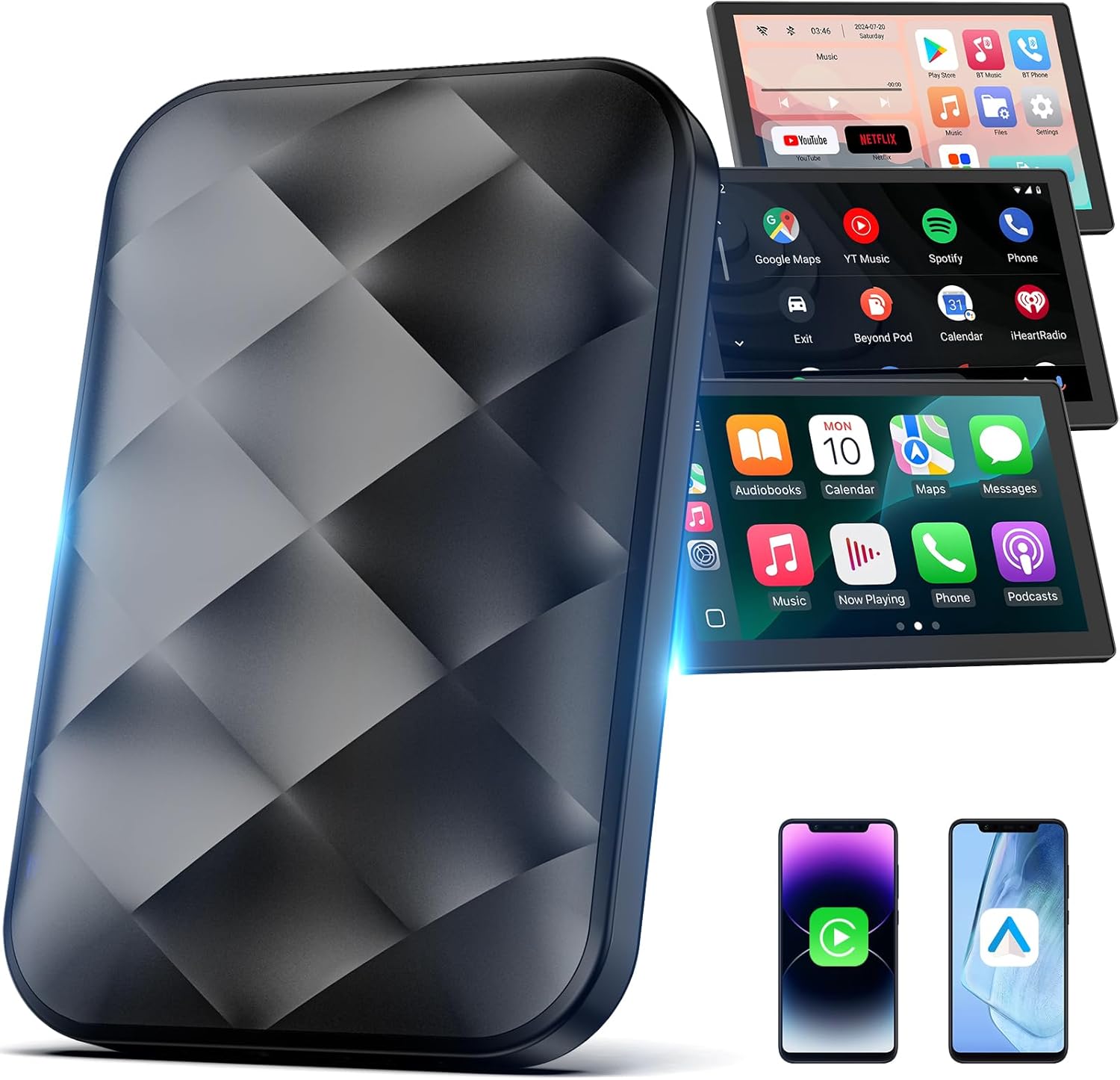
Image: The Abosi Magic Box 2.0 wireless adapter shown alongside various car screen interfaces, illustrating its 3-in-1 functionality for CarPlay, Android Auto, and Android 11.0.
2. What's Included
The Abosi Magic Box 2.0 package contains the following items:
- 1 x CarPlay AI Box
- 1 x USB-C to USB-A Cable
- 1 x USB-C to USB-C Cable
- 1 x Power Supply Adapter
- 1 x User Manual
- 1 x Packing Box

Image: All components included with the Abosi Magic Box 2.0, neatly arranged: the adapter, two USB cables, a power adapter, and the user manual.
3. Compatibility
Before using the Abosi Magic Box 2.0, please ensure your vehicle and mobile phone meet the following compatibility requirements:
- Vehicle Compatibility: Your vehicle must support OEM wired Apple CarPlay and/or OEM wired Android Auto, and feature a touchscreen display.
- Phone Compatibility:
- iPhones: iOS 10.0 or later (iPhone 6 or newer).
- Android Phones: Android 11.0 or later.
- Important Note: This device is not compatible with Mazda, Tesla, or BMW vehicles.
To confirm your car's compatibility, you can:
- Plug your phone into the car's USB port with a cable. If your car prompts you to enable Apple CarPlay or Android Auto and they function, your car is compatible.
- Check your car's infotainment menu for the Apple CarPlay or Android Auto icons. If you see them, your car is ready to use these features.
For more information on compatible car models, please refer to the official resources:
- Apple CarPlay: https://www.apple.com/ios/carplay/available-models/
- Android Auto: https://www.android.com/auto/#next-steps

Image: Visual guide for checking mobile phone and car compatibility with the Abosi Magic Box 2.0.
4. Setup Instructions
The Abosi Magic Box 2.0 offers an easy plug-and-play setup process:
- Plug In: Connect the Abosi Magic Box 2.0 to your car's USB port (the one typically used for wired CarPlay/Android Auto).
- Select Interface: On your car's screen, select the CarPlay or Android Auto option.
- Enable Bluetooth/Wi-Fi: On your mobile phone, enable Bluetooth and Wi-Fi.
- Connect: Pair your phone with the device via Bluetooth. Look for "Playkit" or a similar device name. Once connected, confirm any prompts on your phone to "Use CarPlay" or "Use Android Auto."

Image: A four-step visual guide demonstrating the quick and easy setup of the Abosi Magic Box 2.0.
Setup Video Guide
Video: Official Abosi Store video demonstrating how to connect the Android Auto wireless adapter.
Video: Official Abosi Store video demonstrating how to connect the CarPlay Box using the T-Cable.
5. Operating Instructions
5.1 Wireless CarPlay & Android Auto
Once connected, your wired CarPlay or Android Auto will automatically convert to a wireless connection. You can access navigation, music, Siri (for Apple CarPlay), Google Assistant (for Android Auto), and other compatible apps directly from your car's touchscreen display without the need for cables.

Image: The Abosi Magic Box 2.0 providing both Wireless CarPlay and Wireless Android Auto functionality on a car's infotainment screen.
5.2 Built-in Entertainment Hub
The device comes pre-installed with popular streaming applications such as YouTube, Netflix, and Disney+. To use these video apps, you will need to connect the Magic Box 2.0 to a Wi-Fi network or a mobile hotspot from your phone.

Image: Built-in entertainment apps like YouTube, Netflix, and Disney+ accessible on the car's display.
Video: Official Abosi Store video showcasing the wireless CarPlay adapter's support for Netflix and YouTube.
5.3 APKPure App Downloads & TF Card Playback
Equipped with a Qualcomm Intelligent Upgrade Chip, 2GB RAM, and 16GB of storage, the device allows you to download additional applications via Wi-Fi using APKPure. You can also play offline videos or music directly from a TF card (not included).

Image: The APKPure app store and TF card slot for media playback, demonstrating expanded functionality.
5.4 Seamless Control
The Abosi Magic Box 2.0 integrates with your car's existing control methods, allowing you to interact with the system via the touchscreen, steering wheel controls, and rotary knob controls for a familiar and convenient user experience.

Image: Illustration of seamless control using touchscreen, steering wheel, and knob with the Abosi Magic Box 2.0.
6. Troubleshooting
If you encounter issues with your Abosi Magic Box 2.0, please refer to the following common solutions:
- Persistent Disconnection: Dropped connections are often caused by Wi-Fi interference. If you have other Wi-Fi-enabled devices in your car (e.g., a Wi-Fi-enabled car camera), you may need to ignore other Wi-Fi networks to ensure a stable connection.
- Device Not Working:
- Reset the Device: Use a paperclip or pin to press and hold the reset button for 3 seconds. (Refer to the device for the reset hole location).
- Switch Channels: After resetting, go to your car's stock screen and select the Android Auto app to switch the input channel.
- Wait for Auto Reboot: Give it 1-2 minutes. The device will automatically reboot and should be ready to connect to either CarPlay or Android Auto.

Image: Troubleshooting tips for common issues with the wireless CarPlay adapter.
7. Specifications
| Feature | Detail |
|---|---|
| Model Name | CP30-CS5 |
| Brand | Abosi |
| Item Weight | 1.55 ounces |
| Product Dimensions | 3.15 x 0.35 x 1.95 inches |
| Display Size | 1 Inches (referring to the device's internal display, not car screen) |
| Operating System | Android, iOS (via CarPlay/Android Auto) |
| Special Features | Bluetooth, Touchscreen, Wi-Fi, TF Card Support |
| Connectivity Technology | Bluetooth, USB, Wi-Fi |
| Mounting Type | Dashboard Mount (typical for car accessories) |
| First Available Date | November 28, 2024 |
8. Warranty and Support
The Abosi Magic Box 2.0 comes with a 1-year warranty. Additionally, Abosi provides lifetime technical support and replacements for the product. If you encounter any setup or compatibility issues, the Abosi team is available to assist you.
For support, please contact:
- Email: support@abosi.net
- 24/7 Online Support

Image: Abosi customer support details, emphasizing lifetime technical assistance.


