
S25HH0 QM3G-100FH-24MR
User Manual
Big Size 10 Inch HMI PLC All-in-one Panel Controller
Model: QM3G-100FH-24MR
Brand: S25HH0
1. Introduction
This manual provides essential information for the installation, operation, and maintenance of the QM3G-100FH-24MR HMI PLC All-in-one Panel Controller. This device integrates a Human Machine Interface (HMI) with a Programmable Logic Controller (PLC) into a single unit, designed for industrial automation and control applications. It features a 10-inch touchscreen display for intuitive interaction and various input/output options for system integration.

Figure 1: Front view of the HMI PLC Panel Controller with an active operation screen. This image shows the 10-inch touchscreen displaying real-time operational data such as COM IDs, Mould No., Cycle Time, Set Time, Actual Yield, and Operate Time. It also features navigation buttons for 'Operation', 'Parameter', 'Welcome', 'Ethernet', 'System', and 'Language', along with status indicators for 'RUN', 'COM', and 'PWR'. An alarm message 'Machine run normal' is visible at the bottom.
2. Setup and Installation
Proper installation is crucial for the reliable operation of the QM3G-100FH-24MR controller. Ensure the device is mounted in a suitable industrial environment, protected from excessive dust, moisture, and extreme temperatures.
2.1 Power Supply Connection
- Connect the appropriate DC power supply to the Terminal block for power supply located on the rear panel. Refer to the product specifications for voltage requirements.
- Ensure correct polarity to prevent damage to the unit.
2.2 Input/Output Wiring
- Switch input terminal block: Connect digital input signals from sensors or switches.
- Switch output terminal block: Connect digital output signals to actuators or indicators.
- Analog input/output: Utilize the dedicated analog terminals for analog signal processing.
2.3 Communication Ports
- PLC programming port RS232/RS485: For connecting to a PC for PLC program upload/download.
- PLC/touch screen RS485: For communication with other devices via RS485 protocol.
- HMI programming port: For HMI project upload/download.
- PLC USB programming port: An alternative USB port for PLC programming.
- Optional network port: For Ethernet communication (if equipped).
- Optional SD card (under development): For data storage or program transfer.
- Optional WiFi switch (under development): For wireless connectivity (if equipped).

Figure 2: Rear view of the HMI PLC Panel Controller. This image clearly labels the various input/output terminals, communication ports (RS232/RS485, USB, Ethernet), power supply terminal, and optional features like SD card slot and WiFi switch. The 'Run switch' is also indicated.
3. Operating Instructions
The QM3G-100FH-24MR features a responsive touchscreen interface for controlling and monitoring industrial processes.
3.1 Basic Navigation
- Power on the device using the main power switch. The system will boot up and display the initial operation screen.
- Navigate through different screens and functions by touching the corresponding buttons or menu items on the display.
- Common navigation options include 'Operation', 'Parameter', 'Welcome', 'Ethernet', 'System', and 'Language' as seen in Figure 1.
3.2 Process Monitoring and Control
- The main operation page typically displays real-time data from connected sensors and process variables.
- Control buttons allow for manual operation, starting/stopping processes, or adjusting setpoints.
- Example applications include monitoring production lines (Figure 1), controlling specific machinery like a 'BurgerMachine' (Figure 3), or managing automated cleaning cycles (Figure 4).

Figure 3: HMI screen showing a 'BurgerMachine' application. This interface displays multiple vertical bar graphs, likely representing levels or progress, along with control buttons for 'Manual mode', 'Reset State', 'Auto Cleaning', 'Monitor', 'User Setting', and 'Alarm record'.
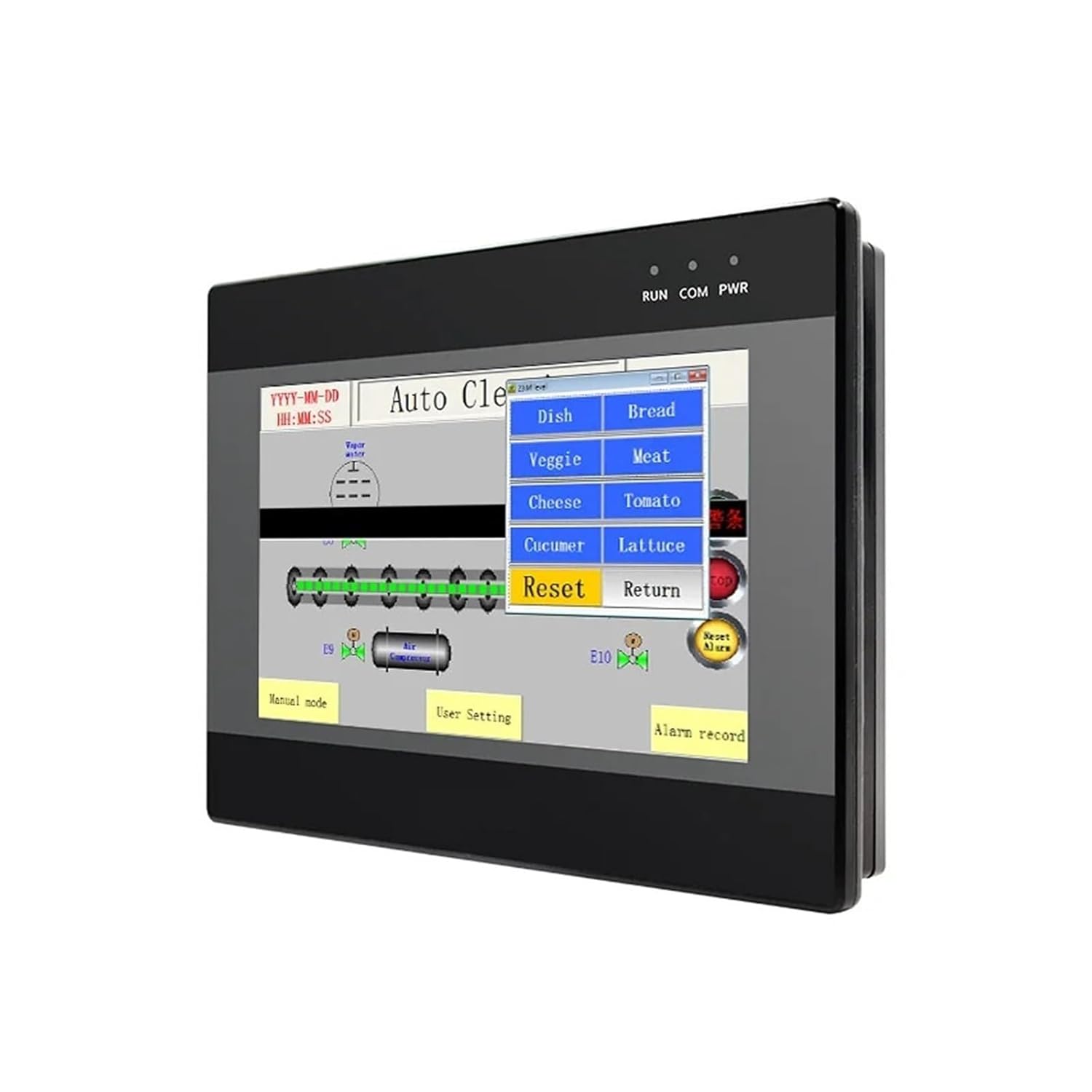
Figure 4: HMI screen showing an 'Auto Clean' application. This screen features a menu for selecting ingredients (Dish, Bread, Veggie, Meat, Cheese, Tomato, Cucumber, Lattice) and control buttons for 'Reset' and 'Return', indicating a process for automated cleaning or preparation.
3.3 Parameter Settings
Access the 'Parameter' section to adjust operational parameters, setpoints, and configuration settings relevant to the connected industrial process. Always ensure that parameter changes are made by authorized personnel and are appropriate for the application.
4. Maintenance
Regular maintenance ensures the longevity and optimal performance of your HMI PLC Panel Controller.
- Cleaning: Gently wipe the touchscreen and casing with a soft, damp cloth. Avoid abrasive cleaners or solvents. Ensure the device is powered off before cleaning.
- Environmental Conditions: Maintain the operating environment within specified temperature and humidity ranges. Protect the unit from direct sunlight, excessive dust, and corrosive gases.
- Connection Checks: Periodically inspect all wiring connections (power, I/O, communication) for tightness and signs of wear or corrosion.
- Software Updates: Refer to the manufacturer's website or support documentation for information on firmware or software updates.
5. Troubleshooting
This section provides general guidance for common issues. For complex problems, contact technical support.
- No Power:
- Check the power supply connection and ensure it meets the specified voltage.
- Verify that the power source is active.
- Inspect the power cable for damage.
- Screen Unresponsive:
- Perform a soft reset by cycling the power.
- Ensure the screen is clean and free from obstructions.
- If the issue persists, the touchscreen may require calibration or service.
- Communication Errors:
- Verify all communication cables are securely connected.
- Check communication settings (baud rate, parity, data bits) in the device configuration and connected equipment.
- Ensure the correct communication protocol is selected.
- System Malfunctions:
- Review any error messages displayed on the screen.
- Consult the programming software documentation for specific PLC or HMI error codes.
- Consider restoring the device to a previous working configuration if a recent change caused the issue.
6. Specifications
The following specifications apply to the QM3G-100FH-24MR HMI PLC Panel Controller:
| Product Model | QM3G-100FH-24MR |
| Brand | S25HH0 |
| Display Type | Touchscreen |
| Screen Size | 10 Inch (Inferred from product title) |
| Item Weight | 50 Grams (1.76 ounces) |
| Package Dimensions | 1.18 x 0.79 x 0.39 inches |
| Color | One Color |
| Manufacturer | S25HH0 |
| ASIN | B0DP79TLH1 |
Note: The provided package dimensions and item weight appear to be for a small component rather than the full 10-inch HMI PLC unit. Please refer to the manufacturer's official documentation for precise physical specifications.
7. Warranty Information
Specific warranty details for the QM3G-100FH-24MR HMI PLC Panel Controller are not available in the provided product data. Please refer to the warranty card included with your product or contact the manufacturer directly for comprehensive warranty terms and conditions.
8. Technical Support
For technical assistance, troubleshooting beyond this manual, or inquiries regarding product functionality, please contact the manufacturer, S25HH0, or your authorized distributor. Contact information is typically available on the product packaging or the manufacturer's official website.
Ask a question about this manual
Ask about setup, troubleshooting, compatibility, parts, safety, or missing instructions. Manuals+ will review the question and use this page’s manual context to help answer it.