
1. Introduction
Thank you for choosing the Gawfolk 34-inch Ultrawide Curved Gaming Monitor. This manual provides essential information for setting up, operating, and maintaining your monitor. Please read it thoroughly before use to ensure optimal performance and safety.
The Gawfolk GF340C monitor features a 34-inch 1500R curved VA panel, UWQHD (3440x1440) resolution, a 165Hz refresh rate, and a 1ms response time (GtG). It supports FreeSync technology for smooth gaming and includes Eye Care Technology to reduce eye strain during extended use. The monitor also offers multiple connectivity options and VESA mount compatibility.

Figure 1: Front view of the Gawfolk 34-inch Ultrawide Curved Gaming Monitor.
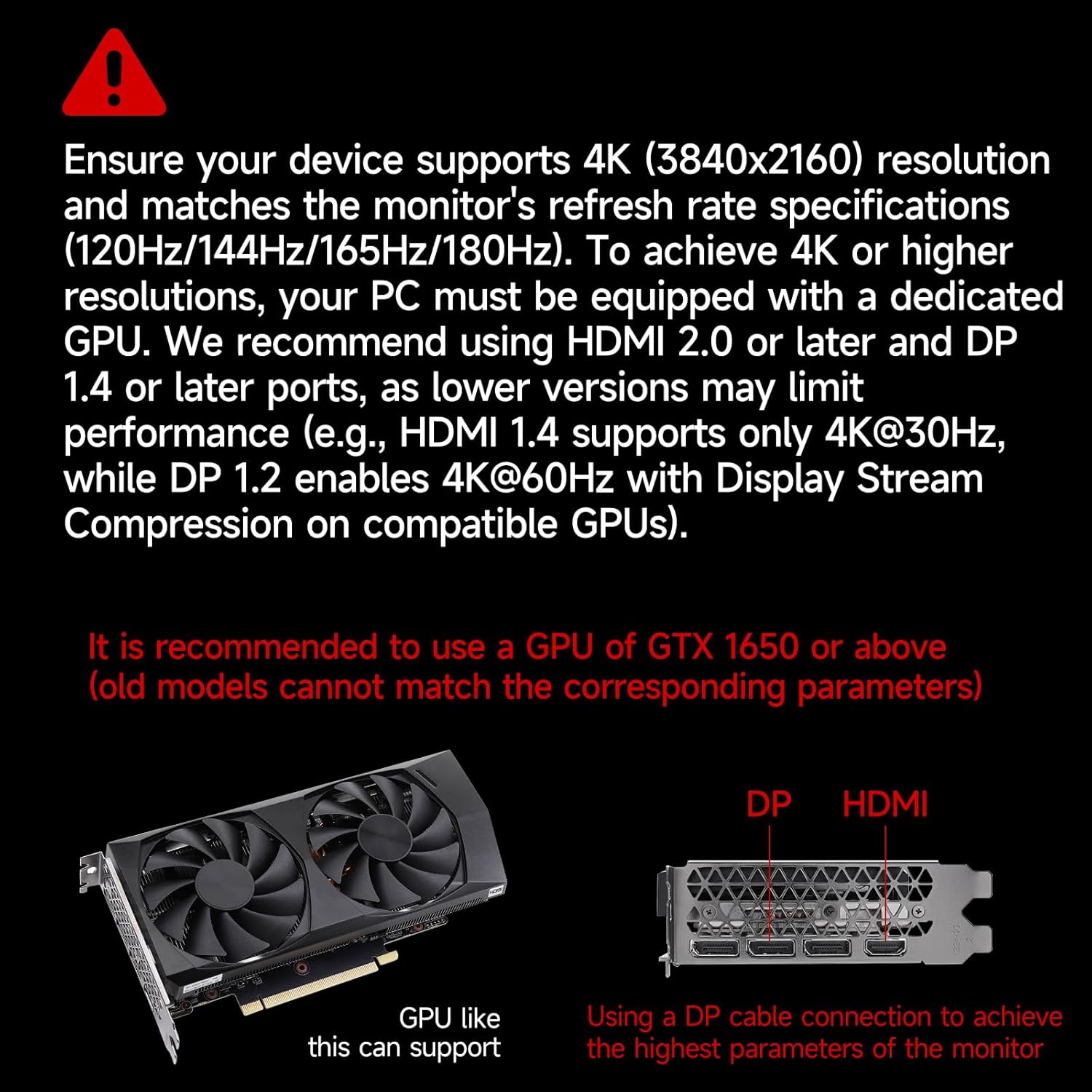
Figure 2: Top-down view illustrating the 1500R curvature of the monitor, designed for immersive gameplay.
2. What's in the Box
Carefully unpack the box and ensure all items are present and in good condition. If any items are missing or damaged, please contact customer support.
- Gawfolk 34-inch Ultrawide Curved Gaming Monitor
- Monitor Stand (Chassis)
- Power Cable
- HDMI Cable
- DisplayPort (DP) Cable
- User Manual (this document)
3. Setup
3.1 Assembling the Stand
- Place the monitor screen face down on a soft, clean surface to prevent scratches.
- Attach the stand neck to the back of the monitor until it clicks into place or is secured with screws (refer to the diagram for specific screw locations).
- Attach the base to the stand neck and tighten the thumb screw or screws securely.
- Carefully lift the assembled monitor and place it on a stable, flat surface.
3.2 VESA Mount Installation (Optional)
The monitor supports VESA 75 x 75 mm mounting. If you plan to use a VESA mount (not included), remove the stand and attach the VESA mount bracket to the monitor's VESA holes using appropriate screws. Ensure the VESA mount can support the monitor's weight (approximately 5.55 kg).
3.3 Connecting to Devices
The monitor provides multiple input ports for various devices. Ensure your device supports the required resolutions and refresh rates for optimal performance.
- DisplayPort (DP 1.4): Connect your PC or laptop using the provided DP cable for resolutions up to 3440x1440 at 165Hz.
- HDMI (HDMI 2.0): Connect your PC, laptop, or gaming console (e.g., PS5, Xbox) using an HDMI cable. HDMI 2.0 supports up to 3440x1440 at 120Hz.
- Audio Out: Connect external speakers or headphones to the 3.5mm audio jack.
Important: For 4K (3840x2160) resolutions, your PC must be equipped with a dedicated GPU. We recommend using HDMI 2.0 or later and DP 1.4 or later ports. Lower versions may limit performance (e.g., HDMI 1.4 supports only 4K@30Hz, while DP 1.2 enables 4K@60Hz with Display Stream Compression on compatible GPUs). It is recommended to use a GPU of GTX 1650 or above.

Figure 3: Diagram illustrating various device connections (PC, Notebook, PS5, Xbox) and their supported resolutions/refresh rates via DP 1.4 and HDMI 2.1 (note: product specs list HDMI 2.0).

Figure 4: Visual guide for GPU compatibility and recommended port types (DP 1.4, HDMI 2.0 or later) for optimal display performance.
4. Operating Instructions
4.1 Power On/Off
Connect the power cable to the monitor and a power outlet. Press the power button, usually located on the back or bottom right of the monitor, to turn it on or off.
4.2 On-Screen Display (OSD) Menu
The OSD menu allows you to adjust various monitor settings. Use the buttons on the back or bottom of the monitor to navigate the menu. Common settings include:
- Brightness/Contrast: Adjust image luminance.
- Color Settings: Modify color temperature, gamma, and saturation.
- Input Source: Manually select between HDMI and DisplayPort inputs.
- Picture Mode: Select preset display modes (e.g., Standard, Game, Movie).
- Eye Saver Mode: Reduces blue light emissions to minimize eye fatigue.
- FreeSync: Enable/disable adaptive synchronization for tear-free gaming.
4.3 Display Features
The Gawfolk GF340C monitor offers several features to enhance your viewing and gaming experience:
- UWQHD 3440x1440 Resolution: Provides a wide and detailed viewing area.
- 165Hz Refresh Rate: Ensures smooth motion and reduced input lag, especially beneficial for gaming.
- 1ms Response Time (GtG): Minimizes ghosting and motion blur for crisp visuals.
- HDR Support: Enhances contrast and color depth for a more vivid image.
- Multi-Tasking (PIP/PBP): Display multiple sources simultaneously. Refer to the OSD menu for Picture-in-Picture (PIP) and Picture-by-Picture (PBP) settings.

Figure 5: The monitor's capability for multi-tasking, showing multiple programs and external device connections, including PIP/PBP mode.

Figure 6: Highlighting the 165Hz refresh rate and 1ms GtG response time for superior gaming performance.

Figure 7: Demonstrating the monitor's ability to capture fine details with Adaptive Sync and 300 cd/m² brightness.

Figure 8: The Eye Saver Mode, which reduces blue light and flicker for comfortable extended use.
5. Maintenance
5.1 Cleaning the Monitor
- Always unplug the monitor from the power outlet before cleaning.
- Use a soft, lint-free cloth slightly dampened with water or a mild, non-abrasive screen cleaner.
- Do not spray cleaner directly onto the screen. Apply it to the cloth first.
- Avoid using harsh chemicals, alcohol, or abrasive materials, as these can damage the screen surface.
5.2 Storage
If storing the monitor for an extended period, ensure it is clean, dry, and stored in its original packaging or a protective cover to prevent dust and damage.
6. Troubleshooting
If you encounter issues with your monitor, please refer to the following common solutions:
| Problem | Possible Solution |
|---|---|
| No image on screen | Ensure the power cable is securely connected and the monitor is turned on. Check that the video cable (HDMI/DP) is firmly connected to both the monitor and your device. Select the correct input source via the OSD menu. |
| Image flickering or distortion | Check video cable connections. Ensure your graphics card drivers are up to date. Try a different video cable. Disable FreeSync in the OSD menu to see if the issue persists. Verify your device's resolution and refresh rate settings are compatible with the monitor. |
| Dead pixels or stuck pixels | A small number of dead or stuck pixels is common in LCD/LED technology and may not indicate a defect. If the number of pixels exceeds manufacturer specifications, contact customer support. |
| Buttons not responding | Unplug the monitor, wait 30 seconds, then plug it back in. Ensure no buttons are physically stuck. |
| No audio from headphones/speakers | Ensure external audio devices are properly connected to the 3.5mm audio out port. Check audio settings on your connected device and the monitor's OSD menu. |
If the problem persists after trying these solutions, please contact Gawfolk customer support.
7. Specifications
Below are the technical specifications for the Gawfolk GF340C monitor:
| Feature | Specification |
|---|---|
| Brand | Gawfolk |
| Model Name | GF340C |
| Screen Size | 34 Inches |
| Resolution | UWQHD 3440 x 1440p |
| Aspect Ratio | 21:9 |
| Curvature | 1500R |
| Panel Type | VA |
| Refresh Rate | 165 Hz |
| Response Time | 1 ms (GtG) |
| Brightness | 350 cd/m² (lumens) |
| Contrast Ratio | 3000:1 |
| Color Gamut | 99% sRGB (8-bit, 16.7 million colors) |
| Viewing Angle | 178 Degrees |
| Adaptive Sync | FreeSync |
| Connectivity | 2 x HDMI (2.0), 2 x DisplayPort (1.4), 1 x Audio Out (3.5mm) |
| VESA Mount | 75 x 75 mm |
| Power Consumption | 12 Watt |
| Dimensions (P x L x H) | 23P x 80L x 44H centimeters |
| Weight | 5.55 Kilograms |
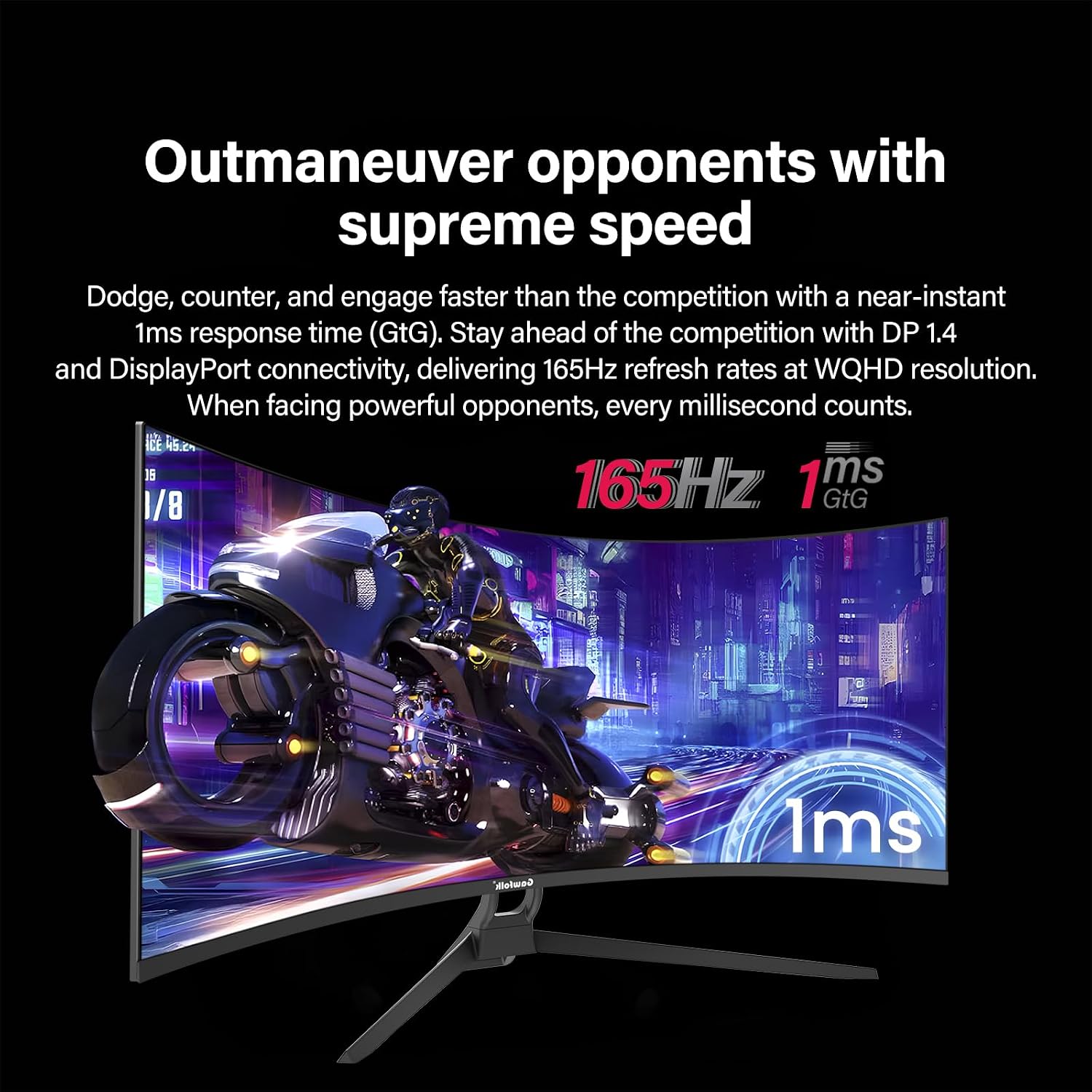
Figure 9: Comparison of the 21:9 ultrawide aspect ratio with a traditional 16:9 display, highlighting the increased screen real estate.
8. Warranty and Support
8.1 Manufacturer's Warranty
This Gawfolk monitor comes with a 1-year manufacturer's warranty from the date of purchase. This warranty covers defects in materials and workmanship under normal use. It does not cover damage caused by misuse, accidents, unauthorized modifications, or external factors.
Please retain your proof of purchase for warranty claims.
8.2 Customer Support
For technical assistance, warranty claims, or any questions regarding your Gawfolk monitor, please contact Gawfolk customer support. Refer to the official Gawfolk website or your purchase documentation for contact details.
Note: The provided product data did not include specific contact information for support. Please refer to the product packaging or the official brand website for the most up-to-date support channels.