
1. Introduction
Thank you for choosing the YZGWWIU Car Radio. This device is designed to upgrade your BMW E46 3 Series (1999-2005) with modern infotainment features, including wireless and wired Apple CarPlay and Android Auto, Bluetooth 5.0, and enhanced audio capabilities. This manual provides essential information for installation, operation, and maintenance to ensure optimal performance and user satisfaction.
2. Important Safety Information
- Read all instructions carefully before installation and operation.
- Professional installation is recommended to avoid damage to the vehicle or the product.
- Do not operate the device in a way that distracts you from driving. Always prioritize road safety.
- Ensure all connections are secure and properly insulated to prevent short circuits.
- Keep the device away from water and excessive heat.
3. Compatibility
This car radio is specifically designed for BMW E46 3 Series models manufactured between 1999 and 2005. It is compatible with various sub-models including 323ci, 325ci, 330ci, 318i, 328i, 330xi, 335, 338, and M3.

Image: Product display indicating compatibility with BMW E46 3 Series models.
Important Compatibility Notes:
Please review the following conditions carefully before installation. This car stereo may not be compatible with your vehicle if any of these apply:
- If your car radio antenna interface is located in the rear of your car.
- If your car's original radio has a 17-pin plug and the connector shows 4 pins missing.
- If your car's original radio is a 4.3" or 7" screen with a 12-pin plug, or if you have a navigation drive located in the rear of your car.
- If there is a DSP button on your original radio, or if your car is equipped with a digital sound system like Harman Kardon or BOSE.

Image: Visual guide detailing specific wiring and system incompatibilities.
4. What's in the Box
The package includes the following items:
- 1 x YZGWWIU Car Autoradio Unit
5. Setup and Installation
The YZGWWIU Car Radio features an integrated CAN bus and optimized cable connections for a plug-and-play installation process. While designed for ease of installation, professional assistance is recommended to ensure correct wiring and functionality.
Installation Steps (General Guide):
- Preparation: Disconnect the vehicle's battery before starting any electrical work.
- Remove Original Unit: Carefully remove the existing car radio from the dashboard. Refer to your vehicle's service manual for specific instructions on removing trim panels and the original head unit.
- Connect Wiring: Connect the provided wiring harness from the new car radio to the vehicle's existing wiring. The integrated CAN bus system simplifies this process. Ensure all connectors are firmly seated.
- Antenna Connection: Connect the radio antenna.
- Test Functionality: Before fully reassembling the dashboard, reconnect the battery and perform a basic test of the car radio's functions (power on, audio, touch screen response).
- Secure Unit: Mount the new car radio securely into the dashboard opening.
- Reassemble: Reinstall any removed trim panels.
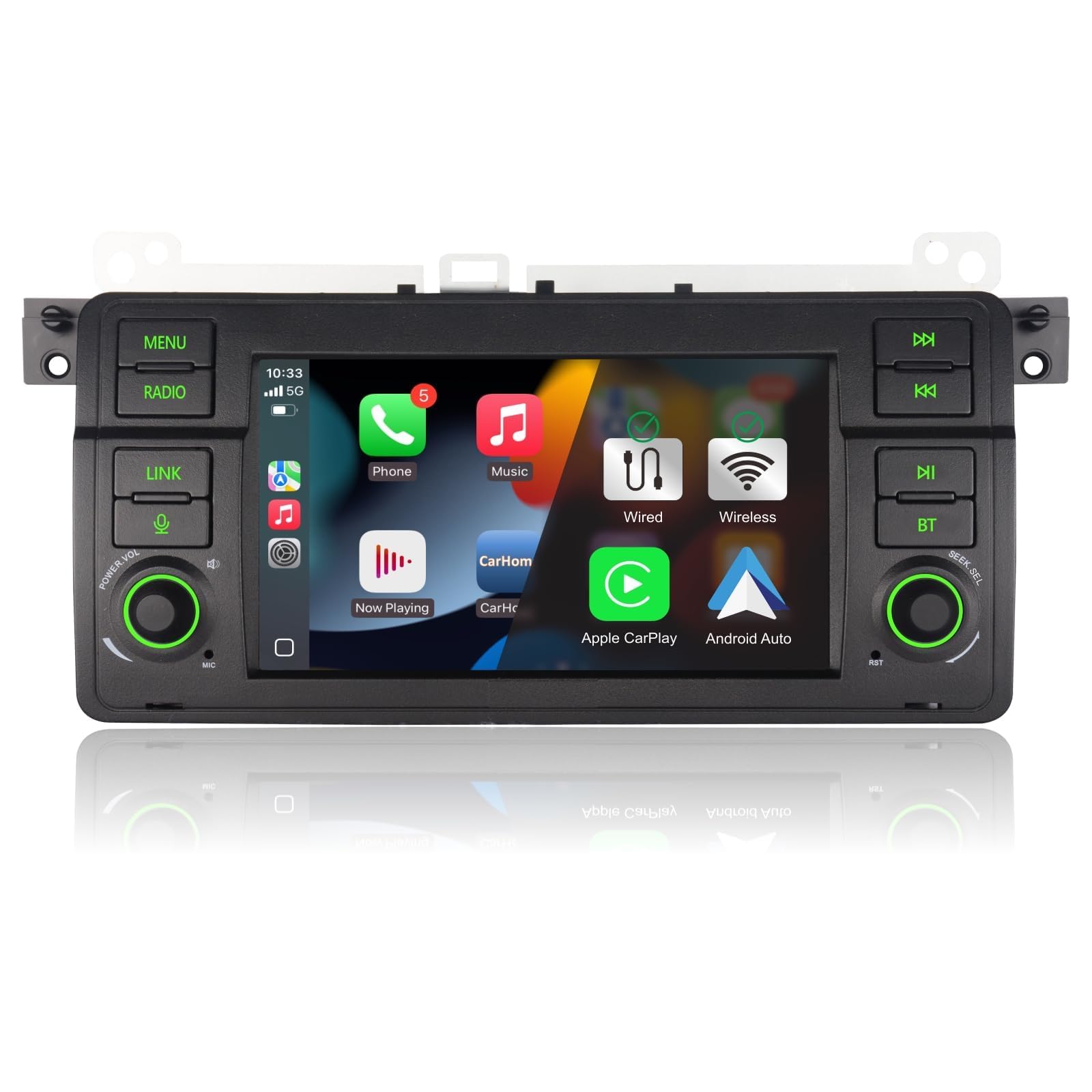
Image: The YZGWWIU Car Radio seamlessly integrated into a BMW E46 dashboard.
6. Operating Instructions
The car radio operates on a Linux system, designed for quick startup and stable performance without memory issues over time.

Image: The Linux system interface of the car radio, displaying application icons.
6.1. Apple CarPlay & Android Auto
The unit supports both wireless and wired Apple CarPlay and Android Auto. This allows for seamless integration of your smartphone, providing access to navigation, music, messages, and voice assistants directly on the car radio's display.
- Wireless Connection: Enable Bluetooth and Wi-Fi on your smartphone. Follow the on-screen prompts on the car radio to pair your device.
- Wired Connection: Connect your smartphone to the car radio using a USB cable.

Image: Display showing both Apple CarPlay and Android Auto interfaces with wireless and wired connection indicators.
6.2. Bluetooth 5.0
The built-in Bluetooth 5.0 module enables hands-free calling, contact synchronization, and wireless music streaming from your smartphone. This feature enhances driving safety by allowing you to manage calls without holding your phone.
- Pairing: Go to the Bluetooth settings on the car radio and your smartphone. Search for available devices and select the car radio's name to pair.
- Hands-Free Calling: Once paired, you can make and receive calls directly through the car radio's interface.
- Music Playback: Stream audio from your phone's music library or streaming apps to the car's speakers.

Image: Bluetooth connection for hands-free calling and music streaming, alongside DSP audio settings.
6.3. Radio (FM/AM RDS)
The car radio supports FM/AM stations with RDS (Radio Data System) functionality, providing station information and enhanced radio experience.
- Tuning: Use the touch screen controls to scan for stations or manually tune to a specific frequency.
- RDS: When available, RDS will display information such as station name, program type, and traffic announcements.

Image: Display showing FM/AM RDS interface.
6.4. Sound Quality (DSP)
Experience high-fidelity sound quality with the built-in DSP (Digital Signal Processor) chip. It offers 16 groups of equalization modes, allowing you to customize the audio output to your preference.
- Equalizer Settings: Access the equalizer settings through the audio menu to adjust bass, treble, and other frequency bands.
- Preset Modes: Choose from various preset equalization modes for different music genres.

Image: HiFi 16 EQ settings interface with DSP chip details.
6.5. Steering Wheel Control (SWC)
The unit supports your vehicle's original steering wheel controls, allowing you to manage audio functions (volume, track skip) without taking your hands off the wheel.
- Configuration: Access the SWC settings in the system menu to map your steering wheel buttons to the desired functions.
Image: Steering Wheel Control configuration screen.
6.6. Mirror-Link
The Mirror-Link function allows you to mirror your smartphone's screen onto the car radio's display, providing access to apps and content not directly supported by CarPlay or Android Auto.
- Activation: Select the Mirror-Link option from the main menu and follow the instructions to connect your smartphone.
Image: Mirror-Link function displaying a smartphone screen on the car radio.
6.7. User Interface (UI) Customization
The car radio offers customization options for its user interface, including 8-color button lighting and 3 selectable UI themes, allowing you to personalize the look and feel of your system.

Image: UI customization options for button lighting and interface themes.
7. Maintenance
To ensure the longevity and optimal performance of your YZGWWIU Car Radio, follow these maintenance guidelines:
- Cleaning: Use a soft, dry cloth to clean the screen and exterior surfaces. Avoid abrasive cleaners or solvents that could damage the finish.
- Software Updates: Periodically check for available software updates from the manufacturer to ensure you have the latest features and bug fixes.
- Environmental Conditions: Avoid exposing the unit to extreme temperatures, direct sunlight for prolonged periods, or high humidity.
8. Troubleshooting
If you encounter issues with your car radio, refer to the following common troubleshooting tips:
- No Power: Check all power connections and the vehicle's fuse box. Ensure the battery is properly connected.
- No Sound: Verify speaker connections, volume levels, and audio source selection. Check DSP settings if applicable.
- Touchscreen Unresponsive: Try restarting the unit. If the issue persists, perform a factory reset (refer to system settings).
- Bluetooth/CarPlay/Android Auto Connection Issues: Ensure Bluetooth and Wi-Fi are enabled on your phone and the car radio. Try unpairing and re-pairing the device. Check for software updates.
- Steering Wheel Controls Not Working: Verify the SWC wiring and configuration settings in the unit's menu.
For persistent issues or problems not covered here, please contact customer support.
9. Specifications
| Brand | YZGWWIU |
| Model Number | IU-7005-L |
| Connectivity Technology | Bluetooth, Wi-Fi |
| Controller Type | Touch Screen |
| Special Features | Android Auto, Apple CarPlay (Wireless & Wired), DSP, FM/AM RDS, Mirror-Link, Steering Wheel Control |
| Compatible Devices | Mobile Phone |
| Audio Output Mode | Stereo |
| Surround Sound Channel Configuration | 2 |
| Video Encoding | AHD |
| Total HDMI Ports | 1 |
| Connector Type | USB, 3.5mm Jack |
| Operating System | Linux |
10. Warranty
YZGWWIU products are covered by a one-year warranty from the date of purchase. This warranty covers manufacturing defects and malfunctions under normal use. Please retain your proof of purchase for warranty claims. The warranty does not cover damage caused by improper installation, misuse, accidents, or unauthorized modifications.
11. Customer Support
If you have any questions regarding installation, operation, troubleshooting, or product compatibility, please do not hesitate to contact YZGWWIU customer support. We are committed to providing assistance and ensuring your satisfaction.
You can typically find our contact information or a way to ask a question on the platform where you purchased the product, usually on the seller's storefront or product page.

Image: Guide on locating seller support contact information on Amazon.