
1. Introduction
Thank you for choosing the MIZISNR AX-60S 6 Channel Audio Mixer. This professional mixing console is designed to provide high-quality audio processing for various applications, including recording, karaoke, podcasting, and live performances. It features 6 input channels, Bluetooth connectivity, USB playback and recording, 48V phantom power, and 3-band equalization. This manual will guide you through the setup, operation, and maintenance of your new audio mixer.
2. Safety Information
- Read all instructions carefully before operating the device.
- Keep this manual for future reference.
- Do not expose this equipment to rain or moisture to prevent fire or electric shock.
- Ensure the power supply voltage matches the requirements specified on the unit.
- Do not open the casing. There are no user-serviceable parts inside. Refer all servicing to qualified personnel.
- Place the unit on a stable surface away from heat sources and direct sunlight.
- Disconnect the power cord during lightning storms or when unused for long periods.
3. Product Overview: Controls and Features
The MIZISNR AX-60S mixer offers a comprehensive set of controls for precise audio management. Familiarize yourself with the layout and functions of each component.

Image 3.1: Front panel view of the MIZISNR AX-60S 6 Channel Audio Mixer, showing all input channels, equalization controls, effects section, and master faders.
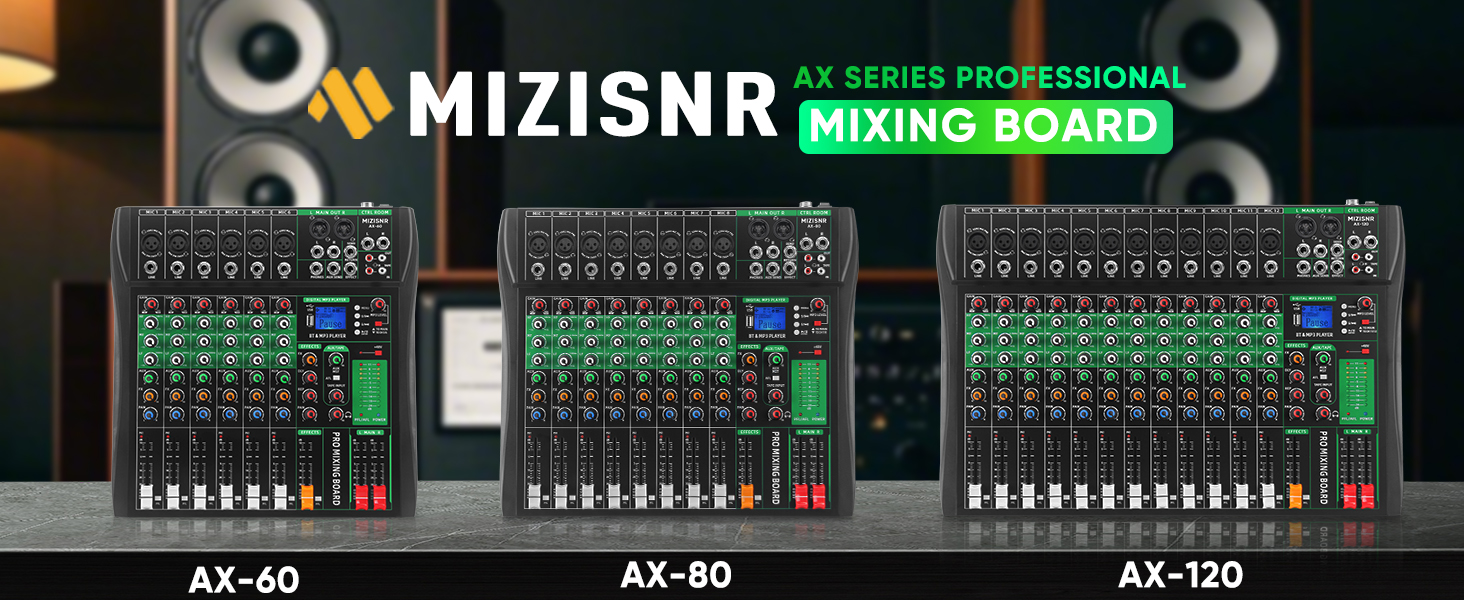
Image 3.2: Detailed diagram illustrating the various controls and input/output ports on the MIZISNR AX-60S mixer, including microphone/instrument interfaces, gain controls, EQ, effects, and master volume.
Key Components:
- Microphone/Instrument Inputs (MIC 1-6): XLR/TRS combo jacks for connecting microphones or line-level instruments.
- Gain Control: Adjusts the input sensitivity for each channel.
- 3-Band EQ (HF, MF, LF): High, Mid, and Low frequency equalization for each channel.
- AUX/FX Send: Controls the amount of signal sent to the auxiliary or effects processor.
- Pan Control: Adjusts the stereo positioning of the channel signal.
- Channel Faders: Controls the volume level of individual channels.
- Digital MP3 Player/Recorder: Features USB port, Bluetooth connectivity, and LCD display for media playback and recording.
- Effects Section: Built-in digital effects (e.g., Reverb, Delay) with dedicated controls.
- +48V Phantom Power: Button to activate phantom power for condenser microphones.
- Main Output (L/R): XLR and TRS outputs for connecting to main speakers or amplifiers.
- CTRL ROOM Output: Outputs for control room monitors.
- Headphones Output: 6.35mm jack for monitoring audio.
- Master Faders: Controls the overall output volume.
4. Setup Instructions
4.1 Initial Power-Up
- Ensure the mixer's power switch is in the OFF position.
- Connect the provided power adapter to the mixer's power input and then to a standard 110V AC power outlet.
- Turn on the mixer using the main power switch. The power indicator light should illuminate.
4.2 Connecting Audio Devices
The AX-60S mixer is compatible with a variety of audio devices.

Image 4.1: Connectivity diagram for the MIZISNR AX-60S, illustrating how to connect microphones (wireless, condenser), guitars, karaoke machines, power amplifiers, speakers, mobile stereos, USB flash drives, cell phones, headphones, and computers.
- Microphones: Connect wired microphones to the MIC inputs (XLR or TRS). For condenser microphones, activate the +48V Phantom Power button.
- Instruments: Connect instruments like guitars to the LINE inputs (TRS).
- External Playback Devices: Use the stereo LINE inputs or Bluetooth for connecting devices like mobile phones, tablets, or MP3 players.
- Output Devices: Connect your main speakers or power amplifier to the L MAIN OUT R (XLR or TRS) jacks. Connect headphones to the PHONES output for monitoring.
- Important Note: This mixing console does not have a built-in amplifier. You must connect it to an external power amplifier and speakers for sound output.
5. Operating Instructions
5.1 Basic Channel Operation
- Connect your audio source to an input channel.
- Adjust the GAIN knob for that channel. Start with the gain low and gradually increase it until the signal is strong but does not clip (indicated by the PK/CLIP LED).
- Use the 3-Band EQ knobs (HF, MF, LF) to shape the tone of the audio.
- Adjust the PAN knob to position the sound in the stereo field.
- Raise the channel FADER to the desired volume level.
- Adjust the MASTER FADERS (L/R) to control the overall output volume.
5.2 Bluetooth Connectivity
The mixer features built-in Bluetooth for wireless audio streaming.

Image 5.1: The MIZISNR AX-60S mixer with a smartphone connected via Bluetooth, showing the "BT-Speaker" device name for pairing.
- Press the "MODE" button on the digital MP3 player section until "Bluetooth" mode is selected. The LCD screen will display "BT".
- On your mobile device (smartphone, tablet), enable Bluetooth and search for available devices.
- Select "BT-Speaker" from the list of devices to pair.
- Once paired, you can stream audio wirelessly from your device to the mixer.
- Adjust the volume using the dedicated MP3 player volume control on the mixer and your source device.
5.3 USB Playback and Recording
The integrated MP3 player supports direct playback from USB drives and can also record audio.

Image 5.2: The MIZISNR AX-60S mixer showing a USB flash drive connected to the USB port, indicating support for plug-and-play, lossless audio playback, and audio input/output.
USB Playback:
- Insert a USB flash drive containing MP3, WAV, or WMA audio files into the USB port.
- The mixer will automatically switch to USB mode or you may need to press the "MODE" button.
- Use the controls on the digital MP3 player section (Play/Pause, Next, Previous) to navigate and play tracks.
USB Recording:

Image 5.3: The MIZISNR AX-60S mixer connected to a laptop via USB, demonstrating its capability for professional recording. Note: This mixer cannot connect to Macbook for recording.
- To record directly to a USB flash drive, ensure a formatted USB drive is inserted.
- Press the "REC" button on the MP3 player section to start recording. Press again to stop.
- To record to a computer, connect the mixer to your computer via a USB cable.
- Open your preferred Digital Audio Workstation (DAW) software on your computer and select the mixer as the audio input device.
- Note: This mixer cannot connect to Macbook for recording.
5.4 48V Phantom Power
Phantom power is required for condenser microphones.

Image 5.4: The MIZISNR AX-60S mixer illustrating the activation of the +48V Phantom Power button to supply power to wired and condenser microphones for optimal performance.
- Connect your condenser microphone to an XLR input.
- Press the +48V PHANTOM POWER button. The indicator light will illuminate, supplying power to all XLR inputs.
- Caution: Ensure dynamic microphones or ribbon microphones are not connected when phantom power is activated, as this could damage them.
5.5 3-Band EQ Controls
Each input channel features a 3-band equalizer to fine-tune the audio frequencies.

Image 5.5: Close-up of the 3-Band EQ controls on the MIZISNR AX-60S mixer, showing independent adjustment knobs for High (HF), Mid (MF), and Low (LF) frequencies, along with their respective frequency response curves.
- HF (High Frequency): Adjusts frequencies above 12kHz. Use to add clarity or reduce harshness.
- MF (Mid Frequency): Adjusts frequencies around 2.5kHz. Critical for vocal presence and instrument definition.
- LF (Low Frequency): Adjusts frequencies below 80Hz. Controls bass and warmth.
- Turning a knob clockwise boosts the frequency, while turning it counter-clockwise cuts the frequency.
5.6 Real-Time Monitoring
The mixer includes a dedicated headphone output for real-time audio monitoring.

Image 5.6: The MIZISNR AX-60S mixer with headphones connected to the 6.35mm monitor jack, enabling immediate feedback of the recorded sound.
- Connect 6.35mm (1/4 inch) headphones to the PHONES jack.
- Adjust the PHONES level knob to control the headphone volume.
- This allows you to monitor the main mix or PFL (Pre-Fader Listen) signals without affecting the main output.
6. Maintenance
- Cleaning: Use a soft, dry cloth to clean the surface of the mixer. Do not use liquid cleaners or solvents.
- Storage: When not in use, store the mixer in a cool, dry place, away from dust and extreme temperatures.
- Cable Management: Ensure all cables are properly coiled and stored to prevent damage. Avoid sharp bends or kinks.
- Ventilation: Ensure the cooling network (located on the side/rear) is not obstructed to prevent overheating.
7. Troubleshooting
| Problem | Possible Cause | Solution |
|---|---|---|
| No sound output |
|
|
| Bluetooth not connecting |
|
|
| Distorted audio |
|
|
| Phantom power not working |
|
|
8. Specifications
| Feature | Detail |
|---|---|
| Model Number | AX-60S |
| Brand | MIZISNR |
| Number of Channels | 6 |
| Connectivity Technology | Bluetooth, USB |
| Power Source | Corded Electric |
| Voltage | 110 Volts (AC) |
| Item Weight | 6.2 Pounds (2.81 kg) |
| Product Dimensions | 1.57"D x 12.8"W x 13.2"H (4cm x 32.5cm x 33.5cm) |
| EQ | 3-Band (High, Mid, Low) per channel |
| Phantom Power | +48V |
| USB Playback Formats | MP3, WAV, WMA |

Image 8.1: Diagram illustrating the physical dimensions of the MIZISNR AX-60S mixer: 1.57 inches (height), 13.2 inches (depth), and 12.8 inches (width).
9. Warranty and Support
MIZISNR is committed to customer satisfaction. For any pre-purchase questions, technical assistance, or support after your purchase, please contact our dedicated support team. We aim to respond to all inquiries within 24 hours to ensure a smooth and enjoyable experience with your product.
Please refer to your purchase documentation for specific warranty terms and conditions.