1. Introduction
This manual provides detailed instructions for the Daguaika 8-in-1 USB C Hub Docking Station. This device expands the connectivity of your USB-C enabled laptop or smartphone, offering multiple ports for data transfer, video output, network connection, and power delivery. Please read this manual thoroughly before use to ensure proper operation and to maximize the product's capabilities.
2. Product Overview
The Daguaika 8-in-1 USB C Hub integrates various essential ports into a single compact unit. Familiarize yourself with the layout and functions of each port.

Figure 2.1: Daguaika 8-in-1 USB C Hub with connected peripherals illustrating its various functions.
Port Functions:
- USB-C Host Connector: Connects to your laptop or smartphone's USB-C port.
- RJ45 Gigabit Ethernet Port: Provides a stable wired internet connection up to 1000Mbps. Ideal for situations where Wi-Fi is unstable or unavailable.
- HDMI 4K@60Hz Port: Connects to an external monitor, TV, or projector for video output up to 4K resolution at 60Hz. Supports both mirror and extend display modes.
- 2 x USB 3.0 Ports (5Gbps): For connecting USB-A peripherals such as keyboards, mice, external hard drives, or USB flash drives. Supports data transfer speeds up to 5Gbps.
- 2 x USB-C 3.0 Ports (5Gbps): For connecting USB-C peripherals. These ports support data transfer up to 5Gbps. One of these ports also functions as a Power Delivery (PD) input.
- SD Card Reader (104Mbps): For reading standard SD memory cards.
- TF (MicroSD) Card Reader (104Mbps): For reading MicroSD memory cards.

Figure 2.2: Detailed view of the Daguaika 8-in-1 USB C Hub with port labels and dimensions.
3. Setup Instructions
Follow these steps to set up your Daguaika 8-in-1 USB C Hub:
- Connect the Hub to your Device: Plug the integrated USB-C host connector of the hub into an available USB-C port on your laptop or smartphone. Ensure the USB-C port on your device supports data transfer and video output (DisplayPort Alternate Mode) for full functionality.
- Power Delivery (Optional): If your device requires charging, connect a USB-C Power Delivery (PD) charger (up to 100W, 85W output to device) to the dedicated USB-C PD input port on the hub. A 100W PD wall charger and a USB-C to C cable are required for optimal charging.
- Connect Peripherals:
- Ethernet: Connect an Ethernet cable from your router or modem to the RJ45 port on the hub.
- HDMI Display: Connect an HDMI cable from the hub's HDMI port to your external monitor, TV, or projector.
- USB Devices: Plug your USB-A or USB-C peripherals (e.g., mouse, keyboard, external drive) into the corresponding USB 3.0 ports.
- Memory Cards: Insert SD or MicroSD cards into the respective slots.
- Driver Installation: The hub is generally plug-and-play and does not require additional drivers for most operating systems (Windows, macOS, Chrome OS, Android). If you encounter issues, ensure your device's USB-C drivers are up to date.
4. Operating Instructions
Once connected, the Daguaika 8-in-1 USB C Hub operates seamlessly with your device. Here's how to utilize its features:
4.1. Ethernet Connection
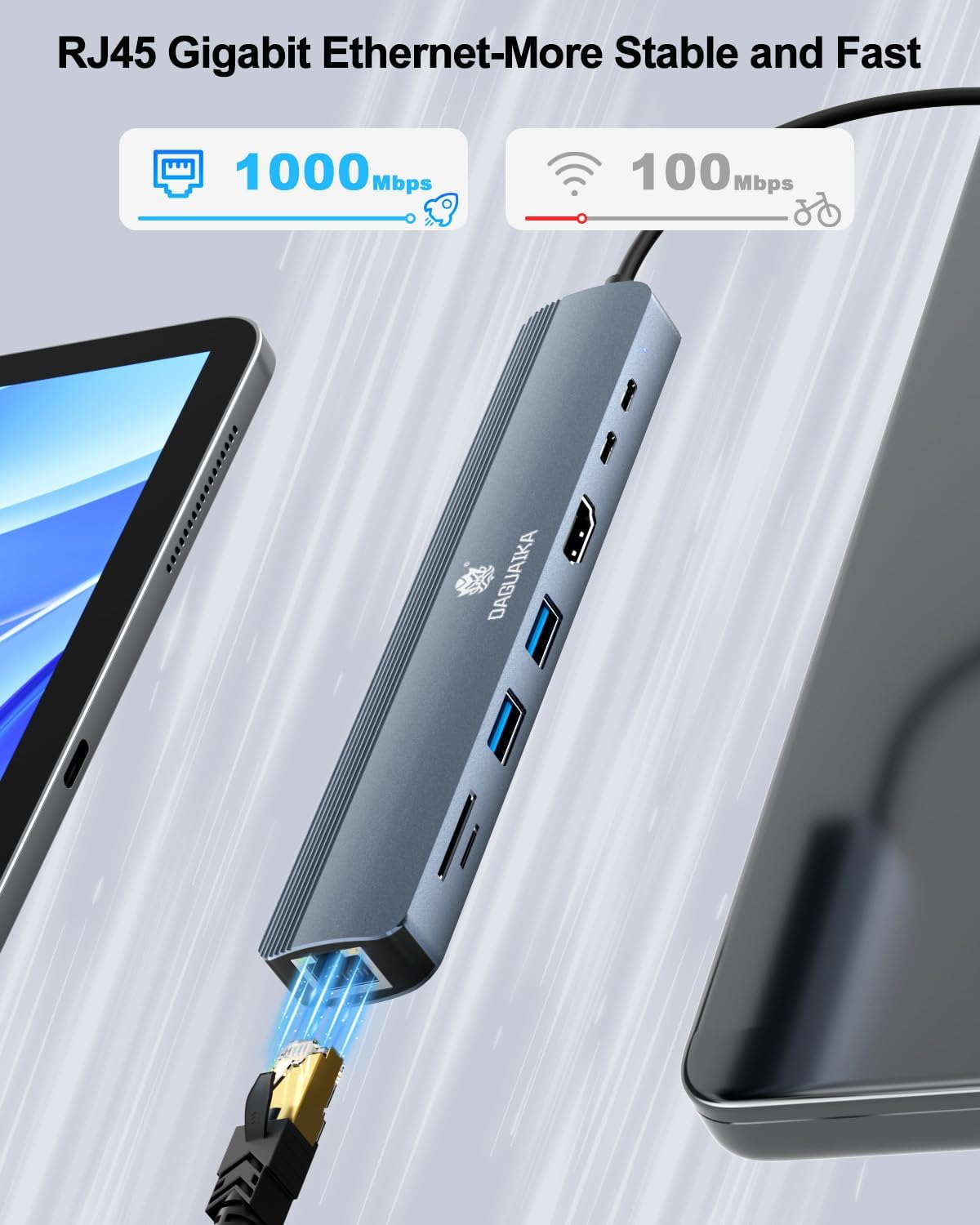
Figure 4.1: The RJ45 Gigabit Ethernet port provides a stable and fast wired network connection.
After connecting an Ethernet cable, your device should automatically detect the wired network. You can verify the connection status and speed in your operating system's network settings. This port offers a more stable and faster internet connection compared to many Wi-Fi networks.
4.2. HDMI Video Output

Figure 4.2: High-resolution video output via the HDMI port.
Connect your external display to the HDMI port. Your operating system's display settings will allow you to configure display modes (mirror, extend) and resolution. The hub supports resolutions up to 4K at 60Hz for a single display.
4.3. Data Transfer

Figure 4.3: USB 3.0 ports enable fast data transfer.
The USB 3.0 (Type-A) and USB-C 3.0 ports support data transfer speeds of up to 5Gbps. This allows for quick transfer of large files between your device and connected storage devices. The SD and TF card readers support speeds up to 104Mbps, facilitating efficient access to memory card content.
4.4. Power Delivery

Figure 4.4: Power delivery through the USB-C PD port.
The USB-C PD port allows for pass-through charging of your host device while using the hub. Connect your original USB-C power adapter to this port. The hub supports up to 100W input, providing up to 85W to your laptop, with the remaining power used by the hub and connected peripherals. This port can also transmit data when not used for charging.
5. Specifications
| Feature | Specification |
|---|---|
| Model Number | 8-in-1 1000M |
| Ethernet Port | RJ45 Gigabit Ethernet (up to 1000Mbps) |
| HDMI Port | 4K@60Hz (single display) |
| USB 3.0 Ports | 2 x USB-A (5Gbps data transfer) |
| USB-C Ports | 2 x USB-C 3.0 (5Gbps data transfer, one supports PD 100W input) |
| Card Readers | SD and TF (MicroSD) (up to 104Mbps) |
| Power Delivery | Up to 100W input (85W output to host device) |
| Product Dimensions | 7.8 x 0.4 x 2.7 inches |
| Item Weight | 2.72 ounces |
| Compatible Devices | Laptops, Smartphones with USB-C (DisplayPort Alt Mode support recommended) |
6. Troubleshooting
If you encounter issues with your Daguaika 8-in-1 USB C Hub, please refer to the following common problems and solutions:
- Issue: No display output via HDMI.
- Ensure your host device's USB-C port supports DisplayPort Alternate Mode.
- Check the HDMI cable connection between the hub and the monitor. Try a different HDMI cable.
- Verify the monitor's input source is set correctly to the HDMI port connected to the hub.
- Restart your laptop or device.
- Ensure your device's graphics drivers are up to date.
- Issue: Ethernet connection is unstable or not working.
- Check the Ethernet cable connection to both the hub and your router/modem.
- Ensure your network drivers on your laptop are up to date.
- Try connecting the Ethernet cable directly to your laptop (if applicable) to rule out network issues.
- Restart your router/modem and your laptop.
- Issue: USB devices are not recognized or disconnect frequently.
- Ensure the hub is securely connected to your host device's USB-C port.
- Try connecting the USB device to a different port on the hub.
- If using high-power USB devices (e.g., external hard drives), ensure the hub is connected to a power source via its PD port.
- Some devices may require direct connection to the host device if the hub cannot provide sufficient power or data bandwidth.
- Issue: SD/TF card readers are not working.
- Ensure the memory card is fully inserted into the correct slot.
- Test the memory card with another device to confirm it is not corrupted.
- Check your operating system's Disk Management (Windows) or Disk Utility (macOS) to see if the card is detected but unformatted.
- Issue: Device is not charging or charging slowly via PD port.
- Ensure you are using a compatible USB-C PD charger (100W recommended) and a high-quality USB-C to C cable.
- Verify the charger is plugged into a working power outlet.
- Check if your laptop's USB-C port supports Power Delivery.
- Note that some power is consumed by the hub itself and connected peripherals, reducing the power delivered to the host device (e.g., 100W input results in ~85W output).
7. Warranty and Support
Daguaika provides a lifetime warranty for this product. If you encounter any issues or have questions regarding the Daguaika 8-in-1 USB C Hub, please do not hesitate to contact our customer support team.
Contacting Support:
You can reach our support team through the platform where you purchased the product. For Amazon customers, navigate to your order history, find the Daguaika 8-in-1 USB C Hub, and select the option to "Contact Seller" or "Ask a question." Our team aims to respond within 24 hours.

Figure 7.1: Daguaika's commitment to customer satisfaction and support.