1. Introduction
This manual provides detailed instructions for the Ruitutedianzi V13 WiFi HD Electronic Eyepiece Camera. This device is designed to enhance your telescope viewing experience by capturing high-definition images and videos, and allowing wireless connection to your smartphone for real-time viewing and recording. Please read this manual thoroughly before use to ensure proper operation and maintenance.
2. Safety Information
- Do not look directly at the sun through the eyepiece or telescope, as this can cause severe eye damage.
- Keep the device away from water and moisture to prevent electrical shock or damage.
- Avoid dropping or subjecting the device to strong impacts.
- Use only the provided data cable for charging and connection.
- Store the device in a cool, dry place when not in use.
- Do not attempt to disassemble or repair the device yourself. Contact customer support for assistance.
3. Package Contents
Verify that all items are present in your package:
- 1 x Ruitutedianzi V13 Electronic Eyepiece Camera
- 1 x Data Cable
- (Optional: User Manual, depending on packaging)
4. Product Overview
The V13 Electronic Eyepiece Camera features a compact design with a 1.5-inch HD TFT display for direct viewing and controls for power and WiFi. It is designed to be easily integrated with various telescopes.

Figure 1: Front view of the V13 Eyepiece Camera, highlighting the display and control buttons.

Figure 2: The V13 Eyepiece Camera showcasing its 1.5-inch high-definition TFT display (320x240 pixels, full-view IPS).
4.1. Key Features
- 1.5-inch High-Definition TFT Display: Provides a clear 320x240 pixel full-view IPS screen.
- FHD Video Resolution: Records videos at 1920x1080.
- WiFi Connectivity: Allows wireless connection to smartphones for remote viewing and control.
- Wide Compatibility: Supports single-tube, dual-channel, astronomical, and other standard telescopes.
- Long Battery Life: Built-in 800 mAh aluminum battery provides approximately 150 minutes of continuous use.
- Expandable Storage: Supports up to 256GB TF card (not included).
- Screen-off Power Saving: Configurable via APP, defaults to 1 minute screen-off.
5. Setup Guide
5.1. Attaching to a Telescope
The V13 Electronic Eyepiece Camera is designed to fit standard telescope eyepiece ports. Gently insert the eyepiece camera into your telescope's eyepiece holder and secure it according to your telescope's instructions. Ensure a snug fit to prevent movement during observation.

Figure 3: The V13 Eyepiece Camera ready for attachment to a telescope.
5.2. Powering On and Charging
Before first use, fully charge the device using the provided data cable. Connect the data cable to the camera's charging port and a standard USB power source. The device has a built-in 800 mAh battery.
To power on, press and hold the power button located on the device. The indicator light will illuminate.
5.3. Inserting a TF Card
The device supports a TF card up to 256GB for storing recordings. Locate the TF card slot on the side of the camera. Gently insert the TF card with the contacts facing down until it clicks into place. Ensure the card is inserted correctly to avoid damage.
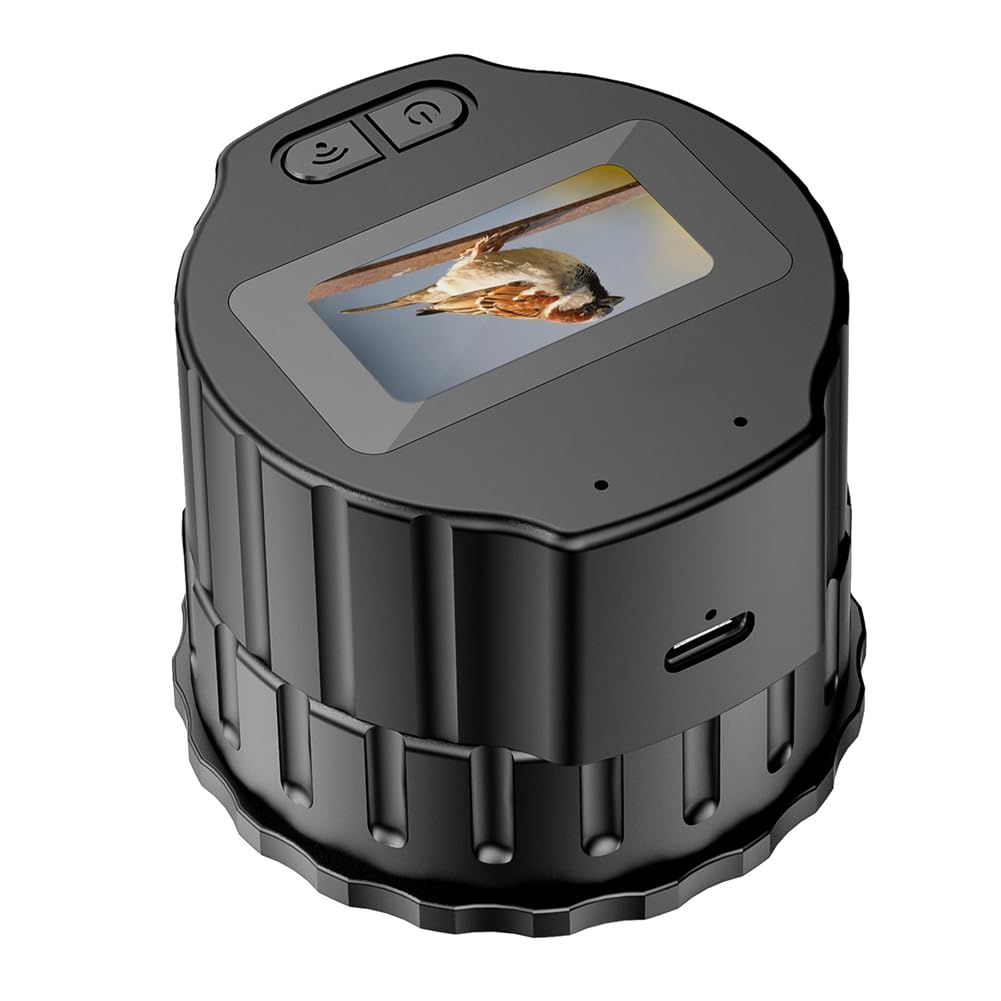
Figure 4: The V13 Eyepiece Camera highlighting support for up to 256GB TF card.
6. Operating Instructions
6.1. Direct Viewing and Recording
Once powered on and attached to your telescope, you can view the live feed directly on the 1.5-inch HD TFT screen. Use the physical buttons on the device to start/stop recording or capture photos. Refer to the on-screen icons for current mode and status.
6.2. Connecting via WiFi to a Smartphone
For remote control and enhanced viewing options, connect the V13 Eyepiece Camera to your smartphone via WiFi.
- Download the App: Scan the QR code provided in the product packaging or search for the recommended app (e.g., "Viidure" or "Lencenker" as seen in videos) on your smartphone's app store.
- Power On and Enable WiFi: Power on the V13 Eyepiece Camera. Press the WiFi button on the device to enable its WiFi hotspot. A blue indicator light will confirm WiFi is active.
- Connect to Camera WiFi: On your smartphone, go to WiFi settings. Find the camera's WiFi network (e.g., "ZHENYI-XXXX" or "EP01_XXXX"). The default password is typically 12345678. Connect to this network.
- Open the App: Launch the downloaded app. The app should automatically detect and connect to the camera. You will see the live feed from the eyepiece camera on your phone screen.

Figure 5: Wireless connection of the V13 Eyepiece Camera to a smartphone for remote viewing.
6.3. App Functions
Through the smartphone app, you can:
- View live footage from the telescope.
- Start and stop video recording.
- Capture still images.
- Adjust settings such as video resolution, image quality, exposure compensation, and ISO.
- Access and manage recorded videos and photos.
- Enable screen-off power saving function.
6.4. Instructional Videos
For a visual guide on connecting and using the WiFi features, please refer to the following videos:
Video 1: Detailed instructions on how to connect the telescope camera to a phone via WiFi. This video covers downloading the app, powering on the device, enabling WiFi, and connecting through the app interface.
Video 2: A comprehensive guide on using the WiFi eyepiece camera, demonstrating various functions within the smartphone application, including recording videos, taking photos, and adjusting camera settings.
7. Maintenance
- Cleaning: Use a soft, dry cloth to clean the exterior of the camera. For the lens and screen, use a specialized lens cleaning cloth and solution. Avoid abrasive materials.
- Storage: When not in use for extended periods, store the camera in its original packaging or a protective case in a dry, dust-free environment.
- Battery Care: To prolong battery life, avoid fully discharging the battery frequently. Charge the device regularly, even if not in use, to maintain battery health.
- Firmware Updates: Check the manufacturer's website or app for any available firmware updates to ensure optimal performance and new features.
8. Troubleshooting
| Problem | Possible Cause | Solution |
|---|---|---|
| Device does not power on. | Low battery. | Charge the device fully using the provided data cable. |
| Cannot connect to WiFi. | WiFi not enabled on camera; incorrect password; app issue. | Ensure WiFi is enabled on the camera. Verify the WiFi password (default: 12345678). Restart the app and camera. |
| Poor image/video quality. | Dirty lens; incorrect focus; low light conditions; app settings. | Clean the lens. Adjust telescope focus. Ensure adequate lighting. Check image quality settings in the app. |
| TF card error. | Card not inserted correctly; incompatible card; full card. | Reinsert the TF card. Ensure it's a compatible type and size (up to 256GB). Format the TF card via the app settings if necessary. |
9. Specifications
| Feature | Detail |
|---|---|
| Model Number | V13 (Item Model: 500759900) |
| Display | 1.5-inch HD TFT (320x240) IPS Full-View |
| Video Resolution | FHD 1920x1080 |
| Video Encoding | H.264 |
| Battery | Built-in 800 mAh Aluminum Battery |
| Operating Time | Approx. 150 minutes continuous use |
| Storage | Max. 256GB TF card support (card not shipped) |
| Connectivity | WiFi |
| Product Dimensions | 3.94 x 3.94 x 2.36 inches |
| Item Weight | 4.9 ounces |
| Manufacturer | Ruitutedianzi |
| Date First Available | November 28, 2024 |
10. Warranty and Support
This product comes with a standard manufacturer's warranty. For specific warranty details, please refer to the warranty card included with your purchase or contact Ruitutedianzi customer support. If you encounter any issues or have questions regarding your V13 Electronic Eyepiece Camera, please reach out to the seller or manufacturer for technical assistance and support.