
Introduction
The OJ Microline UWG5 LED Smart Heated Floor Thermostat provides precise control for electric radiant floor heating systems. This manual details the installation, operation, and maintenance of your thermostat, ensuring optimal comfort and energy efficiency. Please read these instructions thoroughly before installation and use.
Safety Information
- Installation must be performed by a qualified electrician in accordance with local electrical codes.
- Always disconnect power at the circuit breaker before installing or servicing the thermostat.
- The thermostat includes a built-in Class A GFCI (Ground Fault Circuit Interrupter) for protection against ground faults. Test the GFCI regularly as per local regulations.
- Do not operate the thermostat with wet hands.
- Ensure the thermostat is compatible with your heating system's voltage (120V, 208V, or 240V).
Product Overview
The UWG5 thermostat features a sleek LED touchscreen and offers advanced smart control capabilities for your heated floor system.
- Smart Control: Manage your floor heating system via a user-friendly app, accessible remotely via Wi-Fi or locally via Bluetooth. Integrates with Google Home and Amazon Alexa for voice control.
- Intuitive Technology: Self-learning functionality automatically adjusts settings to maintain desired temperatures and optimize energy use.
- LED Touch Screen: Modern design with a dimmable LED display. Light intensity increases during use and dims or turns off when inactive, ensuring comfort in dark rooms.
- Dual Sensing: Provides precise temperature control using both ambient air and floor sensors.
- Built-in GFCI: Class A GFCI protection with a 5mA trip level for enhanced safety.
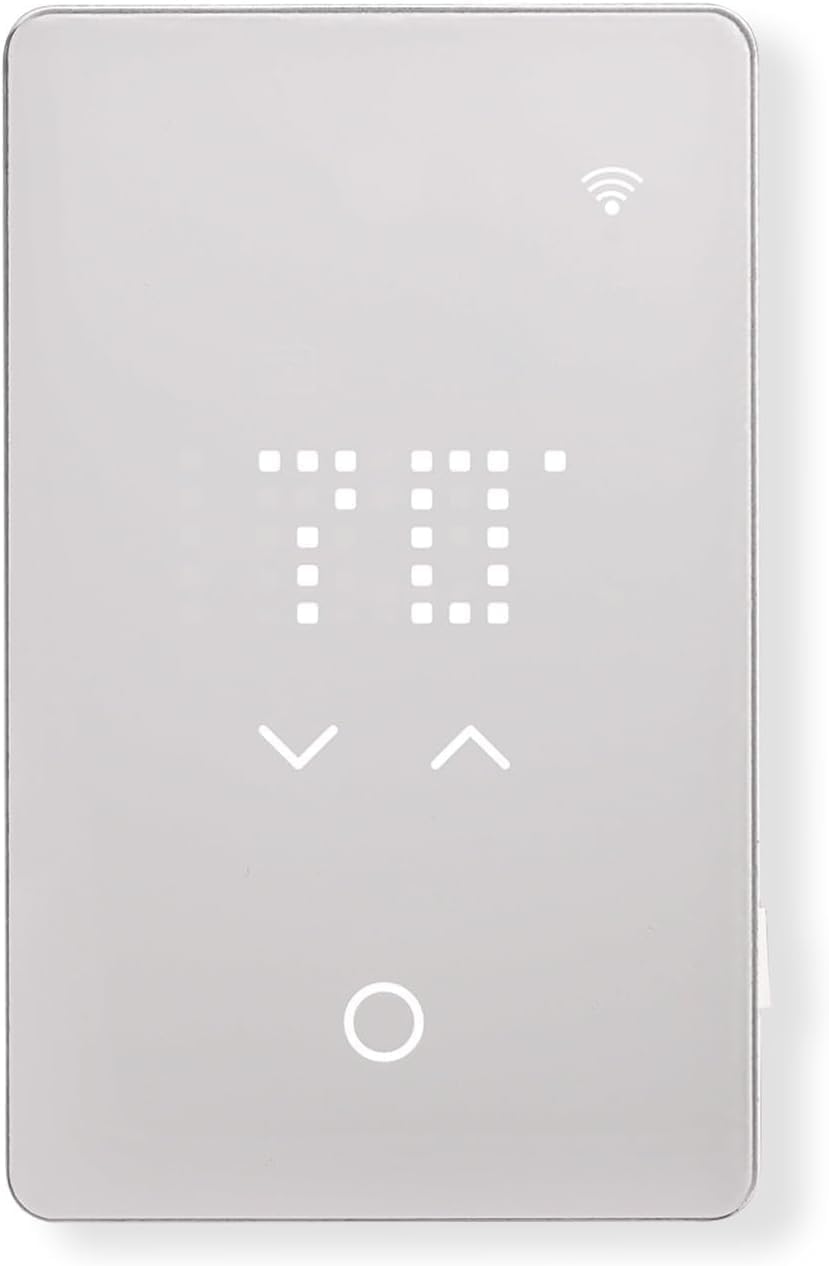
Image: A detailed view of the UWG5 thermostat's LED touchscreen display.
Setup
- Pre-Installation: Verify that the thermostat's voltage compatibility (120V, 208V, 240V) matches your electric floor heating system.
- Wiring:
- Disconnect power to the heating circuit at the main electrical panel.
- Follow the wiring diagram provided below. Connect the thermostat to the house ground, hot from power source, neutral from power source, and wires to the heater.
- Ensure all electrical connections are secure and comply with local codes.

Image: Detailed wiring diagram showing connections for house ground, hot, neutral, and heater wires.
- Physical Installation: Mount the thermostat securely in a standard electrical box.
- App Connection:
- Download the OJ Microline app from your device's app store.
- The app will guide you through the initial setup process.
- Connect the thermostat using Bluetooth for initial configuration, then set up Wi-Fi for remote access and full smart features.

Image: A person interacting with the OJ Microline app on a smartphone to configure the thermostat.
Operating Instructions
- Basic Temperature Adjustment:
- Use the up (▲) and down (▼) arrows on the LED touchscreen to adjust the desired temperature setpoint.
- The display will show the current temperature and the setpoint.

Image: A hand touching the LED screen of the thermostat to adjust the temperature setting.
- Programming Schedules: Utilize the OJ Microline app to create and customize heating schedules. The thermostat supports a 7-day, 4-event program for personalized comfort and energy savings.
- App Control: Once connected to Wi-Fi, control and monitor your floor heating system from anywhere using the app. Adjust settings, view energy usage, and manage vacation modes.
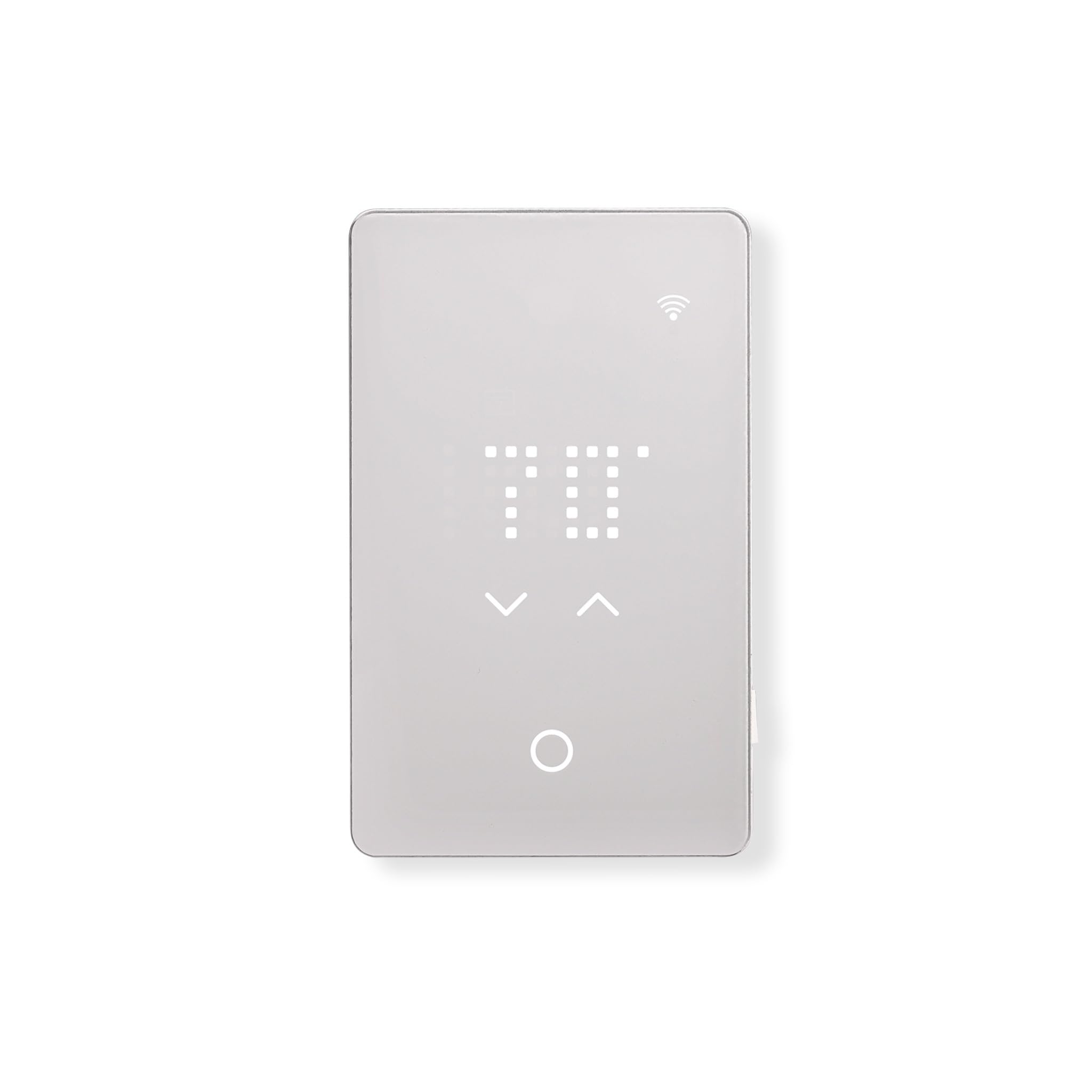
Image: The UWG5 thermostat displayed next to a smartphone showing the control app interface, illustrating remote management.
- Voice Control: Integrate the thermostat with Google Home or Amazon Alexa devices. Use voice commands to adjust temperature settings.

Image: The UWG5 thermostat shown with logos for Google Home and Amazon Alexa, highlighting its voice control capabilities.
- Display Behavior: The LED touchscreen's light intensity increases during active use and dims or turns off when inactive to avoid bright light in dark rooms.
Maintenance
- Clean the thermostat's screen and casing with a soft, damp cloth. Do not use abrasive cleaners or solvents.
- Ensure the floor sensor is not obstructed or damaged.
Troubleshooting
- No Power/Display Off: Check the circuit breaker. Ensure wiring connections are secure.
- Heating Not Activating: Verify the setpoint is above the current floor temperature. Check the GFCI for a tripped state.
- Connectivity Issues (Wi-Fi/Bluetooth):
- Ensure your home Wi-Fi network is active and the signal is strong.
- Restart the thermostat and your router.
- For Bluetooth, ensure your device is within range.
- If scheduling issues persist, re-check app settings and ensure the thermostat is properly synced.
- GFCI Tripping: If the GFCI trips frequently, consult a qualified electrician. This may indicate a fault in the heating cable or wiring.
Specifications

Image: A graphic detailing the technical specifications and key features of the UWG5 thermostat, including a wiring diagram.
| Feature | Detail |
|---|---|
| Brand | OJ Microline |
| Model Name | UWG5-4999 |
| Controller Type | App, Google Assistant, Amazon Alexa |
| Special Feature | Dimmable, Programmable, Temperature Display |
| Color | White |
| Specific Uses | Floor Heating |
| Temperature Control Type | Heating |
| Connectivity Technology | Bluetooth, Wi-Fi |
| Power Source | Corded Electric |
| Display Type | LED touchscreen |
| Control Method | App, Touch, Voice |
| Connectivity Protocol | Wi-Fi |
| Mounting Type | Floor Mount |
| Wattage | 1800W (120V), 3600W (240V) |
| Load | 15A |
| Floor Limit Range | +41 to +104°F (+5 to +40°C) |
| Ambient Temp. Range | +32 to +104°F (0 to +40°C) |
| GFCI | Class A, 5mA trip level |
| Item Weight | 14.9 ounces |
| Package Dimensions | 7.72 x 4.33 x 3.31 inches |
Warranty
The OJ Microline UWG5 thermostat comes with a manufacturer's limited 3-year warranty. Please retain your proof of purchase for warranty claims. The warranty covers defects in materials and workmanship under normal use.
Support
For technical assistance, troubleshooting, or warranty inquiries, please visit the official OJ Microline website or contact their customer support. Refer to the product packaging or the OJ Microline website for specific contact details and up-to-date support information.


