
Introduction
This manual provides essential instructions for the proper setup, operation, and maintenance of your BigBuild Technology 8GB Micro SDHC Memory Card. This memory card is designed to expand the storage capacity and enhance the performance of compatible tablets, including various Blackview Tab and Oscal Pad models. It supports high-resolution photo storage, Full HD video recording, and faster app loading times.

Image: The BigBuild Technology 8GB Micro SDHC Memory Card and its included SD adapter, presented in its retail packaging.
Setup
1. Inserting the Micro SD Card into a Tablet
- Locate the Card Slot: Identify the Micro SD card slot on your compatible tablet. This is often found on the side of the device, sometimes within a tray that also holds a SIM card.
- Open the Tray (if applicable): If your tablet uses a tray, use the provided tool (or a small paperclip) to eject the tray.
- Insert the Micro SD Card: Carefully place the 8GB Micro SDHC card into the designated slot on the tray or directly into the card slot. Ensure the gold contacts on the card align with the contacts in the device. The card should click into place or fit snugly.
- Close the Tray/Slot: Gently push the tray back into the tablet until it is flush with the device's body.
- Verify Recognition: Power on your tablet. Navigate to the storage settings to confirm that the Micro SD card is recognized and its capacity is displayed.
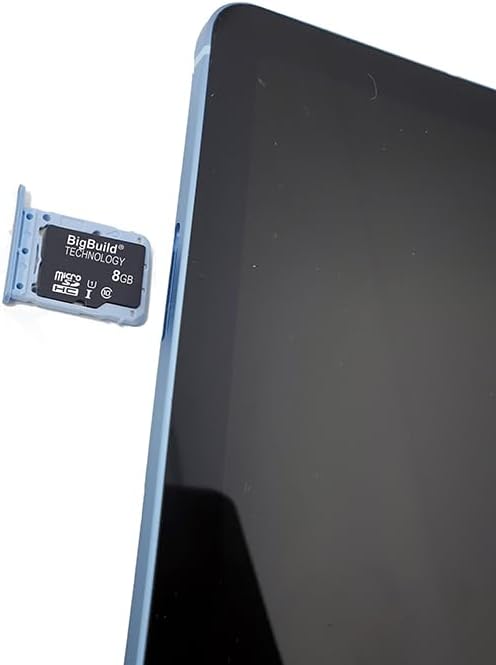
Image: A BigBuild Technology Micro SD card being carefully inserted into the card tray of a tablet.
2. Using the SD Adapter
The included SD adapter allows you to use your Micro SDHC card with devices that support standard SD cards, such as digital cameras, laptops, and desktop computers.
- Insert Micro SD into Adapter: Slide the Micro SDHC card into the slot on the side of the SD adapter until it clicks into place.
- Insert Adapter into Device: Insert the SD adapter (with the Micro SD card inside) into the SD card slot of your camera, laptop, or other compatible device.
- Data Transfer: You can now access the data on your Micro SD card through the device. To remove, simply eject the SD adapter safely from your device and then remove the Micro SD card from the adapter.

Image: The BigBuild Technology Micro SD card and its SD adapter stored within a clear protective case.
Operating Instructions
1. Storing Data on Your Tablet
- Photos and Videos: Once inserted and recognized, your tablet's camera app will typically offer the option to save photos and videos directly to the Micro SD card. The card's Class 10 speed rating ensures smooth Full HD (1080p) video recording and rapid capture of high-resolution photos.
- Applications: Many Android tablets allow you to move installed applications or save new app data to the Micro SD card. Check your tablet's 'Apps' or 'Storage' settings for this functionality. This helps free up internal storage and can improve tablet performance.
- Documents and Media: Transfer documents, music, movies, and other media files to the Micro SD card using your tablet's file manager.
2. Data Transfer with Other Devices
The Micro SD card, especially when used with the SD adapter, facilitates easy data transfer between various devices.
- Digital Cameras: Insert the Micro SD card into the SD adapter, then into your digital camera. Capture photos and videos directly onto the card. The 80MB/s read speed allows for quick review and transfer of media.
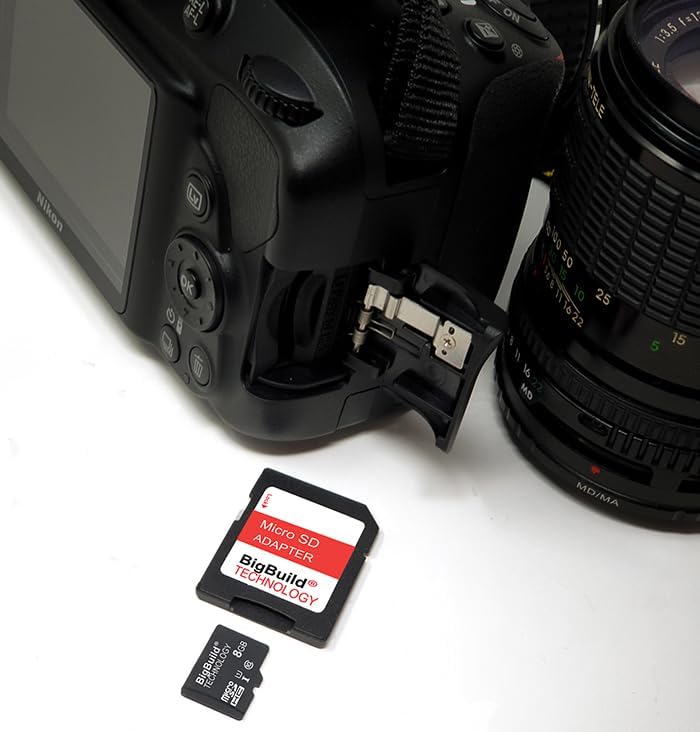
Image: The Micro SD card and its adapter positioned next to a DSLR camera, illustrating its use in photography.
- Computers (Laptops/Desktops): Use the SD adapter to insert the Micro SD card into your computer's SD card reader. This allows for quick and easy transfer of files to and from your computer for backup, editing, or sharing.

Image: The Micro SD card and its adapter placed beside a laptop keyboard, demonstrating connectivity with computers.
Maintenance
To ensure the longevity and optimal performance of your BigBuild Technology Micro SDHC card, follow these maintenance guidelines:
- Physical Protection: Avoid bending, dropping, or applying excessive force to the card. Keep the gold contacts clean and free from dust or moisture.
- Environmental Protection: The card is designed to be temperature-proof, magnet-proof, shock & vibration-proof, and X-ray proof. However, extreme conditions should still be avoided to prevent potential damage.

Image: Product packaging illustrating the durability features of the Micro SD card, including resistance to temperature, magnets, shock, and X-rays.
- Storage: When not in use, store the Micro SD card and its adapter in the provided durable plastic storage case to protect them from dust, static, and physical damage.
- Safe Removal: Always safely eject the Micro SD card from your device before physically removing it. This prevents data corruption.
Troubleshooting
- Card Not Recognized:
- Ensure the card is inserted correctly and fully into the slot.
- Restart your device.
- Test the card in another compatible device or with the SD adapter in a computer to rule out a device-specific issue.
- Check your device's settings to see if the card needs to be formatted (note: formatting will erase all data).
- Slow Performance/Data Transfer:
- Ensure your device supports the card's speed class.
- Check if the card is nearly full; performance can degrade with very little free space.
- Avoid running too many applications simultaneously on your tablet.
- Data Loss:
- Regularly back up important data from your Micro SD card to a computer or cloud storage.
- Avoid removing the card while data is being written or read.
Specifications
| Brand | BigBuild Technology |
| Flash Memory Type | Micro SDHC |
| Capacity | 8GB |
| Secure Digital Association Speed Class | Class 10 |
| Read Speed | Up to 80MB/s |
| Compatible Devices | Blackview Active 8 Pro, Blackview Oscal Pad 60, Blackview Tab 80, Blackview Tab 70, Blackview Mega 1, Blackview Tab 50, Blackview Tab 60, Blackview Oscal Pad 70, Blackview Tab 16 Pro, Blackview Tab 18, Blackview Tab 90 Tablets |
Warranty Information
This BigBuild Technology Micro SDHC Memory Card comes with a 5 Year Limited Warranty. For details regarding warranty claims and coverage, please retain your proof of purchase and contact BigBuild Technology customer support.
Support
If you encounter any issues not covered in this manual or require further assistance, please contact BigBuild Technology customer support. Refer to the packaging or the official BigBuild Technology website for contact information.