
1. Introduction
Thank you for choosing the DODOXCX T11 Portable Wireless Bluetooth Thermal Tattoo Stencil Printer. This device is designed for efficient and high-quality printing of tattoo stencils and documents using thermal technology. This manual provides essential information for safe and effective use of your printer.

Image: The DODOXCX T11 printer in use, demonstrating its compact design and ability to print tattoo stencils.
2. Safety Information
- Keep the printer away from water and high humidity.
- Do not expose the printer to direct sunlight or high temperatures.
- Use only the provided charging cable and recommended thermal paper.
- Avoid disassembling the printer, as this may void the warranty and cause damage.
- Keep out of reach of children.
3. Package Contents
Verify that all items are present in the package:
- DODOXCX T11 Portable Thermal Printer
- USB Charging Cable
- Instruction Manual
- Thermal Tattoo Transfer Paper (3 pieces)
- Thermal Document Paper (sample roll)
4. Product Overview
The DODOXCX T11 printer is a compact and lightweight device designed for portability and ease of use. It features a thermal print head, paper feed slot, power button, and indicator lights.

Image: Dimensions and key features highlighting the portable and compact nature of the DODOXCX T11 printer.
5. Setup
5.1 Charging the Printer
Before first use, fully charge the printer using the provided USB cable. The indicator light will show charging status.
5.2 Loading Tattoo Stencil Paper
- Prepare the four layers of transfer paper.
- Carefully remove the yellow bottom paper, ensuring the adhesive part remains intact.
- Remove the middle protective sheet.
- Power on the printer. Ensure the blue transfer paper is face down and the white tracing paper is face up.
- Gently insert the paper downward into the inlet. The printer will automatically feed the paper.

Image: Step-by-step instructions for loading tattoo stencil paper into the printer.
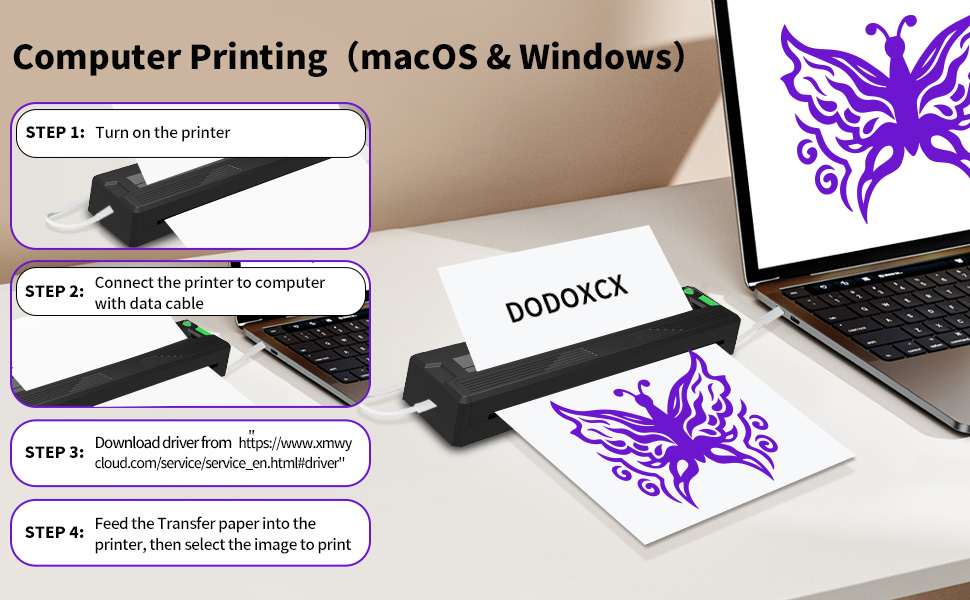
Image: Detailed steps for preparing the tattoo transfer paper and applying the stencil to the skin.
5.3 Loading Thermal Document Paper
- Locate the black mark on the thermal paper.
- Insert the paper into the printer with the black mark facing down. The printer will automatically feed it.
5.4 App Installation and Bluetooth Connection
The DODOXCX T11 printer is compatible with smartphones (Android/iOS) and PCs (Windows/macOS).
- Download the 'TATTOOPRT' app from your phone's app store (Google Play or App Store).
- Turn on the printer by pressing and holding the power button.
- Open the 'TATTOOPRT' app and tap the connect icon (usually at the top left).
- Select your printer (T11) from the list of nearby devices to establish a Bluetooth connection.

Image: The printer's compatibility with USB for macOS/Windows and Bluetooth for Android/iOS/Tablets.
Video: Demonstrates turning on the DODOXCX T11 printer, connecting it via Bluetooth to a smartphone app, and selecting a tattoo design for printing. This video is provided by DODOXCX.
6. Operation
6.1 Printing Tattoo Stencils (via App)
- Ensure the printer is connected to the app via Bluetooth.
- In the 'TATTOOPRT' app, select the 'Tattoo Printer' option.
- Choose a pre-existing template from the material library or upload your own image.
- Adjust the image size, position, and apply desired effects (e.g., line art, crop, rotate).
- Click the print icon in the upper right of the app.
- Select your preferred print style (Default, Realistic, Low, Standard, High) and density.
- Tap 'Print' to begin printing the stencil.

Image: Demonstrates the greater clarity of prints achieved with the DODOXCX T11 printer.
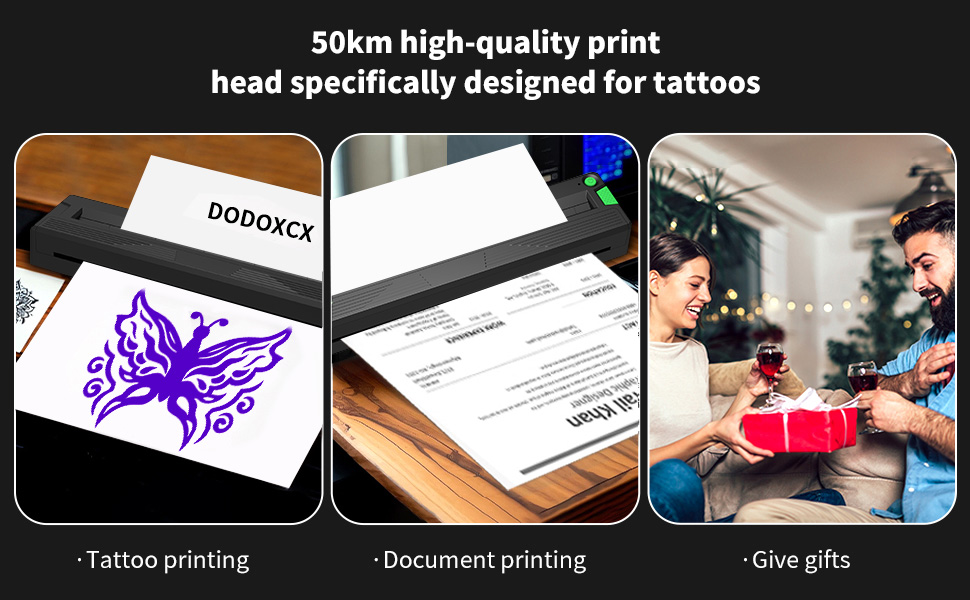
Image: Illustrates the clarity and template variety available for tattoo stencil printing.

Image: Highlights the simplicity and time-saving benefits of using the DODOXCX T11 printer for tattoo stencils compared to traditional methods.
6.2 Printing Documents (via App)
- Ensure the printer is connected to the app.
- In the 'TATTOOPRT' app, tap the 'Document' option at the bottom.
- Select the type of file you wish to print (e.g., Word, Excel, PDF, TXT).
- Choose the specific file from your device.
- Select the paper type (US Letter or A4), print range, and number of copies.
- Tap 'Print' to send the document to the printer.
Video: Illustrates the process of turning on the DODOXCX T11 printer, connecting it to a smartphone app, selecting a document, and printing it on thermal paper. This video is provided by DODOXCX.
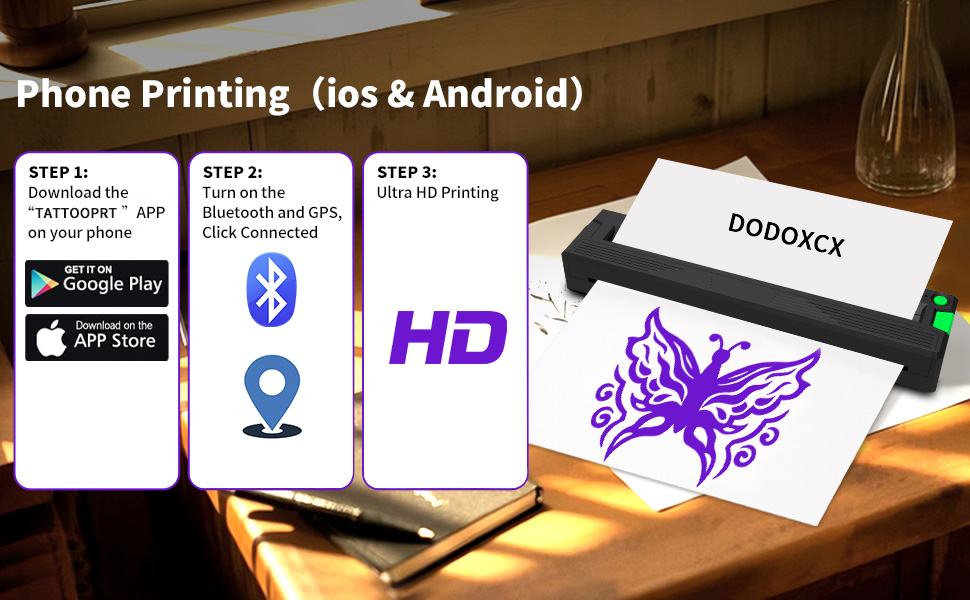
Image: Steps for printing documents from a computer (macOS & Windows) using the DODOXCX T11 printer.

Image: Steps for printing documents from a phone (iOS & Android) using the DODOXCX T11 printer.
7. Maintenance
7.1 Cleaning the Printer
As a thermal printer, it does not use ink, but regular cleaning helps maintain print quality.
- Use a soft, dry, lint-free cloth to wipe the exterior of the printer.
- Gently clean the print head with an alcohol wipe or a specialized thermal printer cleaning pen to remove any dust or paper residue. Ensure the printer is off and cooled down before cleaning the print head.
7.2 Battery Care
- Charge the printer regularly, even if not in frequent use, to prolong battery life.
- Avoid completely draining the battery before recharging.
- Store the printer in a cool, dry place when not in use.
7.3 Storage
Store the printer in its original packaging or a protective case to prevent damage from dust or impacts. Keep thermal paper in a cool, dark place to preserve its sensitivity.
8. Troubleshooting
- Printer Not Turning On: Check if the battery is charged. Connect the printer to a power source using the USB cable.
- Cannot Connect via Bluetooth: Ensure Bluetooth is enabled on your device and the printer. Restart both the printer and your device. Try re-pairing through the app.
- Paper Jam: If paper gets stuck, gently pull the two tabs on the side of the printer to open it and carefully remove the jammed paper.
- Poor Print Quality:
- Ensure you are using compatible thermal paper.
- Check the print density settings in the app and adjust to 'High' or 'Best' for clearer results.
- Clean the print head as described in the Maintenance section.
- Paper Not Feeding: Ensure the paper is inserted correctly and aligned with the feed slot. The printer should automatically detect and feed the paper.
9. Specifications
| Feature | Detail |
|---|---|
| Model Number | T11 |
| Brand | DODOXCX |
| Product Dimensions | 1.9"D x 10"W x 1.3"H (1.9 x 10 x 1.3 inches) |
| Weight | 1.1 Pounds |
| Batteries | 2 x 1500mAh A batteries (included) |
| Material | Plastic |
| Color | Oil Black |
| Active Surface Area | 19 square inches |
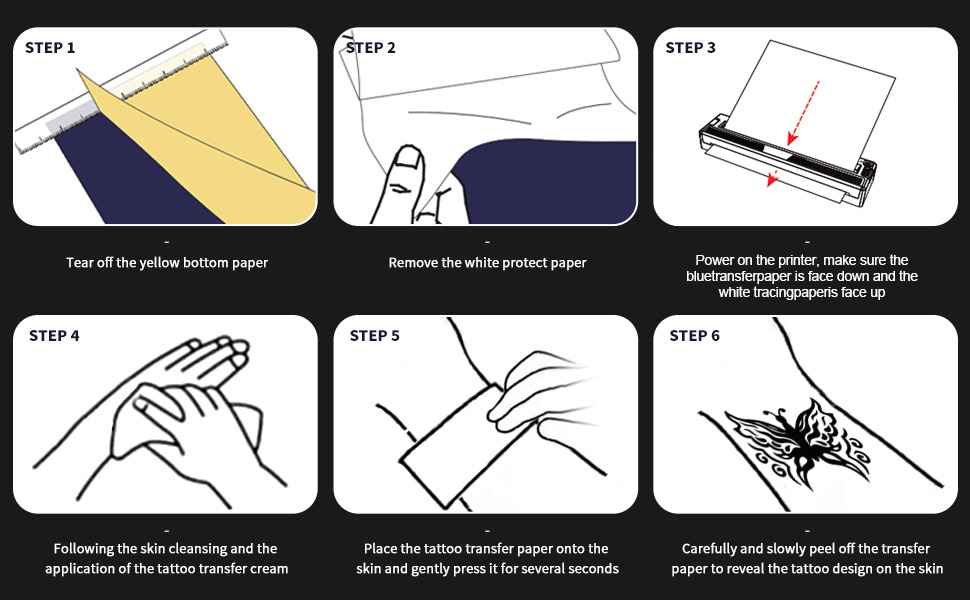
Image: Highlights the 50km high-quality print head specifically designed for tattoos, also suitable for document printing.
10. Warranty and Support
For detailed warranty information, please refer to the documentation included with your purchase or contact the retailer. For technical support, please visit the DODOXCX official website or consult the 'TATTOOPRT' app for assistance and FAQs.