
1. Product Overview
The YESKAMOO 12-inch Wireless Security Camera System offers an integrated monitor and recorder for straightforward home surveillance. It supports 5-megapixel cameras, provides 24-hour continuous recording, utilizes H.265 video compression for efficient storage, and includes motion detection with mobile notifications. The system is designed for easy installation and can be expanded to support up to 8 cameras.

Image: The YESKAMOO 12-inch Wireless Security Camera System, showcasing the integrated monitor and a camera unit.
2. Package Contents
Please verify that all items listed below are included in your package:
- 12-inch Monitor/NVR Unit
- Wireless Cameras (quantity may vary based on package)
- 12V3A Power Adapter (for NVR)
- USB Mouse
- Camera Power Adapters
- Mounting Screws and Anchors
- User Manual (this document)
Note: An HDD (Hard Disk Drive) is not included and must be purchased separately for recording functionality. This monitor supports up to 6TB, 3.5-inch, SATA 3.0 HDDs.
3. Setup Guide
3.1 Initial Setup
- Connect Camera Power: Plug the power adapter into each wireless camera and then into a power outlet.
- Connect NVR Power: Plug the 12V3A power adapter into the NVR unit and then into a power outlet.
- Power On: Turn on the NVR unit. The camera feed should appear on the integrated 12-inch monitor within seconds. The system is designed for automatic pairing.

Image: Step-by-step illustration of connecting power to the camera and NVR, showing the video feed appearing on the monitor.
3.2 Camera Expansion
The system supports expansion up to 8 wireless cameras. To add more cameras, simply power them on, and they will automatically pair with the NVR unit.
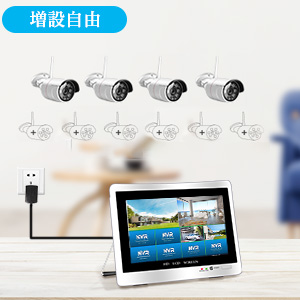
Image: Diagram showing the system's capability to expand from 4 to 8 cameras.
3.3 Connection Options
- Wired Connection: For enhanced stability, cameras can be connected to the NVR via an Ethernet cable.
- Extension Antenna: If wireless signal strength is weak due to obstacles, an extension antenna can be used to improve reception.
- Repeater Function: Cameras can act as repeaters to extend the wireless range for other cameras, or a dedicated repeater can be used.
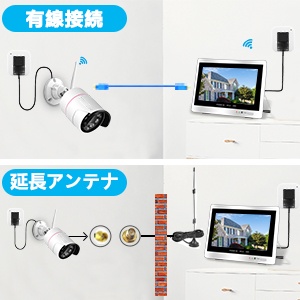
Image: Illustration of a camera connected to the NVR via a wired Ethernet connection.

Image: Diagram showing how to install an extension antenna to bypass signal obstructions.
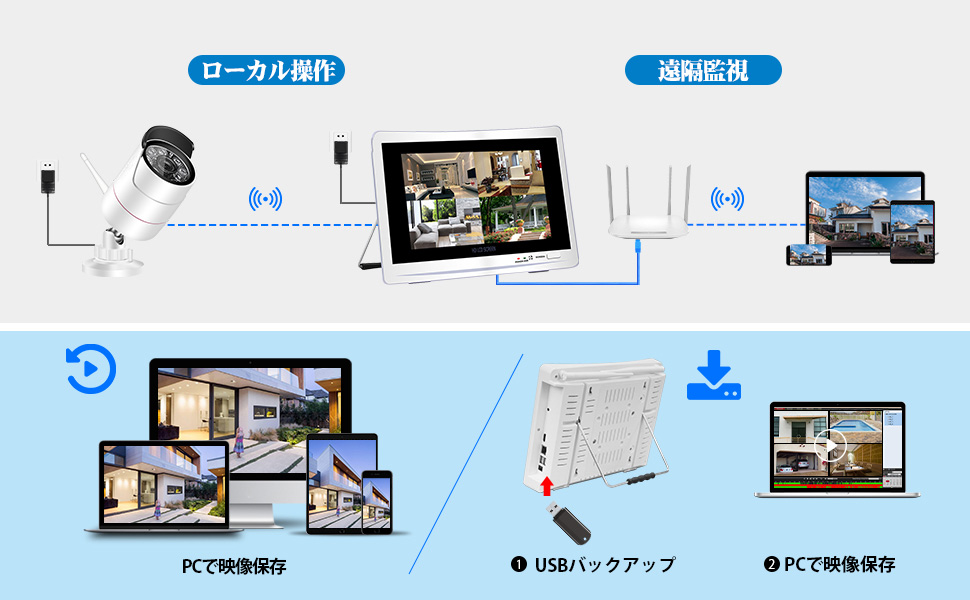
Image: Visual guide on setting up a camera as a repeater or using a dedicated wireless repeater to enhance signal coverage.
4. Operating Instructions
4.1 Recording Modes
The system offers flexible recording options:
- Continuous Recording: Records 24 hours a day, 7 days a week.
- Scheduled Recording: Set specific times for recording.
- Motion Detection Recording: Records only when motion is detected, saving storage space.

Image: Icons representing continuous, scheduled, and motion detection recording modes.
4.2 Motion Detection and Notifications
When motion is detected, the system can:
- Initiate motion detection recording.
- Trigger an NVR buzzer alarm.
- Send push notifications to your smartphone via the app.
- Send email alerts.
You can customize detection areas to avoid unnecessary alerts.

Image: A person receiving a motion detection alert on their smartphone, showing the system's notification capabilities.
4.3 Local and Remote Monitoring
View your camera feeds and recorded footage:
- Local Monitoring: Directly view live feeds on the integrated 12-inch monitor. Connect a USB mouse for navigation.
- Remote Monitoring: Connect the NVR to your home network via an Ethernet cable. Download the dedicated app on your smartphone or tablet, or use client software on your PC to view live feeds and playback recordings from anywhere.

Image: Diagram illustrating local monitoring via the NVR and remote monitoring via a router to PC/smartphone.

Image: Various devices (smartphone, tablet, PC) displaying remote monitoring feeds.
5. Maintenance
- Cleaning: Gently wipe the camera lenses and monitor screen with a soft, dry cloth. Avoid abrasive cleaners.
- Firmware Updates: Periodically check the manufacturer's website for firmware updates to ensure optimal performance and security.
- HDD Management: If using an HDD, regularly back up important footage. The system supports H.265 compression to maximize storage efficiency.

Image: Comparison of H.264 and H.265 compression, highlighting the storage efficiency of H.265.
6. Troubleshooting
- No Image on Monitor:
- Ensure all power adapters are securely connected to both cameras and the NVR.
- Verify that the NVR is powered on.
- Check if cameras are within wireless range of the NVR. - No Remote Viewing:
- Ensure the NVR is connected to your router via an Ethernet cable.
- Verify your smartphone/PC has internet access.
- Check app settings and NVR network configuration. - Poor Image Quality:
- Ensure camera lenses are clean.
- Check for strong wireless interference.
- Consider using a wired connection or extension antenna for cameras far from the NVR. - Motion Detection Not Working:
- Verify motion detection is enabled in the NVR settings.
- Adjust sensitivity levels.
- Ensure detection areas are correctly configured.
7. Technical Specifications

Image: Detailed view of the NVR monitor, showing its 12-inch screen, dimensions (30cm x 23cm x 4.5cm), and port layout including HDMI, Ethernet, USB, and power input.
| Feature | Specification |
|---|---|
| Brand | YESKAMOO |
| Model Number | JP-NK03-10804-2TB |
| Connectivity Technology | HDMI, Wi-Fi |
| Total USB Ports | 2 |
| Compatible Devices | Cameras, Smartphones, Tablets, TVs, Laptops |
| Video Compression | H.265 |
| Max HDD Capacity | 6 TB (3.5-inch, SATA 3.0) |
| Camera Resolution | 5 Megapixels (500万画素対応) |
| Monitor Size | 12 inches |
| Expandability | Up to 8 wireless cameras |
| Origin | China |

Image: Example of 2K Ultra HD video quality from the security camera system.

Image: A visual comparison highlighting the advantages of the 12-inch monitor over a smaller 10-inch alternative, emphasizing better visibility and modern design.
8. Warranty and Support
8.1 Warranty Information
This product comes with a 1-year warranty from the date of purchase. Please retain your proof of purchase for warranty claims. The warranty covers manufacturing defects but does not cover damage caused by misuse, accidents, or unauthorized modifications.
8.2 Customer Support
For any questions, technical assistance, or support, please contact YESKAMOO customer service through the following channels:
- LINE Support: For quick responses, add us on LINE.
- Email Support: jpservice@yeskamoo.com (24-hour response available)
- Website: www.yeskamoo.com


Image: Overview of YESKAMOO's comprehensive support system, including LINE, email, warranty, and quality management.