
1. Introduction
This manual provides detailed instructions for the installation, operation, and maintenance of your Xega 4G Camera (XG07) and Xega Wi-Fi Camera (S50). These cameras are designed to provide reliable outdoor surveillance with solar power capabilities, offering flexibility for various monitoring needs.
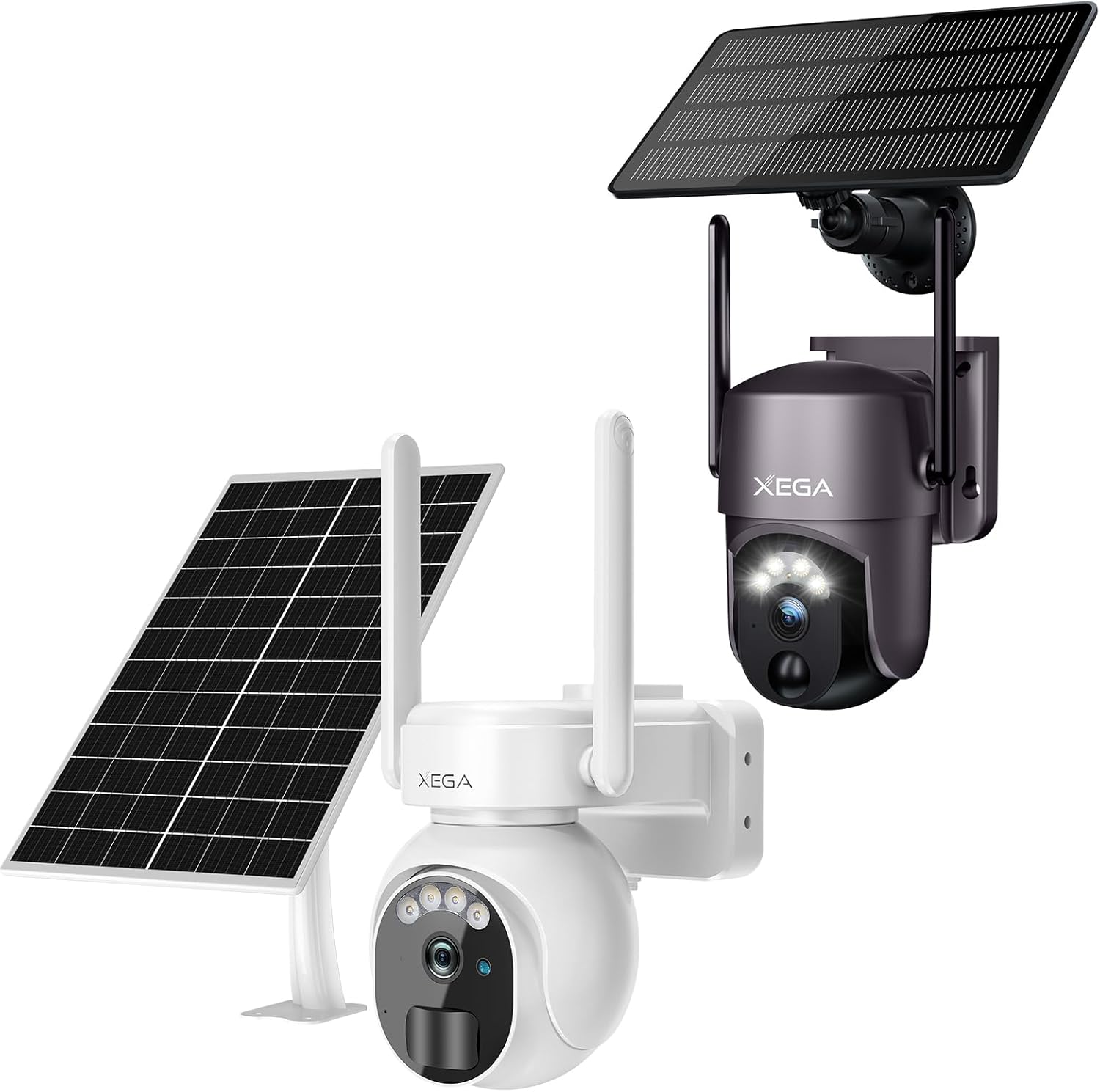
Image: The Xega 4G Camera (dark grey) and Wi-Fi Camera (white), each with its dedicated solar panel, illustrating the complete product package.
2. Safety Information
- Ensure all power connections are secure and correct before operation.
- Do not expose the cameras or solar panels to extreme temperatures outside their operating range.
- Avoid direct exposure of the camera lens to strong light sources, such as the sun, as this may damage the image sensor.
- Handle the solar panel with care to prevent damage to the photovoltaic cells.
- Keep the product away from children and pets.
- Only use accessories and power adapters approved by Xega.
- Do not attempt to disassemble or modify the cameras or solar panels. This will void the warranty.
3. Package Contents
Please check the package contents upon receipt. If any items are missing or damaged, contact customer support.
- Xega 4G Camera (XG07) x 1
- Xega Wi-Fi Camera (S50) x 1
- Solar Panel for XG07 x 1
- Solar Panel for S50 x 1
- Mounting Brackets x 2
- Mounting Screw Kits x 2
- USB Charging Cable x 2
- User Manual x 1
4. Product Overview
4.1 Xega 4G Camera (XG07)
The XG07 is a 4G LTE-enabled security camera designed for locations without Wi-Fi access. It features a built-in battery, solar panel compatibility for continuous power, and PIR motion detection.

Image: The Xega 4G Camera (white) with its solar panel, demonstrating its suitability for remote locations beyond typical Wi-Fi range, such as farms or campsites.
4.2 Xega Wi-Fi Camera (S50)
The S50 is a Wi-Fi enabled PTZ (Pan-Tilt-Zoom) camera offering 360° coverage. It also includes a built-in battery and solar panel for sustained operation, along with advanced features like color night vision and two-way audio.

Image: The Xega Wi-Fi Camera (dark grey) with its solar panel, highlighting its 100% wireless operation and continuous power supply from the solar panel and large capacity battery.
5. Setup
5.1 Initial Charging
Before first use, fully charge both cameras using the provided USB cables and a 5V/2A power adapter (not included). A full charge typically takes 8-10 hours.

Image: The Xega Wi-Fi Camera (white) mounted on a wooden wall, with its solar panel positioned above, illustrating the efficient solar charging system and 8000mAh battery for non-stop power.
5.2 Inserting SIM Card (XG07 only) and SD Card
- Locate the SIM/SD card slot on the camera (usually under a rubber plug).
- For XG07: Insert a Nano SIM card with an active data plan. Ensure it is inserted in the correct orientation until it clicks.
- For both cameras: Insert a Micro SD card (up to 128GB, Class 10 or higher) for local storage.
- Close the rubber plug securely to ensure waterproof sealing.
5.3 App Download and Account Registration
Download the "UBox" app from the App Store (iOS) or Google Play Store (Android). Follow the in-app instructions to register a new account.
5.4 Camera Pairing/Connection
5.4.1 XG07 (4G Camera) Connection
- Open the UBox app and tap "Add Device".
- Select "4G Camera".
- Power on the XG07 camera. Wait for the indicator light to flash blue, indicating it's ready for connection.
- Scan the QR code on the camera or manually enter the device ID.
- Follow the app prompts to complete the connection.
5.4.2 S50 (Wi-Fi Camera) Connection
- Open the UBox app and tap "Add Device".
- Select "Wi-Fi Camera".
- Power on the S50 camera. Wait for the indicator light to flash red, indicating it's ready for connection.
- Enter your 2.4GHz Wi-Fi network name (SSID) and password. (5GHz Wi-Fi is not supported).
- Place the QR code generated by the app in front of the camera lens (approx. 15-20 cm away) until you hear a "ding" sound.
- Follow the app prompts to complete the connection.
5.5 Mounting the Cameras and Solar Panels
Choose a mounting location that provides a clear view, strong cellular signal (for XG07) or Wi-Fi signal (for S50), and sufficient direct sunlight for the solar panel.
- Mark the drilling positions using the mounting bracket as a template.
- Drill holes and insert wall anchors if mounting on masonry or concrete.
- Secure the mounting bracket to the wall using the provided screws.
- Attach the camera to its bracket.
- Attach the solar panel to its bracket and adjust its angle to maximize sun exposure. Connect the solar panel cable to the camera's charging port.

Image: The Xega Wi-Fi Camera (white) with its solar panel, demonstrating its IP66 waterproof rating and ability to function reliably in various weather conditions, including rain.

Image: The Xega 4G Camera (dark grey) with its solar panel, showcasing its IP65 weather resistance and pan/tilt capabilities (100° tilt, 355° pan) even in adverse weather.
6. Operating the Cameras
6.1 Live View
Open the UBox app and select the desired camera from the device list to access its live video feed. You can view real-time footage, check battery status, and signal strength.
6.2 Recording and Playback
Recordings are triggered by motion detection and saved to the inserted Micro SD card or optional cloud storage. To view playback, navigate to the "Playback" or "Cloud" section within the app's settings for each camera.
6.3 Motion Detection Settings
Both cameras feature PIR (Passive Infrared) motion detection. You can adjust sensitivity levels and set up detection zones within the app's settings for each camera. When motion is detected, the camera will record and send a push notification to your phone.

Image: A smartphone displaying a push notification from the UBox app, indicating an "Alarm Message" due to PIR detection, with a live view of a person on horseback in the background, demonstrating the motion detection and alert feature.
6.4 Two-Way Audio
The cameras are equipped with a microphone and speaker, allowing for two-way communication. Tap the microphone icon in the live view interface to speak through the camera, and listen to audio from the camera's surroundings.

Image: A composite image showing multiple users viewing the camera feed on their phones, and a delivery person interacting with the camera via two-way audio, illustrating the multi-user view and two-way talk features.
6.5 PTZ Control (S50 only)
For the S50 Wi-Fi camera, use the pan and tilt controls within the UBox app's live view to remotely adjust the camera's viewing angle. The S50 offers 355° horizontal pan and 90° vertical tilt.

Image: The Xega Wi-Fi Camera (dark grey) mounted on a house, with arrows indicating its 100° tilt and 355° pan capabilities, and a smartphone screen showing a clear night vision view, highlighting its PTZ and colorful night vision features.
6.6 Night Vision
Both cameras are equipped with infrared LEDs for clear black-and-white night vision. The S50 Wi-Fi camera also supports color night vision when sufficient ambient light is available or its spotlight is activated.
6.7 Multi-User Sharing
You can share camera access with family members or trusted individuals through the UBox app. Go to the camera settings, select "Share Device," and invite users via their UBox account or email.
7. Maintenance
7.1 Cleaning
Periodically clean the camera lens and solar panel surface with a soft, damp cloth to ensure optimal performance. Do not use harsh chemicals or abrasive materials.
7.2 Battery Care
To prolong battery life, ensure the solar panel receives adequate sunlight. If the camera is stored for an extended period, fully charge it every 3 months.
7.3 Firmware Updates
Check the UBox app regularly for firmware updates. Keeping your camera's firmware up-to-date ensures optimal performance, new features, and security enhancements. Follow the in-app instructions for updating.
8. Troubleshooting
| Problem | Possible Cause | Solution |
|---|---|---|
| Camera not powering on. | Low battery; faulty charging cable/adapter. | Charge the camera fully. Try a different USB cable and adapter. |
| XG07 (4G) not connecting. | No SIM card; inactive SIM; poor cellular signal. | Ensure SIM is inserted correctly and active. Move camera to an area with better signal. |
| S50 (Wi-Fi) not connecting. | Incorrect Wi-Fi password; 5GHz Wi-Fi used; weak Wi-Fi signal. | Verify Wi-Fi password. Ensure you are connecting to a 2.4GHz network. Move camera closer to router. |
| Motion detection not working. | PIR sensitivity too low; detection zone not set. | Adjust PIR sensitivity in app. Configure detection zones. |
| No recordings on SD card. | SD card full/corrupted; not inserted correctly. | Format SD card in app. Reinsert SD card. Replace if corrupted. |
| Poor image quality at night. | Infrared lights obstructed; camera too far from subject. | Clear any obstructions. Ensure camera is within effective night vision range. |
9. Specifications
9.1 Xega 4G Camera (XG07)
- Resolution: 2K Super HD
- Connectivity: 4G LTE (Nano SIM required)
- Battery: Built-in, capacity not specified (designed for solar power)
- Solar Panel: Included, for continuous charging
- Night Vision: Infrared (Black & White)
- Motion Detection: PIR Sensor
- Audio: Two-Way Talk
- Storage: Micro SD Card (up to 128GB), Cloud Storage (optional)
- Weatherproof Rating: IP65
- Pan/Tilt: 355° Pan, 100° Tilt
9.2 Xega Wi-Fi Camera (S50)
- Resolution: 2K Super HD
- Connectivity: 2.4GHz Wi-Fi (IEEE 802.11b/g/n)
- Battery: 8000mAh Built-in
- Solar Panel: Included, for continuous charging
- Night Vision: Infrared (Black & White), Color Night Vision (with spotlight)
- Motion Detection: PIR Sensor, AI Motion Detection
- Audio: Two-Way Talk
- Storage: Micro SD Card (up to 128GB), Cloud Storage (optional)
- Weatherproof Rating: IP66
- Pan/Tilt: 355° Pan, 90° Tilt
10. Warranty and Support
Xega products come with a standard manufacturer's warranty. Please refer to the warranty card included in your package or visit the official Xega website for detailed warranty terms and conditions.
For technical support, troubleshooting assistance, or warranty claims, please contact Xega customer service:
- Email: support@xega.com (Example email, replace with actual if available)
- Website: www.xega.com (Example website, replace with actual if available)
When contacting support, please have your product model (XG07 or S50) and purchase information ready.