
Introduction
This manual provides comprehensive instructions for the installation, operation, and maintenance of your Rimoody 4G+64G Car Radio. Designed specifically for Nissan Frontier and Xterra models from 2009 to 2012, this advanced car stereo features Android 13, wireless Carplay and Android Auto, GPS navigation, WiFi, Bluetooth, FM/RDS radio, EQ-32 sound adjustment, Steering Wheel Control (SWC) compatibility, and includes a backup camera for enhanced safety.

The Rimoody car stereo unit, featuring a 9-inch HD touchscreen, along with its essential accessories: a backup camera, GPS antenna, and a visual representation of its wireless Carplay and Android Auto capabilities.
Key Features:
- Operating System: Android 13 with 4GB RAM + 64GB ROM for smooth performance.
- Display: 9-inch HD touchscreen with 1280*720 resolution.
- Smartphone Integration: Wireless Carplay, Wireless Android Auto, and Mirror Link (iOS/Android).
- Navigation: Built-in GPS module supporting online and offline maps, voice guidance, and real-time traffic.
- Connectivity: Built-in WiFi for internet access and Bluetooth for calls and music streaming.
- Audio: FM/RDS radio and EQ-32 frequency adjustment for enhanced sound.
- Safety & Convenience: Supports reversing camera input and Steering Wheel Control (SWC) learning function.
- Sound Enhancement: AI DSP with eight mainstream sound effects (optional activation).
Setup and Installation
Package Contents:
Before beginning installation, verify that all components are present in your package:

An illustration detailing the dimensions of the 9-inch head unit and a visual list of all included accessories, such as cables, antennas, and the backup camera.
- Main Head Unit (9-inch display)
- Power Cable
- RCA Cables
- USB Cables
- Rear Camera Input Cable
- GPS Antenna
- Backup Camera
- Microphone (MIC)
- Mounting Bracket
- User Manual (this document)
Installation Steps:
- Preparation: Disconnect the vehicle's battery to prevent electrical shorts.
- Remove Old Unit: Carefully remove the existing car radio from the dashboard. Refer to your vehicle's specific service manual for detailed instructions on panel removal.
- Mounting: Attach the provided mounting brackets to the new Rimoody head unit.
- Wiring Connections:
- Connect the main power cable harness to the vehicle's wiring.
- Connect the GPS antenna and position it for optimal signal reception (e.g., on the dashboard).
- Connect the USB cables for external devices.
- Connect the rear camera input cable and route it to the desired backup camera location.
- Connect the microphone for hands-free calling.
- Connect any additional RCA cables for external amplifiers or video outputs if applicable.

A detailed diagram illustrating the various connection ports on the rear of the head unit, indicating where to connect the power cable, RCA cables, USB cables, rear camera input, and GPS antenna.
- Test Fit: Before fully securing, temporarily connect the battery and power on the unit to ensure basic functionality.
- Secure Unit: Carefully slide the unit into the dashboard opening and secure it with screws or clips.
- Reassemble Dashboard: Reattach any removed dashboard panels.
- Final Connection: Reconnect the vehicle's battery.

Visual comparison of the car's dashboard before and after the Rimoody car stereo installation, demonstrating the integrated appearance.
Operating Instructions
Wireless Carplay & Android Auto:
Connect your iPhone or Android phone wirelessly to access navigation, music, messages, and more directly on the car stereo's screen. Voice control is supported for hands-free operation.

Various screen displays showcasing the Carplay and Android Auto functionalities, including map navigation, music playback, and communication features.
The unit also supports Mirror Link via USB cable or WiFi, allowing you to mirror your phone's screen directly onto the stereo display.
GPS Navigation & WiFi:
Utilize the built-in GPS module for accurate navigation. The system supports both online and offline maps, providing voice guidance and real-time traffic information (when connected to the internet).
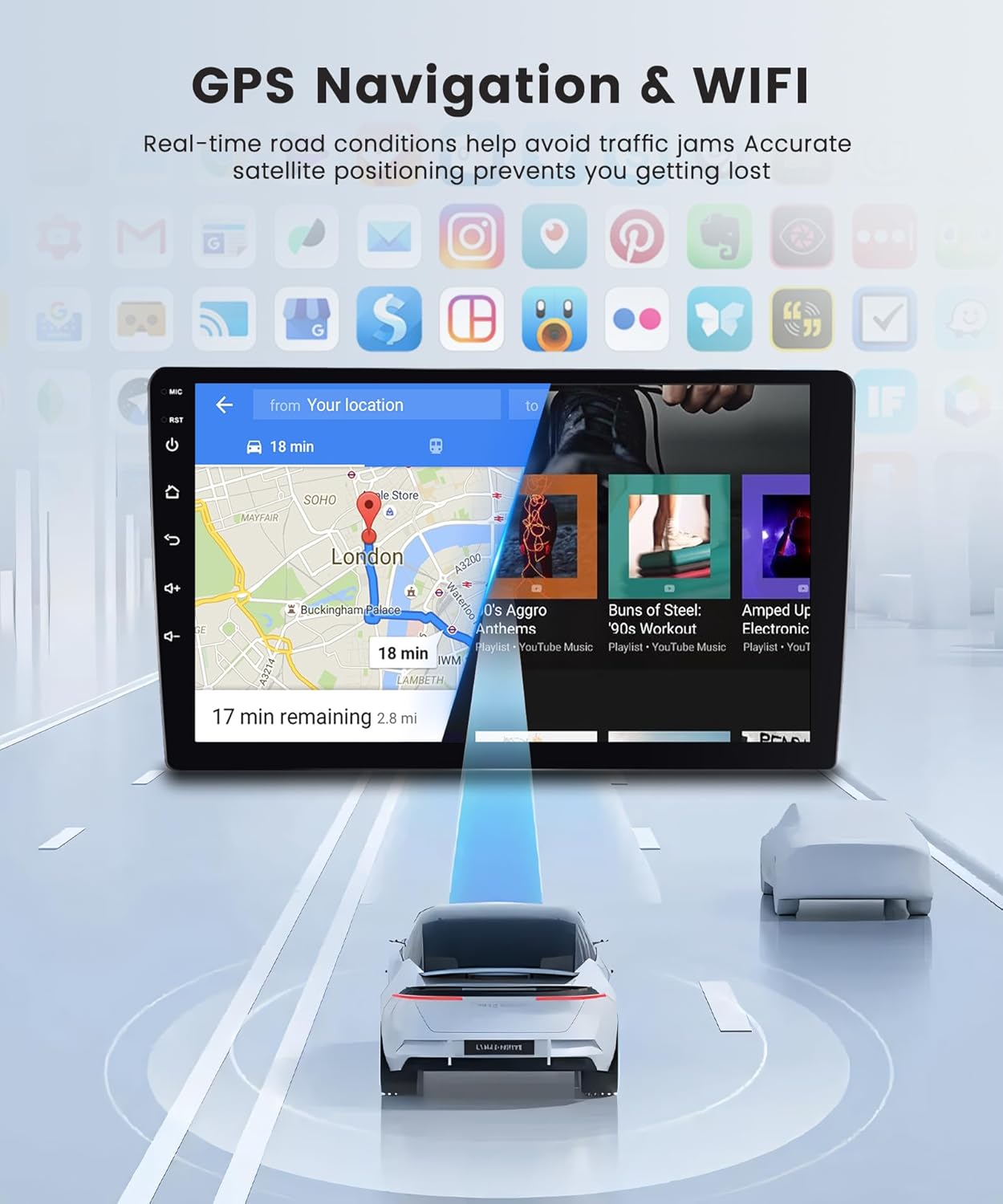
The car stereo screen displaying a navigation map with a highlighted route and estimated travel time, demonstrating its GPS capabilities.
Connect to the internet via WiFi hotspot or tethering from your smartphone to browse the web, stream content, and download applications.
Bluetooth Connectivity:
Pair your smartphone or other Bluetooth-enabled devices to the car stereo for hands-free calling, wireless music streaming, and file transfer.
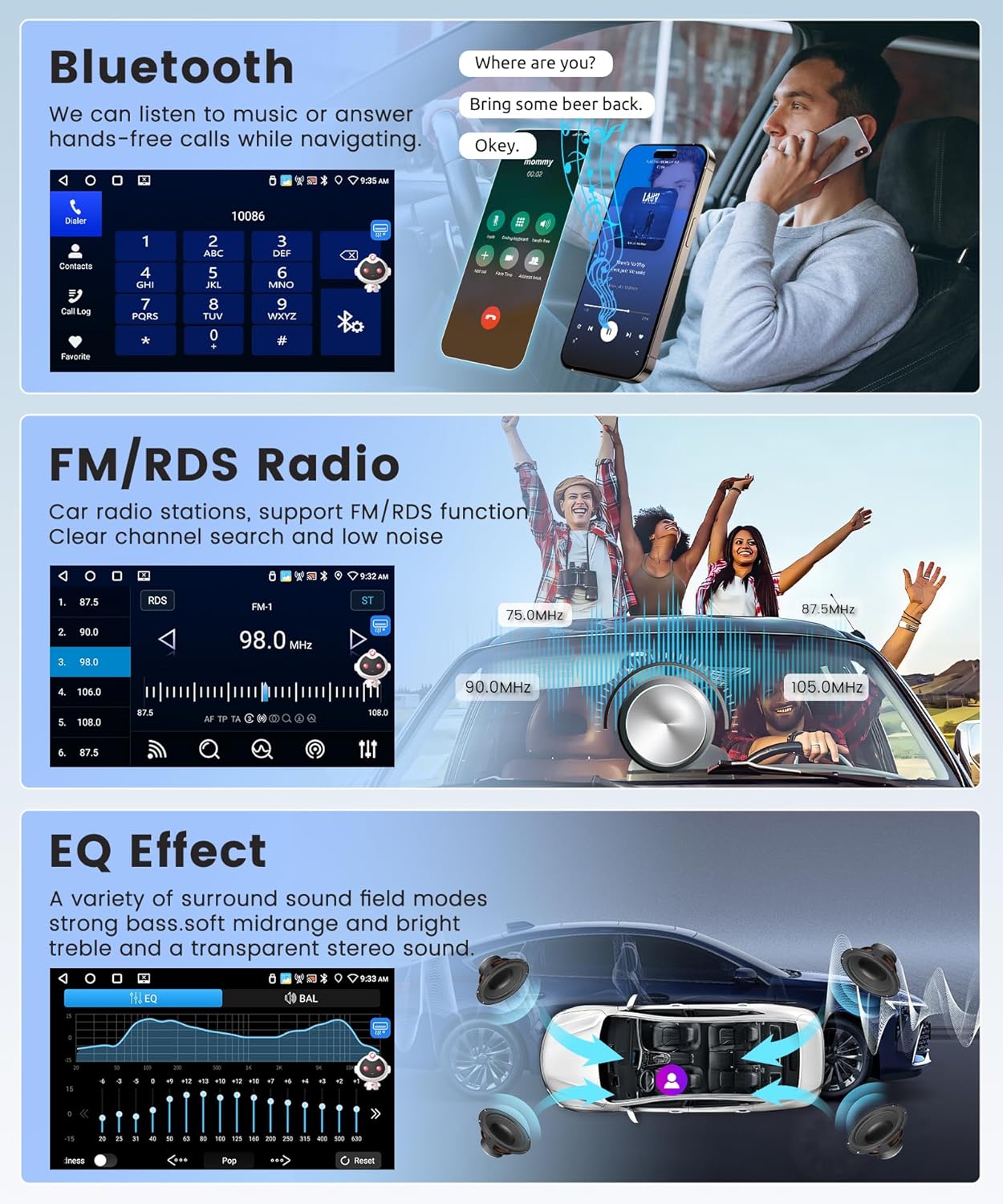
The car stereo displaying a phone dialer and a music playback screen, illustrating its Bluetooth call and audio streaming functions.
FM/RDS Radio:
Access various radio stations with clear sound quality. The FM/RDS function provides station information and enhances the listening experience.
The EQ-32 feature allows for detailed sound customization, providing a shocking surround panoramic sound experience for all music genres.
Reversing Camera and Steering Wheel Control (SWC):
The included reversing camera automatically displays the rear view on the screen when shifting into reverse gear, aiding in safe parking and obstacle avoidance. The unit supports learning functions for your original car's steering wheel buttons, allowing convenient control of stereo functions without taking your hands off the wheel.

A visual representation of the AHD rear camera, highlighting its key attributes, and a screenshot of the car stereo's interface for programming steering wheel controls.
Maintenance
Cleaning the Display:
To clean the touchscreen display, use a soft, lint-free cloth. For stubborn smudges, slightly dampen the cloth with water or a screen-safe cleaning solution. Avoid abrasive materials or harsh chemicals that could damage the screen coating.
Software Updates:
Periodically check for software updates to ensure optimal performance and access to new features. Updates can typically be performed via WiFi connection directly from the unit's settings menu.
Troubleshooting
Refer to the table below for common issues and their potential solutions.
| Problem | Possible Cause | Solution |
|---|---|---|
| Unit does not power on. | Loose power connection, blown fuse, vehicle battery issue. | Check power cable connections. Inspect vehicle fuses. Ensure vehicle battery is charged. |
| No sound. | Volume too low, mute activated, speaker wiring issue, incorrect audio output settings. | Increase volume. Check if mute is active. Verify speaker connections. Adjust audio settings. |
| GPS signal lost or inaccurate. | GPS antenna obstructed or improperly installed, unit in an area with poor satellite reception. | Ensure GPS antenna is clear of obstructions and properly connected. Move vehicle to an open area. |
| Bluetooth connection issues. | Device not in pairing mode, interference, incorrect pairing procedure. | Ensure Bluetooth is enabled on both devices and in pairing mode. Delete previous pairings and re-pair. |
| Backup camera not displaying. | Camera cable loose, camera faulty, reverse trigger wire not connected. | Check camera video input and power connections. Verify reverse trigger wire connection. |
If you encounter issues not listed here or require further assistance, please contact customer support.
Specifications
| Feature | Detail |
|---|---|
| Operating System | Android 13 |
| CPU | 4-Core |
| Memory (RAM) | 4GB |
| Storage (ROM) | 64GB |
| Display Size | 9 Inches |
| Display Resolution | 1280*720 HD |
| Connectivity | WiFi, Bluetooth, USB |
| Navigation | Built-in GPS Module, North America Map Type |
| Audio Output Mode | Stereo, EQ-32 Adjustment, AI DSP |
| Included Components | Backup Camera |
| Item Weight | 2.65 pounds |
| Package Dimensions | 11.02 x 9.45 x 4.72 inches |
| Compatible Vehicles | Nissan Frontier Xterra 2009-2012 (SUV) |
Warranty and Support
Manufacturer's Warranty:
This Rimoody car stereo unit is covered by a 2-year manufacturer's warranty from the date of purchase. This warranty covers defects in materials and workmanship under normal use. Please retain your proof of purchase for warranty claims.
Return Policy:
A 90-day free return for refund or exchange is offered from the date of purchase. Please refer to the retailer's return policy for specific conditions.
Customer Support:
Rimoody provides comprehensive customer support to assist you with any questions or issues. This includes:
- Quick Response: Support inquiries are typically responded to within 24 hours.
- Professional Installation Guide: Access to detailed installation manuals and videos.
- Lifetime Technical Support: Dedicated technical support team available for the lifetime of the product.

Visual summary of Rimoody's customer support commitments: 24-hour response, professional guides, 90-day returns, and lifetime technical support.
For support, please visit the official Rimoody store or contact their customer service channels as provided with your product documentation.