
1. Product Overview
The Uckazy 12.3-inch Ultra Narrow Android Auto Radio is designed to upgrade the multimedia system in Mercedes Benz C/GLA Class W204 S204 models from 2007-2010. This unit features an HD 1920x720 IN-CELL screen with full lamination technology for enhanced display clarity and reduced reflection. It operates on a dual system, allowing seamless switching between the Linux system and the original car system.
Key functionalities include wireless (and wired) Apple CarPlay, wireless (and wired) Android Auto, wireless MirrorLink for iOS and Android devices, Bluetooth, and Wi-Fi. The integrated DSP with 16 EQ segments provides advanced audio tuning capabilities. The system retains original car functions such as radio, amplifier, steering wheel controls, mouse knob, and displays vehicle information like speed, fuel level, oil pressure, and safety warnings.

Figure 1: Uckazy 12.3 Inch Ultra Narrow Screen with Linux OS and key features.

Figure 2: Visual comparison of the car dashboard before and after screen installation.
2. Compatibility
This product is specifically designed for Mercedes Benz C/GLA Class W204 S204 vehicles manufactured between 2007 and 2010. It is compatible only with vehicles equipped with the original radio featuring the NTG4.0 system. Please verify your car's system before purchase and installation. The NTG 4.0 system typically uses a 10-pin connector.

Figure 3: Compatible models and year verification based on NTG system type.
3. What's in the Box
Upon unboxing, ensure all the following components are present:
- Plug and play power Cable/Frame
- Ultra narrow 12.3" in-cell display screen
- USB/AUX/RCA Cable
- AMI Cable
- Installation tools and touch pen

Figure 4: Package contents.
4. Installation Guide
Installation of the Uckazy Android Auto Radio is designed to be plug-and-play. However, careful attention to wiring and connections is crucial for proper functionality, especially regarding the fiber optic cables and power connections.
4.1 Power and Wiring Connections
Refer to the provided wiring diagram and ensure all cables are connected correctly. Pay close attention to the specific interfaces for each connection.

Figure 5: Wire definition and fiber optic connection instructions.
4.2 Fiber Optic Cable Transfer
If your original car system uses fiber optic cables for audio, you must transfer them to the new unit's harness. This step is critical for sound output.
Video 1: Demonstrates how to transfer fiber optic cables from the original car harness to the new unit's power cable to ensure sound functionality.
4.3 AMI and AUX Connections
For audio output, connect the AMI cable directly. If the original AUX input is used (often found in the manual gear position or passenger side storage box), ensure the AUX auto switching setting is turned off in the system settings. For NTG5.0 dual Bluetooth channels, sound and picture may need to be separated.

Figure 6: AMI and AUX connection points and related settings.
5. Setup and Configuration
After physical installation, configure the system settings for optimal performance.
5.1 OEM Resolution Settings
Navigate to image setup > car settings > original car screen resolution and select the correct resolution for your OEM display. Incorrect settings may prevent original car information from displaying correctly.

Figure 7: OEM Resolution settings menu.
5.2 OEM Camera Settings
If your vehicle has an original or aftermarket reverse camera, configure it under image setup > car settings > ReversingSettings > Camera Type. Select the appropriate option (Original or Aftermarket) to ensure the reverse camera functions correctly.

Figure 8: OEM Camera settings menu.
5.3 AUX Activation
To ensure audio output, activate the AUX function. Navigate to image setup > car settings > AUX Activation and ensure it is enabled. Also, verify the Auto Switch to AUX setting is configured as needed.

Figure 9: AUX Activation and Auto Switch to AUX settings.
6. Operating Instructions
The system offers a dual operating mode, allowing you to switch between the Linux system and the original car's NTG system.

Figure 10: One-click switching between dual systems.
6.1 Wireless CarPlay and Android Auto
To use wireless CarPlay or Android Auto, first ensure your phone's Bluetooth is enabled. Connect your phone to the screen's Bluetooth. Once connected, enable Siri on your iPhone for CarPlay functionality. The system will then display the CarPlay or Android Auto interface, allowing access to navigation, music, messages, and phone calls.
Video 2: Demonstrates the process of connecting a smartphone to the unit for wireless CarPlay, including Bluetooth pairing and accessing various functions like navigation, music, and phone calls.

Figure 11: Wireless CarPlay connection steps.
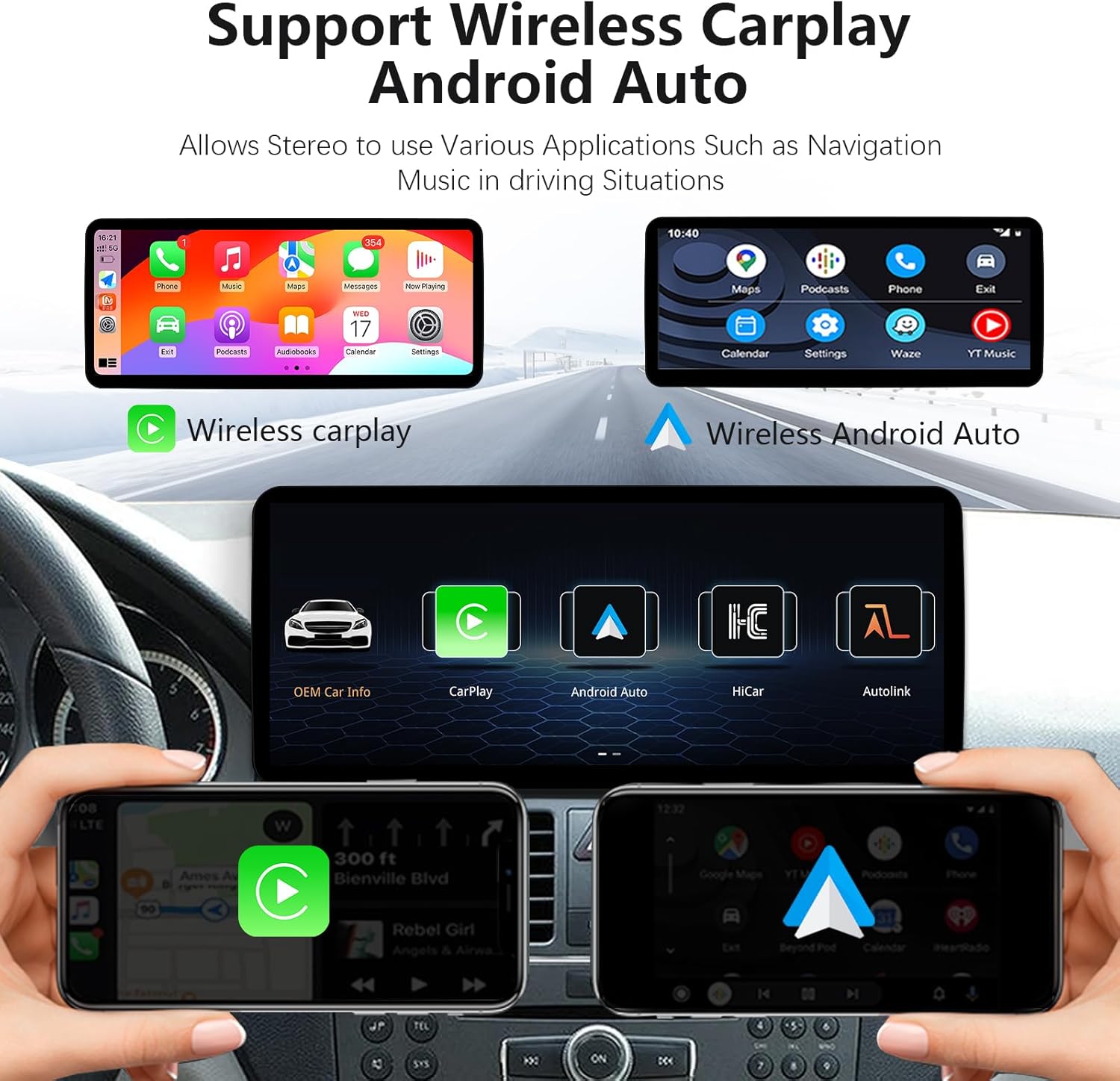
Figure 12: Wireless CarPlay and Android Auto interface.
6.2 Voice Assistant (Siri/Google Assistant)
Utilize voice commands for navigation, calls, and music playback through Siri or Google Voice Assistant. This feature enhances driving safety by allowing hands-free operation.

Figure 13: Voice assistant integration for hands-free control.
6.3 Automatic Light Sensitivity
The system supports automatic light sensitivity, adjusting the screen's day and night mode to match your car's original headlights. This feature improves visibility and reduces eye strain.

Figure 14: Automatic light-sensitive display feature.
7. Troubleshooting
7.1 No Sound or Distorted Audio
If you experience no sound or distorted audio from CarPlay or Android Auto, ensure the fiber optic cables are correctly transferred (refer to Section 4.2) and the AUX input is properly configured and activated (refer to Section 5.3). If using wired CarPlay/Android Auto, ensure the USB connection is made to USB1 (data link) and not USB2 (read storage link).

Figure 15: Wired CarPlay/Android Auto connection and noise troubleshooting.
7.2 General Installation Issues
Many installation issues, such as incorrect setup or wiring, can lead to problems. Double-check all connections and settings as described in the Installation and Setup sections. If issues persist, contact technical support.
8. Specifications
| Screen Size | 12.3 inches |
| Resolution | HD 1920x720 |
| Operating System | Linux 4.0 System (Dual System with original car OS) |
| Connectivity | Wireless/Wired Apple CarPlay, Wireless/Wired Android Auto, Wireless MirrorLink, Bluetooth, Wi-Fi |
| Audio Features | Built-in DSP with 16 EQ segments, Digital Audio Output Mode, 5.1/7.1 Surround Sound Channel Configuration |
| Compatible Devices | Smartphone |
| Special Features | Touchscreen, Automatic Light-sensitive Display |
| Item Weight | 3.91 pounds |
| Package Dimensions | 15.16 x 7.2 x 6.77 inches |
9. Technical Support
For any installation, sound, CarPlay, original car UI display, or other technical issues, please contact Uckazy Factory Outlet directly. They can provide solutions and assistance.
You can typically find seller contact information on the product's purchase page or through your order history.

Figure 16: Locating technical support contact information.