
Bigme B1051C-Keyboard
Bigme B1051 Series Keyboard Case User Manual
Model: B1051C-Keyboard
Introduction
This user manual provides detailed instructions for the Bigme B1051 Series Keyboard Case, designed specifically for Bigme B1051 Series Electronic Ink Read/Write Tablets. This 2-in-1 accessory combines a protective case with a wireless keyboard and trackpad, enhancing the functionality and portability of your tablet.
Please read this manual thoroughly before using the product to ensure proper operation and to maximize its lifespan.
Product Features
- Compatibility: Exclusively designed for Bigme B1051 Series E-ink Reader Tablets.
- Adjustable Multi-Angle Stand: Features multiple built-in grooves for various horizontal viewing angles and a separate flip design for optimal comfort.
- Stain Resistant Case: Easy to clean, resistant to ink, coffee, and food stains, maintaining a smooth and clean appearance.
- Enlarged Keycaps and Trackpad: Provides a more comfortable typing experience with increased touch area.
- Shortcut Keys: Dedicated keys for controlling the B1051 series E-ink reader, including sound level, screen brightness, song switching, and screenshot functions.
- Direct Connection: No Bluetooth connection or charging required. Connects directly via a unique magnetic adsorption interface.
- Secure Protection: Sturdy yet lightweight design protects your B1051 Series E-Ink Reader from scuffs and scratches.
Package Contents
Please verify that all items are present in the package:
- 1 x Bigme B1051 Series Keyboard Case
- 1 x Keycap Puller
Note: The Bigme B1051 Series E-ink Reader Tablet is sold separately and is not included with this keyboard case.
Setup
Attaching the Keyboard Case
The Bigme B1051 Series Keyboard Case utilizes a unique magnetic adsorption interface for connection to your Bigme B1051 Series E-ink Reader Tablet. Follow these steps for proper attachment:
- Step 1: Prepare the Tablet and Case. Place your Bigme B1051 Series E-ink Reader Tablet and the keyboard case on a flat, stable surface. Ensure both are clean and free of debris.
- Step 2: Align the Connection Ports. Carefully align the magnetic connection pins on the keyboard case with the corresponding port on the Bigme B1051 Series E-ink Reader Tablet. The tablet's adsorption sensor port should meet the keyboard's port.
- Step 3: Secure the Connection. Gently bring the tablet and keyboard case together. The magnets will automatically snap them into place, establishing the connection. You should feel a secure attachment.

Image: Visual guide for attaching the Bigme B1051 Series Keyboard Case to the tablet. It illustrates three steps: preparing the devices, aligning the magnetic connectors, and the final connected state.
Once connected, the keyboard will be immediately functional without the need for Bluetooth pairing or external power.
Operating Instructions
Using the Keyboard and Trackpad
The keyboard provides a full QWERTY layout with enlarged keycaps for comfortable typing. The integrated trackpad allows for precise cursor control, similar to a laptop.
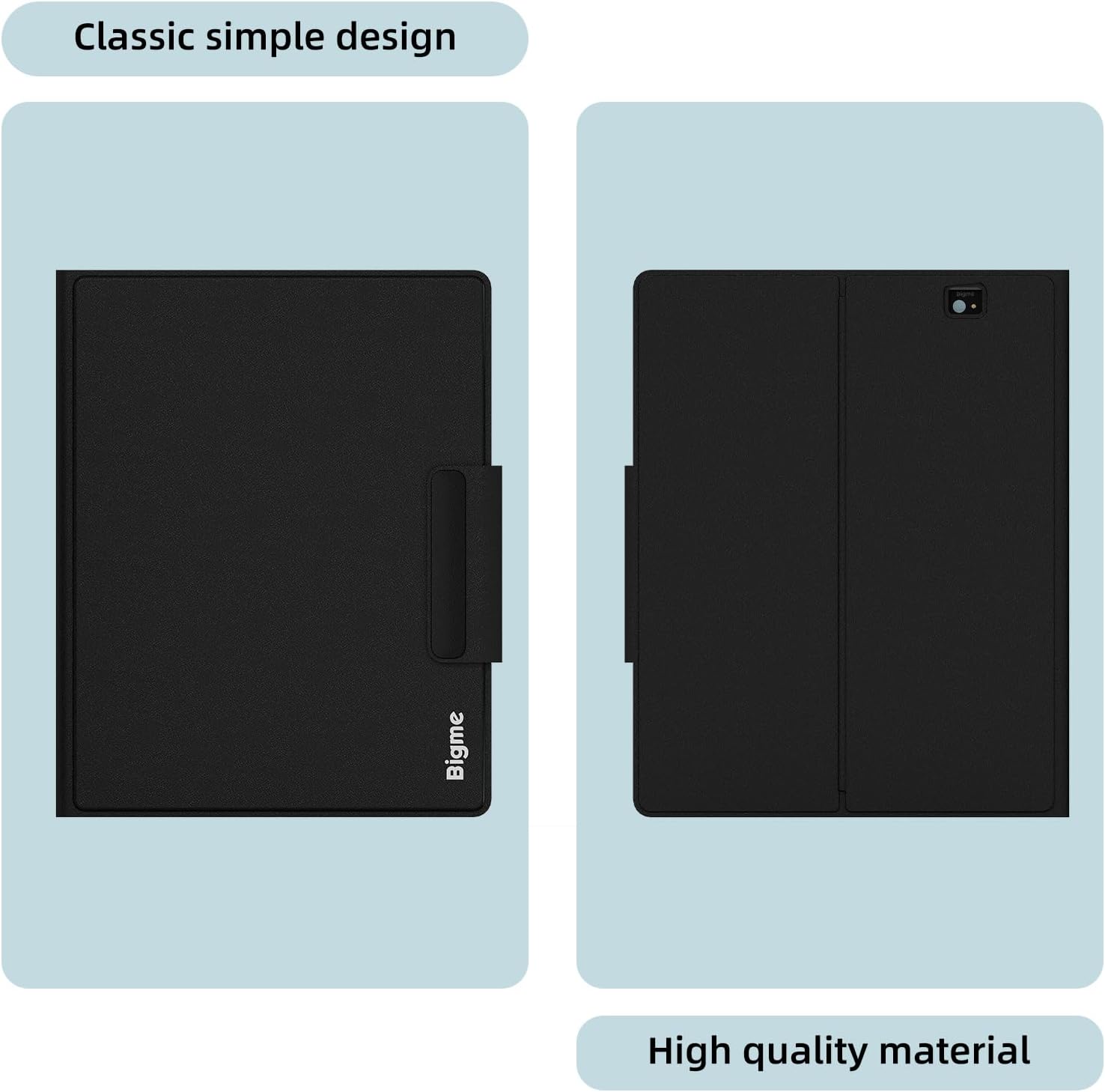
Image: Detailed view of the keyboard layout, showing the enlarged keycaps and the spacious trackpad. The top row of keys displays various function icons.
Shortcut Keys Functionality
The keyboard features a dedicated row of shortcut keys (function keys) that provide quick access to common tablet functions. Refer to the diagram below for a detailed explanation of each key:

Image: A visual representation of the keyboard's top row function keys, with labels indicating their respective actions such as return to main interface, brightness adjustment, search, multitasking, input method switch, media controls (play/pause, previous/next song, mute, volume up/down), screenshot, and screen saver.
- Return to Main Interface: Navigates back to the tablet's home screen.
- Foresight Brightness (Plus/Minus): Adjusts the screen's front light brightness.
- Search: Opens the search function.
- Multitasking: Displays recently opened applications.
- Input Method/Language Switch: Toggles between different input methods or languages.
- Previous Song: Skips to the previous track in media playback.
- Play/Pause: Toggles media playback.
- Next Song: Skips to the next track in media playback.
- Mute: Mutes or unmutes audio.
- Volume (Minus/Plus): Adjusts the audio volume down or up.
- Screenshot: Captures a screenshot of the current screen.
- Screen Saver: Activates the screen saver or puts the tablet to sleep.
Adjusting the Viewing Angle
The case features a multi-angle stand design, allowing you to adjust your tablet to various comfortable viewing positions for reading, working, or watching videos.
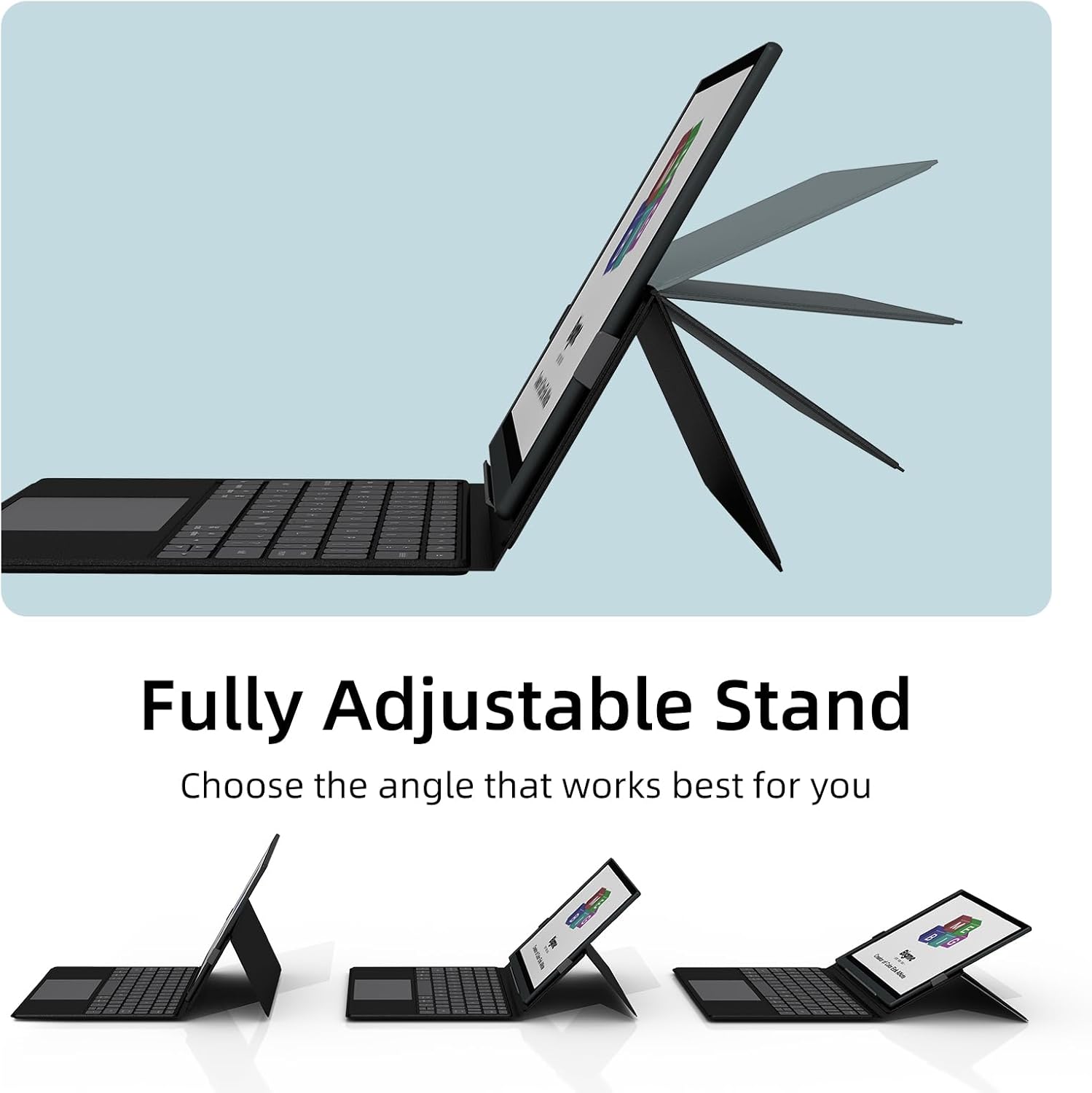
Image: The keyboard case shown from the side, illustrating how the tablet can be propped up at different angles using the built-in grooves and flip design.
Simply fold the case along the designated grooves to achieve your desired angle. The sturdy design ensures stability in all supported positions.
Maintenance and Care
To ensure the longevity and optimal performance of your Bigme B1051 Series Keyboard Case, follow these maintenance guidelines:
- Cleaning the Case: The case is designed to be stain-resistant. For spills or stains, gently wipe the surface with a soft, damp cloth. Avoid using harsh chemicals or abrasive cleaners, as these may damage the material.
- Cleaning the Keyboard: Use a soft, lint-free cloth to wipe the keycaps and trackpad. For dust or debris between keys, a can of compressed air can be used. If necessary, the included keycap puller can be used to carefully remove keycaps for deeper cleaning, but exercise caution to avoid damage.
- Storage: When not in use, store the keyboard case and tablet in a clean, dry environment away from extreme temperatures and direct sunlight.
- Handling: While the case provides robust protection, avoid dropping the device or subjecting it to excessive force, which could damage both the case and your tablet.
Troubleshooting
If you encounter any issues with your Bigme B1051 Series Keyboard Case, please refer to the following common problems and solutions:
| Problem | Possible Cause | Solution |
|---|---|---|
| Keyboard/Trackpad not responding. | Improper connection between tablet and keyboard case. | Ensure the tablet is securely attached to the keyboard case and the magnetic connection pins are fully engaged. Detach and reattach the tablet to ensure a proper connection. |
| Keys are sticky or unresponsive. | Debris or dirt under the keycaps. | Clean the keyboard surface with a soft cloth. Use compressed air to remove debris from under the keys. If necessary, carefully use the keycap puller to clean individual keys. |
| Case does not hold tablet securely. | Tablet not properly seated in the case. | Ensure the tablet is correctly aligned and fully seated within the case's frame. Verify that the magnetic connection is strong. |
| Shortcut keys not working. | Software issue on tablet or temporary glitch. | Restart your Bigme B1051 Series E-ink Reader Tablet. Ensure your tablet's operating system is up to date. |
If the problem persists after trying these solutions, please contact Bigme customer support for further assistance.
Specifications
| Feature | Detail |
|---|---|
| Model Number | B1051C-Keyboard |
| Compatibility | Bigme B1051 Series E-ink Reader Tablet (10.3-inch) |
| Connectivity Technology | Direct Magnetic Adsorption (RF) |
| Power Source | Tablet Powered (No external battery/charging required) |
| Keyboard Description | Multi Functional |
| Number of Keys | 78 |
| Switch Type | Membrane |
| Item Weight | 1.76 pounds (approximately 0.8 kg) |
| Package Dimensions | 10.24 x 8.66 x 1.18 inches (26 x 22 x 3 cm) |
| Manufacturer | Bigme |
| Country of Origin | China |
Warranty and Support
Warranty Information
Bigme products are manufactured with high-quality materials and craftsmanship. For specific warranty terms and conditions, please refer to the warranty card included with your product or visit the official Bigme website. Keep your purchase receipt as proof of purchase for warranty claims.
Customer Support
If you require further assistance, have questions about your product, or need to report an issue, please contact Bigme customer support:
- Online Support: Visit the official Bigme website for FAQs, troubleshooting guides, and contact forms.
- Email Support: Refer to your product packaging or the Bigme website for the customer support email address.
- Seller Information: This product is sold by Bigme. For order-specific inquiries, you may contact the seller directly through your purchase platform.
Please have your product model number (B1051C-Keyboard) and purchase details ready when contacting support.
Related Documents - B1051C-Keyboard
 |
Bigme inkNote Color+ User Manual: Features, Setup, and Specifications Explore the Bigme inkNote Color+ e-ink tablet with this comprehensive user manual. Learn about device setup, interface navigation, core applications like note-taking and reading, advanced features, and technical specifications for models B1051C, B1051, and B1051C Pro. |
 |
Bigme B1051 User Manual: Your Guide to E-Ink Reading Explore the features and functionalities of the Bigme B1051 e-ink reader with this comprehensive user manual. Learn about setup, operation, specifications, and more for an enhanced reading experience. |
 |
BIGME B751C E-reader and E-ink Notebook User Manual | BIGME Comprehensive user manual for the BIGME B751C, detailing setup, features, and operations of this versatile E-ink Android tablet, e-reader, and notebook. |
 |
BIGME B751C S eReader User Manual and Specifications Official user manual and detailed technical specifications for the BIGME B751C S eReader, a 7-inch color e-ink tablet with Android 14. Includes product information, basic parameters, package contents, usage precautions, and warranty policy. |
 |
Bigme B751C Smart Office Series User Manual Explore the Bigme B751C Smart Office Series e-ink tablet with this comprehensive user manual. Learn about its features, specifications, safety guidelines, and how to use its advanced functionalities for productivity and note-taking. |
 |
BIGME Hibreak 5.84" E-ink Reader and Smartphone User Manual User manual for the BIGME Hibreak, a 5.84-inch E-ink reader and Android 11 smartphone with Google Play support. Provides information on features, specifications, and usage. |
Ask a question about this manual
Ask about setup, troubleshooting, compatibility, parts, safety, or missing instructions. Manuals+ will review the question and use this page’s manual context to help answer it.