
1. Product Overview
The JOOAN 3MP Indoor Monitoring Camera is a versatile smart home device designed for comprehensive indoor surveillance. It features high-definition video, two-way communication, advanced night vision, and intelligent motion detection, making it ideal for monitoring children, pets, or elderly family members. Its compact design and easy installation ensure seamless integration into any home environment.

Figure 1.1: JOOAN 3MP Indoor Monitoring Camera and its mobile application interface.
Key Features:
- 3MP Full HD Video: Captures clear and detailed footage.
- 2.8-inch Color Screen: Built-in display for direct viewing and interaction.
- Two-Way Video Call: Enables real-time communication with family members via the camera.
- Dual-Band WiFi (5G/2.4G): Supports stable and fast wireless connectivity.
- PTZ Functionality: Pan (355°) and Tilt (90°) for wide area coverage.
- Motion Detection & Auto Tracking: Automatically detects and follows moving objects, sending instant alerts.
- Full-Color Night Vision: Provides clear color images even in low-light conditions.
- Multiple Storage Options: Supports local SD card (8-256GB) and cloud storage.

Figure 1.2: Visual representation of the camera's core functionalities.
Product Components:
Familiarize yourself with the camera's physical components:
- Camera Lens: Captures video footage.
- Infrared Lights (8pcs): For black and white night vision.
- White LED Lights (2pcs): For full-color night vision.
- 2.8-inch Color Screen: Displays live view and call interface.
- Microphone: For audio input during two-way communication.
- Speaker: For audio output during two-way communication and alarms.
- Call Buttons (1 & 2): For initiating one-touch video calls.
- MicroSD Card Slot: For local video storage.
- Reset Button: To restore factory settings.
- Type-C Power Port: For connecting the power adapter.

Figure 1.3: Camera components and ports.
2. Setup
2.1 Initial Power On
- Connect the provided power adapter to the Type-C port on the back of the camera.
- Plug the adapter into a standard wall outlet.
- The camera will power on and initiate its startup sequence. Wait for the indicator light to show a ready state (refer to the indicator light guide in the app for specific meanings).

Figure 2.1: Connecting the power cable.
2.2 App Installation and Account Creation
- Download the "cam720 APP" from your smartphone's app store (Google Play for Android or App Store for iOS).
- Open the app and follow the on-screen instructions to create a new account or log in if you already have one.

Figure 2.2: Scan QR code to download the cam720 APP.
2.3 Adding the Camera to the App
- In the cam720 APP, tap the "+" icon to add a new device.
- Select your camera model or choose the option to scan a QR code.
- Follow the app's instructions to connect the camera to your Wi-Fi network. Ensure your phone is connected to the same Wi-Fi network (2.4GHz or 5GHz) that you intend to connect the camera to.
- If prompted, use the camera's reset button (located near the SD card slot) to put it into pairing mode. Press and hold the reset button for approximately 3-5 seconds until you hear a voice prompt or see a specific indicator light pattern.

Figure 2.3: Pressing the camera reset button.
- Once connected, you can name your camera and begin monitoring.
3. Network Connection
The JOOAN camera supports both 2.4GHz and 5GHz Wi-Fi networks, offering flexibility and stable connectivity. For optimal performance, ensure your Wi-Fi signal is strong in the camera's location.

Figure 3.1: 2.4G/5G WiFi compatibility.
3.1 Wi-Fi Selection
- During the setup process in the cam720 APP, you will be prompted to select your Wi-Fi network.
- Choose the network that provides the best signal strength and stability for your camera's location. 5GHz offers faster speeds, while 2.4GHz provides a wider range and better penetration through walls.
4. Two-Way Communication
The camera's two-way video call feature allows you to communicate with individuals near the camera directly from your smartphone, or for them to initiate a call to you.
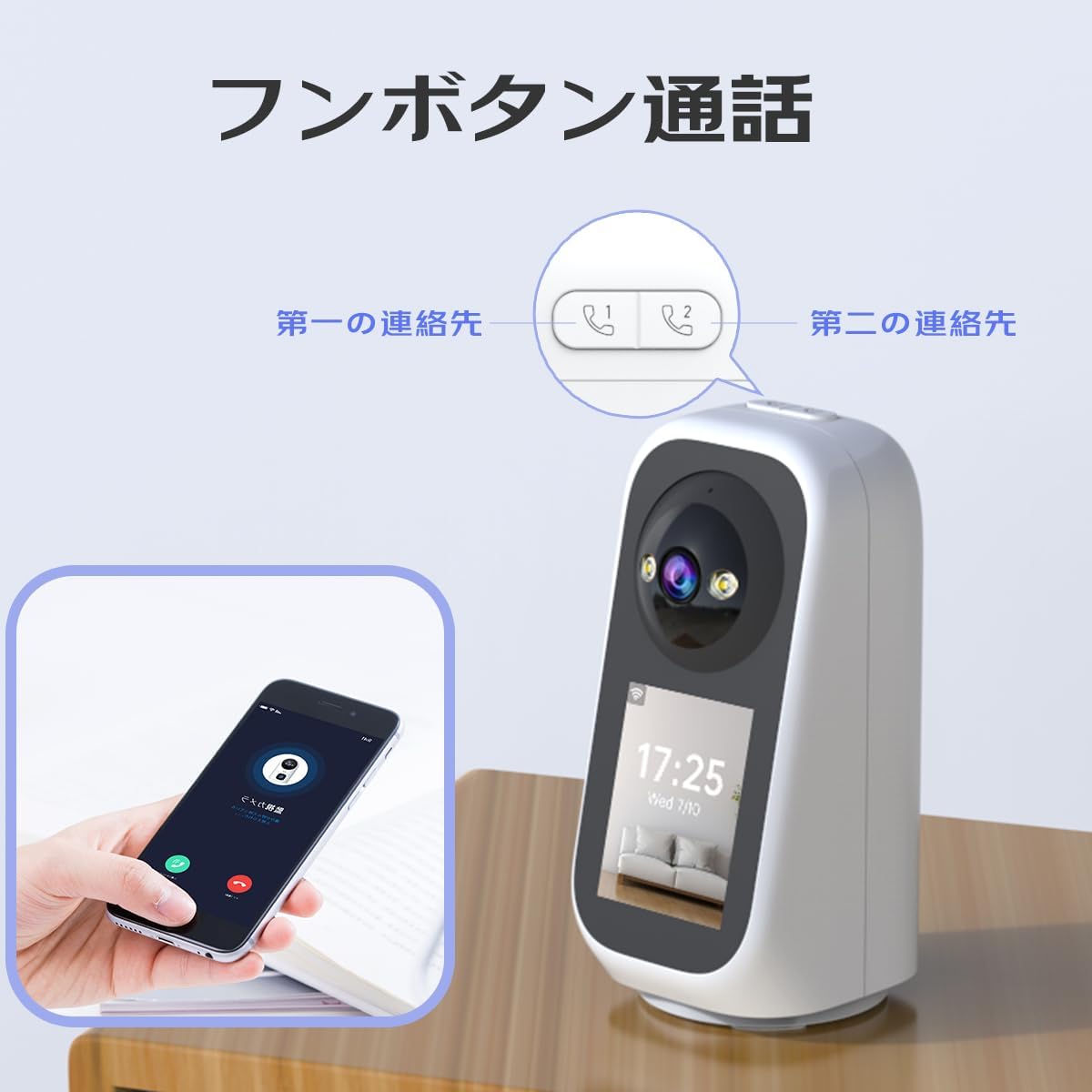
Figure 4.1: One-touch call functionality.
4.1 Initiating a Call from the App
- Open the cam720 APP and select the camera you wish to communicate with.
- Tap the microphone icon to speak and the speaker icon to hear audio from the camera's side.
- You can also initiate a video call directly from the live view interface.
4.2 One-Touch Call from Camera
- The camera features two dedicated call buttons (labeled 1 and 2).
- You can pre-set two contact numbers or app accounts in the cam720 APP for these buttons.
- When a family member presses one of these buttons, the camera will initiate a video call to the corresponding pre-set contact. This allows communication even for those without a smartphone.

Figure 4.2: One-touch call buttons.
5. Monitoring Features
5.1 Pan/Tilt/Zoom (PTZ) Control
The camera offers extensive PTZ capabilities, allowing you to remotely adjust its viewing angle to cover a wider area.
- Pan: Rotate horizontally up to 355°.
- Tilt: Adjust vertically up to 90°.
- Control the PTZ function directly from the cam720 APP's live view interface.

Figure 5.1: PTZ (Pan/Tilt) functionality.
5.2 Motion Detection & Auto Tracking
The camera is equipped with advanced motion detection and automatic tracking to keep an eye on activity in your home.
- When motion is detected, the camera will automatically track the moving object within its field of view.
- You will receive instant alarm notifications on your smartphone via the cam720 APP.
- An audible alarm can be enabled in the app settings to deter intruders.
- The dual camera composite sensor helps reduce false alarms from minor disturbances like rain or insects.

Figure 5.2: Motion detection and alarm notification.

Figure 5.3: Automatic tracking of moving objects.
5.3 Night Vision Modes
The camera offers multiple night vision modes to ensure clear visibility around the clock:
- Infrared Night Vision (Black & White): Utilizes 8 infrared lights for clear black and white footage in complete darkness, up to 15 meters.
- Full-Color Night Vision: Activates 2 white LED lights to provide vivid color images even at night.
- Smart Night Vision: In this mode, the camera typically operates in infrared night vision. When motion is detected or the ambient light changes significantly, the white LED lights will automatically turn on, switching to full-color night vision.
6. Storage Options
The JOOAN camera provides flexible storage solutions for your recorded footage.

Figure 6.1: MicroSD card and Cloud recording.
6.1 MicroSD Card Storage
- The camera supports MicroSD cards from 8GB up to 256GB (not included).
- Insert the MicroSD card into the designated slot on the camera.
- You can configure continuous recording, scheduled recording, or event-triggered recording (e.g., motion detection) via the cam720 APP.
- Recorded videos can be viewed and downloaded directly from the app.
6.2 Cloud Storage
- The camera supports cloud storage services for secure off-site backup of your recordings.
- A 30-day free trial of cloud storage is typically offered upon initial setup.
- Cloud storage is primarily used for event-triggered recordings (e.g., motion detection events).
- Access and manage your cloud recordings through the cam720 APP.
7. Operating Instructions
7.1 Live View
- Open the cam720 APP and tap on your camera's name to access the live view.
- You can view real-time video, listen to audio, and use the PTZ controls.
7.2 Playback
- In the cam720 APP, navigate to the playback section for your camera.
- Select the date and time to review recorded footage from your MicroSD card or cloud storage.
7.3 Privacy Mode
The camera offers a privacy mode to temporarily disable monitoring functions.
- Activate privacy mode via the cam720 APP settings.
- When privacy mode is active, the camera will cease real-time viewing, video recording, and cloud storage uploads.

Figure 7.1: Privacy mode activation.
8. Maintenance
To ensure the longevity and optimal performance of your JOOAN camera, follow these maintenance guidelines:
- Cleaning: Use a soft, dry cloth to clean the camera's exterior. For the lens, use a specialized lens cleaning cloth. Avoid abrasive cleaners or solvents.
- Placement: Place the camera on a stable surface or mount it securely. Avoid locations with extreme temperatures, high humidity, or direct sunlight.
- Software Updates: Regularly check for firmware updates via the cam720 APP to ensure you have the latest features and security enhancements.
- Power Supply: Always use the original power adapter provided with the camera.
9. Troubleshooting
| Problem | Possible Cause | Solution |
|---|---|---|
| Camera offline | No power; Wi-Fi disconnected; Router issue | Check power connection; Restart camera and router; Reconnect Wi-Fi in app. |
| Cannot connect to Wi-Fi | Incorrect password; Weak signal; Wrong Wi-Fi band (e.g., 5GHz only router) | Verify password; Move camera closer to router; Ensure router supports 2.4GHz or enable dual-band. |
| Motion detection false alarms | Sensitivity too high; Environmental factors (e.g., moving curtains, insects) | Adjust motion detection sensitivity in app; Reposition camera to avoid common triggers. |
| No recording to SD card | SD card full/corrupted; Incorrect recording settings | Format or replace SD card; Check recording schedule/event settings in app. |
| Two-way audio issues | Microphone/speaker muted; Network latency | Check mute settings in app; Ensure stable internet connection. |
10. Specifications
| Feature | Detail |
|---|---|
| Model Number | C17C-U |
| Product Dimensions | 15.6 x 7.5 x 8.3 cm |
| Item Weight | 410 g |
| Video Capture Resolution | 3MP (3 Million Pixels) |
| Connectivity Technology | Wired (Power), Wi-Fi (Data) |
| Wireless Protocol | Wi-Fi (2.4G/5G) |
| Special Features | PTZ Technology, Motion Detection, Two-Way Audio, Night Vision, Auto Tracking |
| Indoor/Outdoor Use | Indoor |
| Power Source | Corded Electric |
| Recommended Use | Indoor Security |
| Storage Support | MicroSD Card (8-256GB), Cloud Storage |
11. Warranty and Support
11.1 Warranty Information
The JOOAN 3MP Indoor Monitoring Camera comes with a one-year quality warranty from the date of purchase. This warranty covers manufacturing defects and malfunctions under normal use. Please retain your proof of purchase for warranty claims.
11.2 Customer Support
For technical assistance, troubleshooting, or warranty inquiries, please contact JOOAN customer support through the following channels:
- Email: Refer to the contact information provided in the cam720 APP or on the official JOOAN website.
- Online Support: Visit the JOOAN official website for FAQs, support articles, and live chat options.
Please note that this manual is subject to change without prior notice. For the most up-to-date information, refer to the latest version of the cam720 APP or the official JOOAN website.


