
Orestree AD200050M
Orestree 100W USB-C Charger User Manual
Model: AD200050M
Introduction
This manual provides essential information for the safe and efficient use of your Orestree 100W USB-C Charger. Please read it thoroughly before operating the device and retain it for future reference.
This charger is designed to provide reliable power to compatible laptops, specifically the Asus ROG Flow X13 GV301 series, including models GV301RE, GV301RE-DS91-CA, GV301RE-LI120W, and GV301RE-LJ129W.
Key Features
- Compatibility: Specifically designed for Asus ROG Flow X13 GV301 series gaming laptops.
- Power Output: Delivers 100W (20V 5A) for efficient charging.
- Input Voltage: Supports global input of 100-240V 50-60Hz.
- Connector Type: Features a universal USB-C connector.
- Safety Features: Incorporates advanced protection mechanisms.
- Warranty: Includes a 12-month warranty.
Package Contents
Upon opening the package, please verify that all components are present and undamaged:
- 1 x Orestree 100W USB-C Power Adapter
- 1 x AC Power Cord

Image: The Orestree 100W USB-C power adapter and its accompanying AC power cord, neatly bundled.
Setup Instructions
- Connect the AC Power Cord: Insert the female end of the AC power cord firmly into the power input port on the Orestree 100W USB-C Power Adapter.
- Plug into Wall Outlet: Insert the male end of the AC power cord into a standard electrical wall outlet (100-240V).
- Connect to Laptop: Insert the USB-C connector of the power adapter into the USB-C charging port on your compatible Asus ROG Flow X13 GV301 series laptop. Ensure the connection is secure.
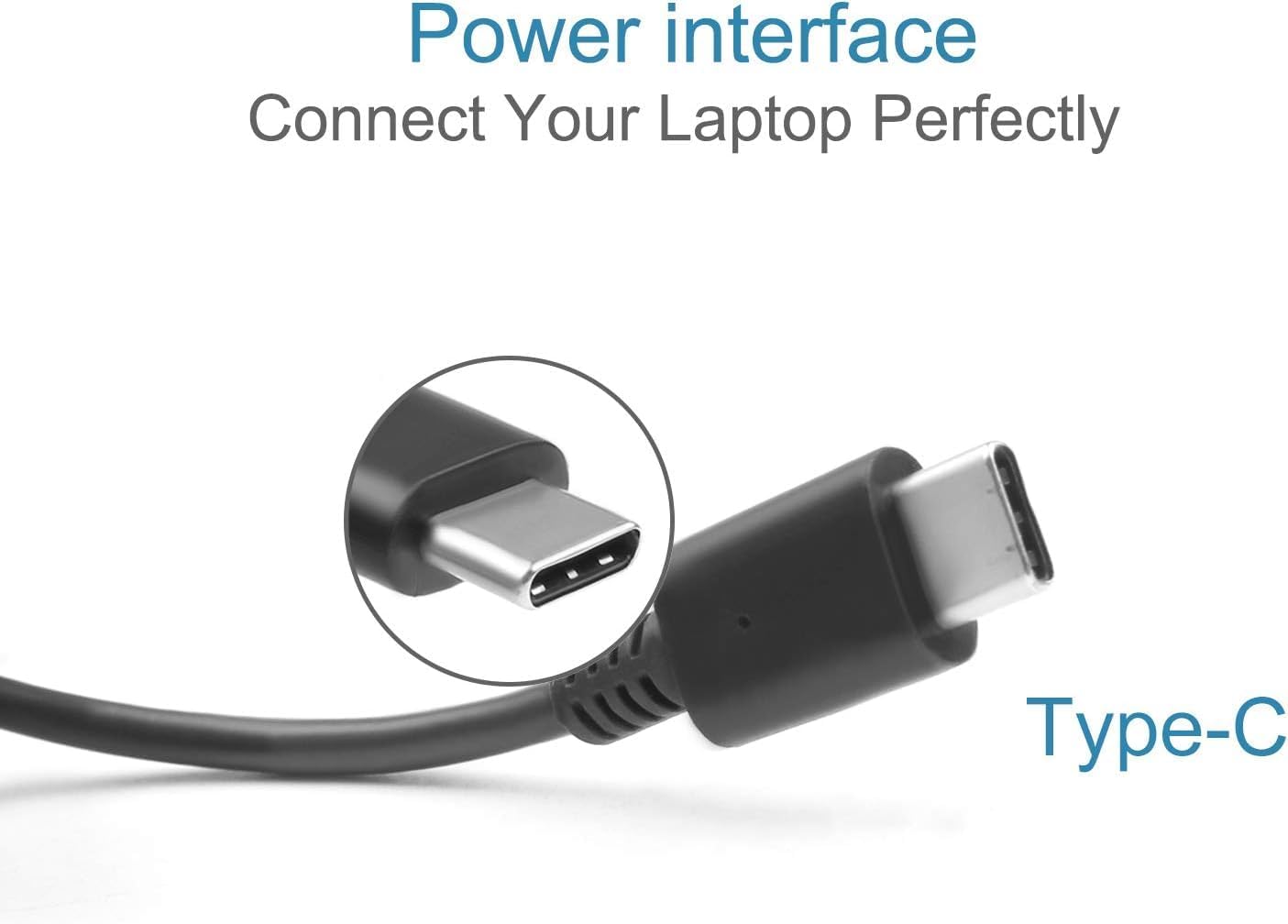
Image: A close-up view of the USB-C connector, highlighting its design for perfect laptop connection.
Operating the Charger
Once connected as described in the Setup section, the charger will automatically begin supplying power to your laptop. The charging status is typically indicated by an LED on your laptop or within its operating system.
Full-Speed Charging
This 100W charger is designed to provide full-speed charging for your compatible Asus ROG Flow X13 laptop, significantly reducing charging times. For optimal performance, ensure your laptop's power settings are configured to allow for high-wattage charging.

Image: A laptop connected to the 100W USB-C charger, illustrating the full-speed charging capability.
Maintenance and Safety
To ensure the longevity and safe operation of your Orestree charger, please adhere to the following guidelines:
- Storage: Store the charger in a cool, dry place away from direct sunlight and extreme temperatures.
- Handling: Avoid bending or crimping the cables excessively. Do not pull the cable to disconnect; always grasp the plug.
- Cleaning: Disconnect the charger from the power outlet and your laptop before cleaning. Use a soft, dry cloth to wipe the surface. Do not use liquid cleaners.
- Ventilation: Ensure the charger is placed in a well-ventilated area during use to prevent overheating. Do not cover the charger.
- Environmental Conditions: Do not expose the charger to water, moisture, or high humidity.
- Damage: If the charger or cables appear damaged, discontinue use immediately and contact support.
Advanced Safety Features
The Orestree charger is built with premium components and incorporates multiple safety features to protect your devices and ensure stable power delivery:
- Temperature Protection: Prevents overheating of the charger.
- Overcurrent Protection: Safeguards against excessive current flow.
- Short Circuit Protection: Protects against short circuits.
- Overvoltage Protection: Shields devices from voltage spikes.

Image: An illustrative diagram highlighting the internal components and advanced safety features such as temperature, overcurrent, short circuit, and overvoltage protection.

Image: A detailed cross-section of the charger cable, illustrating its advanced engineering with TPE line body, copper braid, aluminum foil shielding film, and copper wire for superior transmission performance.
Troubleshooting
If you encounter issues with your charger, please refer to the following common problems and solutions:
| Problem | Possible Cause | Solution |
|---|---|---|
| Charger not powering on/laptop not charging. | Loose connection, faulty outlet, incompatible device. | Ensure all connections are secure. Try a different wall outlet. Verify your laptop model is listed as compatible. |
| Slow charging. | Laptop consuming high power, background applications, cable issue. | Close unnecessary applications. Ensure the charger is directly connected to the laptop, not through a hub. Check if the cable is damaged. |
| Charger feels hot. | Normal operation under load, poor ventilation. | A slight warmth is normal. Ensure the charger is in a well-ventilated area and not covered. If it's excessively hot, disconnect immediately and contact support. |
If the problem persists after trying these solutions, please contact customer support.
Specifications
| Feature | Detail |
|---|---|
| Brand | Orestree |
| Model Number | AD200050M |
| Input | 100-240V ~ 50-60Hz 1.6A |
| Output | 20V 5A (100W) |
| Connector Type | USB Type C |
| Compatible Devices | Laptops (Specifically Asus ROG Flow X13 GV301 series) |
| Special Features | Automatic Off, Fast Charging, Temperature Protection, Overcurrent Protection, Short Circuit Protection, Overvoltage Protection |
| Color | Black |
| Item Weight | 8 ounces |
| Package Dimensions | 8 x 5 x 0.5 inches |
| Manufacturer | Dongguan Speed Ronda Electronic Technology Co Ltd |
Warranty and Support
Your Orestree 100W USB-C Charger comes with a 12 Months Warranty from the date of purchase. This warranty covers manufacturing defects and issues arising from normal use.
The warranty does not cover:
- Damage caused by misuse, abuse, or accident.
- Damage caused by unauthorized modification or repair.
- Normal wear and tear.
For warranty claims, technical support, or any questions regarding your product, please contact the seller or manufacturer through the platform where the product was purchased. Please have your purchase details and product model number (AD200050M) ready when contacting support.
Ask a question about this manual
Ask about setup, troubleshooting, compatibility, parts, safety, or missing instructions. Manuals+ will review the question and use this page’s manual context to help answer it.