
1. Introduction
This manual provides detailed instructions for the setup, operation, customization, and maintenance of your Xtrike Me GM314 RGB Gaming Mouse. Please read this manual thoroughly before using the product to ensure optimal performance and longevity.
The Xtrike Me GM314 is a wired gaming mouse featuring a 7200 DPI optical sensor, 7 programmable buttons, and customizable RGB lighting, designed for personal computer use.
2. Product Overview
Familiarize yourself with the components of your Xtrike Me GM314 RGB Gaming Mouse.
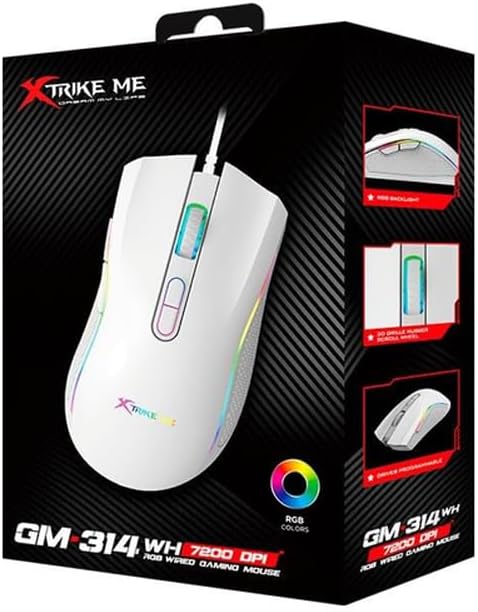
Figure 2.1: Top view of the GM314 Gaming Mouse.

Figure 2.2: Angled view showing scroll wheel and DPI buttons.
The mouse features a comfortable design with a textured grip on the sides. It includes a scroll wheel, left and right click buttons, two DPI adjustment buttons, and two side buttons for enhanced functionality.
3. Setup
3.1. Package Contents
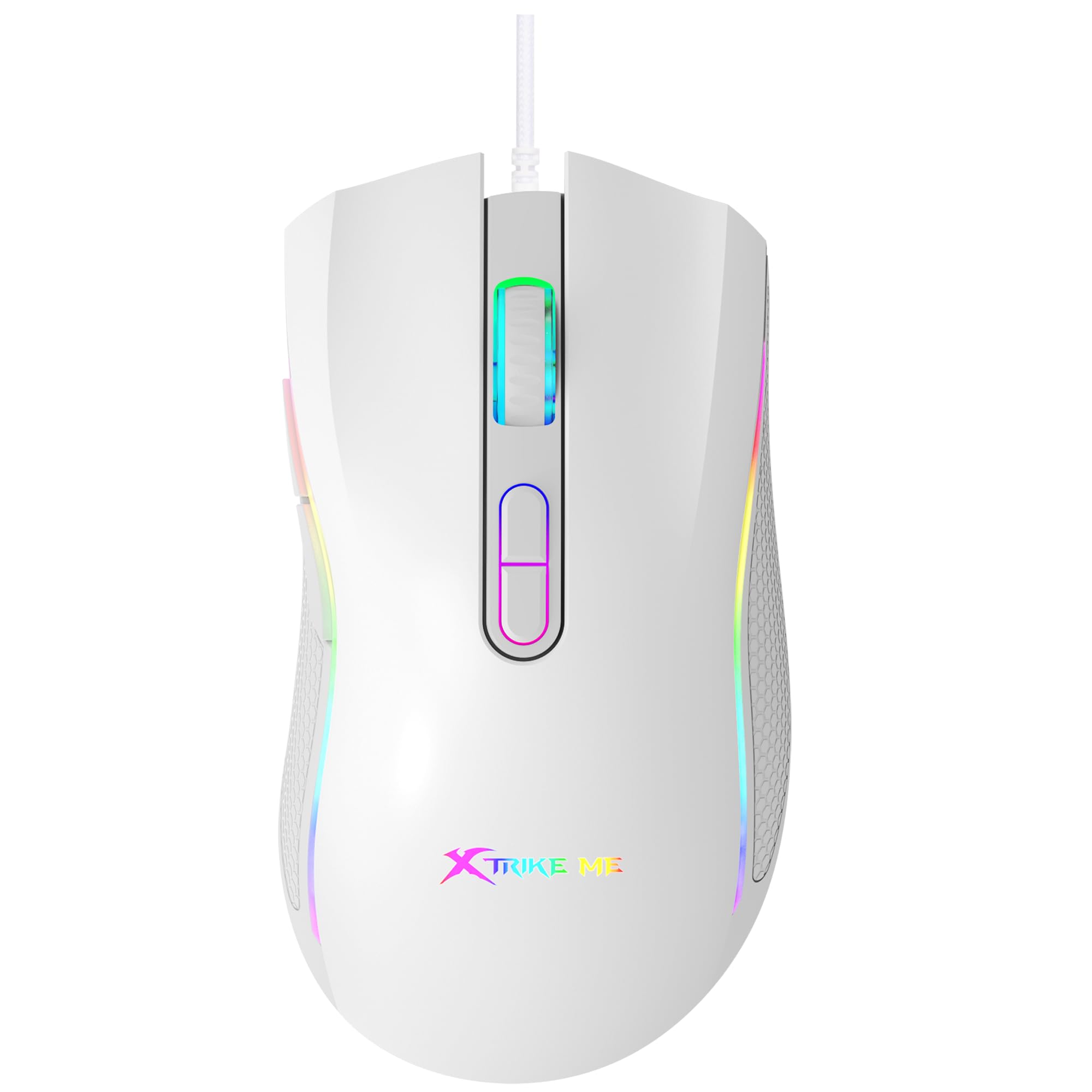
Figure 3.1: GM314 Product Packaging.
Ensure the following items are included in your package:
- Xtrike Me GM314 RGB Gaming Mouse
- User Manual (this document)
- Driver Software (if provided on disc or download link)
3.2. Connecting the Mouse
- Locate an available USB port on your personal computer.
- Plug the USB connector of the GM314 mouse into the USB port.
- The operating system will automatically detect and install the necessary drivers. This may take a few moments.
- Once installed, the mouse will be ready for basic use.
3.3. Driver Software Installation
For full customization of programmable buttons and RGB lighting, install the dedicated driver software.
- If a driver disc is included, insert it into your computer's optical drive and follow the on-screen instructions.
- Alternatively, download the latest driver software from the official Xtrike Me website (refer to product packaging or manufacturer's website for the correct URL).
- Run the installer and follow the prompts to complete the installation.
- Restart your computer if prompted.
4. Operating Instructions
4.1. Basic Functions
- Left Click: Primary action, selection.
- Right Click: Context menu, secondary action.
- Scroll Wheel: Scroll up/down, middle click for universal scroll or other assigned functions.
4.2. DPI Adjustment
The GM314 mouse features adjustable DPI (Dots Per Inch) settings, allowing you to change cursor sensitivity on the fly. The available DPI levels are 1200, 2400, 4800, and 7200.
Figure 4.1: DPI Adjustment Buttons.
- Press the DPI+ button (usually the forward button behind the scroll wheel) to increase DPI.
- Press the DPI- button (usually the rear button behind the scroll wheel) to decrease DPI.
- The RGB lighting may change color to indicate the current DPI setting (refer to driver software for specific color assignments).
4.3. Side Buttons
The GM314 includes two side buttons, typically located on the left side of the mouse.
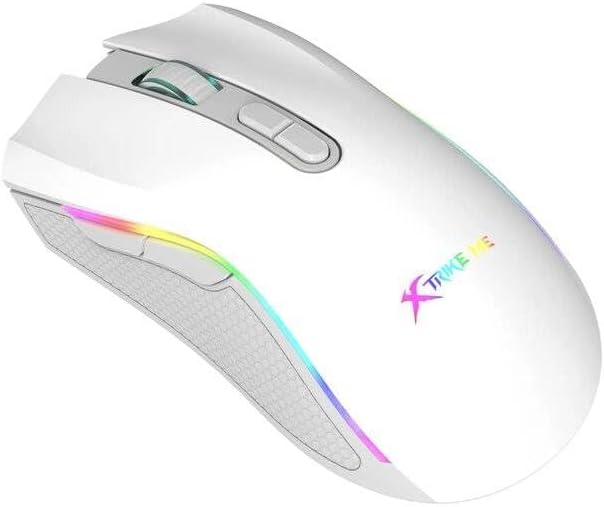
Figure 4.2: Side Buttons.
By default, these buttons often function as 'Forward' and 'Back' in web browsers or file explorers. Their functions can be customized using the driver software.
5. Customization
The Xtrike Me GM314 mouse offers extensive customization options through its dedicated driver software. This includes:
- Button Programming: Assign custom functions, macros, or key combinations to any of the 7 programmable buttons.
- DPI Settings: Fine-tune DPI levels and assign specific colors to each level for visual identification.
- RGB Lighting: Choose from various lighting effects, colors, and brightness levels for the mouse's RGB backlight.
- Polling Rate: Adjust the data transmission rate (e.g., 125 Hz) for responsiveness.
- Profiles: Create and save multiple profiles for different games or applications, allowing quick switching between settings.
Refer to the driver software's built-in help or interface for detailed instructions on using these customization features.
6. Maintenance
Proper maintenance ensures the longevity and performance of your gaming mouse.
- Cleaning: Use a soft, dry cloth to wipe the mouse surface. For stubborn dirt, slightly dampen the cloth with water or a mild cleaning solution. Avoid harsh chemicals.
- Sensor Care: Keep the optical sensor on the underside of the mouse clean and free from dust or debris. Use a cotton swab if necessary.
- Cable Management: Avoid sharp bends or excessive pulling on the USB cable. Store the mouse in a way that prevents cable damage. The cable includes a magnetic ring for improved signal stability.
- Storage: When not in use for extended periods, store the mouse in a clean, dry environment.
7. Troubleshooting
If you encounter issues with your GM314 gaming mouse, refer to the following common solutions:
| Problem | Solution |
|---|---|
| Mouse not responding |
|
| Cursor movement is erratic or jumpy |
|
| DPI or RGB settings not changing |
|
| Programmable buttons not working |
|
8. Specifications
| Feature | Detail |
|---|---|
| Model Name | GM314 |
| Movement Detection Technology | Optical |
| DPI Settings | 1200 / 2400 / 4800 / 7200 |
| Number of Buttons | 7 (Programmable) |
| Button Life | 3 Million Clicks |
| Backlight | RGB |
| Data Transmission Rate | 125 Hz |
| Connectivity Technology | USB (Wired) |
| Cable Length | 1.5 meters (with magnetic ring) |
| Compatible Devices | Personal Computer |
| Item Weight | 104 grams |
| Color | White |
9. Warranty and Support
The Xtrike Me GM314 RGB Gaming Mouse comes with a standard manufacturer's warranty. Please refer to the warranty card included in your product packaging or visit the official Xtrike Me website for detailed warranty terms and conditions.
For technical support, driver downloads, or further assistance, please visit the official Xtrike Me support page or contact their customer service department. Contact information can typically be found on the product packaging or the manufacturer's website.