
PUSOKEI PUSOKEIerbxv3i8qy
PUSOKEI MIDI Pad Controller User Manual
Model: PUSOKEIerbxv3i8qy
Brand: PUSOKEI
1. Introduction
This user manual provides comprehensive instructions for the PUSOKEI Portable SMC PAD Bluetooth MIDI Controller. It covers setup, operation, maintenance, and troubleshooting to ensure you get the most out out of your device. This MIDI pad controller is designed for seamless integration with various digital audio workstations (DAWs) and offers versatile control for music production.

Figure 1: PUSOKEI MIDI Pad Controller
2. Key Features
- WIDELY COMPATIBLE: Designed to work seamlessly with digital sound workstation, eliminating the need for complex manual MIDI mapping and ensuring a stable, intuitive workflow. Compatible with Ableton Live, FL Studio, Cubase, Logic Pro X, Bitwig, Reason, Studio One, GarageBand (for iOS) and more. Compatible with OS X, Android and iOS.
- POWERFUL CONTROLLER: Features 16 RGB velocity sensitive pads with aftertouch, 8 sets of 360 degree rotating encoders, Note repeat function, and 3.5mm MIDI output. Suitable for studio and music production.
- STABLE AND LOW LATENCY: Wireless Bluetooth MIDI controller offers low latency and stable transmission, instantly available anywhere, anytime. Allows you to create music without restrictions, easy and convenient to use. Also supports wired connection to meet different needs.
- RECHARGEABLE AND PORTABLE: Built-in rechargeable battery provides 16 hours of working time. Compact design allows for easy portability to the studio, coffee shop, or hotel.
- EASY CONTROL: Soft backlit silicone buttons are designed for quiet operating and comfortable touch. 8 sets of 360 degree rotating encoders can be customized, with indicator lights for real-time visual feedback.

Figure 2: 16 RGB speed-sensitive pads with aftertouch function

Figure 3: 8 Sets of 360 degree Rotary Encoders
3. Setup
3.1 Powering On and Charging
The MIDI Pad Controller has a built-in rechargeable battery. To power on or off, toggle the switch located in Area 1 (refer to Figure 8). The power indicator light will show red when charging and green when fully charged.
3.2 Wired Connection (USB-C)
Connect the controller to your mobile device or computer terminal using a USB-C cable. The device will be automatically identified without requiring driver installation and will begin charging.

Figure 4: USB-C Port for Wired Connection and Charging
3.3 Wireless Connection (Bluetooth)
The controller supports wireless Bluetooth MIDI connection for low-latency and stable transmission. Activate Bluetooth on your host device (computer, tablet, or smartphone) and pair with the SMC PAD controller. The 'BT' button on the controller will indicate connection status.

Figure 5: Wireless Bluetooth Connection
3.4 Compatibility
The PUSOKEI MIDI Pad Controller is compatible with a wide range of Digital Audio Workstations (DAWs) including Ableton Live, FL Studio, Cubase, Logic Pro X, Bitwig, Reason, Studio One, and GarageBand (for iOS). It supports OS X, Android, and iOS operating systems.

Figure 6: DAW Compatibility

Figure 7: Operating System Compatibility
4. Operating Instructions
4.1 Controller Layout
The PUSOKEI MIDI Pad Controller features a clear layout for intuitive control:
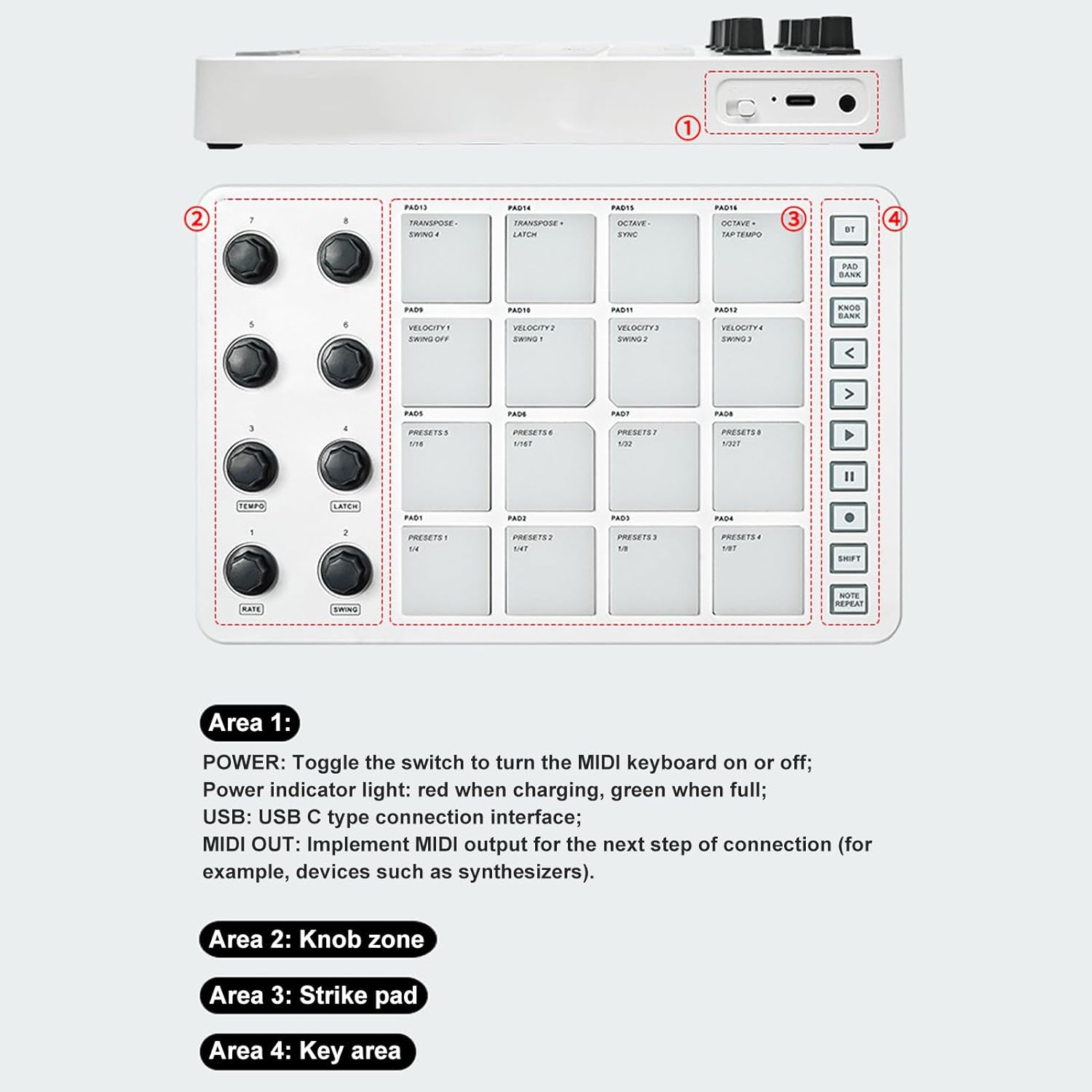
Figure 8: Controller Layout Overview
| Area | Description |
|---|---|
| Area 1: |
|
| Area 2: | Knob zone (8 assignable 360-degree rotating encoders). |
| Area 3: | Strike pad (16 RGB velocity-sensitive pads with aftertouch). |
| Area 4: | Key area (5 assignable control keys). |
4.2 Using the Pads
The 16 RGB backlit pads are velocity-sensitive and support aftertouch, allowing for expressive performance. Press the pads to trigger sounds or samples in your connected DAW. The RGB backlighting provides visual feedback.
4.3 Using the Knobs
The 8 assignable 360-degree rotating encoders can be customized to control various parameters in your software, such as volume, pan, effects, or instrument settings. Each knob has an indicator light for real-time visual feedback. Different message sending types can be adjusted through software settings, including AfterTouch and MIDI CC.

Figure 9: Assignable Knobs
4.4 Control Keys and Note Repeat
The controller includes 5 assignable control keys for additional functionality. The Note Repeat function allows for rhythmic repetition of notes; hold down the Note Repeat function key while turning knobs 1-4 to adjust the repeat rate.
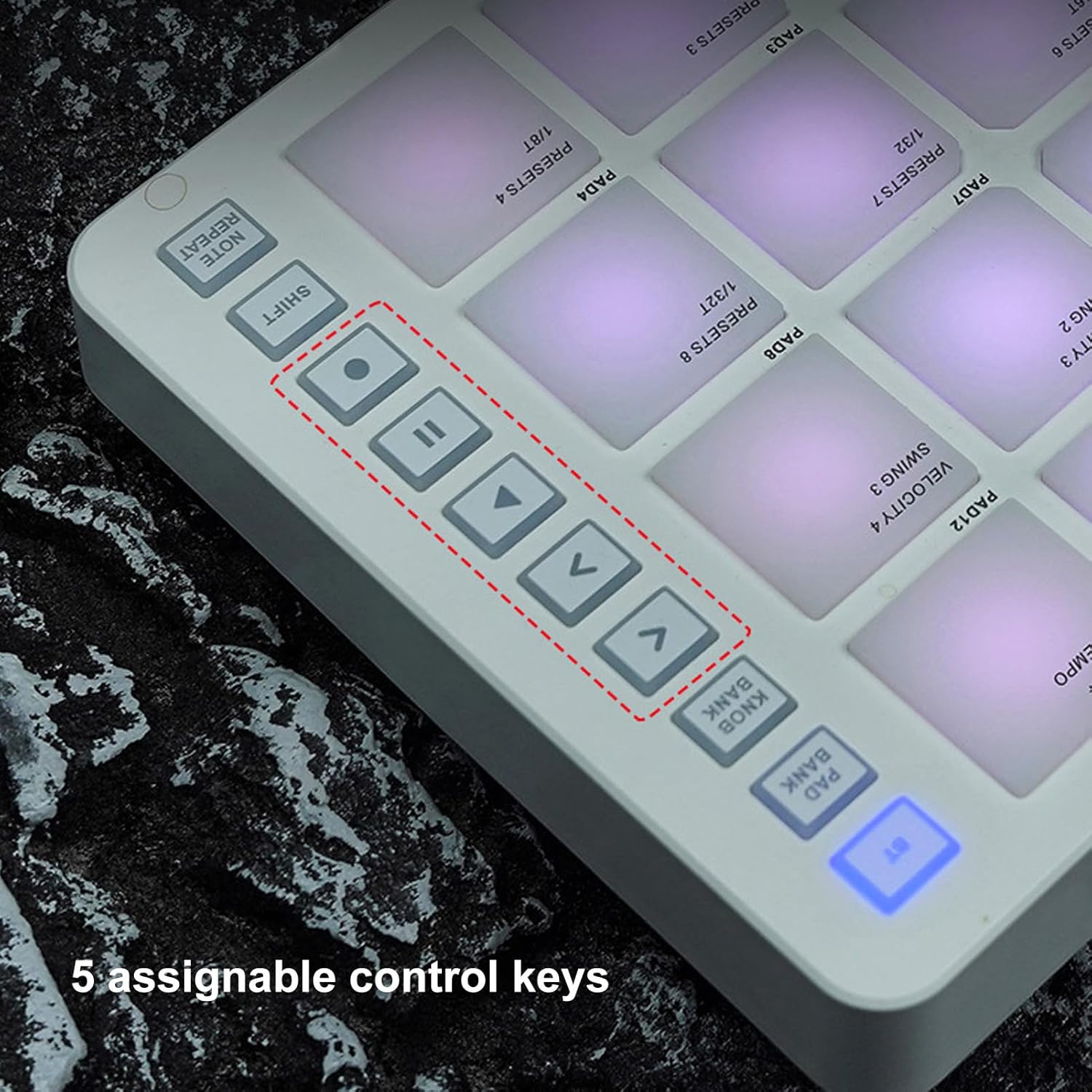
Figure 10: Assignable Control Keys
4.5 Product Demonstration Video
Video 1: Demonstration of the MIDI Pad Controller's features and usage, including pad and knob interaction.
5. Maintenance
- Cleaning: Use a soft, dry cloth to clean the surface of the controller. Avoid using abrasive cleaners or solvents.
- Storage: Store the controller in a cool, dry place away from direct sunlight and extreme temperatures.
- Handling: Avoid dropping the device or subjecting it to strong impacts.
- Battery Care: For optimal battery life, avoid fully discharging the battery frequently. Charge the device regularly, especially if storing for extended periods.
6. Troubleshooting
| Problem | Possible Cause | Solution |
|---|---|---|
| Device not powering on. | Low battery; Power switch off. | Charge the device; Ensure the power switch is in the 'On' position. |
| No sound/MIDI output. | Incorrect connection; Software not configured; MIDI channel mismatch. | Check USB/Bluetooth connection; Verify DAW MIDI input settings; Ensure MIDI channels match between controller and software. |
| Pads/Knobs not responding. | Software mapping issue; Device not recognized. | Check MIDI mapping in your DAW; Restart the controller and computer/device. |
| Bluetooth connection unstable. | Interference; Distance from host device. | Reduce interference from other wireless devices; Move controller closer to the host device. |
7. Specifications
- Brand:
- PUSOKEI
- Model Name:
- PUSOKEIerbxv3i8qy
- Item Weight:
- 1.52 pounds
- Package Dimensions:
- 10.43 x 6.81 x 2.44 inches
- Connectivity:
- USB-C, Bluetooth
- Pads:
- 16 RGB velocity sensitive pads with aftertouch
- Knobs:
- 8 assignable 360 degree rotating encoders
- MIDI Output:
- 3.5mm MIDI output
- Battery Life:
- Up to 16 hours working time (built-in rechargeable battery)
- Compatibility:
- OS X, Android, iOS; Various DAWs (Ableton Live, FL Studio, Cubase, Logic Pro X, Bitwig, Reason, Studio One, GarageBand)
8. Warranty and Support
This PUSOKEI product comes with a standard manufacturer's warranty. For detailed warranty information, technical support, or service inquiries, please refer to the warranty card included with your product or contact PUSOKEI customer support directly through their official website or the retailer where the product was purchased.
Ask a question about this manual
Ask about setup, troubleshooting, compatibility, parts, safety, or missing instructions. Manuals+ will review the question and use this page’s manual context to help answer it.