
1. Introduction
Thank you for choosing the SONDTUO KM10 Wireless Karaoke Microphone. This all-in-one device combines a professional microphone, Bluetooth speaker, and recorder, designed for an enjoyable singing experience. It features advanced DSP chip technology for clear audio, multiple voice effects, and dynamic LED lighting. This manual provides essential information for proper setup, operation, and maintenance of your device.
2. What's in the Box
- KM10 Pro Microphone
- USB-A to USB-C Charging Cable
- User Manual
3. Product Overview
3.1 Components and Controls
Familiarize yourself with the microphone's components and control buttons for optimal use.
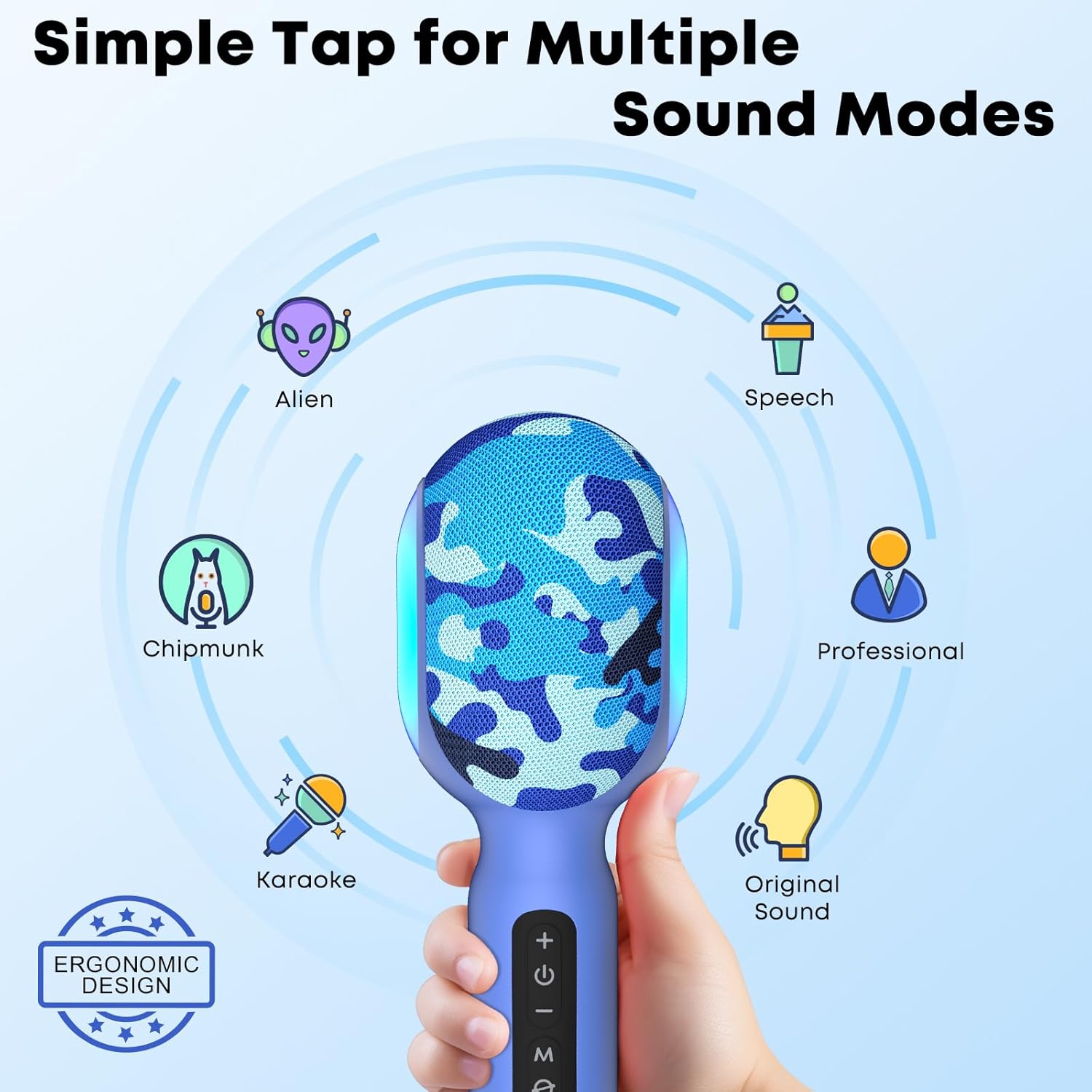
Image: The SONDTUO KM10 microphone showing its ergonomic design and control panel on the handle. Buttons include Power, Volume Up/Down, Mode, and LED light control.
3.2 Key Features
- All-in-One Design: Combines microphone, Bluetooth speaker, and recorder.
- Advanced DSP Chip: Delivers studio-quality sound with noise reduction.
- 6 Voice Effects: Karaoke, Professional, Speech/Presentation, Chipmunk, Alien, and Original.
- Dynamic LED Lights: Four customizable modes (Rhythm Sync, Breathing, Flowing Wave, Solid Color) that sync with music.
- Bluetooth 5.0: Stable wireless connection to various devices.
- TWS Dual Mic Pairing: Allows two KM10 microphones to pair for duets.
- Multiple Connectivity: Bluetooth, AUX audio, and 3.5mm headphone jack.

Image: An illustration detailing the internal components of the microphone, emphasizing the 10W speaker and DSP chip for high-fidelity audio.
4. Setup
4.1 Charging the Microphone
Before first use, fully charge the microphone. Connect the provided USB-A to USB-C charging cable to the microphone's USB-C port and a compatible USB power adapter (not included).
- The battery indicator light will show charging status.
- A full charge typically takes approximately 3 hours.
- The microphone offers 5-10 hours of playtime on a single charge.

Image: Visual representation of the microphone's battery life, indicating 5-10 hours of playtime.
4.2 Powering On/Off
Press and hold the Power button (usually marked with a power symbol) on the microphone's handle for a few seconds to turn it on or off. A voice prompt will confirm the action.
4.3 Bluetooth Pairing
- Turn on the KM10 microphone. It will automatically enter Bluetooth pairing mode, indicated by a voice prompt.
- On your device (smartphone, tablet, laptop), enable Bluetooth and search for available devices.
- Select "KM10" from the list of devices.
- Once connected, a voice prompt will confirm successful pairing.
4.4 TWS Dual Microphone Pairing (for two KM10 microphones)
To use two KM10 microphones for duet singing:
- Ensure both KM10 microphones are powered on and not connected to any other Bluetooth device.
- On one microphone (the primary), press and hold the 'M' (Mode) button until you hear a pairing tone.
- The two microphones will automatically connect to each other.
- Once paired, connect your primary microphone to your device via Bluetooth as described in section 4.3.

Image: Two individuals using separate KM10 microphones, demonstrating the wireless stereo pairing for duet singing.
4.5 AUX Audio Connection
For wired connection, use a 3.5mm audio cable (not included) to connect the microphone's AUX port to your audio source's output jack.
4.6 3.5mm Headphone Jack
Connect headphones to the 3.5mm headphone jack for real-time monitoring of your singing or for private listening.

Image: The microphone connected to multiple devices, illustrating its broad compatibility and various connection options.
5. Operating Instructions
5.1 Adjusting Volume
- Use the '+' and '-' buttons on the microphone to adjust the microphone's volume.
- Independent volume controls for music can be adjusted on your connected device.
5.2 Voice Changer Effects
The KM10 offers 6 professional sound modes. Press the 'M' (Mode) button repeatedly to cycle through the following effects:
- Karaoke: Standard singing mode.
- Professional: Enhanced vocal clarity.
- Speech/Presentation: Optimized for clear speaking.
- Chipmunk: High-pitched voice effect.
- Alien: Robotic or otherworldly voice effect.
- Original: Your natural voice without effects.

Image: Visual representation of the microphone's multi-sound effects, showing different voice modes.
5.3 LED Light Effects
The microphone features dynamic LED lights. Press the dedicated LED light button (often indicated by a light bulb icon) to cycle through different lighting modes:
- Rhythm Sync: Lights pulse with the music.
- Breathing: Lights gently fade in and out.
- Flowing Wave: Lights create a dynamic wave effect.
- Solid Color: Displays a static color.
- Off: Disables the LED lights.

Image: The microphone displaying its LED light features, including a nightlight mode and other dynamic effects.
5.4 Recording Function
The KM10 microphone supports voice recording. Connect the microphone to your device via Bluetooth or AUX, and use a compatible recording application on your device to capture your performances.

Image: A user recording their singing performance with the microphone and headphones.
5.5 Backing Track Mode (Vocal Removal)
The microphone features an AI-powered vocal removal function. When playing music, press the designated button (often labeled with a music note or vocal icon) to reduce or remove the lead vocals from a song, allowing you to sing along with the instrumental track.
6. Maintenance
- Cleaning: Wipe the microphone with a soft, dry cloth. Do not use harsh chemicals or abrasive cleaners.
- Storage: Store the microphone in a cool, dry place away from direct sunlight and extreme temperatures.
- Battery Care: To prolong battery life, avoid fully discharging the battery frequently. Charge it regularly, even if not in use for extended periods.
- Water Exposure: This device is not waterproof. Avoid exposure to water or excessive moisture.
7. Troubleshooting
- Microphone not turning on: Ensure the battery is charged. Connect the charging cable and try again.
- Cannot connect via Bluetooth:
- Ensure the microphone is in pairing mode.
- Turn off and on your device's Bluetooth.
- Forget the device in your Bluetooth settings and try pairing again.
- Ensure no other devices are connected to the microphone.
- No sound from microphone:
- Check the microphone's volume level using the '+' button.
- Ensure the connected device's volume is not muted or too low.
- Verify the connection (Bluetooth or AUX).
- Echo or feedback: Reduce the microphone volume or move further away from the speaker.
- TWS pairing issues: Ensure both microphones are fully charged and not connected to any other device before initiating TWS pairing.
8. Specifications
| Feature | Detail |
|---|---|
| Model Name | KM10 |
| Connectivity Technology | Auxiliary, Bluetooth 5.0 |
| Connector Type | 3.5 mm Jack, USB Type-C |
| Special Features | 6 Sound Modes, Battery Indicator Light, Noise Reduction, TWS Pairing, Volume Control |
| Compatible Devices | Headphone, Laptop, Personal Computer, Smartphone, Television |
| Polar Pattern | Omnidirectional |
| Audio Sensitivity | 100 Decibels |
| Microphone Form Factor | Handheld, Wireless |
| Power Source | Battery Powered (1 P76 battery included) |
| Signal-to-Noise Ratio | 100 dB |
| Frequency Range | 50-20000Hz |
| Item Weight | 11.5 Ounces |
| Item Dimensions | 2.98 x 2.98 x 8 inches |
| Enclosure Material | Acrylonitrile Butadiene Styrene, Mesh, Metal |
9. Warranty and Support
9.1 Warranty Information
The SONDTUO KM10 Wireless Karaoke Microphone comes with a 1 Year Manufacturer Warranty. Please retain your proof of purchase for warranty claims.
9.2 Customer Support
For any questions, technical assistance, or warranty inquiries, please contact SONDTUO customer support through the retailer's platform or the official SONDTUO website. Please have your model number (KM10) and purchase details ready.