
Junforbs a51782aa-e22b-4df4-9d56-a65423c4a08f
Junforbs 64GB Digital Voice Recorder - User Manual
Model: a51782aa-e22b-4df4-9d56-a65423c4a08f
Introduction
Thank you for choosing the Junforbs 64GB Digital Voice Recorder. This professional audio recorder is designed for clear and convenient recording in various settings, including lectures, meetings, and courses. With its voice-activated recording feature, large storage capacity, and easy file transfer, it is an ideal tool for capturing important audio.
This manual provides detailed instructions on how to set up, operate, and maintain your device to ensure optimal performance.

The Junforbs Digital Voice Recorder offers 6-in-1 functionality, including 64GB memory, voice activation, DSP noise reduction, one-touch operation, MP3 playback, and automatic file saving.
What's in the Box
Please check the package contents carefully:
- Recorder x 1
- 64GB TF card x 1
- 3.5mm headphones x 1
- Micro-USB cable x 1
- Controller x 1
- Replacement refill x 5
- Screwdriver x 1
- Manual x 1
Product Overview
The Junforbs Digital Voice Recorder is designed to resemble a standard pen for discreet and convenient use. It integrates advanced recording technology within its compact form factor.

The Junforbs Digital Voice Recorder, designed as a pen, comes with headphones for playback.
Setup
1. Charging the Device
Before first use, fully charge the recorder. Connect the Micro-USB cable to the recorder and a USB power source (e.g., computer USB port or wall adapter). The indicator light will show charging status. A full charge provides up to 24 hours of continuous recording or 30 hours of headphone playback.

The recorder features a large capacity lithium battery, providing strong battery life after a full charge.
2. Inserting the TF Card
The recorder comes with a 64GB TF card pre-installed or included separately. If not pre-installed, gently insert the TF card into the designated slot on the device. Ensure it is inserted correctly to avoid damage.

The device supports a 64GB TF card for large capacity storage, offering significant recording and playback time.
Operating Instructions
1. One-Click Recording
The Junforbs recorder features a simple one-click recording function:
- To start recording: Long press the top button of the device for three seconds.
- To save recording: Long press the same button again for three seconds. The recording will be saved automatically.

Simple and easy-to-use one-click recording and saving functionality.
2. Voice Activated Recording (VOR)
The voice-activated recording feature allows the device to start recording automatically when sound is detected and pause when there is no sound, conserving memory and battery life. This function is turned off by default.
- To enable VOR: Connect the device to your computer and set the "VOR" parameter to 7. Refer to the detailed instructions in the included user manual for specific steps.
- The device will automatically start recording when surrounding sound decibel changes and stop when no sound is detected.

Voice Activated Recording: Starts "REC" when sound is detected, stops "REC" when no sound.
3. Playback
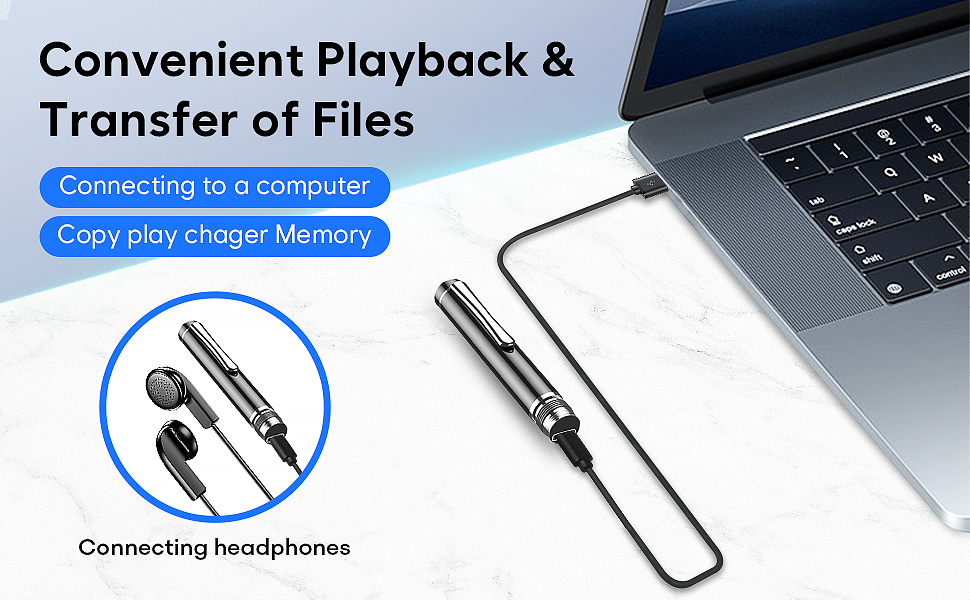
You can listen to your recordings directly on the device using the provided headphones. Connect the 3.5mm headphones to the appropriate jack on the recorder. Use the controller (if applicable) or device buttons to navigate and play recordings.

Convenient playback and file transfer options, including connecting to a computer and using headphones.
4. Transferring Files to Computer
To transfer recorded files to your computer:
- Connect the recorder to your computer using the Micro-USB cable.
- The device will appear as a removable disk drive.
- Open the drive to access your recorded files (typically in WAV format).
- Copy and paste the files to your desired location on the computer.
The device supports multi-platform compatibility, allowing use on various operating systems.
5. Time Stamp Function
Each recording is automatically time-stamped, making it easy to locate and manage your files. Files are named after their creation time, providing a clear chronological record.
All recording files are named by date and time for easy organization and retrieval.
Maintenance
- Keep the device dry and away from extreme temperatures.
- Avoid dropping or subjecting the device to strong impacts.
- Clean the device with a soft, dry cloth. Do not use liquid cleaners.
- Store the device in a safe place when not in use.
- Regularly back up your recordings to a computer to prevent data loss.
- Use the provided screwdriver and replacement refills for pen maintenance as needed.
Troubleshooting
| Problem | Possible Cause | Solution |
|---|---|---|
| Device not turning on | Low battery; Device malfunction | Charge the device fully. If problem persists, contact customer support. |
| Cannot record | TF card full or not inserted correctly; Device error | Check TF card insertion. Delete old files or format TF card (backup first). Restart device. |
| Poor recording quality | High ambient noise; Microphone obstructed; Distance from sound source | Record in a quieter environment. Ensure microphone is clear. Place device closer to sound source. |
| Cannot connect to computer | Faulty USB cable; Driver issue; Incorrect port | Try a different USB cable or port. Restart computer and device. |
| Voice Activated Recording not working | VOR feature not enabled; Sensitivity too low | Connect to computer and ensure VOR is set to 7. Increase VOR sensitivity if available in settings. |
Specifications
- Brand: Junforbs
- Model Number: a51782aa-e22b-4df4-9d56-a65423c4a08f
- Memory Storage Capacity: 64 GB (TF card included)
- Battery Life: Up to 24 hours (recording), 30 hours (headphone playback)
- Digital Recording Time: 24 hours
- Headphones Jack: 3.5 millimeters
- Format: WAV
- Microphone Form Factor: Built-In, 360° omnidirectional
- Hardware Interface: Micro USB 2.0 Type A
- Compatible Devices: Earphone, MP3 Player, Personal Computer
- Item Weight: 4.6 ounces
- Package Dimensions: 6.46 x 3.54 x 1.14 inches
Warranty and Support
This product comes with a standard manufacturer's warranty. For detailed warranty information, please refer to the warranty card included in your package or visit the official Junforbs website.
If you encounter any issues or have questions regarding your Junforbs Digital Voice Recorder, please contact our customer support team. You can find contact information on the product packaging or the official Junforbs website.
We are committed to providing excellent service and support for our products.
Ask a question about this manual
Ask about setup, troubleshooting, compatibility, parts, safety, or missing instructions. Manuals+ will review the question and use this page’s manual context to help answer it.