1. Introduction
This manual provides comprehensive instructions for the JUEDUR R700 Android 14 Tablet. Please read this guide thoroughly to ensure proper setup, operation, and maintenance of your device. Retain this manual for future reference.

Image: The JUEDUR R700 tablet is designed for portability, featuring face unlock, and is suitable for both work and study environments.
2. What's in the Box
Verify that all items are present in your package:
- 10.1 inch Tablet with case
- Bluetooth Keyboard
- Wireless Mouse
- 3-layer Screen Protector (one pre-applied, one spare)
- Charging Adapter with Type-C Cable
- User Manual (this document)

Image: The JUEDUR R700 tablet package includes the tablet, a Bluetooth keyboard, a wireless mouse, a protective case, screen protectors, and charging accessories.
3. Product Overview
The JUEDUR R700 tablet features an Octa-Core A523 CPU operating at 1.8GHz, providing robust performance for daily tasks and multitasking. It includes 20GB RAM (6GB physical + 14GB virtual) and 128GB internal storage, expandable up to 1TB via TF card.

Image: Internal components of the JUEDUR R700 tablet, highlighting the Octa-Core CPU, LPDDRx memory, and storage options.

Image: Key features of the JUEDUR R700 tablet, including its operating system, battery, connectivity, and physical design.
4. Setup
4.1 Initial Charging
Before first use, fully charge the tablet using the provided charging adapter and Type-C cable. The charging port is located on the side of the device.
4.2 Power On/Off
- To Power On: Press and hold the Power button until the screen illuminates.
- To Power Off: Press and hold the Power button, then select 'Power off' from the options displayed on the screen.
- To Restart: Press and hold the Power button, then select 'Restart' from the options.
4.3 Initial Configuration
Upon first power-on, follow the on-screen prompts to set up your tablet:
- Select your preferred language.
- Connect to a Wi-Fi network.
- Sign in with your Google account or create a new one.
- Review and accept the terms and conditions.
- Set up screen lock (PIN, pattern, password, or face recognition).
4.4 Connecting Accessories (Keyboard and Mouse)
Your tablet comes with a Bluetooth keyboard and a wireless mouse for enhanced productivity.
4.4.1 Bluetooth Keyboard Pairing
- Ensure the keyboard is charged and powered on.
- On your tablet, navigate to Settings > Connected devices > Pair new device.
- Select the Bluetooth keyboard from the list of available devices.
- Follow any on-screen prompts to complete the pairing process.
4.4.2 Wireless Mouse Setup
- Insert a battery into the wireless mouse (battery not included).
- Locate the USB receiver for the mouse, typically stored in the mouse's battery compartment.
- Connect the provided USB-C to USB-A adapter to the tablet's Type-C port.
- Insert the mouse's USB receiver into the USB-A end of the adapter. The mouse should now be functional.
5. Operating Instructions
5.1 Basic Navigation
The tablet uses a capacitive touchscreen. Use gestures such as tap, swipe, pinch-to-zoom, and long-press to interact with the interface.
5.2 Wi-Fi Connection
- Go to Settings > Network & internet > Internet.
- Turn on Wi-Fi.
- Select your desired network from the list and enter the password if required.
- The tablet supports Wi-Fi 6 (2.4G and 5G bands) for improved connection stability and speed.
5.3 Bluetooth Pairing
- Go to Settings > Connected devices > Connection preferences > Bluetooth.
- Turn on Bluetooth.
- Select 'Pair new device' and choose the device you wish to connect from the list.
- Confirm pairing on both devices if prompted.

Image: The tablet features WiFi 6 and Bluetooth 5.0 for advanced connectivity, powered by a 6000mAh battery with Type-C charging.
5.4 Google Play Store
The tablet is Google GMS certified, allowing you to download and install applications from the Google Play Store. Tap the Play Store icon on your home screen or app drawer to access it.
5.5 Android 14 Features
The R700 tablet runs on Android 14, offering enhanced privacy protection and customizable widgets.
- Split-Screen Function: To use two apps simultaneously, open one app, then swipe up from the bottom of the screen and hold to access recent apps. Drag the first app to the top or bottom of the screen, then select a second app to fill the remaining space.
- Casting to Smart TV: Connect your tablet to a compatible smart TV to mirror your screen. This option is usually found in the Quick Settings panel or under Settings > Connected devices > Connection preferences > Cast.
- Parental Control (Google Kids Space): Utilize the built-in Google Kids Space to manage app access and set usage time limits for children.
- Face Recognition: Unlock your tablet using facial recognition. Set this up in Settings > Security & privacy > Device unlock.

Image: Android 14 system features, including privacy controls, multitasking options, and parental management tools.
5.6 Widevine L1 Support
The tablet supports Widevine L1, enabling high-definition (1080p) video streaming on platforms such as Prime Video, Hulu, and Disney+. Note that Netflix FHD videos are not supported.
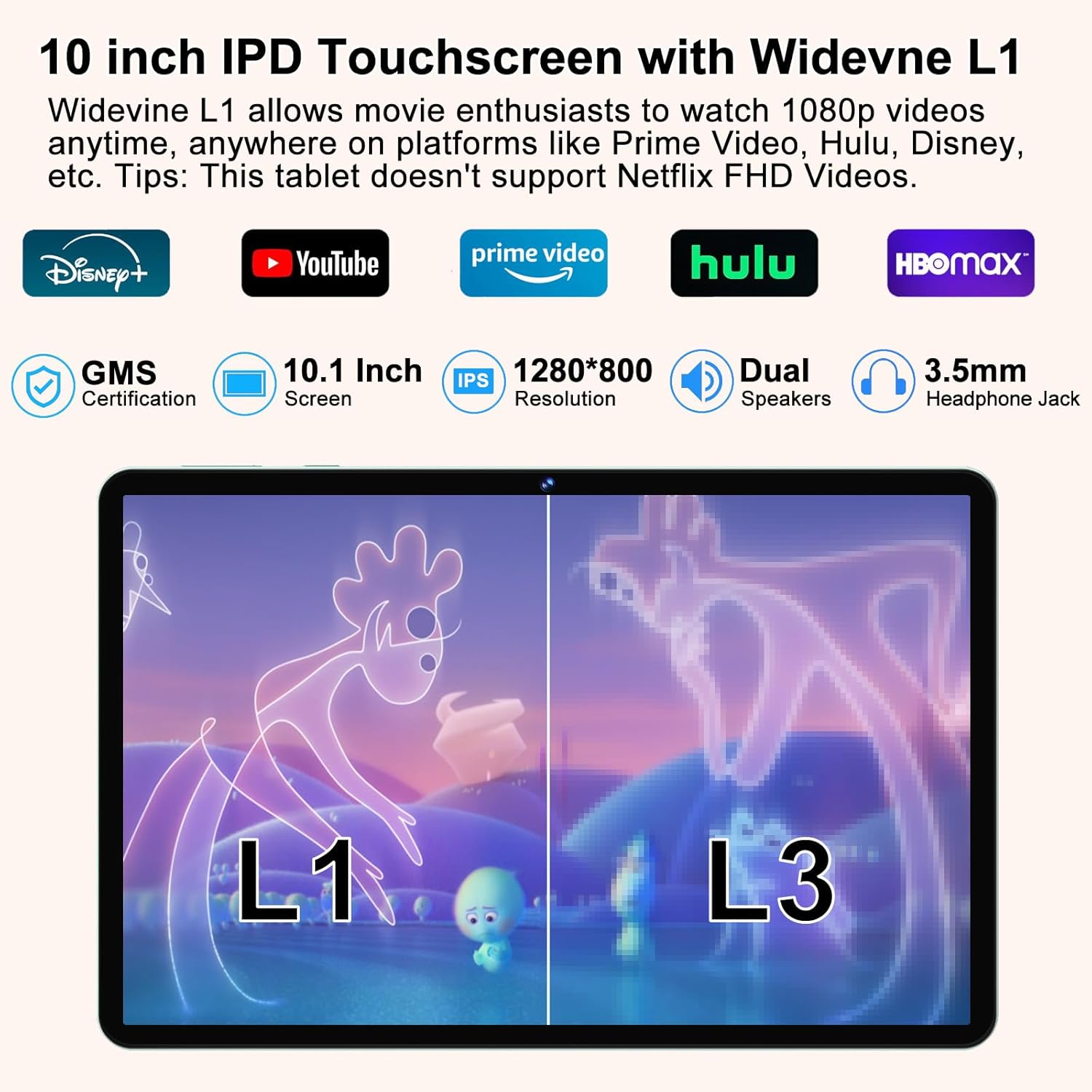
Image: Details on the tablet's display and media capabilities, including Widevine L1 certification for HD streaming.
6. Maintenance
6.1 Battery Care
- Avoid exposing the tablet to extreme temperatures.
- Do not allow the battery to fully discharge frequently.
- Use only the provided charger or a certified compatible charger.
6.2 Storage Management
Regularly check your tablet's storage in Settings > Storage. Delete unnecessary files, apps, and clear cache to maintain optimal performance. Consider using a TF card for additional storage.
6.3 Software Updates
Keep your tablet's software updated to ensure security and access to the latest features. Check for updates in Settings > System > System update.
6.4 Cleaning
Use a soft, lint-free cloth to clean the screen and body of the tablet. Avoid using harsh chemicals or abrasive materials.
7. Troubleshooting
- Device not powering on: Ensure the tablet is sufficiently charged. Connect it to the charger for at least 30 minutes before attempting to power on again.
- Slow performance: Close unused applications, clear cache, and check for available storage space. Restarting the tablet can also resolve temporary slowdowns.
- Wi-Fi connectivity issues: Ensure Wi-Fi is enabled and you are within range of a known network. Try restarting your router and the tablet.
- Touchscreen unresponsive: Restart the tablet. If the issue persists, ensure the screen is clean and free of debris.
- Accessories not connecting: For Bluetooth devices, ensure they are in pairing mode and within range. For the wireless mouse, verify the USB receiver is correctly inserted into the adapter and the adapter into the tablet. Check mouse battery.
8. Specifications
| Feature | Specification |
|---|---|
| Model Name | R700 |
| Operating System | Android 14 |
| Processor | 1.8 GHz Octa-Core A523 |
| RAM | 20GB (6GB Physical + 14GB Virtual) |
| Internal Storage | 128GB |
| Expandable Storage | Up to 1TB via TF Card |
| Screen Size | 10.1 Inches |
| Screen Resolution | 1280 x 800 Pixels IPS |
| Wireless Connectivity | WiFi 6 (2.4G + 5G), Bluetooth 5.0 |
| Battery Capacity | 6000mAh |
| Average Battery Life | Up to 8 Hours |
| Cameras | 5MP Front, 8MP Rear |
| Dimensions (LxWxH) | 9.4 x 0.3 x 6.3 inches |
| Item Weight | 1.65 pounds |
| Special Features | Widevine L1, Split Screen, Google Kids Space, Face Recognition |
9. Warranty Information
Please refer to the warranty card included with your product for specific warranty terms and conditions. Generally, JUEDUR products are covered by a limited manufacturer's warranty against defects in materials and workmanship from the date of purchase. Keep your proof of purchase for warranty claims.
10. Support
For technical assistance, troubleshooting, or further inquiries, please contact JUEDUR customer support through the contact information provided on the product packaging or the official JUEDUR website. When contacting support, please have your model number (R700) and purchase details ready.


