
LUVIN LUS-G8
LUVIN G8 Motorcycle Helmet Bluetooth Headset User Manual
1. Introduction
Thank you for choosing the LUVIN G8 Motorcycle Helmet Bluetooth Headset. This device is designed to enhance your riding experience by providing clear communication, music playback, and navigation audio directly within your helmet. It supports rider-to-passenger intercom, Bluetooth 5.3 connectivity, and features CVC+DSP noise reduction for optimal audio quality. Please read this manual thoroughly before use to ensure proper installation and operation.
2. Safety Information
- Always prioritize road safety. Do not operate the device in a manner that distracts you from riding.
- Adjust volume to a level that allows you to hear ambient traffic sounds.
- Ensure the device is securely mounted to your helmet before riding.
- Do not attempt to disassemble or modify the device. This may void the warranty and pose safety risks.
- Keep the device away from extreme temperatures and open flames.
3. Package Contents
Verify that all items are present in your package:
- LUVIN G8 Bluetooth Headset Unit (x2 for 2-rider pack)
- Helmet Speakers and Microphone Kit (x2 for 2-rider pack)
- Mounting Clip
- Flat Back Clip
- USB Type-C Charging Cable
- User Manual
- Velcro Pads for Speakers/Microphone

4. Product Overview and Controls
The LUVIN G8 headset features intuitive controls and an RGB lighting strip for enhanced visibility. Familiarize yourself with the buttons and indicators:

- Power Button: Press and hold to power on/off. Short press for play/pause, answer/hang up calls.
- Volume Up/Next Song Button: Short press for volume up, long press for next song.
- Volume Down/Previous Song Button: Short press for volume down, long press for previous song.
- Type-C Port: For charging the device.
- RGB Light Strip: Indicates device status and adds visual flair.
5. Setup and Installation
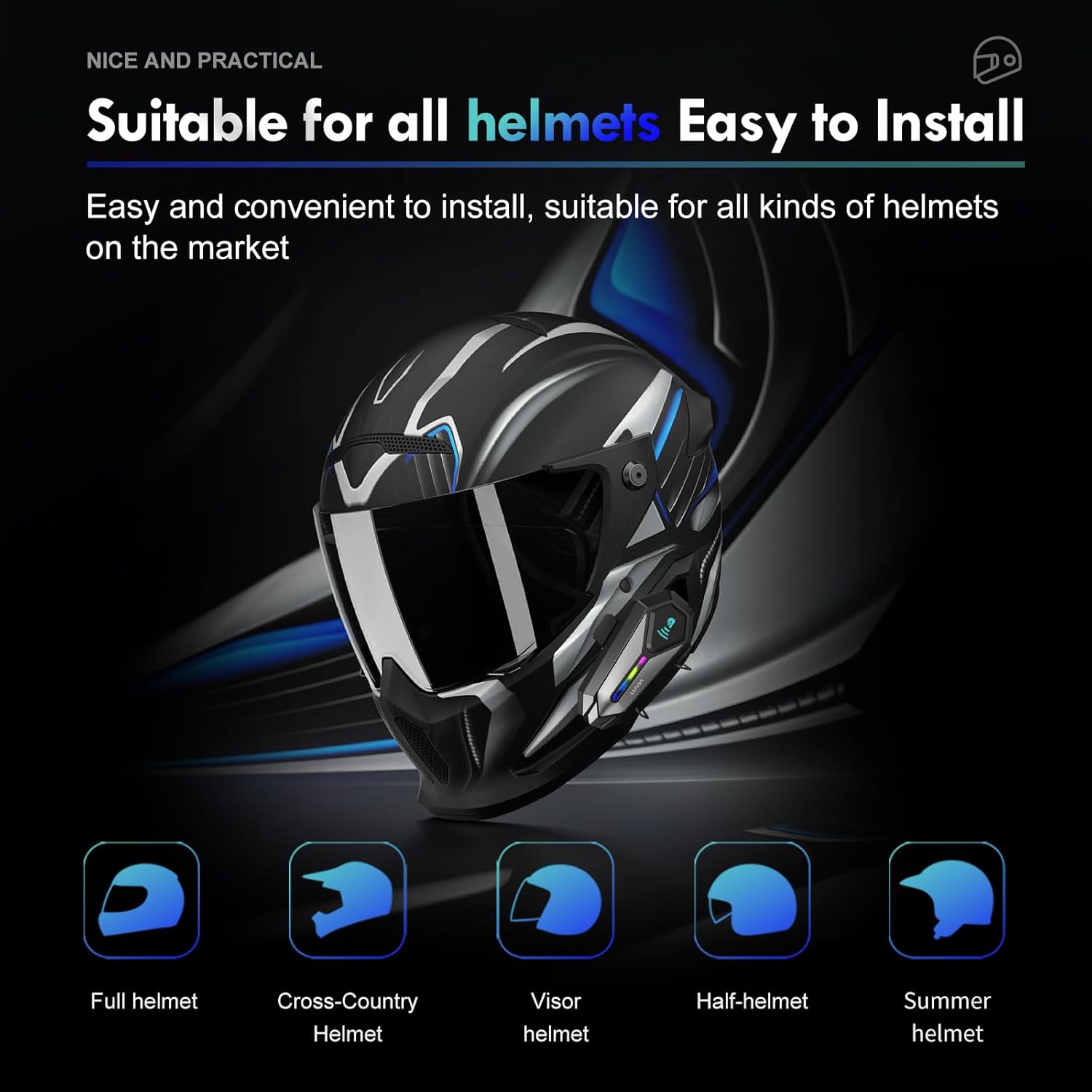
Proper installation ensures optimal performance and comfort.
5.1 Mounting the Headset Unit
- Choose a suitable location on the left side of your helmet, near the bottom edge.
- Attach the mounting clip or flat back clip to the helmet. Ensure it is secure.
- Slide the LUVIN G8 main unit onto the mounted clip until it clicks into place.
5.2 Installing Speakers and Microphone
- Open the helmet's inner lining.
- Attach the speakers to the ear pockets using the provided Velcro pads. Ensure they are centered over your ears for best audio.
- Attach the microphone to the inside of the helmet, near your mouth. Position it to avoid wind noise.
- Route the speaker and microphone wires neatly under the helmet lining to the main unit's connector.
- Connect the speaker/microphone jack to the main unit's audio port.
6. Operating Instructions
6.1 Power On/Off
- Power On: Press and hold the Power Button for approximately 3 seconds until you hear a voice prompt and the RGB lights illuminate.
- Power Off: Press and hold the Power Button for approximately 3 seconds until you hear a voice prompt and the RGB lights turn off.
6.2 Volume Control
- Increase Volume: Short press the Volume Up button.
- Decrease Volume: Short press the Volume Down button.
6.3 Music Playback
- Play/Pause: Short press the Power Button.
- Next Song: Long press the Volume Up button.
- Previous Song: Long press the Volume Down button.
7. Bluetooth Pairing
7.1 Pairing with a Mobile Phone
- Ensure the LUVIN G8 headset is powered off.
- Press and hold the Power Button for approximately 5-7 seconds until the RGB lights flash red and blue alternately, indicating pairing mode.
- On your mobile phone, enable Bluetooth and search for new devices.
- Select "LUVIN G8" from the list of available devices.
- Once paired, the RGB lights will flash blue slowly, and you will hear a confirmation tone.
7.2 Intercom Pairing (Rider to Passenger)
The LUVIN G8 supports front and rear rider communication.
- Ensure both LUVIN G8 headsets are powered off.
- On both units, press and hold the Power Button for approximately 5-7 seconds until the RGB lights flash red and blue alternately, entering pairing mode.
- Short press the Power Button on one of the units. It will search for the other unit.
- Once connected, the RGB lights on both units will flash green slowly, indicating intercom mode.

8. Intercom Function
- Initiate Intercom: After successful pairing, short press the Power Button on either unit to start intercom communication.
- End Intercom: Short press the Power Button again to end the intercom conversation.
- Music Sharing: The LUVIN G8 supports music sharing between two connected units. Refer to the specific instructions for activating music sharing, typically a long press on a designated button while in intercom mode.
9. Voice Assistant
The LUVIN G8 features an AI voice assistant for hands-free control.
- Activate Voice Assistant: While connected to your phone, short press the Power Button twice rapidly to activate your phone's voice assistant (e.g., Siri, Google Assistant).
- You can then use voice commands to control music, make calls, or get navigation directions.

10. Charging
The LUVIN G8 is equipped with a 1000mAh battery and a Type-C fast charging port.
- Connect the provided USB Type-C cable to the charging port on the headset and to a standard USB power adapter (not included).
- The charging indicator light will illuminate red during charging and turn off when fully charged.
- A full charge typically takes approximately 2 hours.
- Battery life: Up to 20 hours of continuous music playback, 15 hours of intercom.

11. Waterproofing
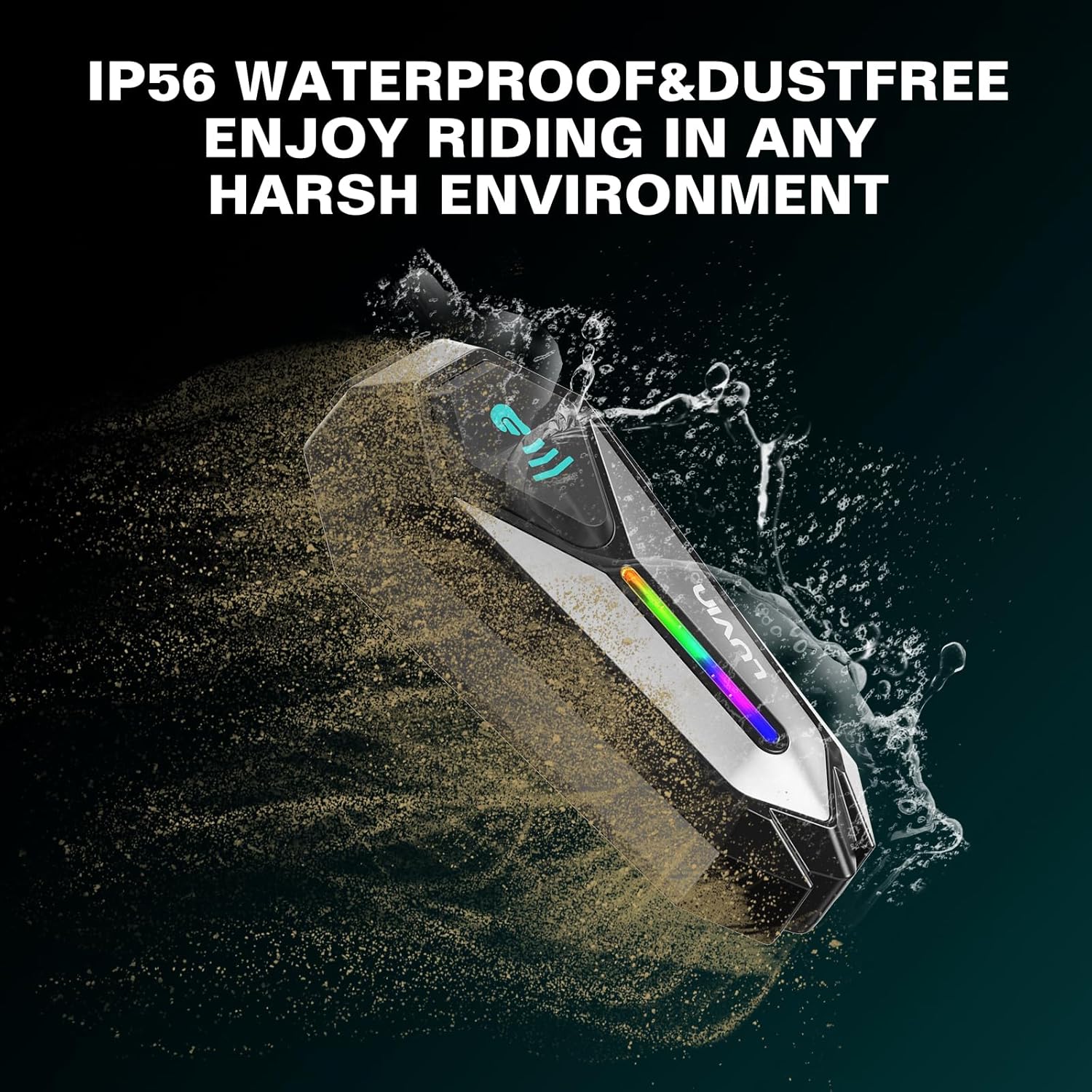
The LUVIN G8 headset is IP56 certified, making it waterproof and dustproof.
- The device is designed to withstand rain and dust exposure during normal riding conditions.
- Avoid submerging the device in water.
- Ensure the Type-C charging port cover is securely closed when not charging to maintain water resistance.
12. Maintenance
- Clean the headset unit with a soft, damp cloth. Do not use harsh chemicals or abrasive cleaners.
- Ensure the charging port is free of dust and debris.
- Store the device in a cool, dry place when not in use.
- Charge the battery at least once every three months if not used regularly to maintain battery health.
13. Troubleshooting
13.1 No Power
- Ensure the battery is charged. Connect to a charger and check the charging indicator.
- Press and hold the Power Button for the required duration (approx. 3 seconds).
13.2 Cannot Pair with Phone/Intercom
- Ensure the headset is in pairing mode (RGB lights flashing red and blue).
- Make sure other Bluetooth devices are not interfering. Turn off Bluetooth on nearby unused devices.
- For intercom pairing, ensure both units are in pairing mode before initiating connection on one.
- Try resetting the headset to factory settings (refer to specific instructions if available, usually a long press combination).
13.3 Poor Audio Quality/Noise
- Ensure speakers are correctly positioned over your ears.
- Check microphone placement to minimize wind noise.
- Verify that the speaker/microphone cable is securely connected to the main unit.
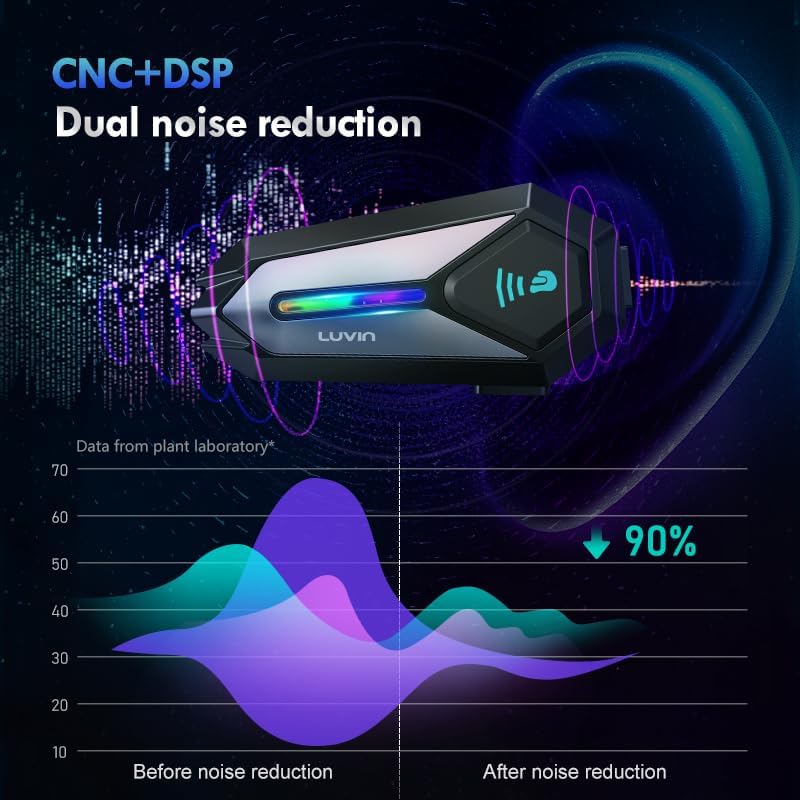
- The CVC+DSP dual noise reduction technology is active, but extreme wind conditions may still affect clarity.
14. Specifications
| Feature | Specification |
|---|---|
| Model Name | GLAXY 8 (LUS-G8) |
| Bluetooth Version | 5.3 |
| Battery Capacity | 1000mAh |
| Charging Time | Approx. 2 Hours |
| Music Playback Time | Up to 20 Hours |
| Intercom Time | Up to 15 Hours |
| Water Resistance | IP56 Waterproof & Dustproof |
| Noise Control | Active Noise Cancellation (CVC+DSP) |
| Control Method | Voice, Button |
| Connectivity Technology | Wireless (Bluetooth) |
| Product Dimensions | 1.57 x 0.79 x 3.54 inches |
| Item Weight | 0.56 Kilograms (1.23 pounds) |
15. Warranty and Support
The LUVIN G8 Motorcycle Helmet Bluetooth Headset comes with a 1-year warranty from the date of purchase. This warranty covers manufacturing defects under normal use.
- For warranty claims or technical support, please contact LUVIN customer service through your purchase platform or the official LUVIN website.
- Please retain your proof of purchase for warranty validation.
Related documentsLUS-G8

Ask a question about this manual
Ask about setup, troubleshooting, compatibility, parts, safety, or missing instructions. Manuals+ will review the question and use this page’s manual context to help answer it.