
Cubiker CK-DJ
Cubiker 55'' Electric Standing Desk User Manual
Model: CK-DJ
Introduction
Thank you for choosing the Cubiker 55'' Electric Standing Desk. This manual provides detailed instructions for assembly, operation, maintenance, and troubleshooting to ensure you get the most out of your new height-adjustable desk. Designed for comfort and productivity, this desk allows you to effortlessly switch between sitting and standing positions, promoting a healthier work environment.

Image: The Cubiker 55-inch Electric Standing Desk in Rustic Brown, showcasing its spacious desktop and sturdy frame, equipped with a control panel for height adjustment.
Important Safety Information
Please read all safety warnings before assembly and operation.
- Always use the desk with caution when adjusting the height.
- Keep fingers and other body parts away from the moving parts to prevent injury.
- Do not exceed the weight limit of 150 lbs (68 kg) for the desktop. Overloading can cause damage or instability.
- Ensure the desk is properly assembled and placed on a stable, level surface to prevent tipping.
- Do not allow children to operate the desk without adult supervision.
- Disconnect power before cleaning or performing any maintenance.
Components List
Before beginning assembly, ensure all parts are present and undamaged. Refer to the included installation manual for a detailed diagram of all components.
| Component | Quantity | Description |
|---|---|---|
| Desktop Board | 1 | The main work surface (may be a splice board). |
| Lifting Columns (Legs) | 2 | Contains the electric motor system for height adjustment. |
| Feet/Base Supports | 2 | Provides stability for the desk legs. |
| Control Panel | 1 | Buttons for height adjustment and memory presets. |
| Power Adapter & Cable | 1 set | To power the electric motor. |
| Connecting Rod/Bar | 1 | Connects the two lifting columns. |
| Desk Hooks | 2 | For hanging headphones or bags. |
| Assembly Hardware | 1 set | Screws, bolts, and tools required for assembly. |
| Installation Manual | 1 | Detailed assembly instructions. |
Setup and Assembly
The Cubiker Standing Desk is designed for straightforward assembly, typically taking 20 to 30 minutes. A Phillips screwdriver is recommended in addition to the provided tools.
- Unpack and Organize: Carefully unpack all components and lay them out on a clean, soft surface to prevent scratches. Verify all parts against the components list in the included installation manual.
- Attach Feet to Lifting Columns: Secure the base supports (feet) to the bottom of each lifting column using the provided hardware.
- Connect Lifting Columns: Attach the connecting rod/bar between the two lifting columns. Ensure it is securely fastened to provide a stable frame.
- Mount Control Panel: Install the control panel to the underside of the desktop or as indicated in the manual.
- Attach Desktop: Carefully place the desktop board onto the assembled frame. Align the pre-drilled holes and secure the desktop to the frame using the appropriate screws.
- Connect Wiring: Connect the motor cables from the lifting columns to the control panel and then connect the power adapter. Ensure all connections are firm.
- Install Accessories: Attach the two desk hooks to the desired locations on the desk frame.
- Initial Power-Up: Plug the power cable into a wall outlet. The desk may perform an initial calibration cycle.

Image: A close-up view of the desk frame and desktop, with an assembly manual open nearby, illustrating the ease of installation.
Operating Instructions
The Cubiker Electric Standing Desk features an intelligent motor system for smooth and quiet height adjustments.
Height Adjustment
- Raise Desk: Press and hold the ▲ (Up) button to raise the desk.
- Lower Desk: Press and hold the ▼ (Down) button to lower the desk.
- The desk can smoothly transition between a minimum height of 28.3 inches and a maximum height of 46.5 inches.

Image: Two Cubiker standing desks at different heights, illustrating the adjustable range from 28.3 inches to 46.5 inches.
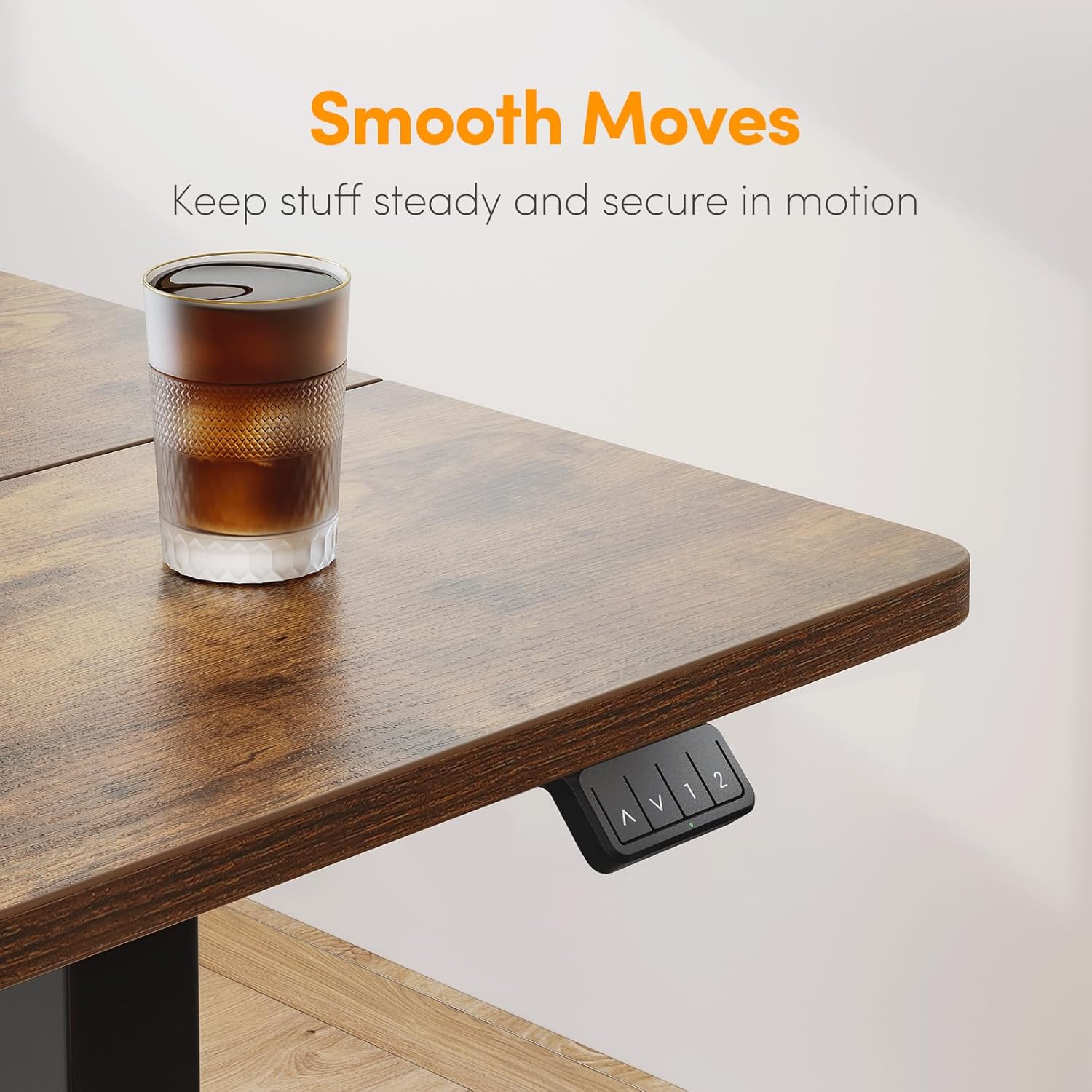
Image: A close-up of the desk surface with a glass, showing the control panel with up/down arrows and memory presets, emphasizing smooth movement.
Memory Presets
The control panel allows you to save preferred height settings for quick adjustments.
- Adjust the desk to your desired height using the Up/Down buttons.
- Press the M button (if available, or similar 'Set' button).
- Immediately press one of the numbered preset buttons (e.g., 1 or 2) to save the current height to that memory slot.
- To recall a saved height, simply press the corresponding numbered preset button. The desk will automatically move to the saved position.
Anti-Collision Feature
The desk is equipped with a crash rebound feature to protect against damage. If the desk encounters an obstacle during adjustment, it will automatically stop and reverse slightly.

Image: A desk with pencils in a holder, illustrating the anti-collision technology where the desk stops and reverses upon encountering an obstacle.
Quiet Operation
The motor operates quietly, with a noise level of ≤ 55dB (no-load), ensuring minimal disturbance in your workspace.

Image: A sleeping cat in a bed on the desk, with a graphic indicating the desk's quiet operation at 45dB compared to normal voice (60dB) and city traffic (80dB).
Maintenance
- Cleaning: Wipe the desktop and frame with a soft, damp cloth. Avoid harsh chemicals or abrasive cleaners that could damage the finish.
- Cable Management: Regularly check and organize cables to prevent tangles and ensure smooth operation. Consider using cable ties or a cable management tray.
- Lubrication: The lifting mechanism is generally maintenance-free. Do not attempt to lubricate internal components unless specifically instructed by Cubiker support.
- Inspection: Periodically inspect all screws and connections to ensure they remain tight. Retighten if necessary.

Image: A composite image highlighting additional features: two desk hooks for headphones, a cable management tray, and adjustable footrests for leveling the desk.
Troubleshooting
| Problem | Possible Cause | Solution |
|---|---|---|
| Desk does not move. | Power cable disconnected; motor cable loose; overload. | Check all power and motor connections. Reduce weight on desk. Try resetting by unplugging for 30 seconds and plugging back in. |
| Desk moves unevenly or makes unusual noise. | Loose screws; uneven load; obstruction. | Ensure all assembly screws are tight. Distribute weight evenly on the desktop. Check for any obstructions under or around the desk. |
| Anti-collision feature triggers too often. | Sensitive setting; minor obstruction. | Ensure no items are near the desk's path. Refer to the full manual for potential sensitivity adjustment (if available). |
| Control panel display error. | System error; power fluctuation. | Unplug the desk for 30 seconds, then plug it back in to reset the system. If the error persists, contact customer service. |
Specifications
- Brand: Cubiker
- Model Number: CK-DJ
- Product Dimensions: 20"D x 55"W x 27"H
- Color: Rustic Brown
- Style: Modern
- Base Material: Alloy Steel
- Top Material Type: Wood
- Finish Type: Laminated
- Item Weight: 49 Pounds
- Minimum Height: 28.3 Inches
- Maximum Height: 46.5 Inches
- Desktop Lifting Speed: 20mm/s
- No-load Noise: ≤ 55db
- Weight Capacity: 150 lbs (68 kg)
- Included Components: Headphone Hook, Installation Manual
- Required Assembly: Yes
Warranty and Support
The Cubiker 55'' Electric Standing Desk comes with a Limited Warranty. For specific details regarding warranty coverage and duration, please refer to the warranty card included with your product or contact Cubiker customer service.
If you have any questions about the quality of our products, encounter any problems during use, or require technical assistance, please do not hesitate to contact our customer service team. We are here to help!
Contact Information:
- Website: Visit the Cubiker Store on Amazon
- Please refer to your purchase documentation for direct contact methods (email/phone).
Ask a question about this manual
Ask about setup, troubleshooting, compatibility, parts, safety, or missing instructions. Manuals+ will review the question and use this page’s manual context to help answer it.