
1. Product Overview
This Inefala car stereo is an advanced multimedia system designed for the Toyota Prius C (LHD) models from 2012 to 2014. It features a 9-inch HD touch screen, Android 15 operating system, and supports various connectivity options to enhance your driving experience.

Image 1.1: Overview of the Inefala car stereo features and compatibility with Toyota Prius C 2012-2014.
2. Package Contents
Verify that all items listed below are included in your package. If any items are missing or damaged, please contact customer support.
- 1 x Inefala Android Radio for Toyota Prius C
- 1 x Power Cable
- 1 x CANBUS Decoder
- 1 x Original USB Cable
- 1 x RCA Harness
- 1 x GPS Antenna
- 1 x AHD Backup Camera
- 1 x External Microphone
- 1 x Rear Camera Input Cable
- 2 x USB Cables
- 1 x Installation Tool Set

Image 2.1: Visual representation of all components included in the Inefala car stereo package.
3. Installation Guide
3.1 Pre-Installation Check
Before beginning installation, perform a quick test:
- Combine the red and yellow wires of the car stereo and connect them to the positive pole of a 12V battery.
- Connect the black wire to the negative pole of the battery.
- If the car stereo functions normally and the screen lights up, proceed with installation. If not, recheck connections and contact support.
Important Tip:
- Double-check that the provided power cable port matches your original car's port.
- Avoid connecting all sockets if they don't fit, as the harness may contain spare sockets for different car models.
- If the wiring harness is different or accessories are missing/damaged, contact customer service.
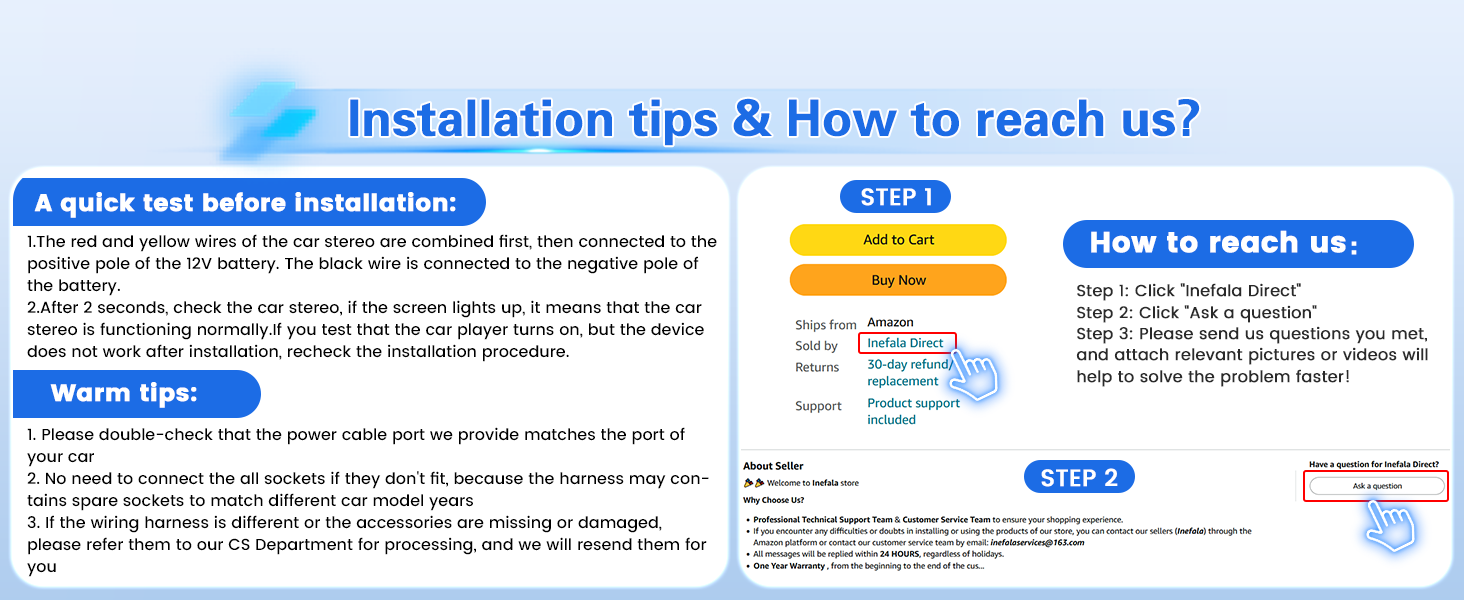
Image 3.1: Essential pre-installation checks and contact information for support.
3.2 Wiring Diagram and Port Details
Refer to the following diagrams for correct wiring and port identification.
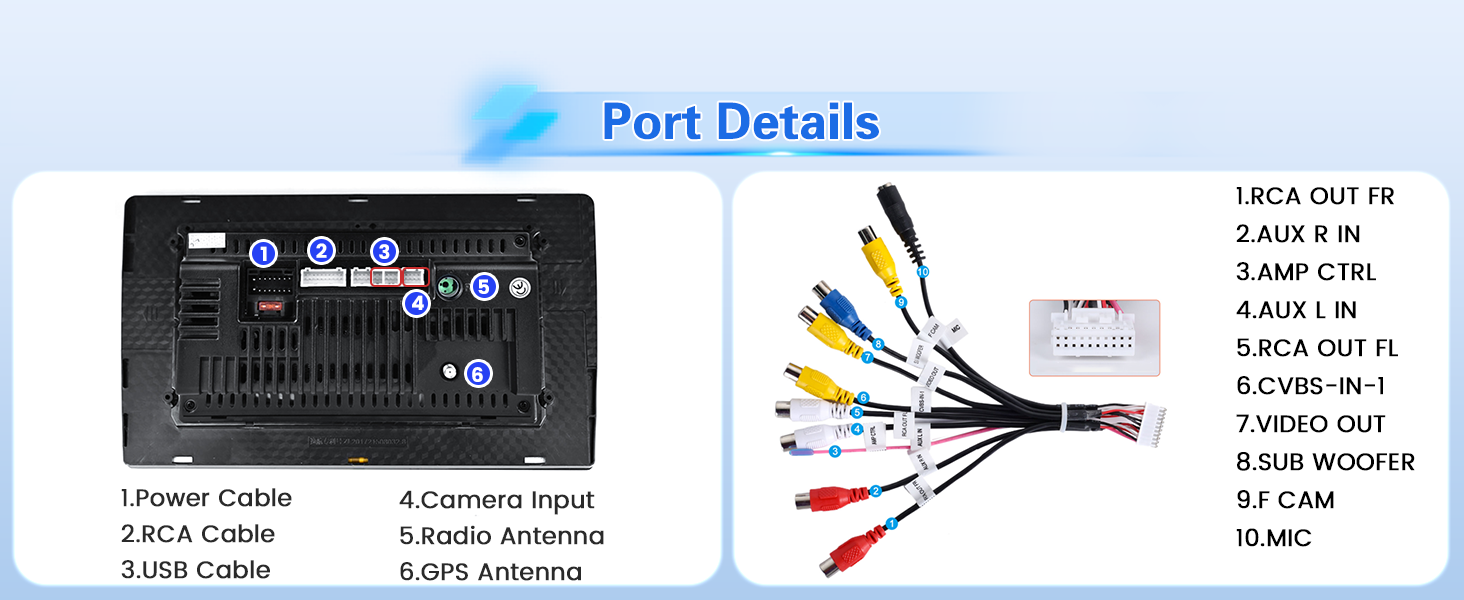
Image 3.2: Detailed view of the car stereo's rear ports and corresponding wiring harness connections.
3.3 Backup Camera Connection
The reversing input must be plugged in even if the reversing camera is not used, as it can affect WiFi and Bluetooth signals. Follow these steps to connect the AHD backup camera:
- Cable 1 and Cable 5: Connect to the positive pole of the car reversing light cable.
- Cable 2: Connect to the negative pole of the car reversing light cable.
- Cable 3 and Cable 4: Connect to the reverse trigger wire of the power cable. No need to connect if without this wire. Pull it out and connect it if the last step doesn't work.

Image 3.3: Diagram illustrating the correct wiring for the AHD backup camera.
3.4 Steering Wheel Control Setup
To enable steering wheel controls:
- Without CANBUS box: Activation of steering wheel controls requires key learning in settings.
- With CANBUS box:
- Connect the 20-pin white port in the power cable to the CANBUS itself, and the remaining 8-pin white port to the corresponding port on the back of the radio.
- Match the car model in Settings > Factory Setup (Password 1234) > Can Settings.
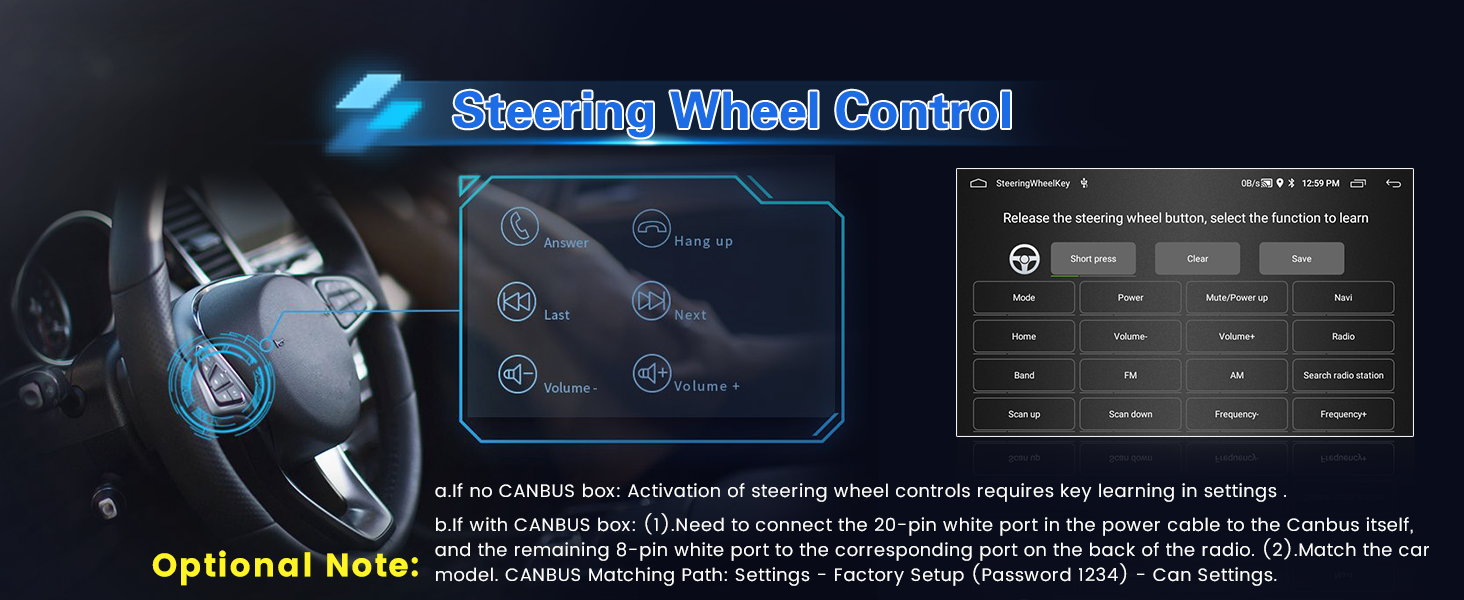
Image 3.4: Guide for configuring steering wheel controls, with and without a CANBUS decoder.

Image 3.5: Visual representation of the steering wheel control learning interface and the backup camera display.
3.5 Before and After Installation Comparison
Observe the visual transformation of your car's dashboard after installing the Inefala car stereo.

Image 3.6: Comparison showing the car's dashboard before and after the Inefala car stereo installation.
4. Key Features and Operation
4.1 Display and User Interface
The 9-inch HD touch screen features a 1024x600 resolution and supports 1080P video playback. The blue main UI offers a modern aesthetic with 28 customizable desktop themes for a personalized experience.

Image 4.1: Demonstrates the variety of desktop themes, audio EQ settings, and the HD split-screen functionality.
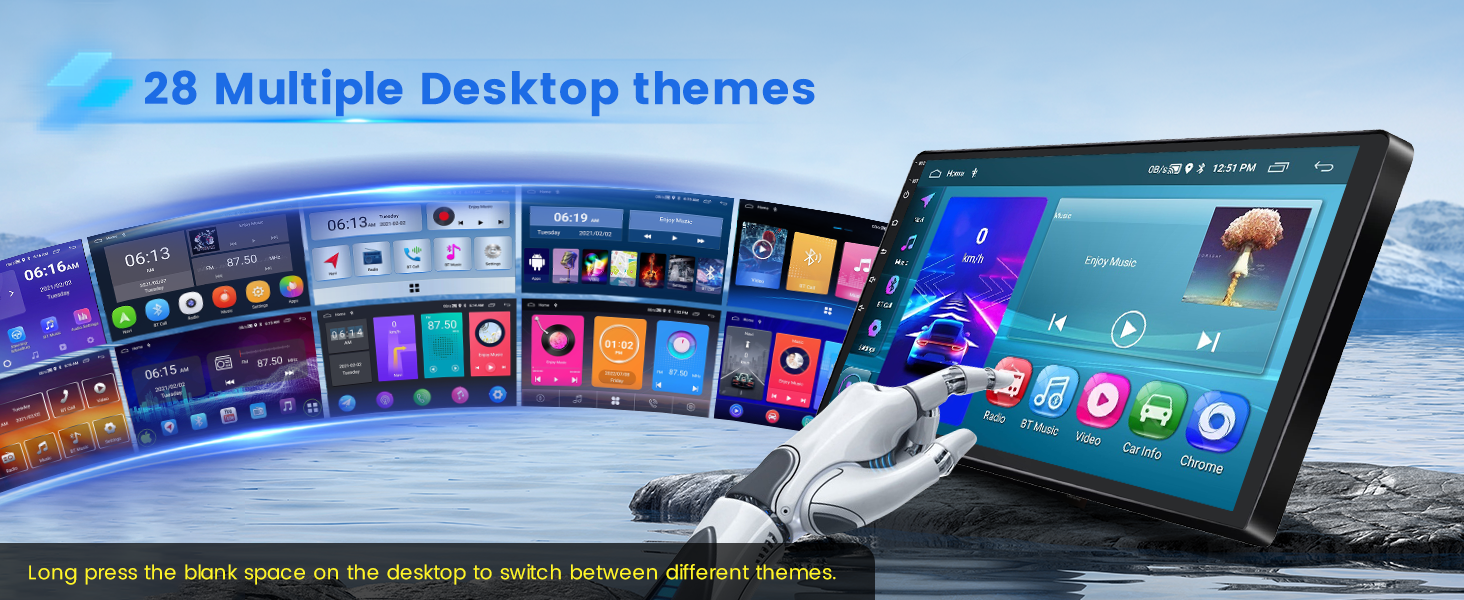
Image 4.2: Illustrates the 28 available desktop themes, allowing users to customize the interface. Long press on the desktop to switch themes.

Image 4.3: Highlights the 1024x600 resolution of the touch screen compared to lower resolution displays.
4.2 Wireless CarPlay & Android Auto
The stereo supports both wireless and wired CarPlay and Android Auto. This allows for voice control and access to phone functions like music, navigation, calls, and messages via WiFi hotspot or USB cable.
- Wireless Connection: Turn on your phone's Bluetooth, search for the car stereo's Bluetooth, and pair it. Click the "CPLink" / "Android Auto" app on the car stereo. (For Android phones, you may need to install the "Android Auto" app in advance). After a few seconds, the connection will happen automatically.
- Wired Connection: Connect your iOS/Android phone via the phone's original USB cable. Click the "CPLink" / "Android Auto" app on the car stereo. After a few seconds, the connection will happen automatically.
Note: For some Samsung and Huawei phones, Android Auto and Mirror Link may not be supported. The phone needs to support Google Services and install the "Android Auto" app.

Image 4.4: User interfaces for Apple CarPlay, Android Auto, and Mirror Link functionalities.

Image 4.5: Detailed instructions for establishing wireless and wired connections for CarPlay and Android Auto.
4.3 Mirror Link
Mirror Link allows you to synchronize your mobile phone's content, such as videos and navigation, to the car stereo's larger screen via the phone's original USB cable. iOS phones support one-way control, while Android phones support two-way control.
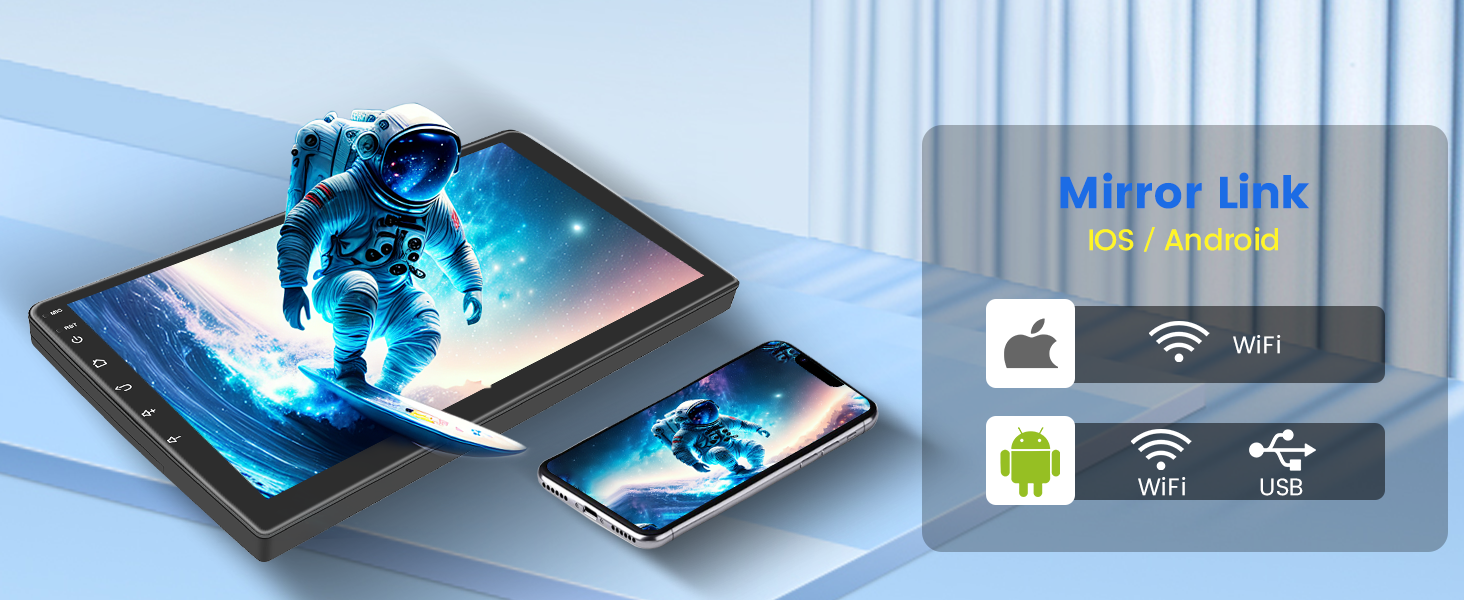
Image 4.6: Explanation of Mirror Link, showing how content from iOS and Android phones can be displayed on the car stereo.
4.4 GPS Navigation & WiFi Connection
The system offers free offline maps (like Waze) and online maps for navigation. Connect to WiFi via a hotspot to download apps like YouTube and TikTok for entertainment. The split-screen function allows simultaneous use of multiple features, such as navigation and FM radio.

Image 4.7: Displays the GPS navigation interface and icons representing various map applications, along with WiFi connection capabilities.
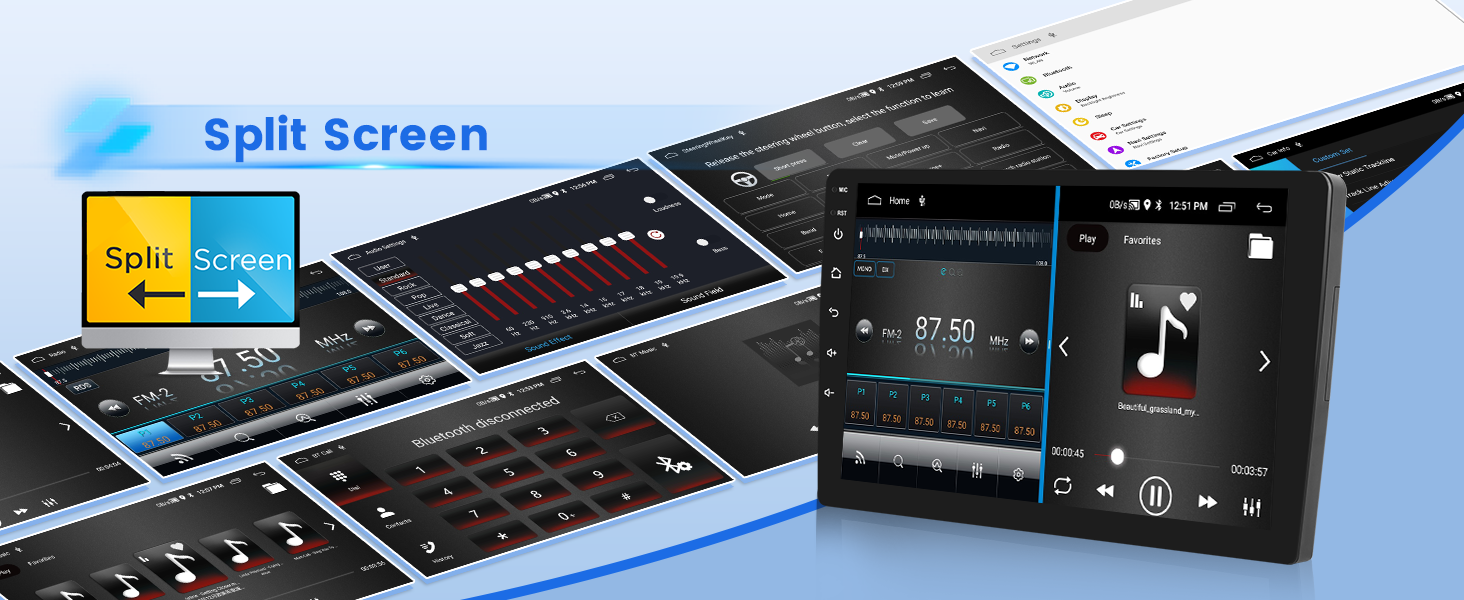
Image 4.8: Demonstrates the split-screen feature, allowing two applications to be viewed simultaneously on the display.
4.5 Built-in Bluetooth & FM/RDS Radio
Bluetooth 4.2 enables music playback, hands-free calls, and phonebook download. The FM/RDS radio allows you to listen to music, weather forecasts, traffic updates, and news. You can save up to 18 favorite radio stations.

Image 4.9: Shows the Bluetooth call interface and the FM/RDS radio tuner with station presets.
4.6 Audio Settings (EQ)
The device offers adjustable EQ sound effects, including presets like Pop, Rock, Jazz, Classical, and more, for an enhanced listening experience. You can also customize the sound field.

Image 4.10: Visual representation of the audio equalizer settings, showing frequency adjustments and sound field control.
4.7 USB DVR Support
The car stereo supports an optional USB DVR (Digital Video Recorder) for recording driving footage, enhancing safety and providing evidence in case of incidents.
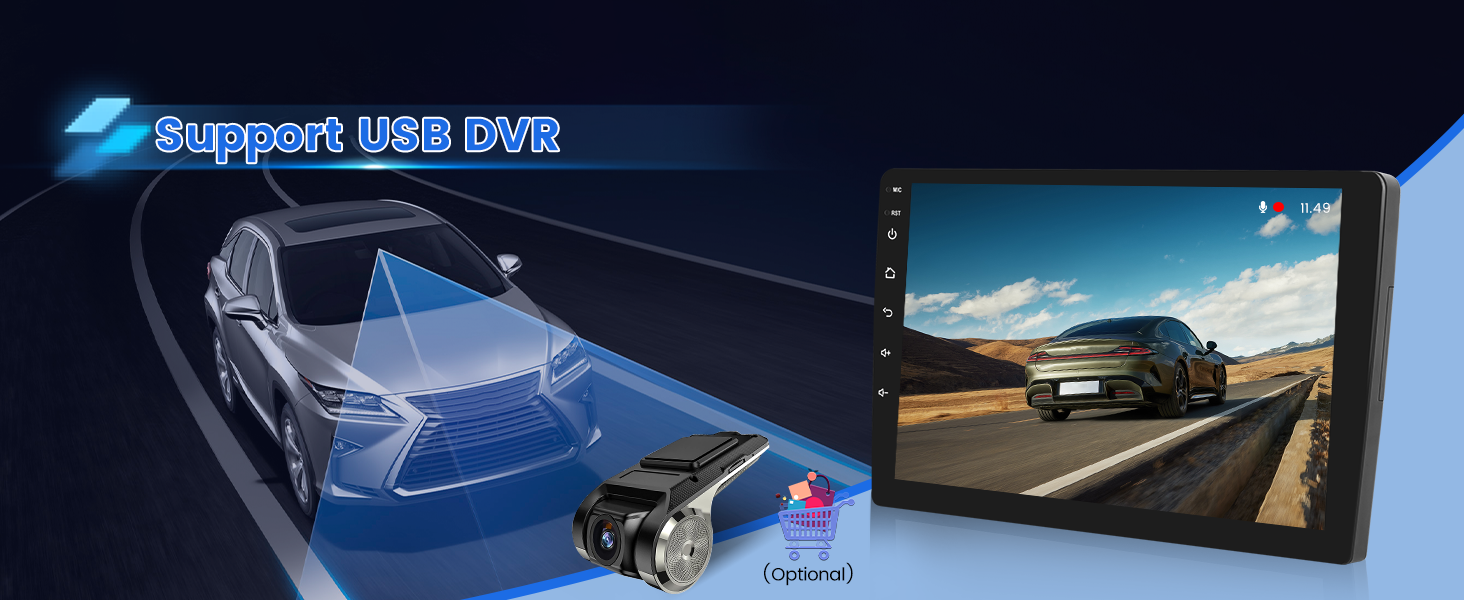
Image 4.11: Illustrates the car stereo's compatibility with an optional USB DVR for recording video.
4.8 Interface Demonstration Video
Watch this video for a comprehensive demonstration of the car radio's various functions and user interface.
Video 4.1: Demonstration of the Inefala Android car radio's user interface, including desktop themes, music playback, audio settings, Bluetooth, and navigation.
5. Specifications
| Feature | Specification |
|---|---|
| Operating System | Android 15 |
| RAM + ROM | 2GB RAM + 64GB ROM |
| Display Size | 9 Inches |
| Screen Resolution | 1024*600 |
| Video Playback | 1080P Supported |
| Connectivity | Bluetooth 4.2, USB, Wi-Fi, Wireless |
| Special Features | CarPlay, Android Auto, Mirror Link, GPS Navigation, FM/RDS Radio, EQ Setting, 28 Desktop Themes, AHD Backup Camera Support, Steering Wheel Learning, Split Screen |
| Mounting Type | Dashboard Mount |
| Vehicle Service Type | Car (Toyota Prius C 2012-2014) |
| Warranty | 1 Year Warranty |
6. Troubleshooting
If you encounter issues with your Inefala car stereo, refer to the following common solutions:
- No Power: Ensure all power cables are securely connected. Recheck the pre-installation test steps with a 12V battery. Verify vehicle's fuse box.
- No Sound: Check speaker connections. Verify audio settings (EQ, volume levels). Ensure the RCA harness is correctly connected if using external amplifiers.
- Bluetooth/WiFi Issues: Ensure the reversing input is plugged in, even if no camera is used, as it affects wireless signals. Check Bluetooth visibility on your phone and ensure the car stereo's Bluetooth is enabled. For WiFi, verify hotspot connection.
- CarPlay/Android Auto Not Connecting: For wired connections, use the phone's original USB cable. For wireless, ensure Bluetooth is paired first. Some Samsung/Huawei phones may have compatibility issues; ensure Google Services and Android Auto app are installed.
- Steering Wheel Controls Not Working: If using a CANBUS box, ensure it's correctly wired and the car model is matched in Settings > Factory Setup (Password 1234) > Can Settings. If no CANBUS, perform key learning in settings.
- Backup Camera Display Issues: Verify the camera's power and video signal connections. Ensure the reverse trigger wire is correctly connected.
For persistent issues, please contact customer support.
7. Warranty and Support
Your Inefala car stereo comes with a 1-year warranty from the date of purchase. For any technical support, warranty claims, or questions, please reach out to our customer service team.
How to Reach Us:
- Go to the product page on Amazon.
- Click on the seller name (e.g., "Inefala Direct").
- Click "Ask a question" to send us your inquiries. Please include relevant pictures or videos to help us resolve your problem faster.

Image 7.1: Visual guide on how to contact customer support via Amazon.