
1. Product Overview
The Morpheus 360 Sanctuary ANC Wireless UC Headset is designed for professional communication and audio playback. It features Active Noise Canceling (ANC), a noise-canceling boom microphone, and Bluetooth connectivity with an included USB dongle for unified communication platforms.
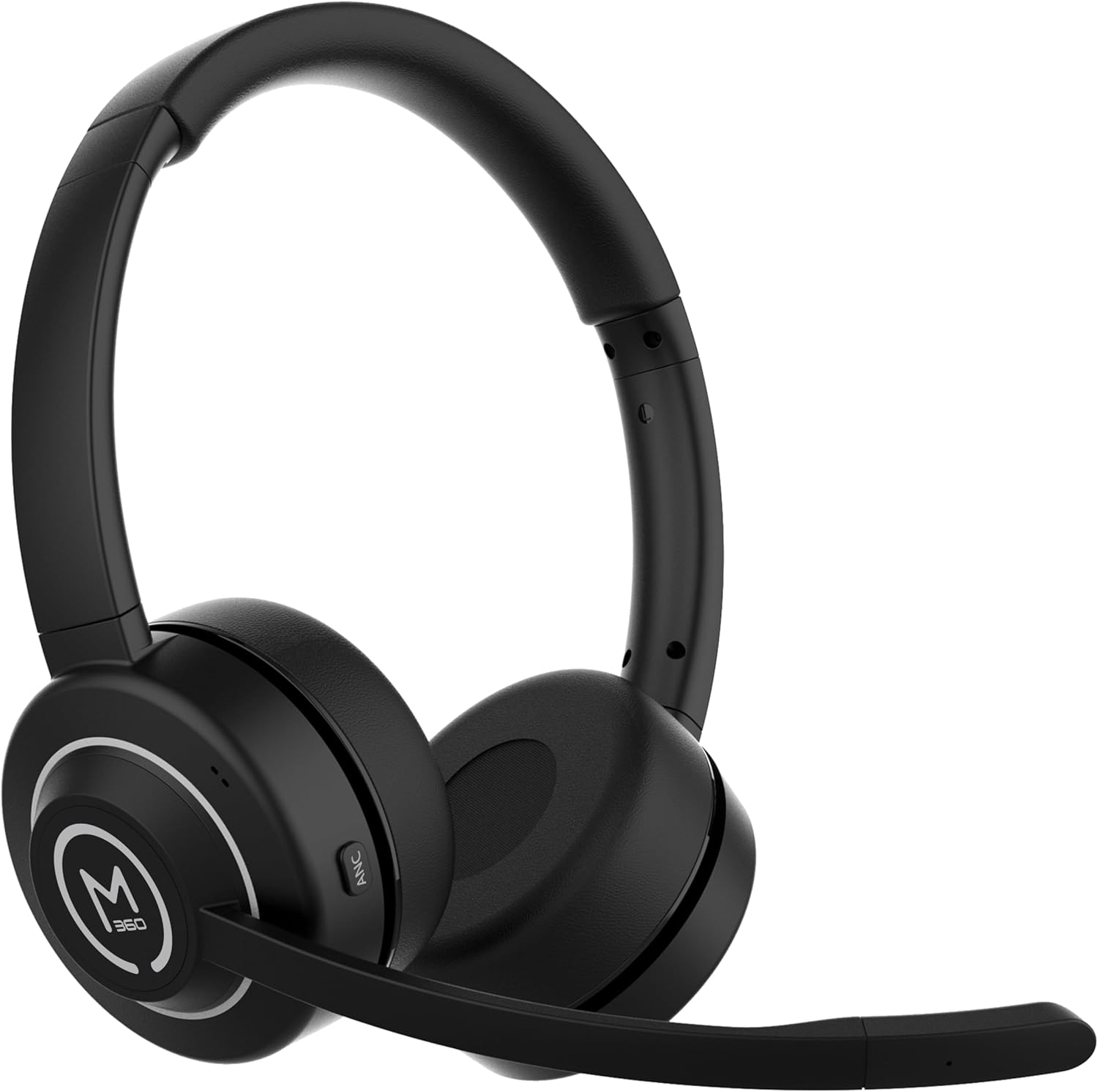
Image 1.1: Front view of the Morpheus 360 Sanctuary ANC Wireless UC Headset.
2. What's in the Box
- Morpheus 360 Sanctuary ANC Wireless UC Headset
- USB Bluetooth Dongle
- Charging Stand
- USB-C Charging Cable

Image 2.1: The dedicated charging stand for the headset.
3. Setup
3.1 Charging the Headset
- Connect the USB-C charging cable to the charging stand and a power source.
- Place the headset onto the charging stand, ensuring proper alignment. The headset will begin charging.
- A full charge provides approximately 55 hours of battery life.
Note: The headset cannot be used while it is charging on the stand.
3.2 Pairing with Devices
The headset can be paired via Bluetooth or using the included USB dongle.
Bluetooth Pairing:
- Ensure the headset is powered off.
- Press and hold the power button until the LED indicator flashes blue and red, indicating pairing mode.
- On your device (smartphone, tablet), go to Bluetooth settings and select "Morpheus 360 Sanctuary" from the list of available devices.
- Once connected, the LED indicator will show a solid blue light.
USB Dongle Pairing (for PC/Mac):
- Plug the USB Bluetooth dongle into an available USB port on your computer.
- Power on the headset. It should automatically connect to the dongle. The LED on the dongle will indicate a successful connection.
- Ensure the headset is selected as the audio input and output device in your computer's sound settings.
Caution: Handle the USB dongle with care. Repeated insertion and removal, or improper handling, may cause the dongle to separate.
3.3 Wearing the Headset
- Adjust the headband to fit comfortably over your head.
- Position the earcups so they sit gently on your ears. The eco-leather ear cushions are designed for comfort.
- Adjust the flexible boom microphone to be near your mouth for optimal voice pickup.

Image 3.1: Side view of the headset highlighting the boom microphone and control buttons.
4. Operating the Headset
4.1 Power On/Off
- Power On: Press and hold the power button for 3 seconds.
- Power Off: Press and hold the power button for 5 seconds.
4.2 Active Noise Canceling (ANC)
The ANC feature detects and reduces background noise by up to 20dB, helping you focus. This is effective against consistent low-frequency sounds like office chatter or keyboard noise.
- Activate ANC: Press the ANC button located on the earcup.
- Deactivate ANC: Press the ANC button again.
4.3 Transparency Mode
Transparency Mode allows you to hear your surroundings without removing the headset, useful for quick conversations or awareness.
- Activate/Deactivate Transparency Mode: Refer to the specific button on your headset (often shared with ANC or a dedicated button).
4.4 Call Management
- Answer/End Call: Press the Multi-function button once.
- Reject Call: Press and hold the Multi-function button for 2 seconds.
- Mute/Unmute Microphone: Use the dedicated mute button on the boom microphone or earcup.
The noise-canceling boom microphone uses specialized technology to filter out background noise from your voice during calls.
4.5 Music Playback
- Play/Pause: Press the Multi-function button once.
- Next Track: Press and hold the Volume Up button.
- Previous Track: Press and hold the Volume Down button.
4.6 Volume Control
- Increase Volume: Press the Volume Up button.
- Decrease Volume: Press the Volume Down button.
5. Maintenance
5.1 Cleaning
- Wipe the headset and ear cushions with a soft, dry, lint-free cloth.
- Do not use harsh chemicals, cleaning solvents, or strong detergents.
- Avoid getting moisture into any openings.
5.2 Storage
- Store the headset in a cool, dry place away from direct sunlight and extreme temperatures.
- When not in use, placing the headset on its charging stand can help keep it organized and ready for use.
5.3 Battery Care
- To prolong battery life, avoid fully discharging the headset frequently.
- Charge the headset regularly, even if not used for extended periods.
6. Troubleshooting
6.1 Connectivity Issues
- Headset not pairing: Ensure the headset is in pairing mode (flashing blue/red LED). Check your device's Bluetooth settings.
- USB Dongle not connecting: Ensure the dongle is fully inserted into the USB port. Try a different USB port. Re-pair the headset if necessary.
- Intermittent connection: Ensure no major obstructions are between the headset and your device/dongle. Move closer to the connected device.
6.2 Audio Issues
- No sound: Check volume levels on both the headset and your connected device. Ensure the headset is selected as the audio output device.
- Microphone not working: Ensure the microphone is not muted. Check that the headset is selected as the audio input device in your computer's sound settings.
6.3 Active Noise Canceling (ANC) Performance
- ANC is most effective against consistent low-frequency sounds. It may not completely block out human speech or sudden loud noises.
- Ensure the earcups are properly seated on your ears for optimal ANC performance.
6.4 USB Dongle Durability
Some users have reported the USB dongle separating. To prevent this, handle the dongle gently when inserting or removing it from USB ports or the charging stand. Avoid pulling it out by the plastic casing alone.
6.5 Battery Alerts
The headset may issue 'Charge headset' warnings when the battery level is around 30%. This is normal behavior to prompt early recharging.
7. Specifications
| Model Number | HS6750ANC |
| Brand | Morpheus 360 |
| Color | Black |
| Material | Faux Leather, Plastic, Stainless Steel |
| Battery Life | Up to 55 hours |
| Active Noise Canceling | Up to 20dB reduction |
| Microphone | Noise Canceling Boom Microphone |
| Connectivity | Bluetooth, USB Dongle |
| UPC | 856816008590 |
8. Warranty Information
The Morpheus 360 Sanctuary ANC Wireless UC Headset (Model HS6750ANC) comes with a 1 Year Parts and Labor warranty from the date of purchase. Please retain your proof of purchase for warranty claims.
9. Support
For further assistance, technical support, or warranty inquiries, please refer to the official Morpheus 360 website or contact their customer service department. Contact information can typically be found on the product packaging or the brand's official online presence.