
1. Introduction
The ASHATA HDM69 HDMI AV to RF Modulator Converter is designed to convert digital HDMI signals and analog AV signals into RF (coaxial) signals. This allows you to connect modern devices such as streaming media players, game consoles, or DVD players to older televisions that only have RF coaxial inputs. It supports various resolutions and output formats (PAL/NTSC) to ensure compatibility with different TV systems.
This device facilitates long-distance signal transmission, enabling you to view content from your HDMI or AV sources on TVs located in different rooms without requiring complex driver installations. It offers a simple plug-and-play solution for your audio and video distribution needs.

Image 1.1: The HDM69 modulator can be used in various settings to connect modern sources to older TVs.
2. Safety Information
- Read all instructions carefully before operating the device.
- Do not expose the device to moisture, rain, or extreme temperatures.
- Ensure proper ventilation to prevent overheating.
- Use only the provided power adapter.
- Do not attempt to disassemble or repair the unit yourself. Refer all servicing to qualified personnel.
- Keep the device away from strong magnetic fields.
3. Package Contents
Please check the package for the following items:
- 1 x ASHATA HDM69 HDMI AV to RF Modulator Converter
- 1 x User Manual
4. Product Overview
The HDM69 modulator features multiple input and output ports, along with control buttons for configuration. Familiarize yourself with the device's layout before proceeding with setup.

Image 4.1: Front view of the HDM69 Modulator, highlighting the input and control panel.

Image 4.2: Top-down view of the HDM69 Modulator, illustrating the layout of ports and control buttons.
4.1. Ports and Connectors
- HDMI Input: Connect your HDMI source device.
- AV Input (RCA): Connect your analog audio (red/white) and video (yellow) sources.
- RF Output (F-female): Connect to the coaxial input of your television.
- ANT IN (F-female): For connecting an external antenna or cable TV signal (optional, for pass-through).
- Power Input: For connecting the power adapter.
4.2. Control Buttons
- Audio/Video IN Switch: Toggles between HDMI and AV input sources.
- RF Adj: Adjusts the RF output level.
- Video Adj: Adjusts video brightness.
- Audio Adj: Adjusts audio volume.
- UP/DOWN: Navigates through channels or settings.
- CATV/TV/AU: Selects between CATV, TV, or Audio modes.
- LOCK: Locks the current channel or setting.
5. Setup Instructions
Follow these steps to connect your ASHATA HDM69 modulator:
- Connect Input Source:
- For HDMI source: Connect an HDMI cable from your source device (e.g., game console, media player) to the HDMI Input port on the modulator.
- For AV source: Connect RCA cables (yellow for video, red/white for audio) from your source device (e.g., VCR, DVD player) to the Audio/Video IN ports on the modulator.

Image 5.1: HDMI and AV (RCA) input ports.
- Connect to TV: Connect a coaxial cable from the RF OUT port on the modulator to the antenna/cable input (RF IN) on your television.

Image 5.2: RF output ports for connecting to a television.
- Connect Power: Plug the power adapter into the modulator's power input and then into a wall outlet. The device will power on automatically.
- Tune TV: Turn on your television and select the appropriate input source (usually 'Antenna' or 'Cable'). Scan for channels or manually tune to the channel output by the modulator. The modulator typically outputs on a VHF/UHF channel.
5.1. Setup Video Guide
Video 5.1: A detailed guide on connecting and setting up the HDMI AV to RF Modulator. (Duration: 2:18)
6. Operating Instructions
Once connected, you can operate the modulator using its control buttons.
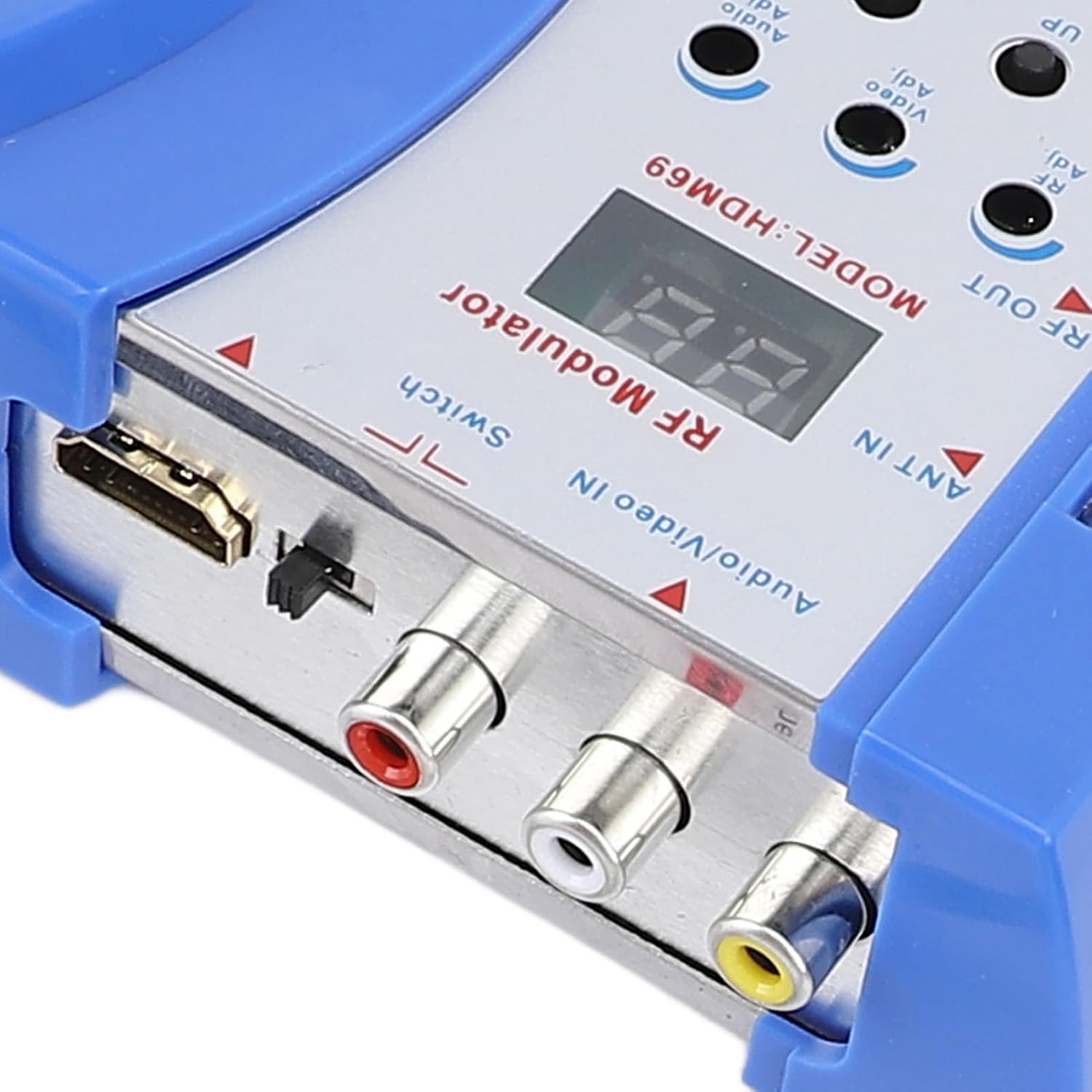
Image 6.1: Control buttons for adjusting settings.
- Select Input Source: Use the Audio/Video IN Switch to toggle between HDMI and AV inputs. Ensure the correct input is selected for your source device.
- Adjust Output Channel: Use the UP/DOWN buttons to select the desired RF output channel. This channel should match the one you tuned your TV to.
- Select TV Standard: Press the CATV/TV/AU button to cycle through PAL and NTSC TV format output options, ensuring compatibility with your television's standard.
- Adjust Audio/Video Levels: Use the Audio Adj and Video Adj buttons to fine-tune the output audio volume and video brightness for optimal viewing and listening experience.
- Lock Settings: Press the LOCK button to prevent accidental changes to the current channel or settings.
6.1. Resolution Support
The modulator supports various resolutions, allowing flexibility for different viewing needs:
- 1080P
- 1080i
- 720P
- 576P
- 576i
- 480p
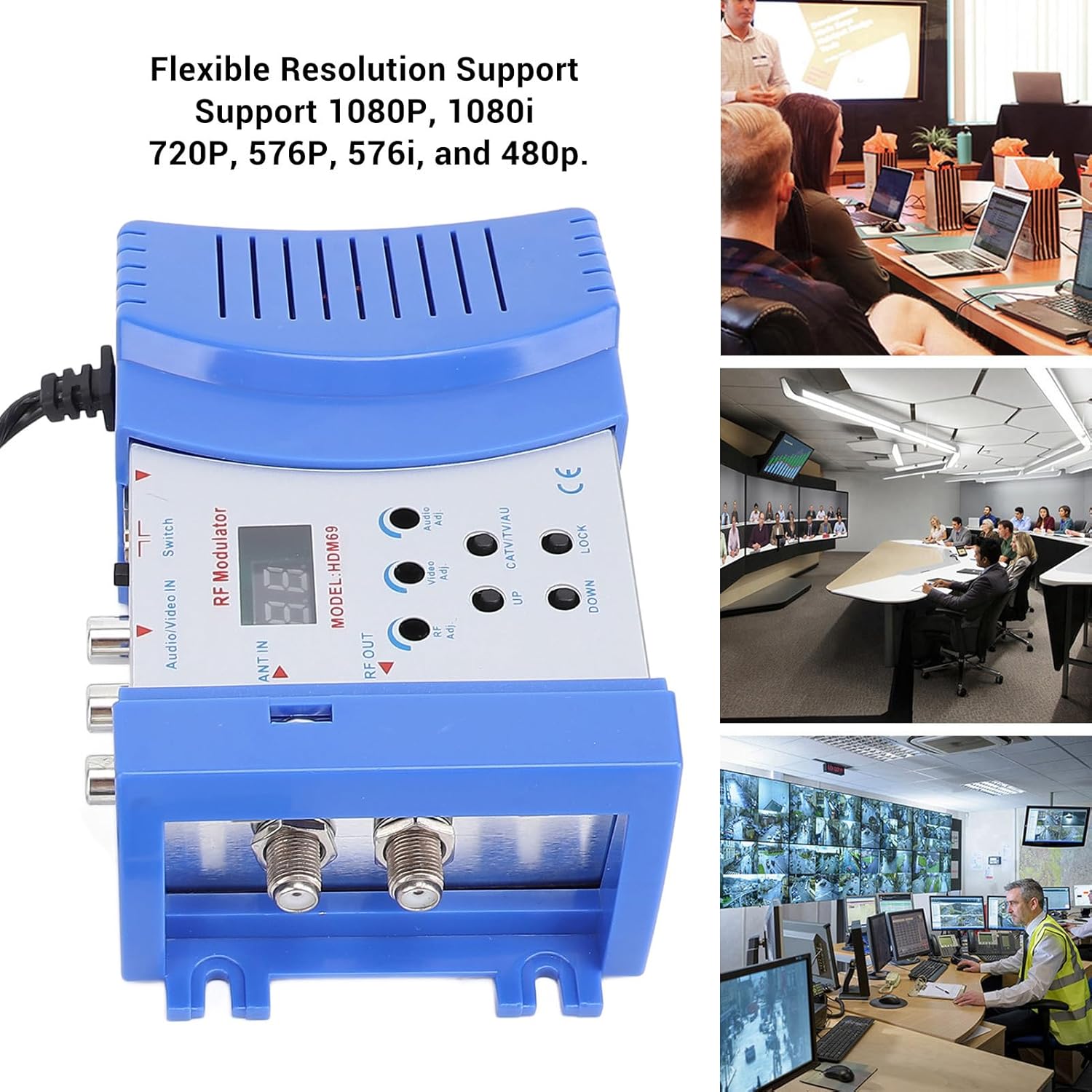
Image 6.2: The modulator supports a range of resolutions for flexible output.
6.2. Operation Video Guide
Video 6.3: A comprehensive video demonstrating the operation and settings adjustment of the modulator. (Duration: 3:05)
Video 6.4: Quick demonstration of input switching and basic adjustments. (Duration: 0:39)
Video 6.5: Short clip showing the modulator in action. (Duration: 0:14)
7. Troubleshooting
If you encounter issues with your HDM69 modulator, please refer to the following common problems and solutions:
- No Signal on TV:
- Ensure all cables (HDMI/AV, RF, power) are securely connected.
- Verify the modulator is powered on.
- Check that your TV is set to the correct input source (Antenna/Cable) and tuned to the correct channel output by the modulator.
- Confirm the correct input source (HDMI or AV) is selected on the modulator using the Audio/Video IN Switch.
- Poor Picture/Sound Quality:
- Adjust the Video Adj and Audio Adj buttons on the modulator.
- Ensure the input signal from your source device is clean and strong.
- Check the coaxial cable for damage or loose connections.
- Try a different RF output channel if there is interference.
- Incorrect Color/Display:
- Verify that the TV standard (PAL/NTSC) selected on the modulator matches your TV's standard using the CATV/TV/AU button.
8. Specifications
| Feature | Specification |
|---|---|
| Brand Name | ASHATA |
| Model Number | ASHATAto657819fi-11 (HDM69) |
| Frequency Range | 170-860MHz |
| Input Level Range | 65-95 dBuV |
| TV Standard Format | PAL/NTSC |
| Frequency Response | 47-868MHz |
| Bandwidth | 6MHz, 7MHz, 8MHz |
| Output Level | 80-95 dBuVadj |
| Input Level | 80%±10% modulation 0.8Vp-p |
| Sound System | M=4.5MHz, B/G=5.5MHz, I=6.0MHz, D/K=6.5MHz |
| Input Ports | HD Multimedia Interface and CVBS (RCA) |
| RF Input | F-female |
| RF Output | F-female |
| Input Resolution Support | 1080P/1080i/720P/576P/576i/480p |
| HD Multimedia Interface Version | 1.3 |
| HDCP Version | 1.3 |
| Product Dimensions | 7.09 x 5.12 x 2.36 inches |
| Item Weight | 12.8 ounces |
9. Maintenance
- Keep the device clean by wiping it with a soft, dry cloth. Do not use liquid cleaners or aerosols.
- Ensure the device is unplugged before cleaning.
- Store the modulator in a cool, dry place when not in use.
10. Warranty and Support
For warranty information or technical support, please contact ASHATA customer service through your retailer or the official ASHATA website. Please have your product model number (HDM69) and purchase details ready when contacting support.