
Introduction
This manual provides detailed instructions for the installation, operation, and maintenance of your WXWBFAO Android 13 Car Stereo for Fiat 500X (2014-2019 models). Please read this manual thoroughly before use to ensure proper functionality and to maximize your experience with the device.
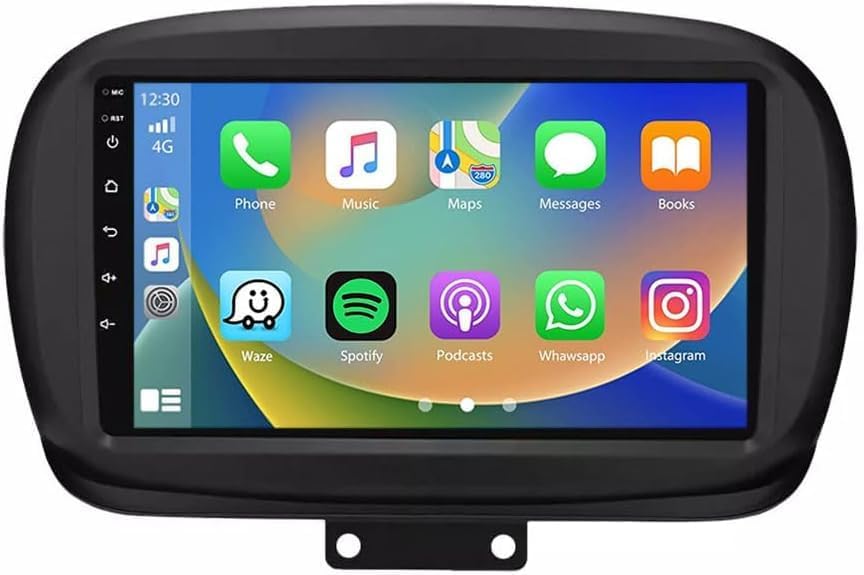
Image: The WXWBFAO Android 13 Car Stereo main unit, featuring a 9-inch touchscreen display with various application icons.
Setup
1. What's in the Box
Carefully unpack the contents and verify all items are present:
- 1 × ISO Wiring Harness
- 1 × RCA Cable
- 1 × Original USB Adapter
- 2 × USB Cable
- 1 × Radio Antenna Cable
- 1 × CANbus Cable
- 1 × GPS Antenna
- 1 × CANbus Box
- 1 × User Manual

Image: A diagram illustrating the various components included in the package, such as the 9-inch Android device, power cord, RCA cables, microphone, USB cables, setting tool, GPS antenna, reversing camera input cable, reverse camera, and user manual.
2. Installation
The WXWBFAO Car Stereo is designed for direct fitment in Fiat 500X models from 2014-2019. Professional installation is recommended to ensure correct wiring and functionality.
- Preparation: Disconnect the vehicle's battery before starting any electrical work.
- Remove Original Radio: Carefully remove the factory radio unit and trim panels.
- Connect Wiring Harness: Connect the provided ISO wiring harness to the vehicle's existing wiring. Ensure all connections are secure. The CANbus cable and box should be connected as per the vehicle's specific requirements to enable steering wheel controls and other integrated features.
- Connect Peripherals: Attach the GPS antenna, radio antenna, USB cables, and reverse camera cable (if installing the reverse camera).
- Mount New Stereo: Securely mount the WXWBFAO Android 13 Car Stereo into the dashboard opening.
- Test Functionality: Reconnect the vehicle's battery and power on the stereo to test all functions before reassembling the dashboard trim.
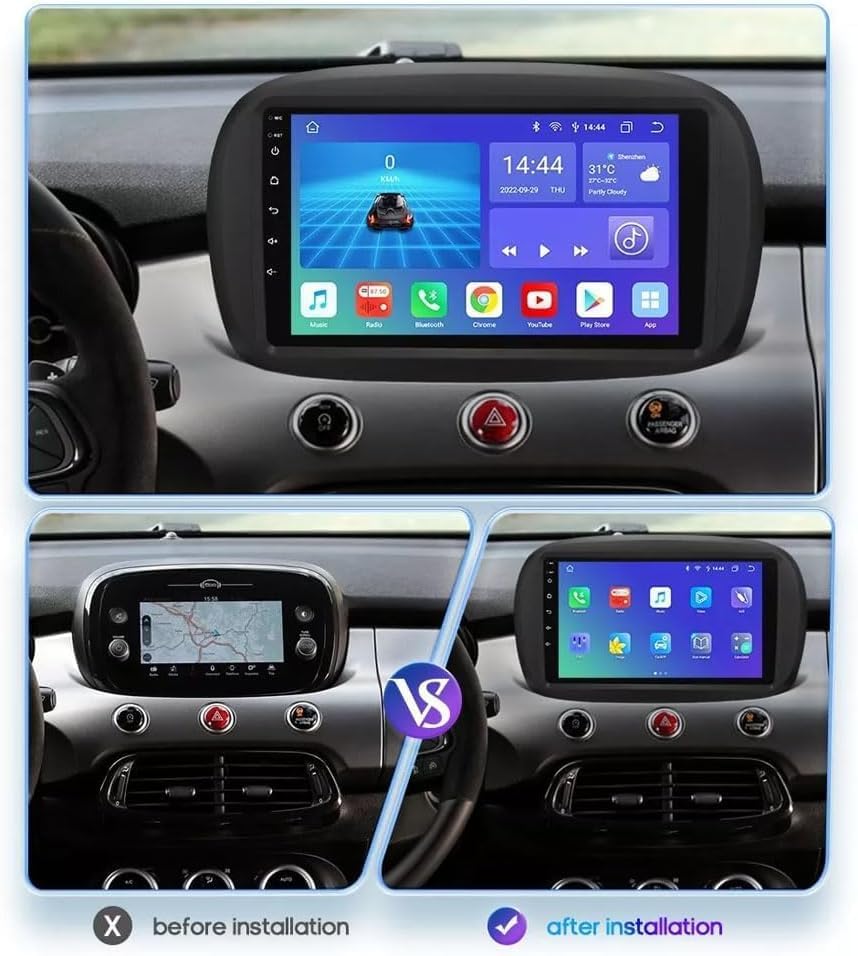
Image: A comparison showing the car dashboard before and after the installation of the WXWBFAO Android 13 Car Stereo, highlighting the larger, integrated display.
Operating Instructions
1. Basic Controls and Interface
The unit features a 9-inch 2.5D 1080P HD touchscreen. Navigate the system by tapping, swiping, and pinching on the screen, similar to a smartphone. The main interface provides access to various applications and settings.

Image: Displays various user interface options and highlights support for iOS Carplay, Android Auto, and Phone Link (Mirror Link) via wireless or wired connections.
2. Steering Wheel Control
After connecting the device's SWC (Steering Wheel Control) cable, you can configure the original steering wheel buttons to control the stereo functions such as volume, track skipping, and call management. Access the 'Steering Learn' option in the Android settings to map the buttons.

Image: Illustrates the process of setting up steering wheel controls, showing the 'Steering Learn' menu on the car stereo screen.
3. Wireless Carplay & Wired Android Auto
The unit supports both wireless Carplay and wired Android Auto, allowing seamless integration with your smartphone. This enables access to navigation, calls, messages, and music directly from the stereo's display.
- Wireless Carplay: For iOS devices, connect via Bluetooth and then follow the on-screen prompts to establish a wireless Carplay connection.
- Wired Android Auto: For Android devices, connect your phone via a USB cable. Ensure Android Auto is installed on your phone.

Image: Displays the user interfaces for both Carplay and Android Auto, showing common apps like Phone, Music, Maps, and Messages.
4. GPS Navigation & WiFi Connectivity
The stereo comes with a built-in offline map of North America. For online navigation and real-time traffic updates, connect the unit to a WiFi network (e.g., via your phone's hotspot). You can also install or delete Android apps from the Application Store, similar to a smartphone.

Image: The car stereo displaying Google Maps navigation, showing a route with estimated distance and arrival time.
5. Bluetooth Functionality
Connect your smartphone via Bluetooth 5.0 for hands-free calling and wireless music streaming. The built-in microphone ensures clear communication during calls.
- Pairing: Go to the Bluetooth settings on the stereo and your phone, search for available devices, and pair them.
- Calls: Make and receive calls directly from the stereo's touchscreen.
- Music Streaming: Play audio from your phone through the car's speakers.

Image: The car stereo displaying the Bluetooth interface for making calls and playing music, including a dial pad and music playback controls.
6. FM/RDS Radio
The unit features a high-quality digital stereo (RDS) FM tuner. You can search for radio stations automatically or manually. RDS provides additional information like station name and program type.
7. DSP and EQ Settings
Customize your audio experience with the built-in Digital Sound Processor (DSP) and 36-band adjustable equalizer. Choose from preset EQ modes (Jazz, Rock, Pop, Classic, etc.) or create custom sound profiles.

Image: The car stereo displaying the graphic equalizer interface, allowing adjustment of various frequency bands and selection of sound effects.
8. Reverse Camera Functionality
The system supports a reverse camera input. When the vehicle is shifted into reverse, the display automatically switches to the camera view, providing parking assistance with guidelines.

Image: The car stereo displaying the reverse camera view with parking guidelines, along with an image of the included standard reverse camera.
Maintenance
To ensure the longevity and optimal performance of your car stereo, follow these maintenance guidelines:
- Cleaning the Screen: Use a soft, lint-free cloth to gently wipe the touchscreen. For stubborn smudges, slightly dampen the cloth with water or a screen-safe cleaner. Avoid harsh chemicals or abrasive materials.
- Software Updates: Periodically check for software updates to ensure you have the latest features and security patches. Updates can usually be performed via a WiFi connection.
- Temperature Control: Avoid exposing the unit to extreme temperatures for extended periods.
- Cable Connections: Ensure all cables remain securely connected. Loose connections can lead to intermittent issues.
Troubleshooting
This section addresses common issues you might encounter. For problems not listed here, please contact customer support.
| Problem | Possible Cause | Solution |
|---|---|---|
| No power | Loose power connection, blown fuse | Check power cables and vehicle fuses. Ensure battery is connected. |
| No sound | Volume too low, incorrect audio source, loose speaker wires | Increase volume, select correct audio source, check speaker connections. |
| GPS not working | GPS antenna not connected, poor signal, no internet for online maps | Ensure GPS antenna is properly installed and has a clear view of the sky. Connect to WiFi for online maps. |
| Bluetooth pairing issues | Device not in pairing mode, interference | Ensure both devices are in pairing mode. Try restarting both devices. Clear previous pairings. |
| Steering wheel controls not responding | CANbus not connected, incorrect configuration | Verify CANbus cable connection. Perform 'Steering Learn' in settings. |
Specifications
- Operating System: Android 13
- CPU: Quad Core
- RAM: 4GB
- ROM: 64GB
- Display: 9 Inches, 2.5D 1080P HD Touchscreen
- Connectivity: Wi-Fi, Bluetooth 5.0
- Navigation: Built-in Offline Map (North America), Online GPS support
- Features: Wireless Carplay, Wired Android Auto, DSP, 36 EQ adjustable, RDS/FM Radio, Dual USB, Reverse Camera Support, Steering Wheel Control
- Item Weight: 3 pounds
- Package Dimensions: 11 x 7 x 4 inches
Warranty and Support
Warranty Information
This product comes with a 90-day warranty from the date of purchase, covering manufacturing defects. Please retain your proof of purchase for warranty claims.
Extended protection plans are available for purchase separately:
- 2-Year Protection Plan
- 3-Year Protection Plan
Customer Support
For technical assistance, troubleshooting, or warranty inquiries, please contact WXWBFAO customer support through the retailer's platform or the contact information provided with your purchase. When contacting support, please have your product model number (4GB RAM+64GB ROM) and purchase details ready.