
sunweyer SW12 Lite
Sunweyer SW12 Lite Wireless CarPlay Adapter User Manual
Model: SW12 Lite
Brand: sunweyer
Introduction
The Sunweyer SW12 Lite is a versatile 3-in-1 AI Box designed to enhance your in-car entertainment and connectivity. It provides wireless CarPlay and Android Auto functionality, along with built-in access to popular streaming applications. This manual will guide you through the installation, operation, and maintenance of your device.
Please read this manual thoroughly before using the product to ensure proper functionality and safety.
What's in the Box
- Wireless Carplay Adapter (SW12 Lite)
- USB-C to USB-A Cable
- USB-C to USB-C Cable

Image: The Sunweyer SW12 Lite device shown with its two included USB cables (USB-C to USB-A and USB-C to USB-C).
Setup
Follow these steps to set up your Sunweyer SW12 Lite adapter:
- Check Compatibility: Ensure your vehicle supports factory-installed wired CarPlay or Android Auto. The device is mainly compatible with 2016+ models and iOS 10+ / Android 11+ devices. It is not compatible with BMW vehicles or aftermarket head units.
- Connect the Adapter: Plug the Sunweyer SW12 Lite into your car's CarPlay/Android Auto USB port using the appropriate cable (USB-C to USB-A or USB-C to USB-C). The device features a USB-C interface and a USB-A interface, along with a mini HDMI port.
- Initial Boot-up: The device will power on, and the LED ambient light will illuminate. The main interface of the AI Box should appear on your car's screen.
- Connect to Wi-Fi: To use streaming apps, connect the device to a Wi-Fi hotspot (e.g., from your smartphone). The device supports dual 2.4G/5.8G WiFi 6 for stable performance.
- Pair Bluetooth: Turn on your phone's Bluetooth and Wi-Fi, then pair with the AI Box named "Sunweyer SW12_XX". This enables wireless CarPlay or Android Auto. The device features dual Bluetooth 5.1.

Image: A chart illustrating vehicle brand compatibility (e.g., Mercedes, Audi, Honda, Jeep) and minimum iOS/Android versions required for phone compatibility.

Image: A diagram showing the dimensions of the SW12 Lite and labeling its ports: Switch Hole, Indicator light, USB-C interface, Mini HDMI port, and USB-A interface.

Image: The SW12 Lite device displaying various colorful ambient light options, indicating its stylish design feature.

Image: A visual representation of the dual Bluetooth and dual 5G Wi-Fi features, showing how they support Bluetooth calling, air mouse control, and uninterrupted media streaming.
Operating
Wireless CarPlay & Android Auto
Once connected, select the "CarPlay" or "Android Auto" icon on the home page to activate the wireless connection. This allows for smart, hands-free control of navigation, music, and calls.

Image: A car's infotainment screen displaying the CarPlay interface, with icons for phone, music, maps, and messages, demonstrating wireless connectivity.
Built-in Streaming Apps
The SW12 Lite comes with Netflix, YouTube, Hulu, Disney+, TikTok Lite, and Prime Video pre-installed. Simply connect to a hotspot to enjoy seamless media entertainment. Note that the SW12 Lite does not support installing additional third-party apps.
HDMI Video Output
This device supports HDMI video output, allowing you to stream content to headrest screens within the car or use it as a portable TV box at home. An air mouse (not included) can be paired for easy control during home use.

Image: The SW12 Lite demonstrating its HDMI output capability, showing content streaming to a home TV and a car's rear entertainment screen.
Control Methods
The device allows you to retain original car control methods, including voice assistant, steering wheel controls, touch screen, and OEM knob controls, for a seamless and safe driving experience.
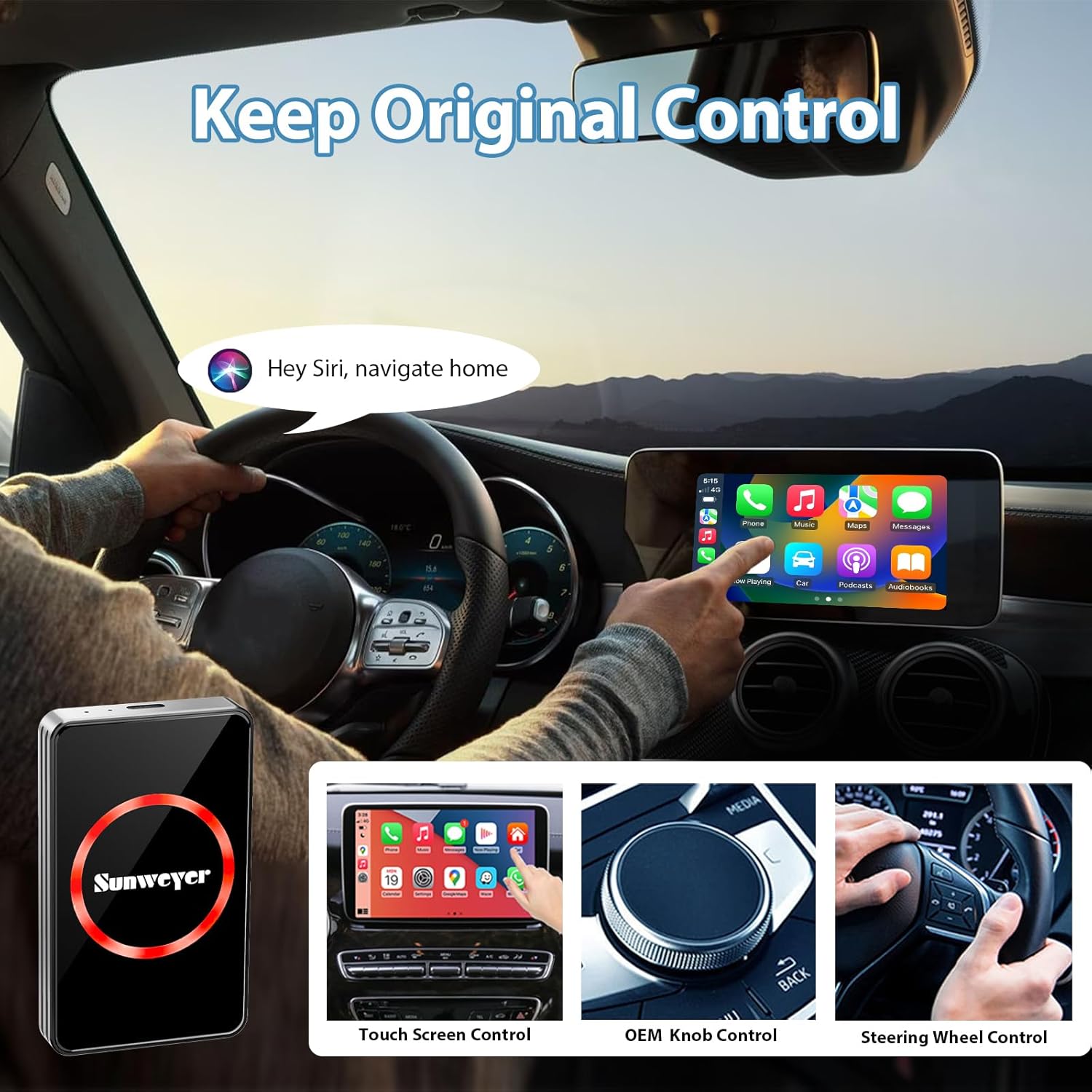
Image: Illustrations of different control methods for the device, including voice commands, steering wheel controls, touch screen interaction, and OEM knob usage.
Maintenance
- Keep the device clean and free from dust and debris. Use a soft, dry cloth for cleaning.
- Avoid exposing the device to extreme temperatures or direct sunlight for prolonged periods.
- Do not attempt to disassemble or repair the device yourself. Contact customer support for assistance.
- Ensure cables are properly connected and not strained to prevent damage to ports.
Troubleshooting
If you encounter issues with your Sunweyer SW12 Lite, refer to the following common solutions or contact support:
- Connection Issues: If you can't connect the SW12 to your car stereo, try changing to the Android Auto channel setting. For more details, refer to this guide: How to change Android Auto channel setting.
- Picture-in-Picture (PIP) Setting: Learn how to enable the picture-in-picture setting for multitasking. For more details, refer to this guide: How to enable picture-in-picture.
- Firmware Update: Instructions on how to install new firmware on your Sunweyer SW12. For more details, refer to this guide: How to install new firmware.
- YouTube App Login: If you can't watch the YouTube app, try logging into your Google account in the SW12 settings menu. For more details, refer to this guide: How to log in to YouTube app.
- Factory Reset: How to restore your Sunweyer SW12 to factory settings. For more details, refer to this guide: How to restore factory settings.
- Uploading Logs for Support: Instructions on how to upload logs to Sunweyer Tech support for advanced troubleshooting. For more details, refer to this guide: How to upload logs to support.
Specifications
| Feature | Detail |
|---|---|
| Model Name | SW12 Lite |
| Dimensions | 0.35 x 1.85 x 3.07 inches |
| Weight | 1.83 ounces |
| Color | Silver |
| Connectivity Technology | Bluetooth, Wi-Fi (2.4G/5.8G WiFi 6, Bluetooth 5.1) |
| Special Features | Android Auto, Apple CarPlay, Built-In Wi-Fi, Netflix Streaming, Wireless Carplay |
| Supported Internet Services | Netflix, YouTube, Hulu, Disney+, TikTok Lite, Prime Video |
| Output Resolution | 1080p |
| Processor | Quad-core CPU |
| Memory & Storage | 2GB RAM + 16GB Storage |
Warranty and Support
Sunweyer offers lifetime technical support for the SW12 Lite Wireless CarPlay Adapter. If you have any questions regarding compatibility with car models or phone models, or any other technical inquiries, our customer service team is available 24/7 to provide prompt and helpful answers.
For support, please contact Sunweyer customer service through the platform where you purchased the product or refer to the contact information provided in the product packaging.