
Mobility Lab ML314563
Mobility Lab Omega Bluetooth Wireless Mouse User Manual
Model: ML314563
1. Introduction
The Mobility Lab Omega Bluetooth Wireless Mouse is designed for versatility and ergonomic comfort, offering advanced technology for both professional and personal use. This manual provides essential information for setting up, operating, and maintaining your new mouse.

Image: Top view of the Mobility Lab Omega Bluetooth Wireless Mouse, showcasing its ergonomic design and scroll wheel.
2. What's in the Box
- Mobility Lab Omega Wireless Mouse
- 2-in-1 USB and USB-C Receiver
3. Setup and Installation
The Mobility Lab Omega mouse offers dual connection modes: Bluetooth and 2.4GHz wireless via a USB/USB-C receiver. No additional software installation is required for either method.
3.1. Battery Installation
The mouse requires batteries (not included). Locate the battery compartment on the underside of the mouse, open it, and insert the required batteries according to the polarity indicators. Close the compartment securely.
3.2. 2.4GHz Wireless Connection (USB/USB-C Receiver)
- Locate the 2-in-1 USB and USB-C receiver. This receiver is typically stored within the mouse's battery compartment or a dedicated slot.
- Plug the appropriate end of the receiver (USB-A or USB-C) into an available port on your computer (Windows PC or Mac).
- Turn on the mouse using the power switch located on its underside.
- The mouse is plug & play and should be recognized by your system automatically, allowing immediate use.

Image: The Mobility Lab Omega mouse shown with its versatile 2-in-1 USB and USB-C receiver, highlighting its dual connection capability.
3.3. Bluetooth Connection
- Ensure your computer's Bluetooth is enabled.
- Turn on the mouse using the power switch.
- Press and hold the Bluetooth pairing button (if available, otherwise the DPI button might double as pairing) on the mouse until the indicator light flashes, signifying it's in pairing mode.
- On your computer, go to Bluetooth settings and search for new devices. Select "Mobility Lab Omega" from the list of available devices to pair.
- Once paired, the mouse is ready for use.
4. Operating Instructions
4.1. Basic Functions
- Left Click: Primary selection and activation.
- Right Click: Accesses contextual menus.
- Scroll Wheel: Scrolls content vertically. Can also be clicked for middle-click functionality.
- Silent Clicks: The mouse is designed with ultra-quiet click buttons, minimizing noise in quiet environments.

Image: A close-up view of the mouse's top, emphasizing its soft-touch finish and the silent click design of the main buttons.
4.2. Adjustable DPI (Sensitivity)
The mouse features an adjustable DPI setting, allowing you to customize cursor sensitivity to your preference. The available DPI levels are 800, 1200, and 1600 DPI.
- Press the DPI button (usually located behind the scroll wheel) to cycle through the sensitivity settings.
- Each press will change the DPI, providing different levels of precision for various tasks, from detailed graphic work to fast browsing.
4.3. Side Buttons
Two intuitive side buttons are located on the left side of the mouse for enhanced productivity.
- "Next" Button: Typically moves forward in web browsers or file explorers.
- "Back" Button: Typically moves backward in web browsers or file explorers.

Image: Side view of the mouse illustrating the placement of the "Next" and "Back" side buttons, along with an icon representing the energy-saving function.
4.4. Energy Saving Mode
The mouse is equipped with an intelligent energy-saving system. When not in use for a period, it automatically enters sleep mode to conserve battery life. To reactivate, simply move the mouse or click any button.
5. Maintenance and Care
- Cleaning: Use a soft, dry cloth to clean the mouse. For stubborn dirt, a slightly damp cloth can be used, but ensure no moisture enters the internal components. Avoid harsh chemicals or abrasive cleaners.
- Battery Replacement: Replace batteries when the mouse performance degrades or it stops responding. Always use new batteries of the specified type.
- Storage: When not in use for extended periods, turn off the mouse to further conserve battery life. Store in a cool, dry place.
- Soft Touch Finish: The mouse features a soft-touch finish. To maintain its quality, avoid contact with sharp objects or harsh solvents that could damage the surface.
6. Troubleshooting
| Problem | Possible Solution |
|---|---|
| Mouse not responding |
|
| Cursor movement is erratic or jumpy |
|
| Side buttons not working |
|
7. Specifications
| Feature | Detail |
|---|---|
| Model Name | Omega |
| Model Number | ML314563 |
| Connectivity | Bluetooth, 2.4GHz Wireless (via USB/USB-C receiver) |
| DPI Settings | 800, 1200, 1600 DPI (Adjustable) |
| Buttons | Left, Right, Scroll Wheel Click, DPI Button, Next, Back (Side Buttons) |
| Click Type | Ultra-quiet clicks |
| Power Source | Battery Powered (Batteries not included) |
| Compatibility | Windows 10, macOS, Windows PC, Mac |
| Dimensions (L x W x H) | 108 mm x 69 mm x 40 mm |
| Weight | 64 g |
| Special Features | Ergonomic design, Soft touch texture, Energy saving mode |
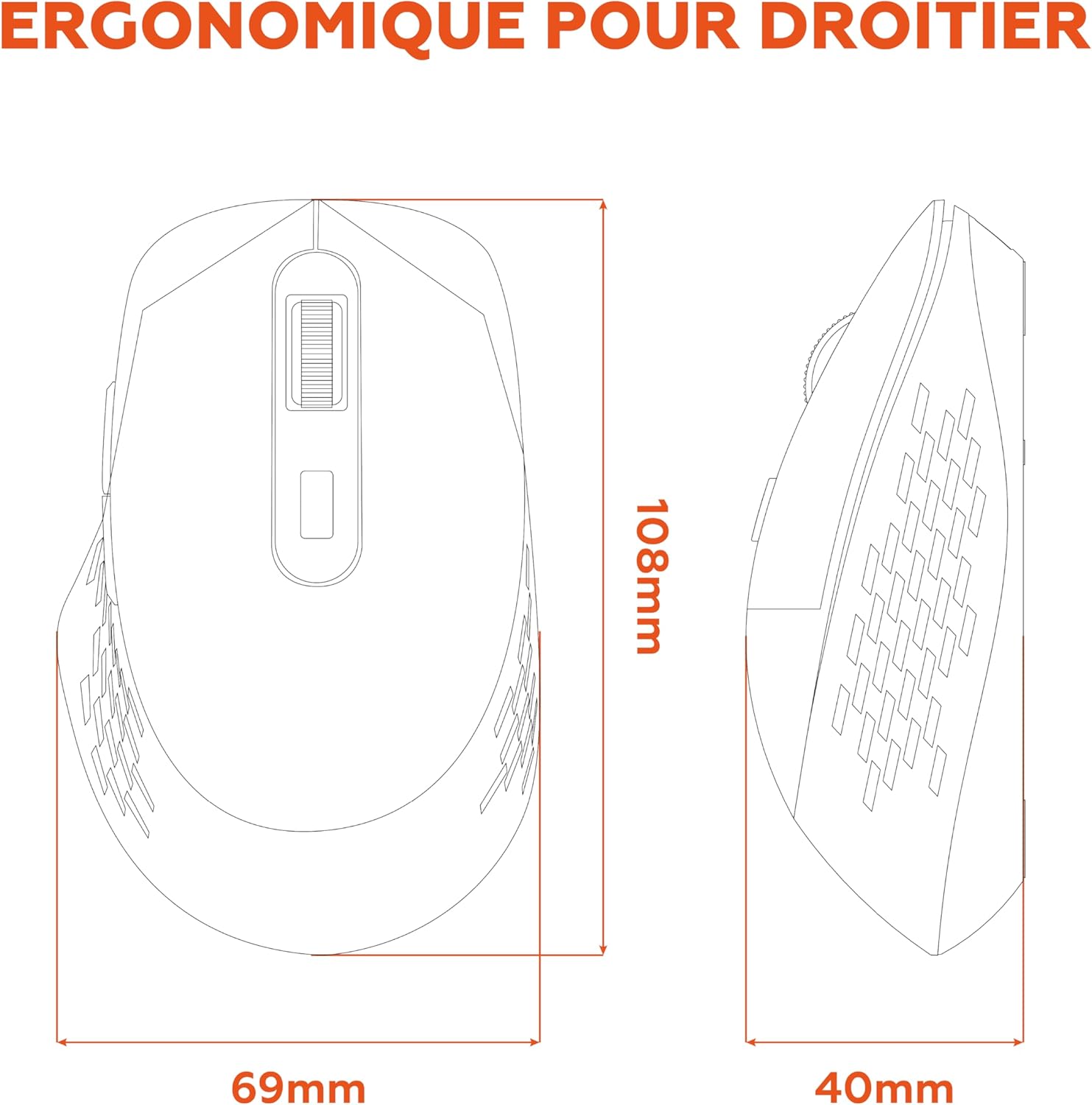
Image: Technical diagram illustrating the ergonomic shape and precise dimensions (length, width, height) of the Mobility Lab Omega mouse.
8. Warranty and Support
For warranty information and technical support, please refer to the documentation included with your purchase or visit the official Mobility Lab website. Keep your proof of purchase for warranty claims.
Manufacturer: MOBILITY
Related documentsML314563


Ask a question about this manual
Ask about setup, troubleshooting, compatibility, parts, safety, or missing instructions. Manuals+ will review the question and use this page’s manual context to help answer it.