
EMONAIR ET01
EMONAIR Mate Tracker Tags User Manual
Model: ET01
Brand: EMONAIR
1. Introduction
Welcome to the EMONAIR Mate Tracker Tags user manual. This guide provides detailed instructions on how to set up, operate, and maintain your new Bluetooth item finders. Designed to work seamlessly with the Apple Find My app, these tags help you locate your valuable items quickly and efficiently.
2. Important Safety Information
- Battery Safety: The device uses a replaceable CR2032 coin cell battery. Do not ingest the battery; it can cause severe internal burns. Keep new and used batteries away from children. If the battery compartment does not close securely, stop using the product and keep it away from children. If you think batteries might have been swallowed or placed inside any part of the body, seek immediate medical attention.
- Water Resistance: The EMONAIR Mate Tracker Tags are rated IP67, meaning they are resistant to water splashes, rain, and short-term submersion. However, they are not designed for prolonged submersion or high-pressure water exposure. Ensure the battery compartment is securely closed before exposure to water.
- Operating Temperature: Operate the device within standard environmental temperatures. Extreme temperatures can affect battery life and device performance.
- Disposal: Dispose of the device and batteries according to local regulations. Do not dispose of batteries in fire.
3. Package Contents
Please check the package to ensure all items are present:
- EMONAIR Mate Tracker Tags (4 Pack: 2 Black, 2 White)
- CR2032 Batteries (pre-installed)
- Small Screwdriver (for battery replacement)
- Lanyard (optional attachment)
- Sticky Pad (optional attachment)
4. Product Overview
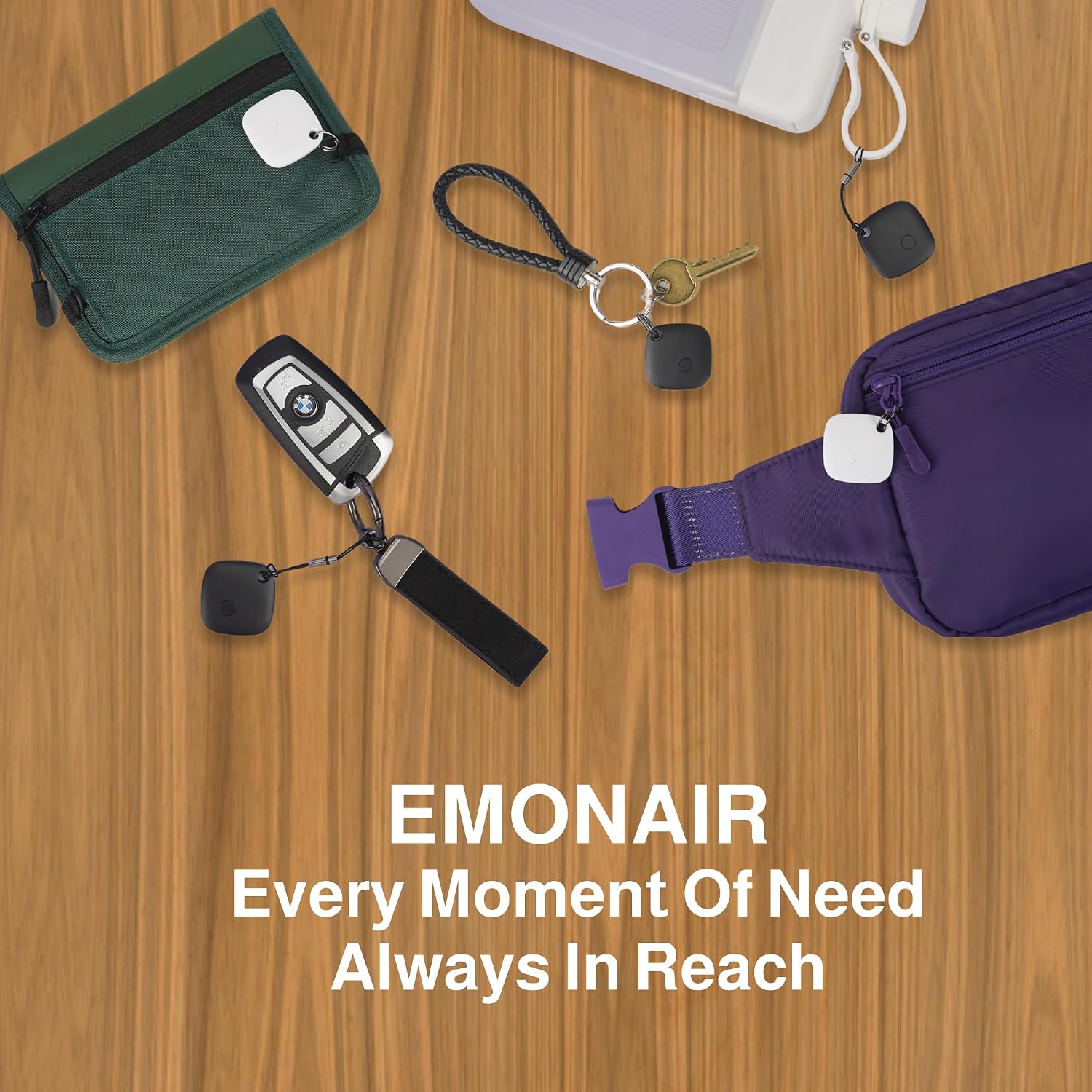
The EMONAIR Mate Tracker Tags are compact and lightweight devices designed to help you keep track of your belongings. Each tag features a single button for operation and a key ring hole for easy attachment.


5. Setup
Pairing with Apple Find My App (iOS Only)
The EMONAIR Mate Tracker Tags are designed exclusively for iOS devices and work with the Apple Find My app. Ensure your iOS device is updated to the latest version.
- Enable Bluetooth: Go to your iOS device's Settings, then Bluetooth, and ensure Bluetooth is turned ON.
- Open Find My App: Launch the 'Find My' app on your iPhone or iPad.
- Activate Tracker Tag: Press the button on the EMONAIR Mate Tracker Tag. Release the button when you hear a beep, indicating the tag has entered pairing mode.
- Add Item: In the Find My app, tap on the 'Items' tab, then tap 'Add Item'.
- Select Other Supported Item: Choose 'Other Supported Item' from the options.
- Connect: The app will detect your EMONAIR Mate Tracker Tag. Tap 'Connect' and follow the on-screen instructions to complete the pairing process, including naming your tag.

This video demonstrates the setup and various uses of the EMONAIR Mate Tracker Tags, including attaching them to keys and bottles, and their compatibility with the Apple Find My app.
6. Operating Your Tracker Tags
Finding Items
There are two primary ways to find your items using the EMONAIR Mate Tracker Tags:
- Play Sound: When your tag is within Bluetooth range (up to 200 feet), open the Find My app, select your tag, and tap 'Play Sound'. The tag will emit a loud sound (80-100 decibels) to help you locate it. You can also ask Siri for help.
- Map Navigation: If your tag is out of Bluetooth range, the Find My app will display its last known location on a map. You can use the app's navigation feature to guide you to the general area where your item was last detected by the Apple Find My network.

Left-Behind Remind
The 'Left-Behind Remind' feature in the Find My app provides instant notifications if you leave an item with an EMONAIR Mate Tracker Tag behind. This helps prevent accidental loss by alerting you when the tag goes out of Bluetooth range from your iOS device.

Lost Mode
If an item with your EMONAIR Mate Tracker Tag is lost, you can activate 'Lost Mode' in the Find My app. When in Lost Mode, if another Apple device user comes within range of your tag, you will receive an updated location. You can also add contact information so that if someone finds your tag, they can scan it and see your contact details.

7. Care and Maintenance
Battery Replacement
The EMONAIR Mate Tracker Tags use a replaceable CR2032 coin cell battery, which typically lasts between 12 to 25 months depending on usage. You can check the battery status within the Find My app.
To replace the battery:
- Locate the small screw on the back of the tracker tag.
- Use the provided small screwdriver to carefully open the battery compartment.
- Remove the old CR2032 battery.
- Insert a new CR2032 battery with the positive (+) side facing up.
- Securely close the battery compartment, ensuring the screw is tightened to maintain water resistance.
Water and Dust Resistance
The EMONAIR Mate Tracker Tags are IP67 rated, providing protection against dust ingress and temporary immersion in water (up to 1 meter for 30 minutes). This means they can withstand splashes, rain, and brief accidental submersions. However, it is not recommended for swimming or prolonged water activities. Always ensure the battery compartment is properly sealed after replacement to maintain its water resistance.
8. Troubleshooting Common Issues
| Problem | Possible Cause | Solution |
|---|---|---|
| Cannot pair the tag with the Find My app. | Bluetooth is off; tag not in pairing mode; low battery; interference. | Ensure Bluetooth is enabled on your iOS device. Press the tag's button to activate pairing mode (listen for a beep). Check battery level and replace if necessary. Move away from other electronic devices. |
| Tag sound is too low or not audible. | Low battery; tag is too far away; environmental noise. | Replace the CR2032 battery. Ensure you are within Bluetooth range (approx. 200 feet). Move to a quieter environment if possible. |
| Location in Find My app is inaccurate or not updating. | Tag is out of range of any Apple device; network issues. | The Find My network relies on nearby Apple devices. If the tag is in a remote area, updates may be less frequent. Ensure your own device has a stable internet connection. |
| Left-Behind Remind not working. | Feature not enabled in Find My app; app permissions. | Verify that 'Notify When Left Behind' is enabled for the specific tag in the Find My app settings. Check location services and notification permissions for the Find My app on your iOS device. |
9. Product Specifications
| Feature | Specification |
|---|---|
| Model Number | ET01 |
| Dimensions (L x W x H) | 0.3 x 1.3 x 1.3 inches (7.9 x 33 x 33 mm) |
| Item Weight | 0.264 ounces (7.6 grams) |
| Connectivity Technology | Bluetooth |
| Compatibility | iOS devices only (iPhone, iPad, Mac) |
| Battery Type | CR2032 (included) |
| Battery Life | 12-25 months (typical) |
| Water & Dust Resistance | IP67 rated |
| Sound Level | 80-100 decibels |
| Material | Polycarbonate (PC), Acrylonitrile Butadiene Styrene (ABS) |
10. Warranty and Customer Support
For any questions, technical assistance, or warranty inquiries regarding your EMONAIR Mate Tracker Tags, please contact EMONAIR customer support through the platform where you purchased the product. Please refer to your purchase documentation for specific warranty terms and conditions.
Related documentsET01

Ask a question about this manual
Ask about setup, troubleshooting, compatibility, parts, safety, or missing instructions. Manuals+ will review the question and use this page’s manual context to help answer it.